
 52 articles
Skull and Bones has a massive world to explore, and sailing the open seas can take forever! Which is the problem that Fast Travel is there to fix, but sometimes it’s just not working.
The issue seems to be caused by a certain type of Contract you can take, mostly related to the Supply Network part of the game. Thankfully, the fix is extremely simple!
In this short article, we’ll tell you how to restore your Fast Travel functionality so you don’t have to spend hours sailing everywhere in Skull and Bones.
How to Fix Fast Travel Not Working
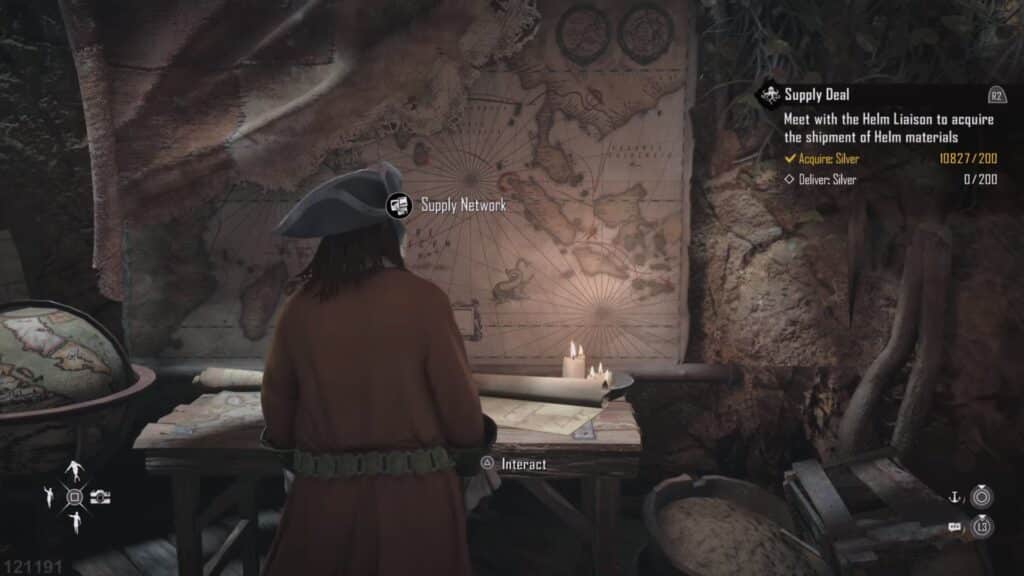
The culprit that’s causing Fast Travel to not be working is almost always an unfinished Contract related to the Supply Network. It seems to affect people who played during the game’s beta period more.
 Skull and Bones: How to Defeat the Fleet of PestilenceMar 2, 2024
 Skull and Bones: Islands of the Moon Treasure LocationFeb 18, 2024
 How to Do Hostile Takeovers in Skull and BonesFeb 18, 2024
It also seems to mostly happen the moment you’re introduced to the Supply Network and take on your first Contract for it.
Supply Order Contracts require you to go from point A to point B without using Fast Travel. As such, they will disable Fast Travel features while active. Completing them will restore Fast Travel.
That said, sometimes the Contract will also glitch out and become impossible to complete. Thus, no Fast Travel for you because the Supply Order is active, despite it being impossible to fulfill!
Abandon All Contracts
Thankfully, you can Abandon any Contract you want at any time. You can just Abandon the pesky Contract that prevents you from using Fast Travel to restore its functionality.
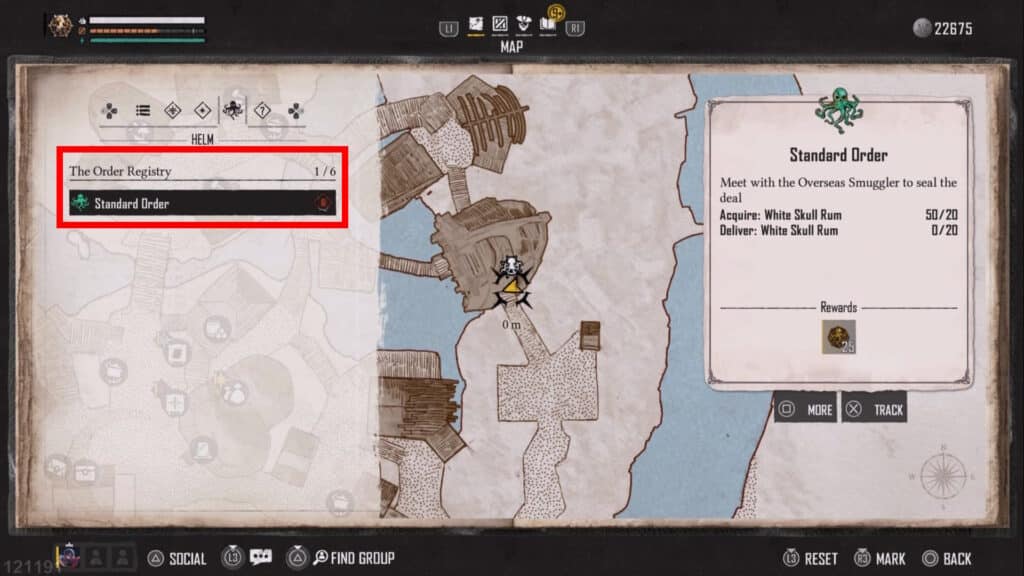
To do so, open up your Journal in-game and go to the Helm category.
You should see a “Standard Order” Contract under The Order Registry. It should have a green symbol that looks like a skull with a tentacle beard, like a Kraken.
Either way, simply highlight the contract and hold down X (Xbox), Square (PlayStation), or F (PC) to abandon the Contract.
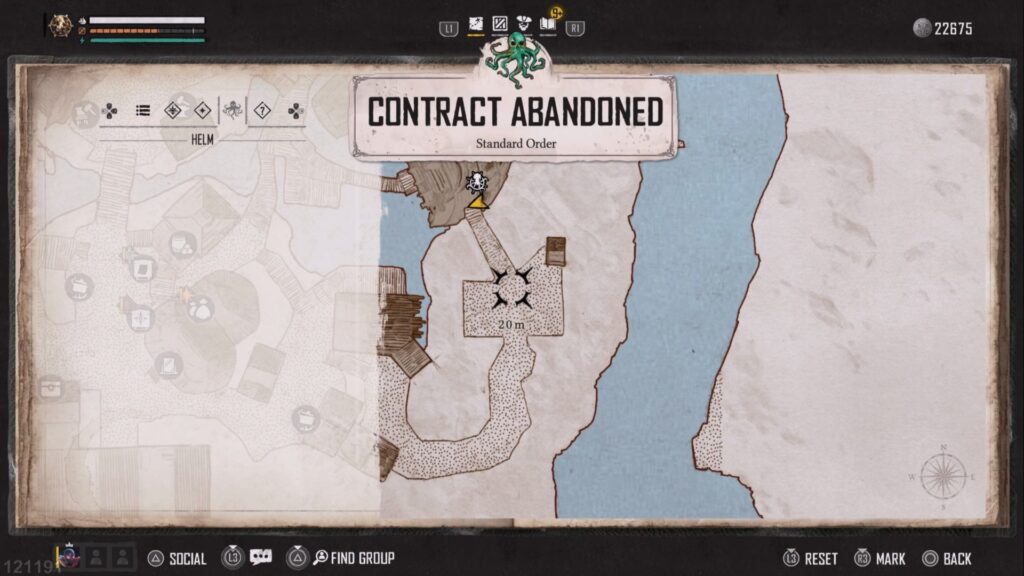
Accept the prompt that comes up and you will be rid of that pesky bugged Contract!
Of course, this also works if you simply accepted a Supply Order Contract and you don’t want to finish it. It’s not really a bug in that case, after all, it’s just that these Contracts disable Fast Travel.
Nonetheless, now you know what the issue is and how to fix it whenever Fast Travel is not working for you!
ALSO READ: How to Get the Fastest Ship in Skull and Bones (Hullbreaker Brigantine)