 34 articles
Voice chat is a pretty handy feature in Overwatch as it lets you speak directly to your teammates without having to type your message in the chat. However, this will require you to have an active and working microphone on your system.
If you don’t have one, then you can use the ping feature instead. Let’s find out how you can do so.
How to Ping Enemy Location | Communicate With Team with No Mic in Overwatch 2
Credits: YourSixGaming
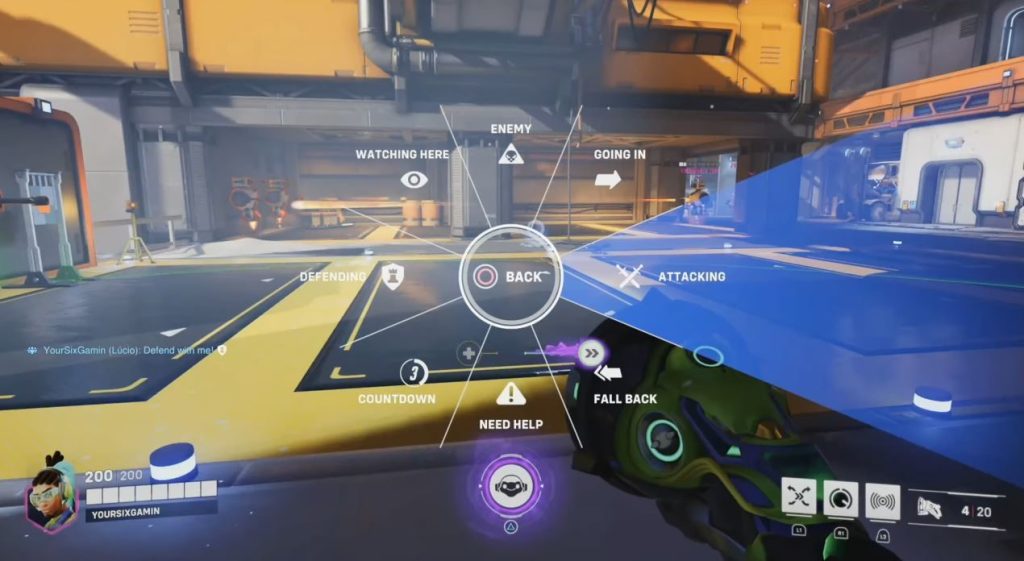
With the ping feature, you can communicate with your team even without a mic. However, your communication will be limited to several canned messages. Still, these messages are way better than nothing as it lets you provide tactical information to your teammates on the fly.
 How to Climb in OverwatchMay 21, 2026
 Overwatch 2: How to Change Hero SkinMar 22, 2023
 Overwatch 2: How to Unlock and Equip Name CardJan 26, 2026
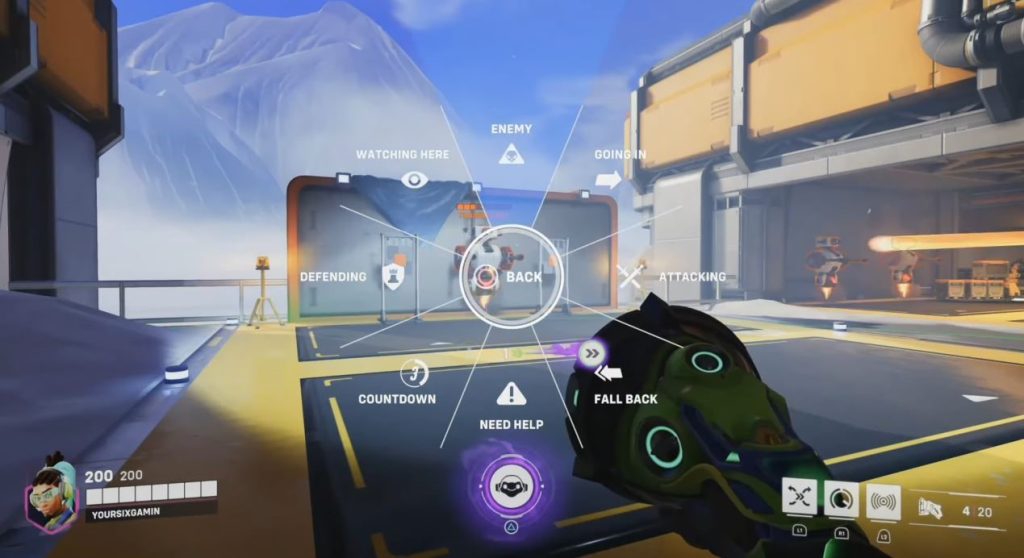
To do this, all you need to do is press and hold the left D-pad button. This will then bring up the communication wheel which contains various messages.
Credits: YourSixGaming
In order to send a message, simply pick a message from one of the few in the communication wheel. This will then display that message to your team. At the same time, to ping the enemy location, you can do the same method. This time, however, you choose the Enemy option at the top of the wheel.
This will then ping your target enemy location so your team can respond accordingly.
Customizing Your Message
Another nifty addition to this feature is that you have the option to change which messages are displayed in the communication wheel. There are actually a handful of messages you can choose from. All you have to do is head over to your main menu and choose Option.
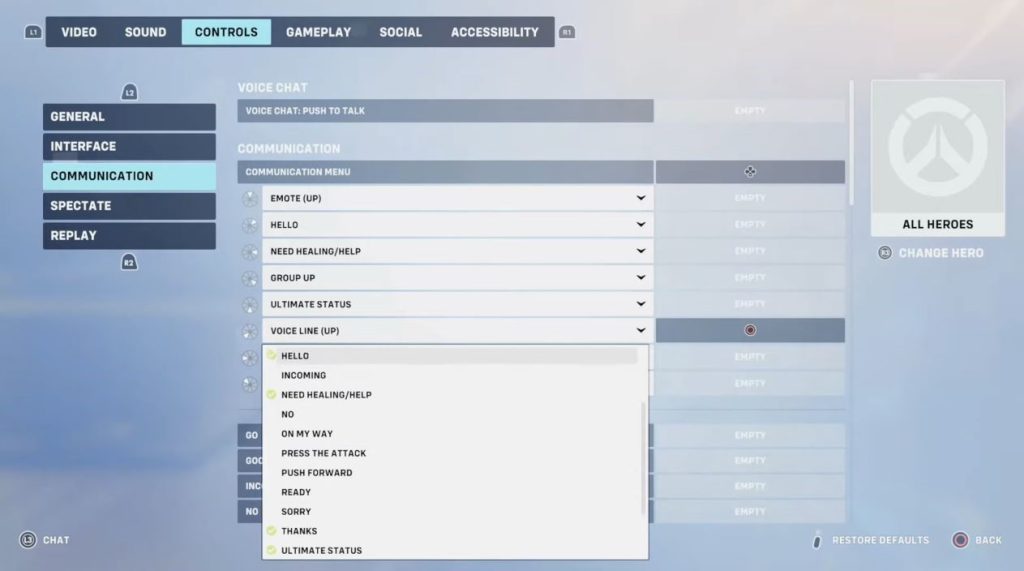
Credits: YourSixGaming
Inside, head over to the Controls tab, and view the Communication section below. Under the Communication section, you will find a list of default messages that appear in the communication wheel.
Simply choose which message you want to be replaced and pick the replacement that you prefer. You even have the option to set a hotkey for certain messages for even faster communication.