104 articles
When playing Last Epoch, changing the graphics quality can be critical to improve your experience. You may want to set it really high if you have a beast of a machine or want to see all the pretty details. More often though, you will need to find a balance between the lowest settings, while maintaining decent visual quality. This is how to do just that!
How to Change Graphics/Terrain Quality
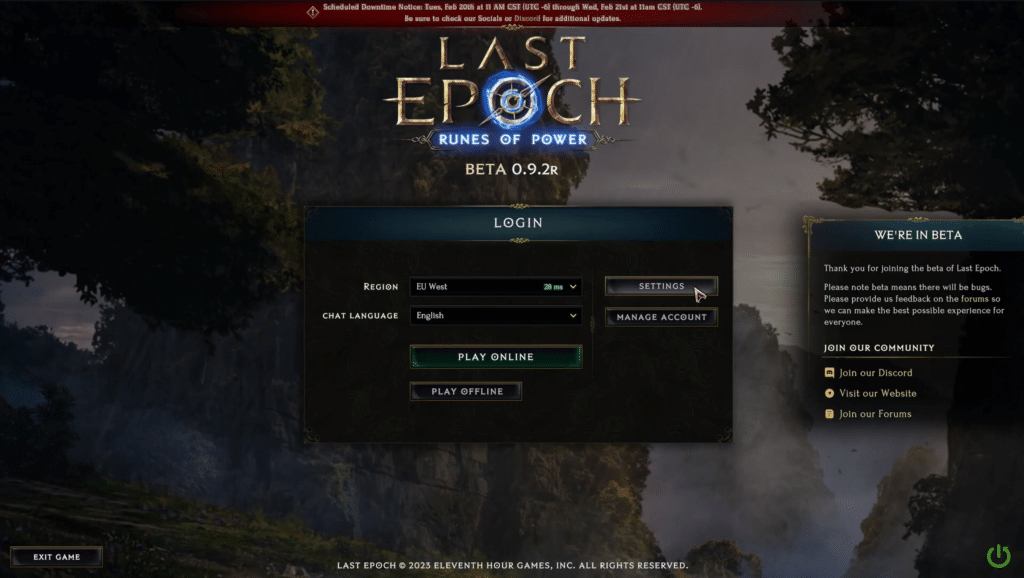
There are two major aspects to look at if you want to adjust the look of the world you play in. and this is how to find and change them!
First of all, from the login screen click on settings.
Basic Settings
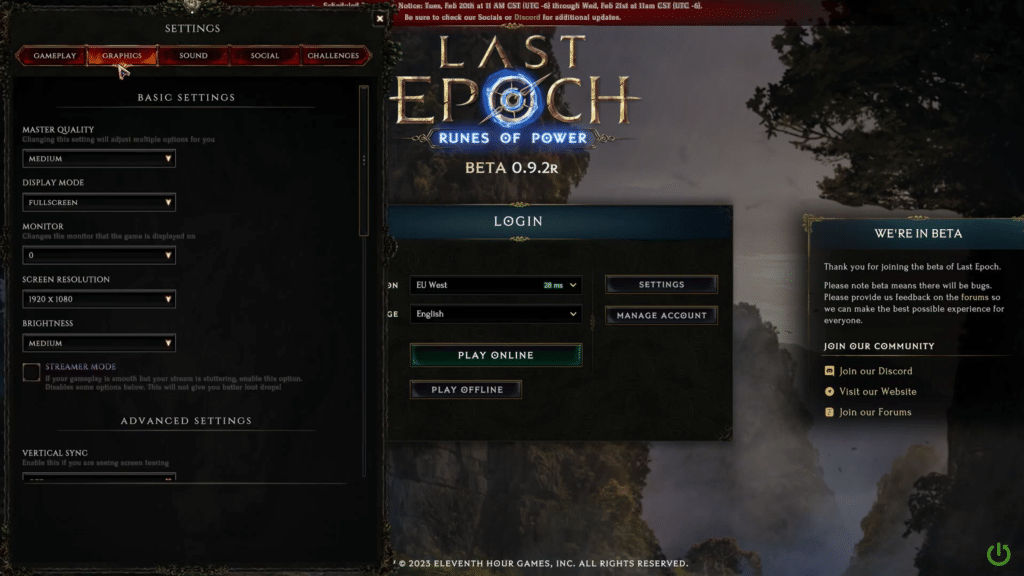
When the settings menu pops up, navigate over to the Graphics tab.
 Everything New In Last Epoch Season 4Mar 29, 2026
 How To Progress Through Endgame In Last Epoch For New And Returning Players (Season 4)Mar 28, 2026
 How To Get A Lot of Corruption in Last Epoch Season 4Mar 28, 2026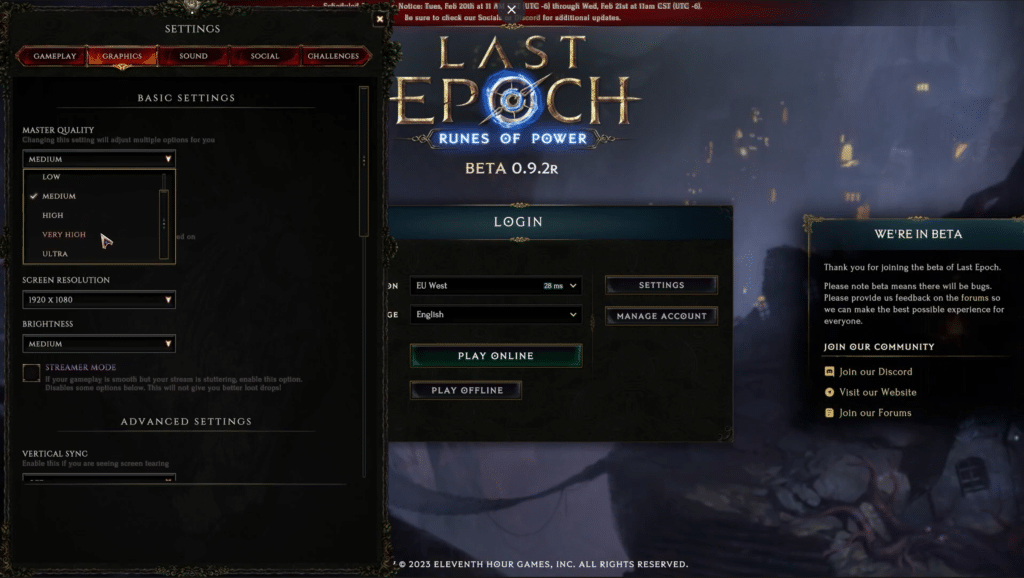
The first and most important thing for most people to change is the Master Quality setting under Basic Settings. This changes the overall graphics in all respects, and most often playing on Medium will be decent for most people.
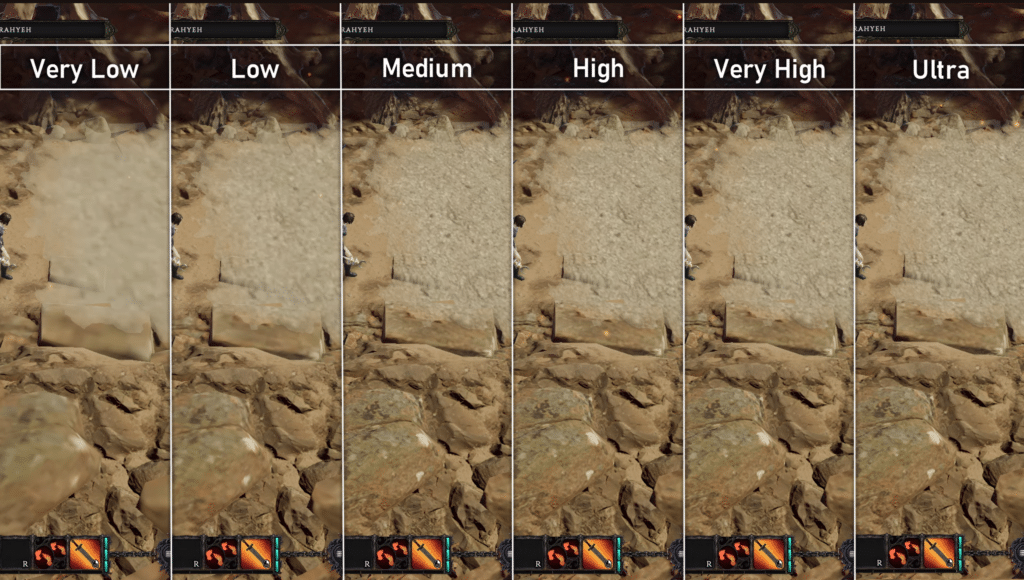
Most notably this affects the texture quality. Very Low gives a blurry finish to all the details on the terrain. Medium gives a decent amount of detail with very little noticeable change between Medium and Ultra, making it generally the ideal setting for most people.
Advanced Settings
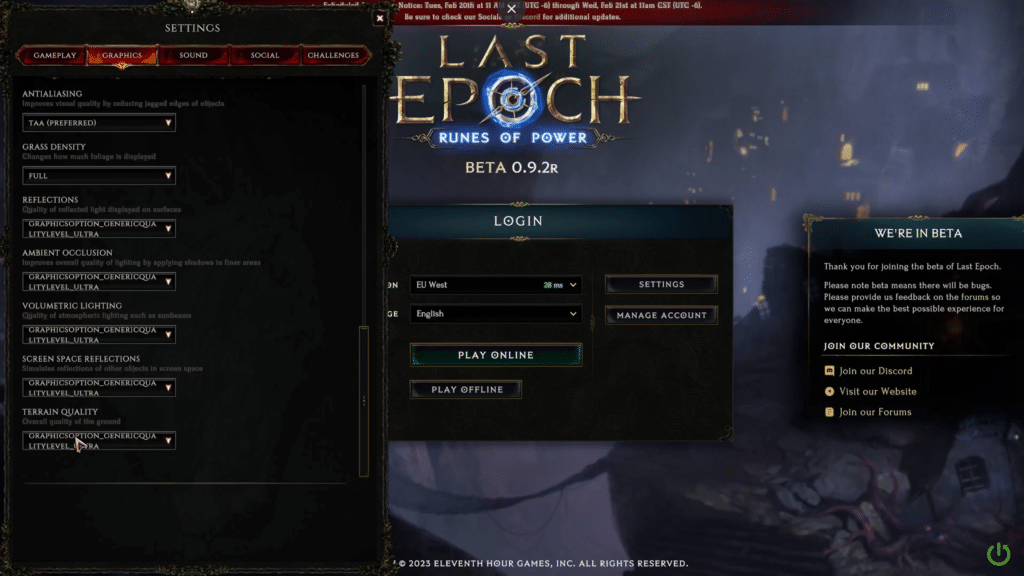
If you are more particular about the specific aspects you want to change simply scroll down to Advanced Settings. Right near the bottom, you will find the setting Terrain Quality.
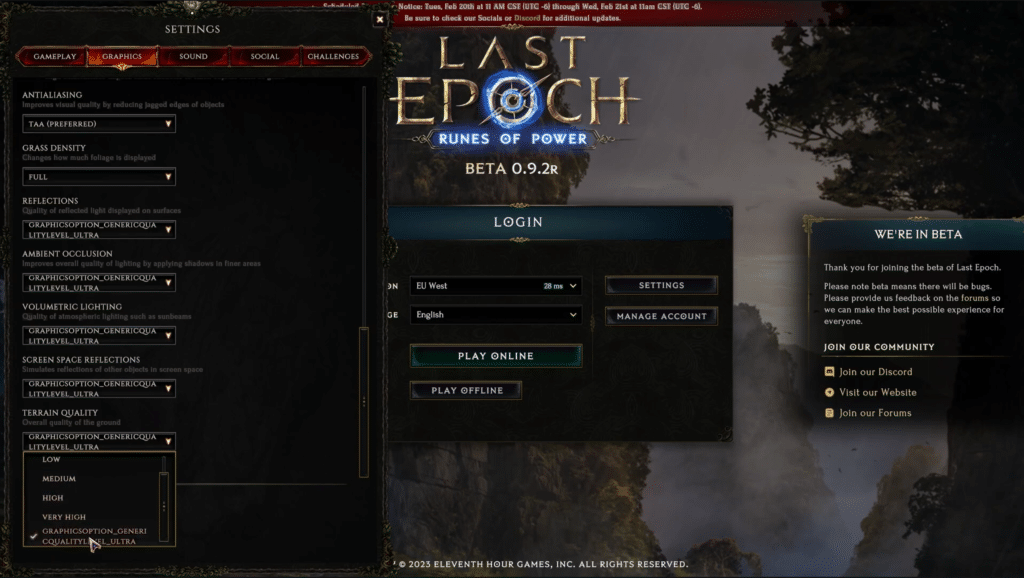
This setting changes the actual geometry of rocks and boulders and such. It also goes all the way from Very Low to Ultra.
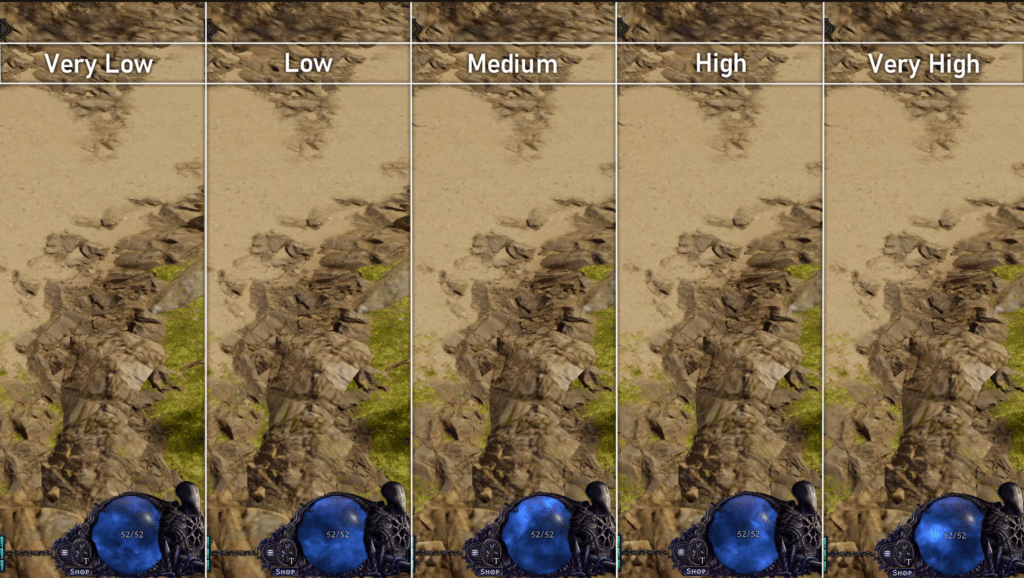
However, adjusting Terrain Quality does not affect the texture quality. If your textures are already set to a decent quality there is almost no visibly noticeable change in quality between Very Low – Ultra.
What Settings Are Optimal?
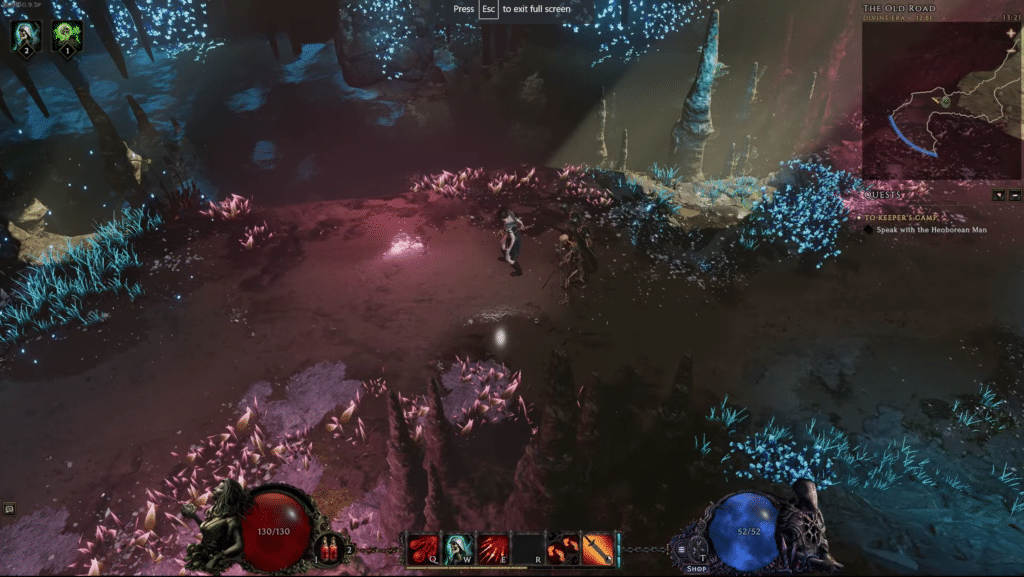
You can have a detailed look at what settings are optimal and what each tab does if you are interested. However, for a quick advanced setup that will give you all-round decent visuals without putting too much strain on your computer try out the following settings:
- Master Quality – Medium/High
- Shadow Quality – Medium/ Very high (no noticeable difference between Med/High)
- Anti-Aliasing – SMAA/Off
- Reflections – Low/Medium
- Ambient Occlusion – Low
- Screen Space Reflections – Low (High if reflections are turned off)
- Terrain Quality – Very Low
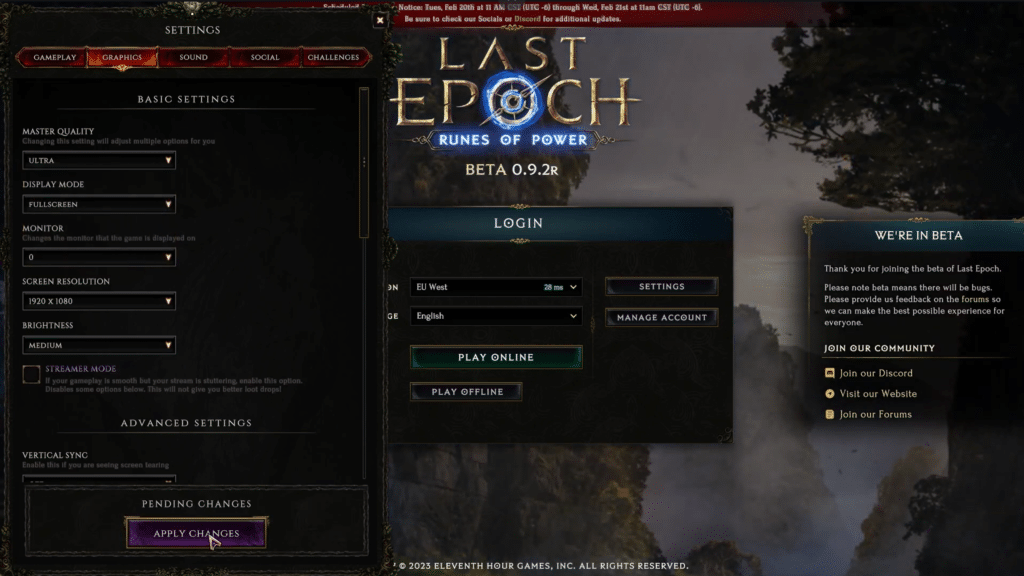
Once you are done, do not forget to click on the Apply Changes button to lock in your settings! Naturally, things may vary from system to system and change as new patches are released but this should give you a pretty good start!
ALSO READ: Can You Restore a Deleted Character in Last Epoch?