104 articles
In action RPGs like Last Epoch, you will get a lot of loot, and eventually, you will need to learn how to import and export loot filters. After a few hours, some of the items your enemies drop won’t be useful, but there will be a lot of them. Learning how to use loot filters and how to export and import the right ones can save you time and space.
Inventory management is always a challenge in games where you must farm most of the items you use from drops. This one isn’t the exception, and after some point in your game, you will need to pick and choose what you grab. Using a filter for the loot you get will make this task easier and will help you get more valuables in less time.
How to Import and Export Loot Filters
With a loot filter, you will be able to remove certain items from your display, highlighting only the drops you want. Their nameplates will disappear, but you will be able to see only the items you are interested in. You can recolor the items, make them brighter, and overall make them easier to identify by type, value, and more.
How to export loot filters
In-game filters are good enough at the beginning of the game; however, a well-crafted filter is more useful and can be adapted to your needs. You could create one of your own, but there are a lot of pre-made filters that can fit whatever you need. To export filters, you must:
 Everything New In Last Epoch Season 4Mar 29, 2026
 How To Progress Through Endgame In Last Epoch For New And Returning Players (Season 4)Mar 28, 2026
 How To Get A Lot of Corruption in Last Epoch Season 4Mar 28, 2026
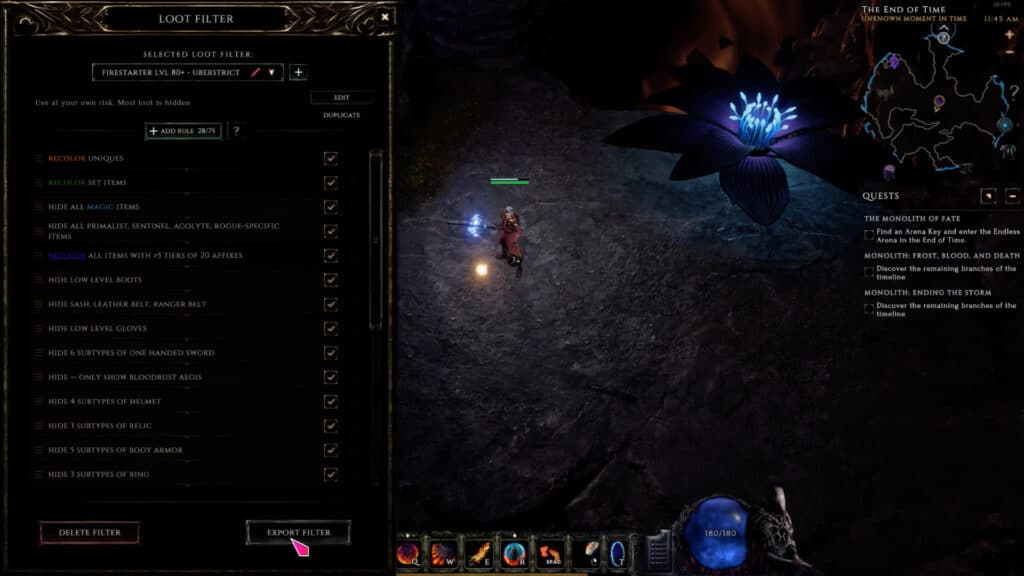
Open the in-game filter menu and click on Export Filter.
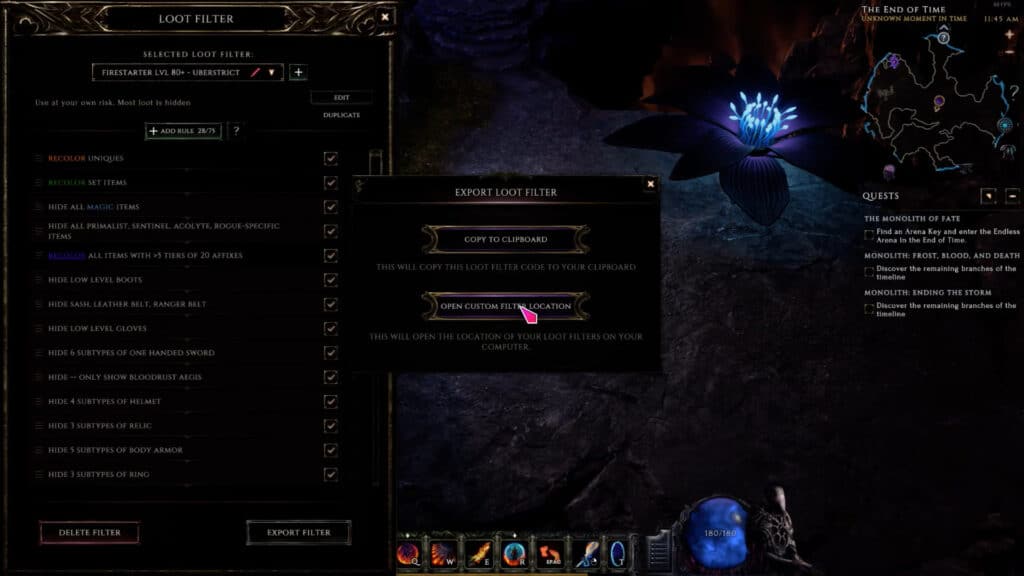
Click on the open custom filter location.
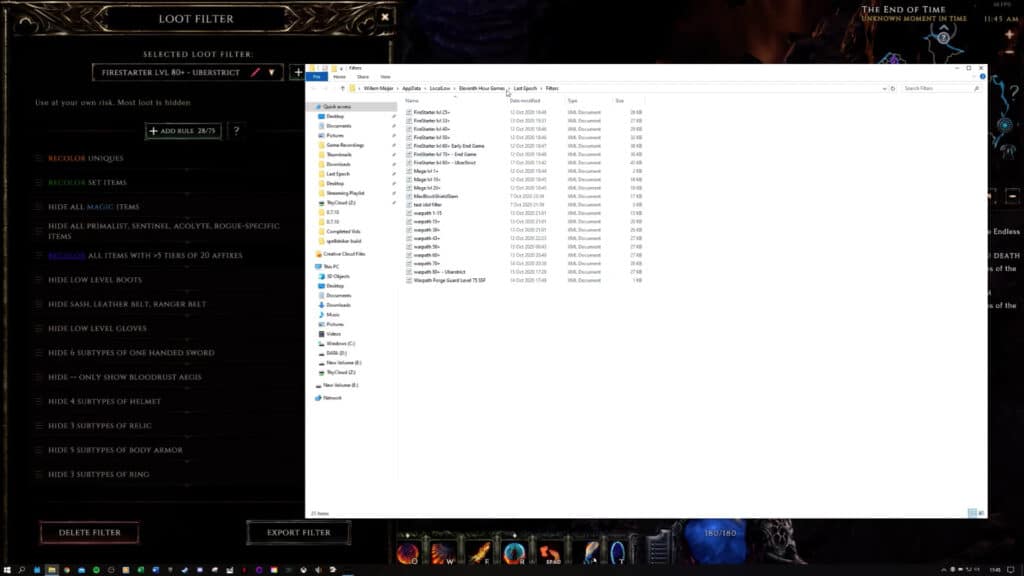
After you click on that option, you will see the location and the available filters you have.
If, for any reason, you want to do this outside of the game, you can do it by using Windows Explore. Type “%appdata%”.
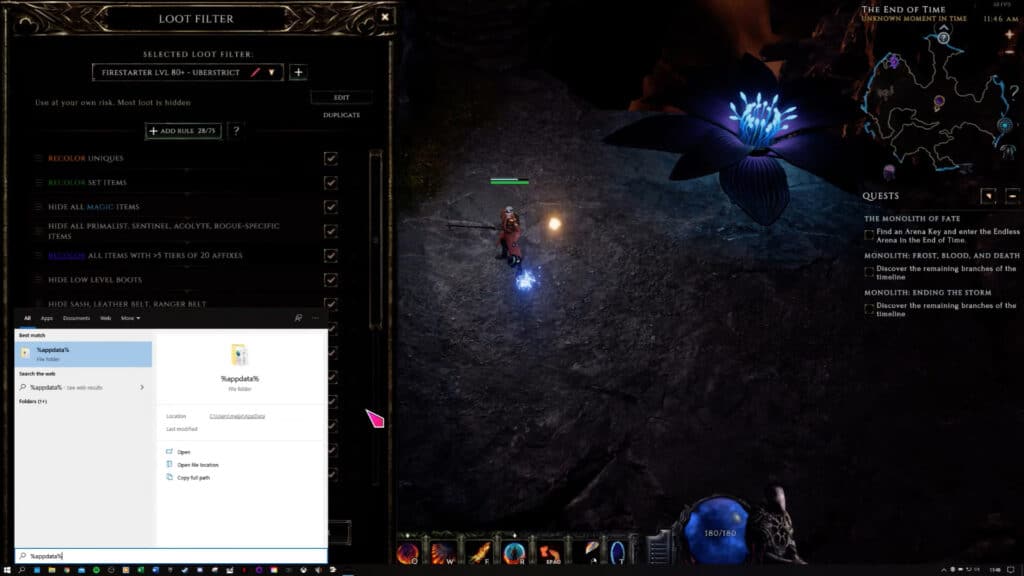
Click on local low, then click on the game folder and look for “filters.”
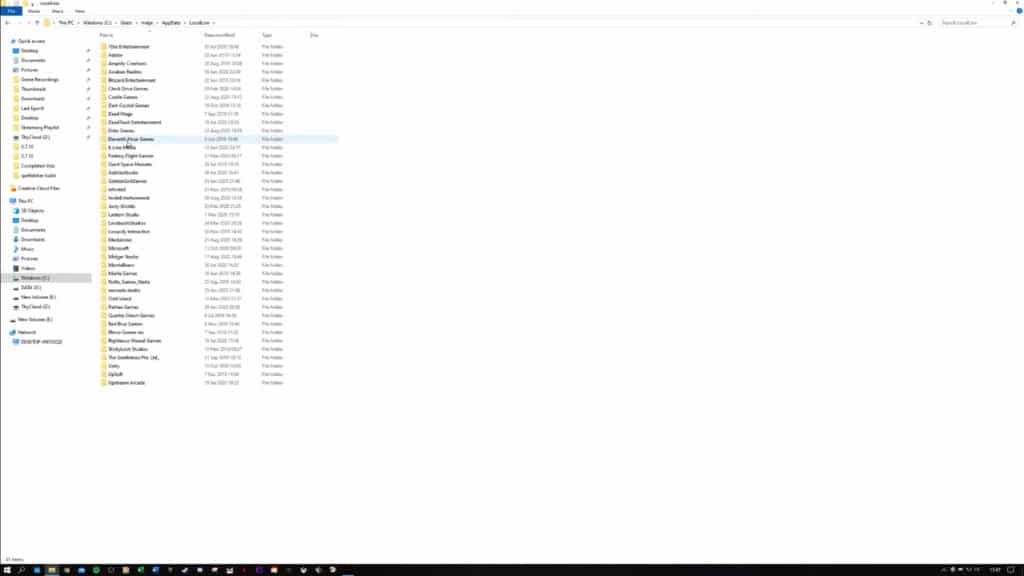
If you did everything well, you should be able to see the custom filter in the “loot filter” tab in the filter menu.
How to export a loot filter
This is even easier than importing the file you need. First, you need to go to the filter folder in the game folder.
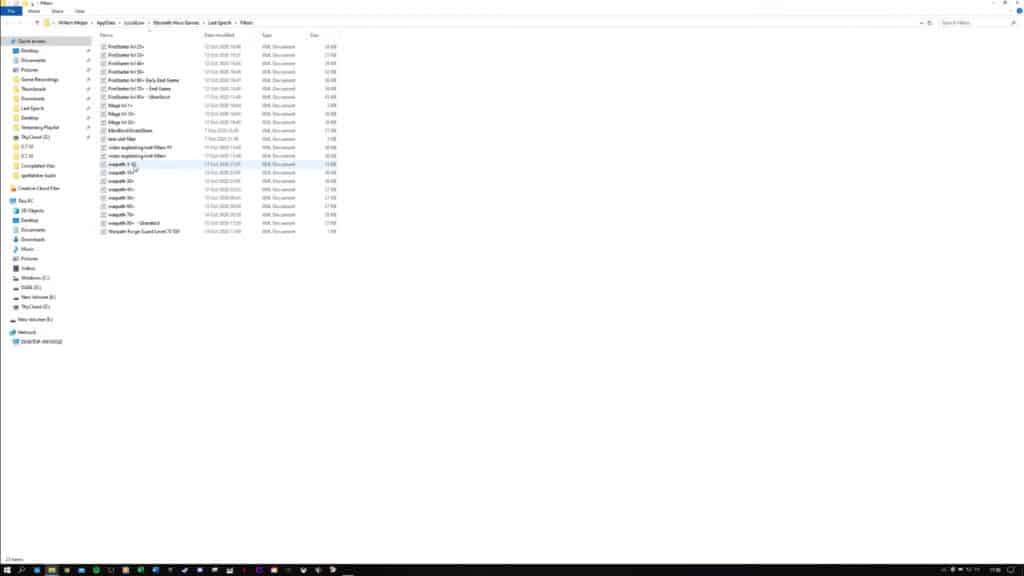
Now select all the files you want to export and create a zip file with them.

You can send the zip file to anyone or upload it in the game community forum. There’s a native way to export a file, but that will copy the whole code to your clipboard. This isn’t straightforward and can be very user-unfriendly if you are new to coding or the game.
ALSO READ: Last Epoch: Unique Item Farming Guide