104 articles
Keeping track of your PC performance in Last Epoch is very useful, and learning how to enable the FPS counter is a must. Performance is an issue for most players, and it’s worse if you can’t play in the best settings. Checking your FPS can tell you how your PC is doing and if the settings you already set are the best for what you have.
There are ways to modify how your PC and the games behave. Not only do some games allow it, but the Steam settings can help you too. You can access them at any time, and you can control and manage the FPS and more, no matter which GPU you have.
How to Enable FPS Counter in Last Epoch?
There are two ways to enable this, depending on whether you have Nvidia or not. If you have Nvidia, you can just press F1, and the FPS will show thanks to the Nvidia Experience. If this doesn’t work, you must:
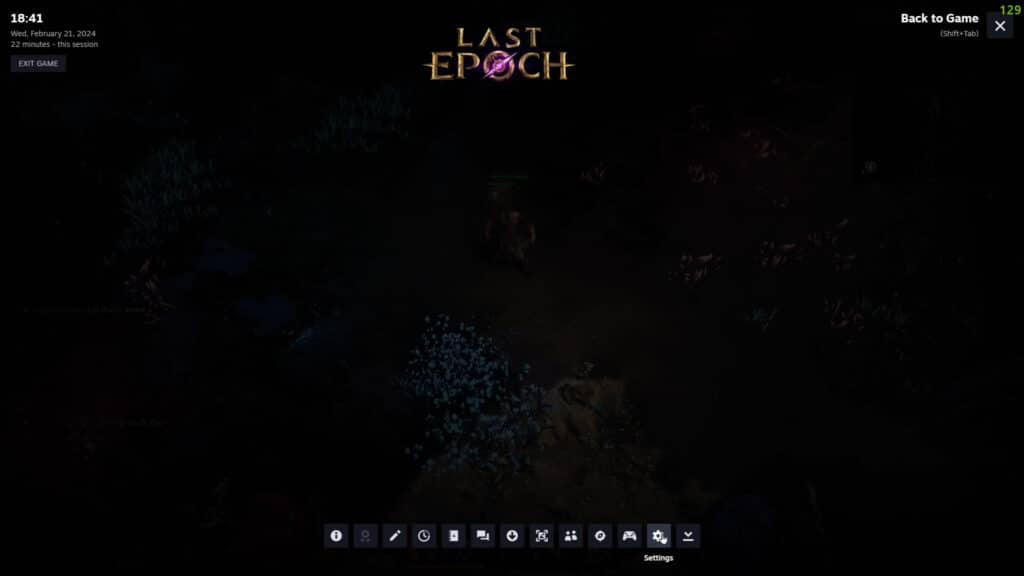
Press Shift+Tab on your keyboard to open the Steam Overlay in the game.
 Everything New In Last Epoch Season 4Mar 29, 2026
 How To Progress Through Endgame In Last Epoch For New And Returning Players (Season 4)Mar 28, 2026
 How To Get A Lot of Corruption in Last Epoch Season 4Mar 28, 2026
Click on Settings.
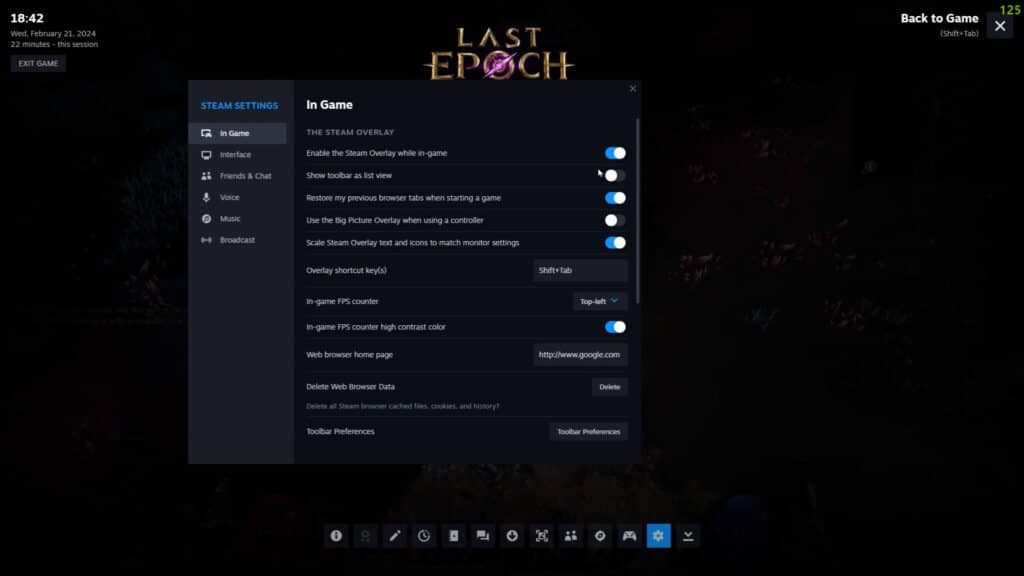
Enable the Steam overlay in the game.
Enable the FPS counter and choose where you want to see it on the screen.
Turn on FPS high contrast color too, if you want to really see the numbers.
Last Epoch requires a lot of power, but you can run it on a very mid-computer if you have a GPU and the right setup. Controlling the FPS can help you a lot while you try to find the best settings overall.
ALSO READ: Last Epoch: How to Use Loot Filters