 19 articles
If you’re playing Battlefield 6 with a controller, it’s important to learn how to turn aim assist on or off. Some players like having it on, as it can greatly help make up for the lower precision controllers have compared to mice. On the other hand, others just hate how it feels like they lose manual aim control due to it. Thankfully, this game has more than just a binary “on or off” setting! Read on, we’ll tell you all you need to adjust aim assist to your liking.
How To Turn Controller Aim Assist On/Off | Battlefield 6
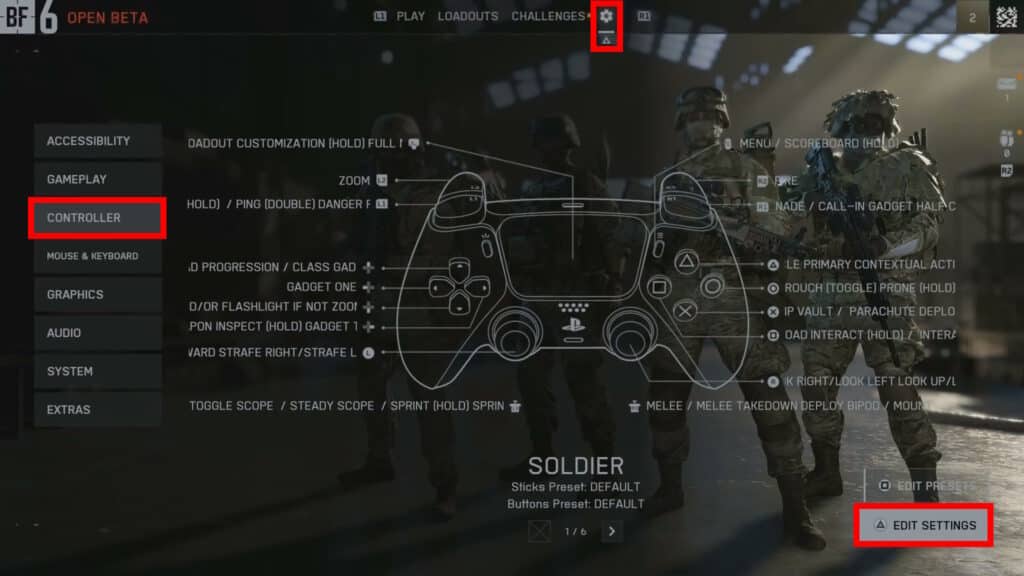
To start, the first thing you need to do is to click on the cog-shaped icon at the top of the main menu. This will bring you to the game’s settings, where you need to select Controller. While in that part of the menu, enter Edit Settings by pressing Triangle (PlayStation) or Y (Xbox).
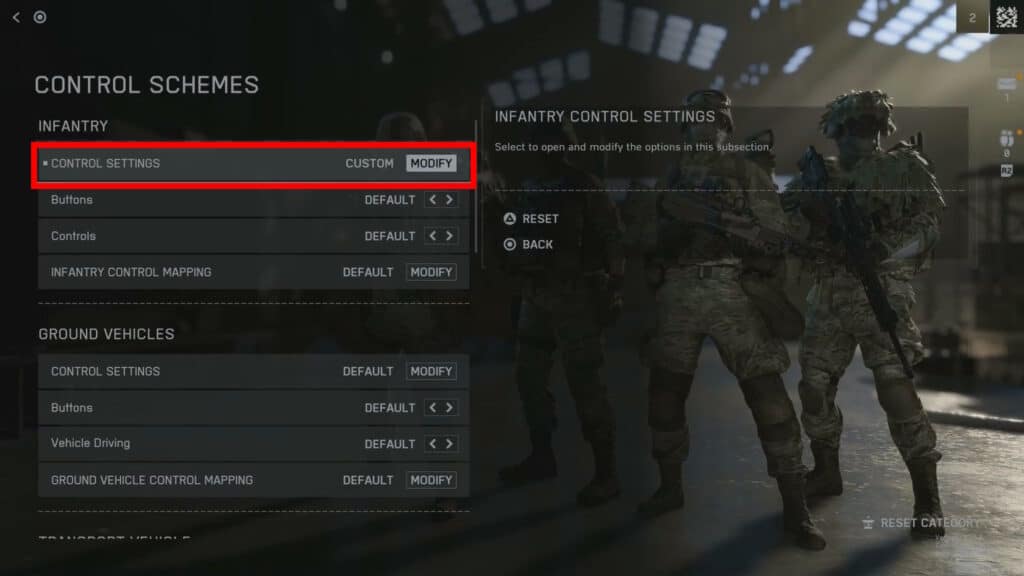
Next, you need to select which category you want to change the aim assist for. For example, we’ll go with Infantry here, since that’s the standard. To do that, just select Modify under Infantry’s Control Settings.
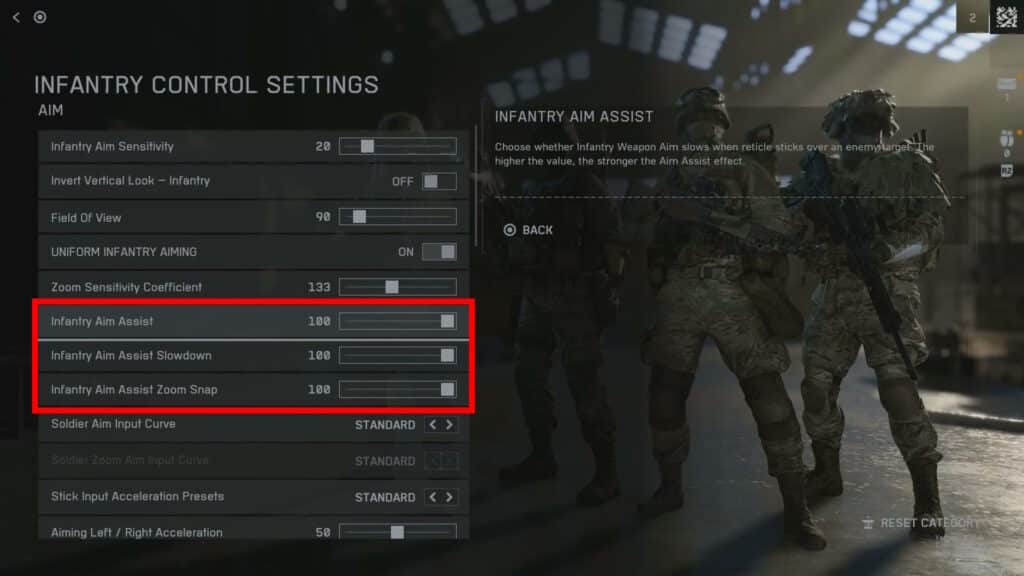
In there, scroll down a bit and you’ll find the Aim Assist sliders. There are three of them, as shown above. Here’s what they all do:
 Battlefield 6 No Longer Counts Bot Kills Toward Your Kill-Death Ratio Following a Recent UpdateNov 19, 2025
 Battlefield 6: Best Attachments to Use And What Do They DoNov 18, 2025
 Battlefield 6 Players Found a Secret Room in the Shooting Range, Prompting a Handful of TheoriesOct 31, 2025
- Aim Assist – How much your weapon’s aim slows down and sticks to an enemy when aiming at them. The higher it is, the stronger the effect. Dial it down to 0 to disable it fully.
- Aim Assist Slowdown – How much the aim slows down when targeting an enemy. You can set this to 0 to disable slowdown from manual movement while keeping the stickiness from aim assist.
- Aim Assist Zoom Snap – How strongly your weapons will snap to a nearby target when aiming. The higher the number is, the larger the radius for zoom snap is around your crosshair. Set to 0 to disable.
If you wish to fully disable all aim assist features, you just need to set them all to 0. It’s as simple as that! Otherwise, though, you can play around with the sliders until aim assist feels just right for you. You can also change similar settings for every other category, such as when you’re in vehicles.
Nonetheless, that’s all you need to do to turn controller aim assist on or off in Battlefield 6! For more, check out our full best settings guide for BF6.