 19 articles
Battlefield 6 is currently in open beta, which is great, but the limited beta time makes it hard to figure out the best settings to use. Using the best settings is important, too! If you’re playing competitively, for example, you want to optimize things like your aim and graphics settings. It also doesn’t help that there are hundreds of little things to tinker with in this game… but fret not, read on for all of our recommendations!
Gameplay and General Settings
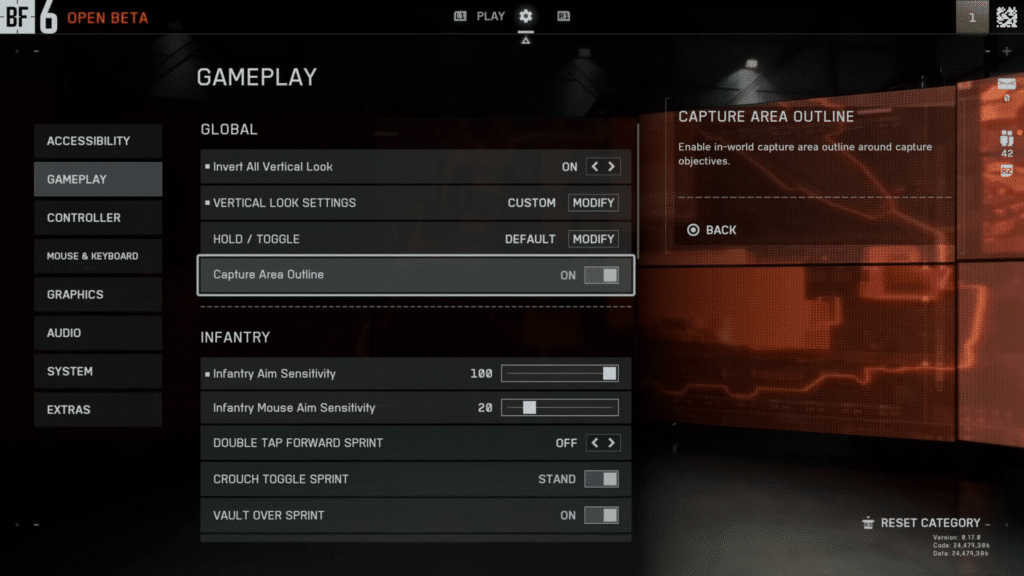
Let’s kick things off by going through the settings in the Gameplay category. Thankfully, there’s not much that really needs to be tinkered with in this section! However, we do have the following recommendations in this category:
- Capture Area Outline – On. Makes it much easier to tell the valid area for capture objectives.
- Infantry Aim Sensitivity and Infantry Mouse Aim Sensitivity – This is how much your aim moves with inputs when not in a vehicle. This is highly dependent on preference, with mouse sensitivity also being highly dependent on your mouse. Generally, though, we recommend trying to have higher sensitivity for faster reaction times and lower sensitivity for better long-range tracking.
- Mount Breakout – Instant. Makes using mounted weapons snappier.
- Interact & Reload – Prioritize Reload. Prevents accidental interactions when trying to reload your weapon.
- Vehicle Aim Sensitivity and Vehicle Mouse Aim Sensitivity – Generally speaking, it’s recommended for this to be lower than your Infantry sensitivity. We recommend 50 for controllers. For mouse, it depends on DPI, but try around 20 and adjust to your preference.
- Aircraft and Helicopter Control Sensitivity – If you’re new to the game, leave it on the default. Adjust to your preference later on if you feel like you need to, however.
- Helicopter Control Assists – On. You can disable this for more direct control once you get used to handling helicopters.
- Vehicle Aim-Relative Controls – Off. Makes the vehicle move relative to its position, which generally feels most natural to most players.
- Decouple Tank Turret Aiming From Turning – Off. Allows you to aim tanks’ turrets freely when moving.
- Decouple Aiming From Turning (as Passenger) – Off.
Aim Assist Settings
Next up, we’re going over the aim assist settings. Our goal here is to have strong aim assist, but without relying on the zoom snap. It provides the best balance between your actual aim and having assist on to slow down when aiming at a target. Anyway, here are our recommendations:
- Infantry Aim Assist – 100.
- Infantry Aim Assist Slowdown – 100.
- Infantry Aim Assist Zoom Snap – 0.
- Vehicle Aim Assist – 100.
- Vehicle Aim Assist Slowdown – 100.
- Vehicle Aim Assist Zoom Snap – 0.
Controller Settings
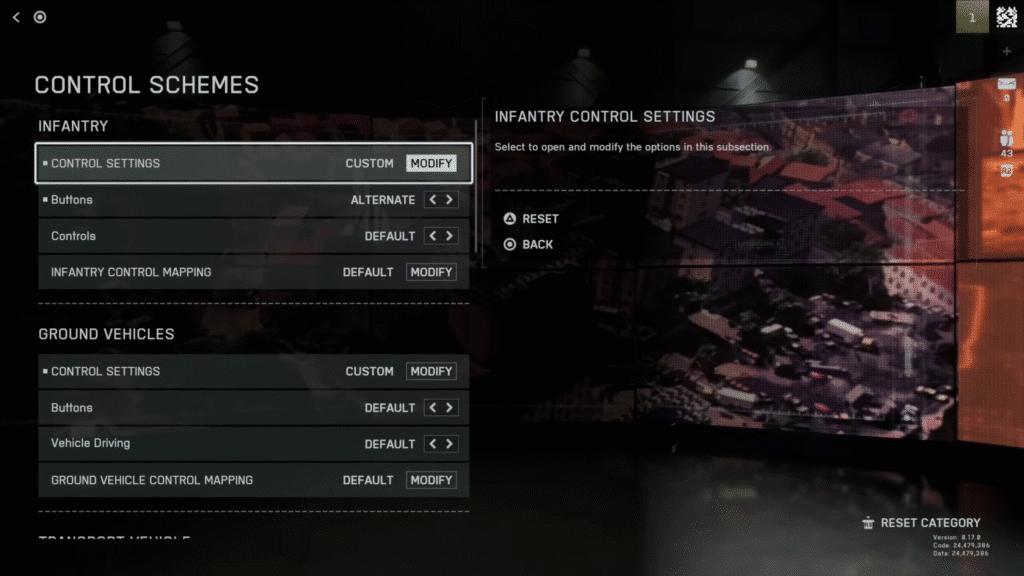
Moving on, it’s time for the controller-specific settings! For these, go into the Controller section of the settings and press Y (Xbox) or Triangle (PlayStation) to edit settings. You can then select Control Settings under each category (such as Infantry and Vehicle) to customize everything to your liking. We only really need to change things in the Infantry category, as follows:
 Battlefield 6 No Longer Counts Bot Kills Toward Your Kill-Death Ratio Following a Recent UpdateNov 19, 2025
 Battlefield 6: Best Attachments to Use And What Do They DoNov 18, 2025
 Battlefield 6 Players Found a Secret Room in the Shooting Range, Prompting a Handful of TheoriesOct 31, 2025
- Field of View – Try to keep this around 100. Higher values will give you better peripheral vision, but can make distant targets smaller and harder to detect. This does rely a bit on personal preference, as well, so feel free to go a bit higher or lower if you want to.
- Uniform Infantry Aiming – On. Keeps the feel of aiming equalized with different weapons. This can greatly help with aiming muscle memory.
- Aiming Left / Right Acceleration – 0. This is ideal for more consistent-feeling aiming.
Aside from these, you can also customize the handling of every individual vehicle type in this section. However, we already made the important changes in the Gameplay category! So, we recommend leaving them as is for most players. Feel free to customize them to your liking, but further changes are purely preference at this point.
Controller Tuning and Deadzones
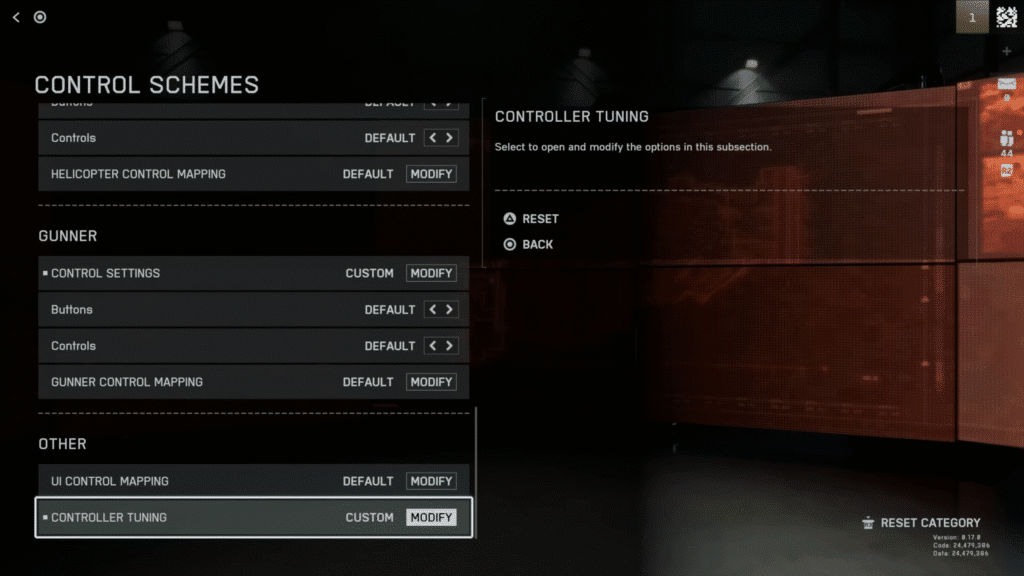
After that, go all the way down and find the Controller Tuning option. Select that to open even more settings, for which we have the following recommendations:
- Center Deadzone (Both Sticks) – 13. It should prevent accidental inputs while maintaining almost the full range of movement. Only increase this if your controller has stick drift.
- Axial Deadzone (Both Sticks) – 15. The same reasoning as the previous dead zone setting applies here.
- Max Input Threshold (Both Sticks) – 100. Again, this allows for the full range of movement, so it’s ideal.
- L2/LT and R2/RT Max Input Threshold – 5. This will make the triggers very sensitive to input, which is ideal if you want snappy reactions. However, raise this somewhat if you experience issues, such as accidental inputs.
Mouse & Keyboard Settings
Last but not least when it comes to input options, it’s time for mouse and keyboard! However, the best settings for you to use in Battlefield 6 for this category can vary wildly. Different mice can feel very different from each other, for one. Additionally, every player has their own preference! So, just adjust these to your liking. Sorry that we can’t help more with this one!
That said, we do have a small recommendation. Go to the bottom of the category and go into Advanced Settings. Then, make sure that Mouse Raw Input is set to on. This disables any mouse acceleration, which makes aiming more consistent. That’s the only change you really need to make here.
Graphics (Console and General)
Moving on up, it’s time to go over the Graphics settings. We’ll be going for optimal competitive settings here, so we’ll focus purely on both performance and visibility. Our recommended settings for general use and console players are as follows:
- Performance Preset – Performance.
- Vehicle 3rd Person Field of View – 83. Allows you to see nearly everything around your vehicle.
- Weapon Field of View – Wide.
- World Motion Blur – 0.
- Weapon Motion Blur – 0.
- Camera Shake Amount – 20.
- Chromatic Aberration – Off.
- Vignette – Off.
- Film Grain – Off.
With these, you pretty much remove all visual clutter for optimal visibility. Any other settings here you can leave as default, or change according to your preference!
Graphics (Advanced PC Settings)
Time to go over the best advanced graphics settings to use in Battlefield 6 on PC. Just like before, these will be primarily focused on visibility and performance. It’s also worth noting that these settings are optimized for the open beta only. We don’t know how the game will perform upon its full launch, after all!
Nonetheless, these are our recommendations:
- Performance Preset – Performance.
- Graphics Quality – Medium should work for most PCs, as long as you meet the requirements to play the game. It’s a pretty balanced preset, so you shouldn’t need to deal with custom settings with this. Alternatively, try using the Low preset if you don’t mind sacrificing visuals further for better performance.
- Visuals – Advanced
- NVIDIA Reflex Low Latency – Enabled. Try it on for lower input delay, ideally. Disable it if you start having issues with it.
- Upscaling Technique – DLSS for NVIDIA GPUs, use FSR or XeSS otherwise. Sacrifices image quality for some extra performance.
- Upscaling Quality – Generally speaking, we recommend going for Quality or Balanced settings here. Only try lower settings if your framerate is still not optimal.
- Multi Frame Generation – Keep this Off. Turning it on can provide a smoother framerate, but it adds input lag, which is definitely not worth the tradeoff.
As always, PCs can vary quite a lot in power. We recommend using our suggestions here as a basis, more than anything. So, feel free to further customize the Graphics category of settings by setting it to Custom if you want more control. It will let you personally decide between what visuals to sacrifice for performance and what not.
Audio Settings
Last but not least, let’s finish things up by going over the best audio settings to use in Battlefield 6. There aren’t too many changes you need to make here, but we do have the following recommendations:
- Sound System – Auto. It should work best for most people, generally. However, do make sure to select Headphones if you’re using those or a headset.
- Audio Mix – Standard.
- Music Volume – 0 to 30. You want to keep it somewhat low or muted so that you can hear gameplay sound cues, such as enemy footsteps.
- Commander VO Volume – Around 50. You don’t want to mute it, since it can be important. However, keeping it lower makes gameplay audio cues easier to hear.
With those recommendations laid out, this is the end of our guide! That’s all of our best settings for you to use during the open beta of Battlefield 6. Generally, we expect these settings to also work well on the full launch of the game, as well. However, we can’t promise anything, of course! We’re not clairvoyant, sadly… nonetheless, we hope this helped you.