 19 articles
Battlefield 6 is going to be fully out in just around a few months from when this is published, and plenty of people are excited for this new entry because of how it seems to be a massive improvement over the last game, which has been quite a disappointment to long-time fans of Battlefield in general. In this guide, we will quickly go through how you can change your sensitivity in the game.
How To Change Your Sensitivity in Battlefield 6 (Controller & Mouse)
If you, for some reason, still need help navigating to the controller or mouse options in the game, just open the settings menu and then scroll down to either “Controller” or “Mouse & Keyboard” based on the control scheme that you wish to adjust.
For controller users, open the Edit Settings menu with whichever button prompt is used for your specific gamepad. Here, you can adjust Control Settings for infantry and vehicles. You will find all of the relevant aim-related sensitivity settings here, including how much aim assist you want on.
There are a ton of other options that you can fix here, including your zoom aim sensitivity for whenever you are aiming down sights or using scopes, and even a few settings related to your movement.
 Battlefield 6 No Longer Counts Bot Kills Toward Your Kill-Death Ratio Following a Recent UpdateNov 19, 2025
 Battlefield 6: Best Attachments to Use And What Do They DoNov 18, 2025
 Battlefield 6 Players Found a Secret Room in the Shooting Range, Prompting a Handful of TheoriesOct 31, 2025
For mouse & keyboard users, obviously you will want to open the “Mouse & Keyboard” menu in the settings page. As soon as you open it, you should already see the mouse aim sensitivity option smack dab at the very top. Seriously, you cannot miss it unless you close your eyes.
If you want to fine tune this even further, just open the infantry control settings right below it. Here, you will see the same mouse aim sensitivity setting, as well as various other stuff that you can adjust, including your field of view and more stuff related to movement.
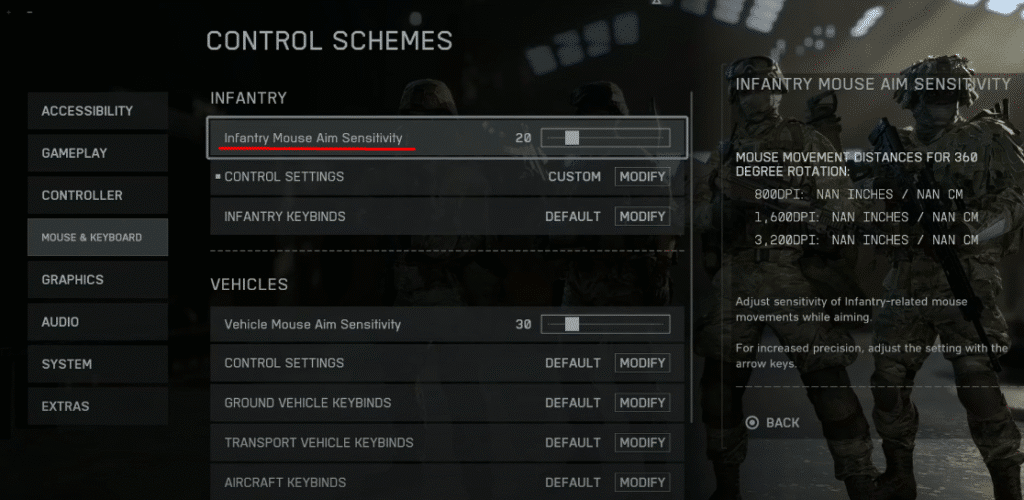
That is really all there is to it. We have no idea how you could have gotten lost here, but there you have it, all of the sensitivity settings that you will ever need to adjust in one convenient place.
While you are here, make sure to take a quick peek at our best settings guide for Battlefield 6 (PC, PS, and Xbox) to see how else you should be setting up your game for the best possible experience once it actually gets released. Again, it should be emphasized that this is only based on limited open beta version of the game, which will very likely not reflect the final product.