 19 articles
Battlefield 6 is coming out in a few months from now, and a lot of people are excited for it because of how it seems to be a huge improvement over the last one, which has been quite a disappointment to long-time fans of the franchise. If you plan on playing it with a controller, whether you are on PC or a console user, you might want to adjust your settings to minimize stick drift. Here is how you can do that in this game!
How To Adjust Controller Deadzone Settings in Battlefield 6
Before we begin, just know that this is based on the open beta version of Battlefield 6, and we are unsure of how these menus and settings will look like when the game actually comes out. Remember, release is still a few months away, so who knows what they will change after this public beta test.
Now, if you are playing the beta version, go over to the game’s settings menu. Scroll down to Controller and then press the button prompt to Edit Settings (this will vary depending on your controller).
At the very bottom of the Conrtol Schemes menu that you just opened is the “Other” section, and you will want to modify your Controller Tuning options. In this menu, you will have all sorts of options for adjusting your vibration and deadzones.
 Battlefield 6 No Longer Counts Bot Kills Toward Your Kill-Death Ratio Following a Recent UpdateNov 19, 2025
 Battlefield 6: Best Attachments to Use And What Do They DoNov 18, 2025
 Battlefield 6 Players Found a Secret Room in the Shooting Range, Prompting a Handful of TheoriesOct 31, 2025
As for how you can finetune your settings, that will be all up to you, as we cannot dictate what settings will be ideal for whichever controller you are using at the moment. Just take your time experimenting with all the deadzone options and see what setup feels the most comfortable.
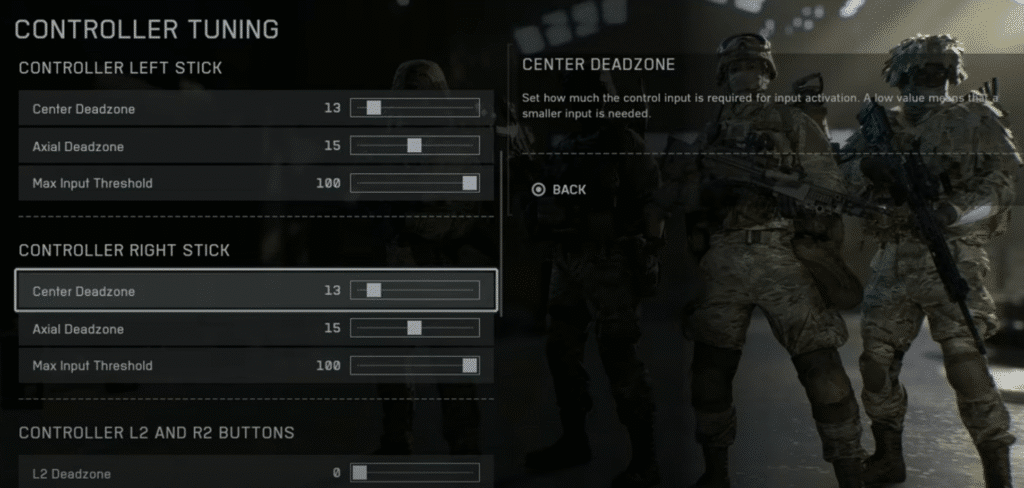
Just in case you have no idea what the two different deadzone options for the sticks do, here is a quick summary of how they work:
- Center Deadzone – This setting will determine how far you have to move the analog stick with your thumb before it registers any input.
- Axial Deadzone – This works similarly to the previous setting, but it’s more about preventing unintentional drifting in other directions. For example, if you push the stick to the left but very slightly and unintentionally raise the analog up a bit, having an adjusted axial deadzone can prevent you from looking up.
And that is pretty much everything you need to know in order to adjust your deadzone settings, as well as what the two important ones do when adjusted. Again, the ideal tuning will vary wildly depending on what controller you are using, so just experiment with it in the firing range!
While you are here, make sure to check out our best settings guide for Battlefield 6 (PC, PS, and Xbox) to see how you should be setting up your game for the best possible experience. Again, it should be noted that this is only based on the open beta version of the game, which will likely not even be accessible anymore by the time you read this and might not reflect the final product.