 11 articles
Your Parafolk can be a handful in Paralives. One minute they are happy, and the next they are complaining about hunger, exhaustion, and needing to use the bathroom all at once. It is a classic life sim struggle, and sometimes you just want to skip the constant babysitting and get back to the fun stuff.
The good news is that Paralives has a built-in cheat console that lets you fix all of that with one simple command. You do not need to install any mods or jump through hoops. Just open the console, type the right code, and your selected Para will have all their needs completely filled. In this guide, I will show you exactly how to do it.
Instantly Relief All Needs With These Cheat Codes
Okay, the first thing you need to do is open the “Cheat Commands” console. You can do this by pressing CTRL + SHIFT + C on your keyboard. You can also press CTRL + F1 if the first one does not work for you.
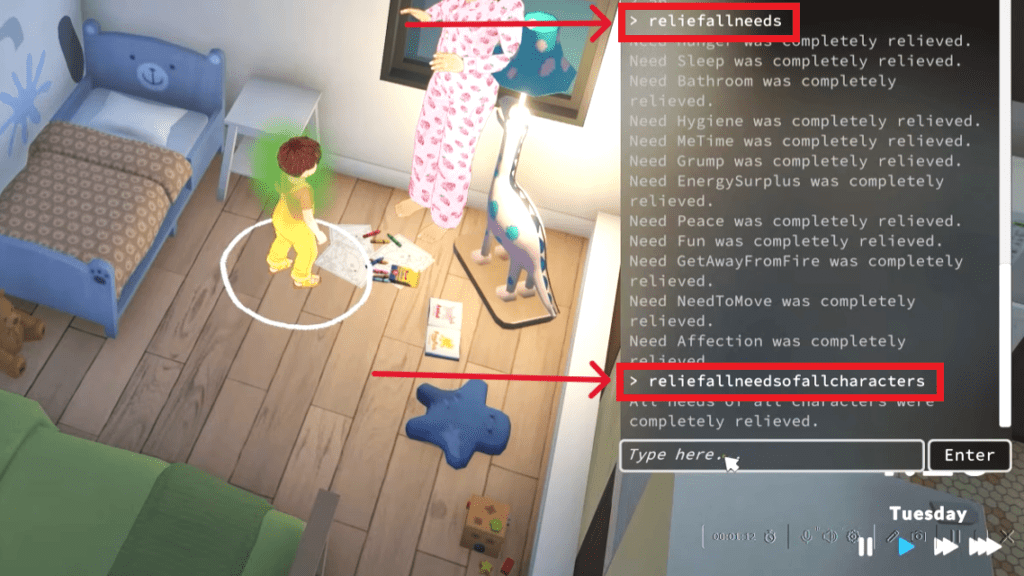
Once the console opens up on the right side of your screen, just type directly into the text box. If you want to fill all needs for the selected Para, then type “reliefallneeds” and press enter. That will take care of Sleep, Hygiene, Bathroom, and all the other bars for that one Para.
 How to Unlock Hidden Item Catalog in ParalivesJun 12, 2026
 All Cheat Codes You Need to Know in ParalivesJun 10, 2026
 How to Try for a Baby in ParalivesJun 10, 2026
But if you want to do it for everyone in the household without having to go through them one by one, just type “reliefallneedsofallcharacters” into the console and hit enter. This command hits every Para living under a roof at once, much faster when you have a full house.
Other Similar Commands Worth Knowing
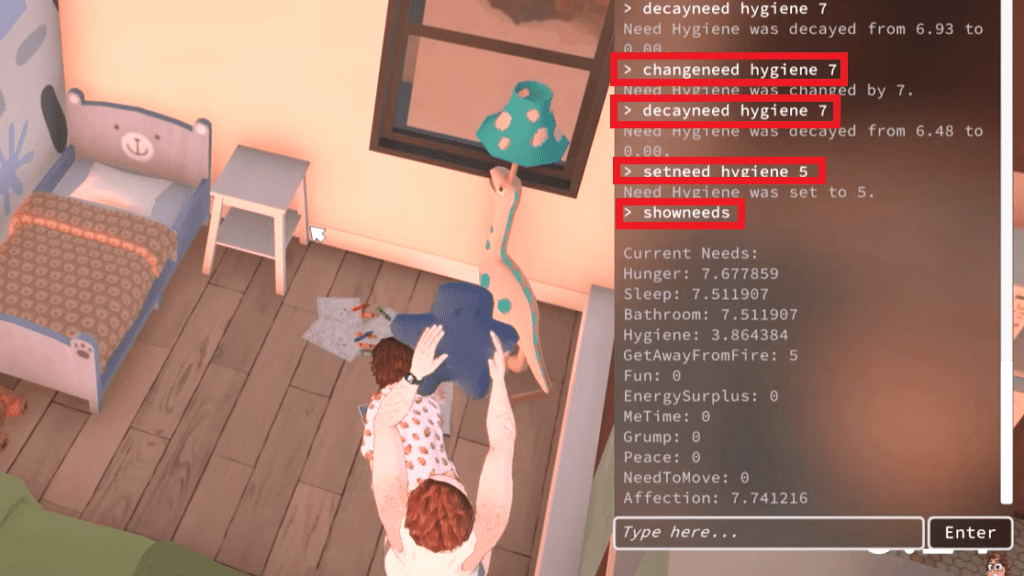
You can also use “showneeds” to see the exact values of all the needs for the selected para. This is handy if you want to know exactly how hungry or tired they are instead of just guessing from the bar.
If you want to change a specific need to a certain value, use the “setneed {need} {value}” command. For example, typing “setneed hygiene 5” will set that para’s hygiene bar to exactly 5.
If you want to decrease a specific need instead, use the “decayneed {need} {value}” command. For example, “decayneed hygiene 3” will lower the hygiene bar by 3 points.
There is also another command called “changeneed {need} {value}“. It works kind of the same way as the “setneed” command, so you can use whichever one you want.
That’s It
That covers the most useful need commands for Paralives. Open the console with “CTRL + SHIFT + C” or “CTRL + F1”, type what you need, and watch those bars fill up or drop down however you want. It saves a lot of time when you just want to build or mess around without worrying about your Parafolk passing out on the floor.
If you want to tweak your Para’s appearance or traits after creation, check out my guide on editing existing Parafolk.