 3 articles
If you’re playing Marvel Rivals and your aiming feels off, you might not be using the best settings for you. This particularly affects controller players.
Marvel Rivals has some odd settings for controllers by default, with deadzones and aim assist settings that do more harm than good. It’s no big deal for PC gamers, though, since they just only have to adjust mouse sensitivity. Sensitivity also depends a lot on the mouse used and personal preference, so there are no “best” settings for it. However, playing the game with a controller can be quite a pain with default settings…
In this guide, we’ll give you some of the best settings to help improve aiming in Marvel Rivals!
Best Aiming Settings for Controllers | Marvel Rivals

To start, you want to open the settings in Marvel Rivals and go to the Combat tab under the Controller category. On this page, you’ll first want to set Horizontal Sensitivity to 250 and Vertical Sensitivity to 145. However, note that these sensitivity settings are merely a recommendation. Feel free to adjust them to your liking later on!
 Marvel Rivals Season 5 Starts November 14, Adding Gambit and RogueNov 11, 2025
 Everything You NEED to Know About Zombie Mode in Marvel RivalsOct 25, 2025
More importantly, click on the Advanced button below the sensitivity settings. Then, click on Advanced Aim Sensitivity Curve Settings as well to reveal every possible setting. Our recommended best aiming settings for Marvel Rivals are as follows:
- Aim Sensitivity Curve Type – Dual-Zone S-Curve
- Advanced Aim Sensitivity Curve Settings
- Custom Minimum Range – 50
- Custom Maximum Range – 85
- Minimum Curve Statics – 75
- Custom Maximum Dual-zone Curve – 99
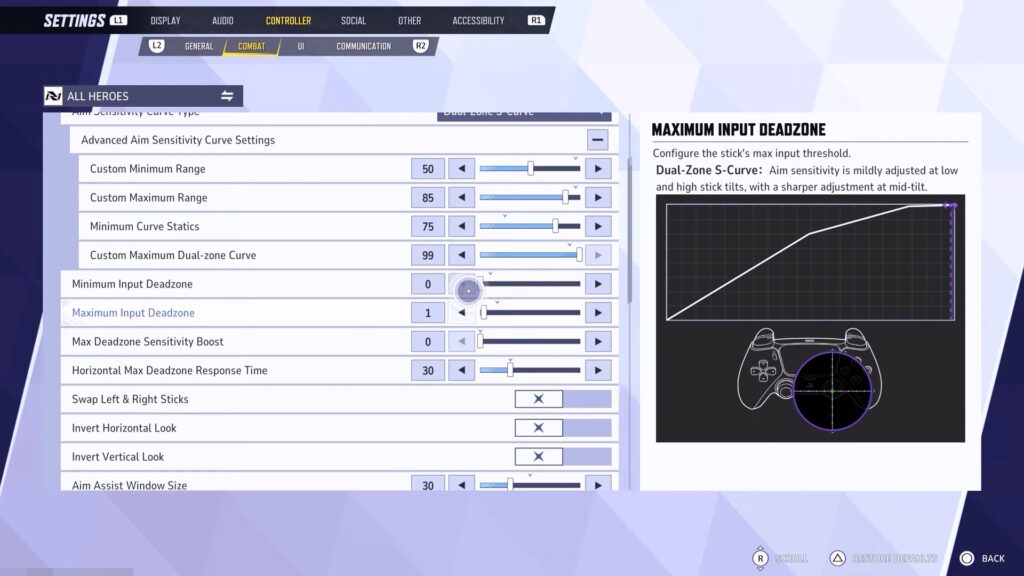
- Minimum Input Deadzone – 0
- Maximum Input Deadzone – 1
- Feel free to increase both of these Deadzone settings if your controller has stick drift. Otherwise, keep them as we recommend.
- Max Deadzone Sensitivity Boost – 0
- Horizontal Max Deadzone Response Time – 30
- Aim Assist Window Size – 30
- Aim Assist Strength – 80
- Projectile Heroes Aim Assist Ease In – 66
- Hitscan Heroes Aim Assist Ease In – 40
- Melee Heroes Aim Assist Ease In – 0
- Disable Aim Assist at Max Deadzone – Disable
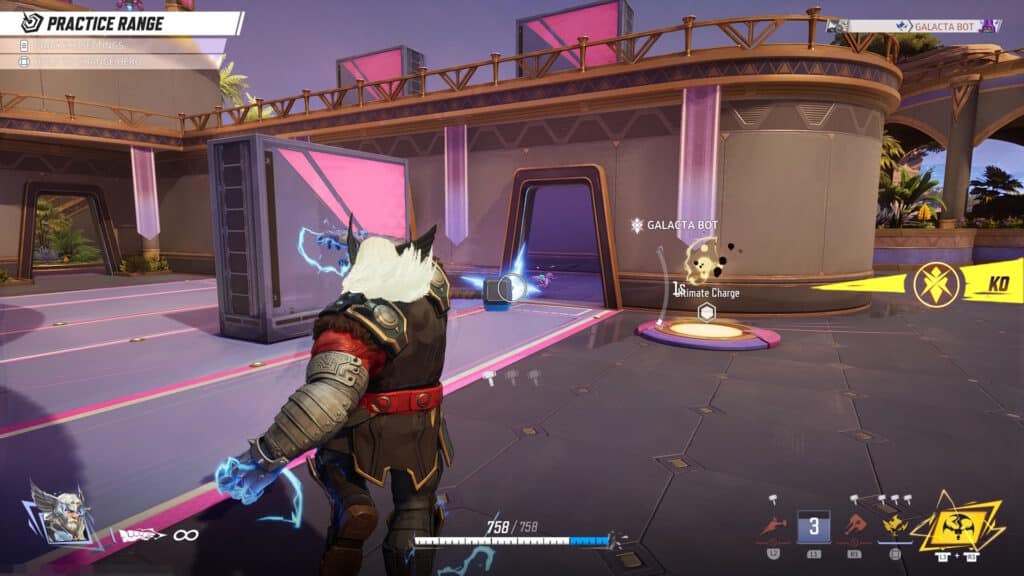
Keep in mind that you should be using these settings as a guideline. We recommend setting them and then using the Practice Range to see how things feel. Make adjustments as necessary for it to feel right for you.
That said, Marvel Rivals can be finicky when it comes to aim assist on controllers. Some players report that there’s barely any aim assist, particularly on the PC and Xbox versions of the game. You might need to increase Aim Assist Window Size and Strength if you feel like it doesn’t work for you.
Nonetheless, that’s our best aiming settings for controllers in Marvel Rivals!