 3 articles
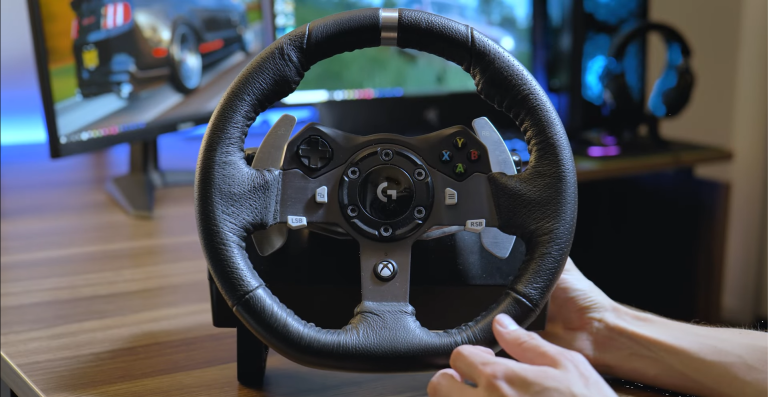
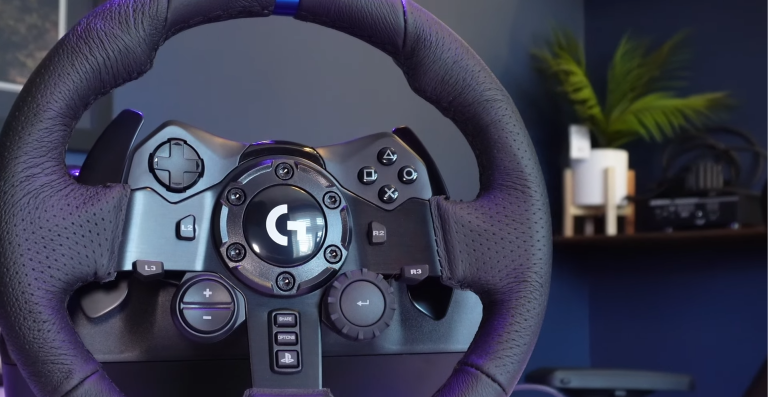
If you’re pulling hours into WRC with a Logitech G923 wheel, you’ve probably noticed the feedback feels… weird compared to other titles.
After all, rally games are all about rhythm and surface feel, and if your force feedback isn’t dialed in right it can feel light, jittery, or downright disconnected.
The good news? There are settings that consistently make the wheel feel more communicative and predictable.
Without further ado, let’s cover the essential settings that will help you get the most out of your Logitech steering wheel.
 WRC: Best Logitech G920/G29/G923 Force Feedback SettingsJan 20, 2026
 WRC: Best Thrustmaster T300 RS Force Feedback SettingsNov 7, 2023
Logitech G932 Force Feedback Settings
First off, make sure force feedback is enabled in the in-game vibration/FFB menu (if it’s off, you’ll feel almost nothing at all).
You’ll find this in the Vibration tab on the settings. Simply head to the Vibration and Feedback option and turn it on.
Here’s a set of settings that players consistently recommend as a baseline for the Logitech G923 in WRC:
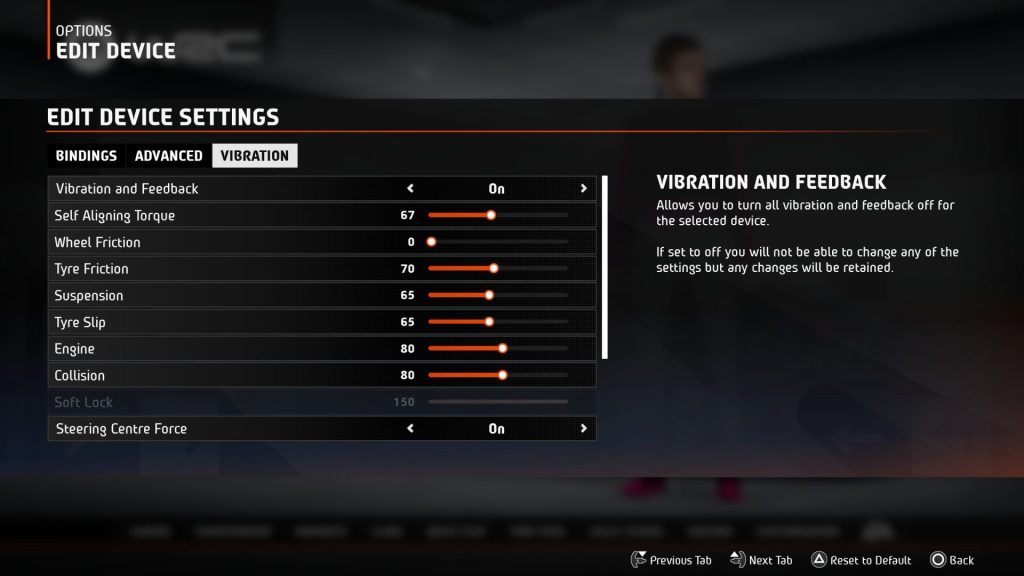
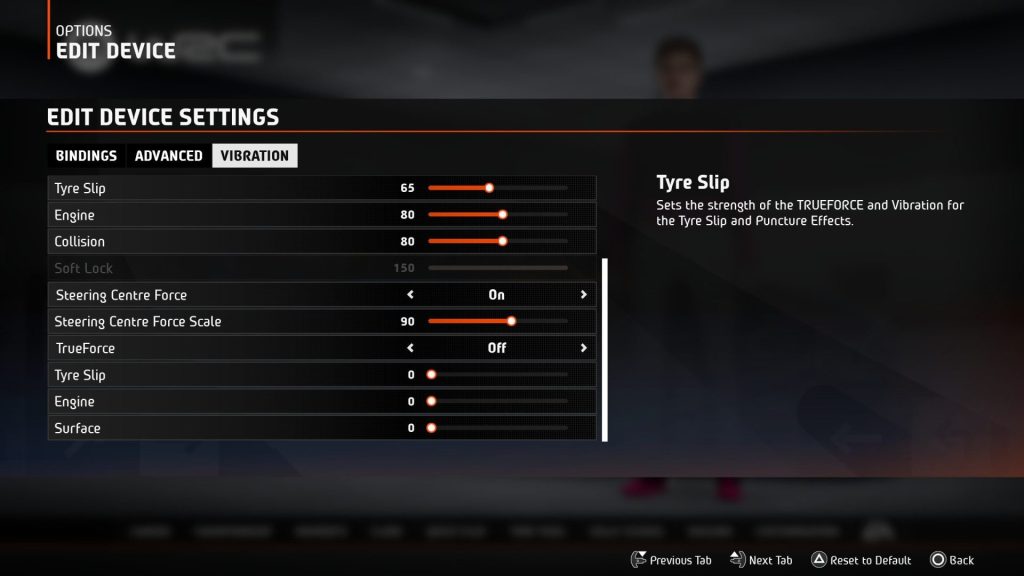
For reference, here’s what each of those settings do:
- Self-Aligning Torque – controls centering and grip feel, heavier through corners
- Wheel Friction – keeps the wheel from feeling too heavy or sluggish
- Tyre Friction – helps feel grip transitions without mudding feedback
- Suspension – brings in terrain texture feel
- Tyre Slip – lets you sense sliding and loose surfaces
- Engine – high vibrations from engine/load, some players like it a bit lower
- Collision – feedback from impacts without violent jolts
- Steering Centre Force – most racers prefer not having auto-centering but it depends on preference
What to Keep in Mind When Using the Logitech G923
The G923 uses Logitech’s dual-motor force feedback with TrueForce, which is a tech that blends physics and audio cues to make feedback richer when supported by the game. WRC supports this tech, so you’ll get that extra surface and engine vibration layer without additional plugins.
With these settings, the wheel should feel responsive without constant violent jolts on rough gravel.
You’ll notice suspension and tyre slip give you a sense of the road surface, while self-aligning torque and tyre friction provide a sense of grip and understeer/oversteer.
Without extra centering effects, the wheel won’t “snap” back to center every time you let go, which is closer to real rally behavior.

If you feel that the wheel is too heavy and tiring on long stages, dial Wheel Friction and Tyre Friction down a few notches.
If the wheel feels too light or floaty in corners, nudge Self-Aligning Torque up by 5–10 points. Meanwhile, if surface texture feels too noisy or muddy, lower Suspension and Tyre Slip slightly until you find a sweet spot.
We hope that this guide has helped you optimize your driving experience in WRC with the best G932 force feedback settings.
By following the tips and tricks outlined in this article, you can take your driving skills to the next level and enjoy the game to the fullest. So, what are you waiting for? Get behind the wheel and start racing!