 8 articles
There are many settings in Black Desert Online, and configuring them to best fit your needs can greatly improve your gameplay.
For example, you can make it so the game displays more useful information during combat. You can also disable obnoxious notifications and even customize your UI!
In this guide, I’ll go over various recommended settings you can tinker with to have a better overall experience with the game.
Improved Combat Status Display
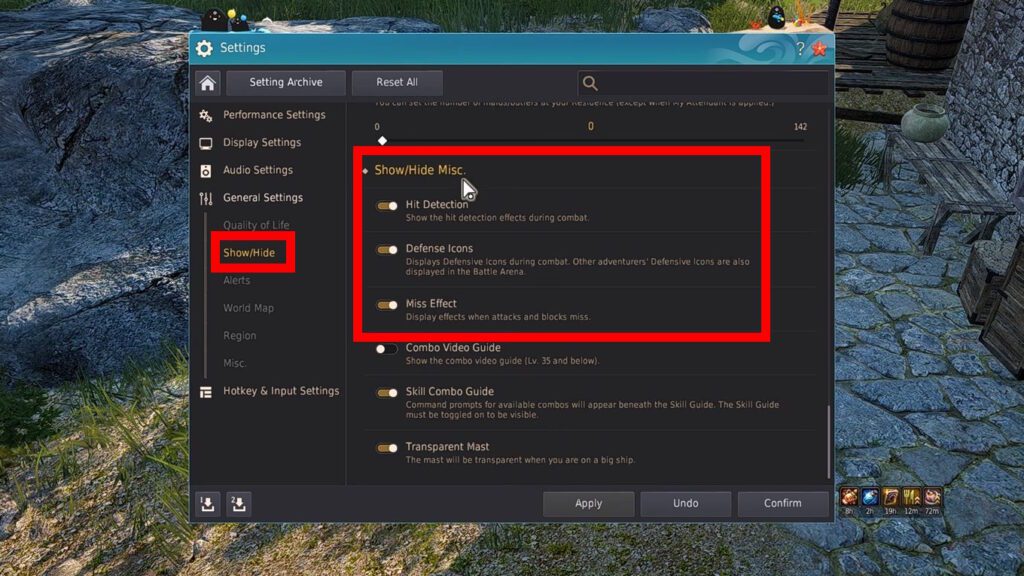
The first three settings I’ll talk about are the ones found under the Show/Hide Misc. category of the General Settings. They are as follows:
 How to Fish in Black Desert OnlineMay 20, 2026
 Black Desert Online: Best Classes to PickMay 20, 2026
 Black Desert Online: How to Restore Max DurabilityFeb 28, 2024
- Hit Detection – Displays text letting you know what types of attack you’re dealing, such as Critical Hits and Back Attacks. Makes positioning easier to understand.
- Defense Icons – Displays Defensive Icons during combat. Important for learning when you have Super Armor and when you are invulnerable to crowd control effects, for example.
- Miss Effect – Shows when attacks are blocked or miss.
For the most part, you can sort of consider these your “training wheels,” if you’re a new player. As I said in the descriptions, they’ll mainly help you with learning positioning and the safer parts of your kit.
That said, even more advanced players can find these helpful. They do give you vital information in combat, so having them enabled can be quite handy!
Adventurers’ Alerts
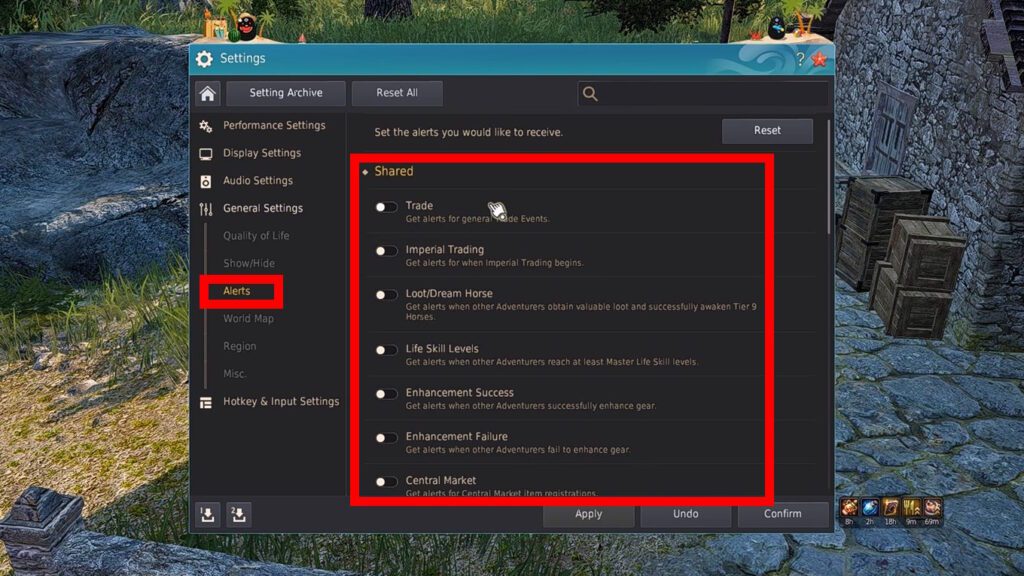
Next up, you’ll want to go to the Shared category of the Alerts under General Settings. In here, I honestly recommend disabling every single setting. It’s that simple!
These settings, which are on by default, mainly enable various alerts related to other players. Things such as how a player sold a rare item for a specific amount or failed to enhance gear, for example.
Realistically, who really cares about those things, right? The information isn’t really important to you, generally speaking, and the notifications end up just cluttering your screen. So, I recommend disabling them as soon as possible!
Now, mind you, you might end up wanting to have some of these enabled later on. For example, you might want to know when Trade Events and Imperial Trading begin. So, remember to enable those later if you do have a need for them.
For the most part, though, you can safely disable all or most of these alerts. You won’t miss out on much, especially if you’re a new player, but you’ll get rid of a lot of visual clutter.
Set Up your Quick Hotkeys
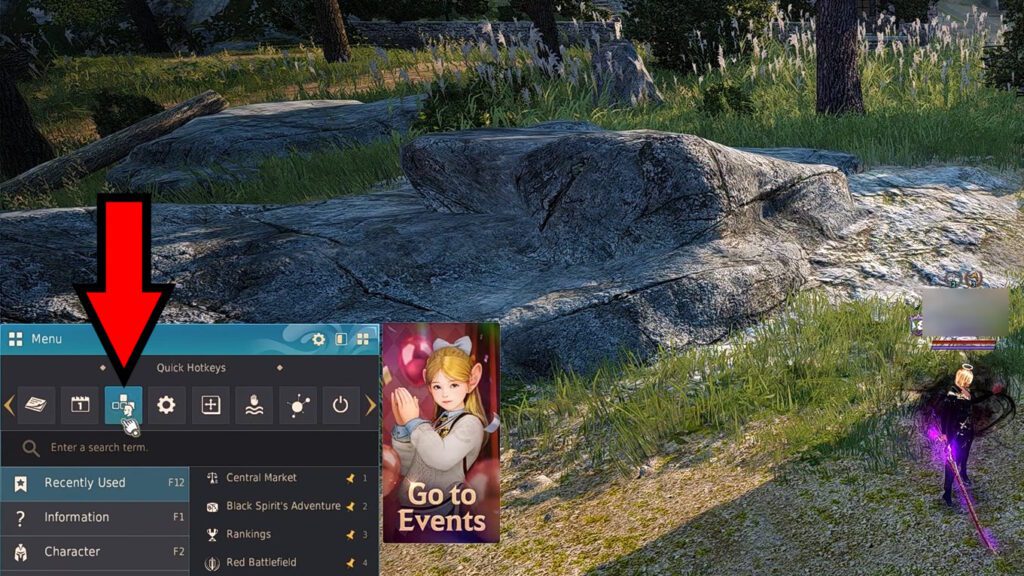
Another helpful set of settings are the ones hidden under the Quick Hotkeys section of the menu. You can see its icon in the screenshot above, if you didn’t know about it.
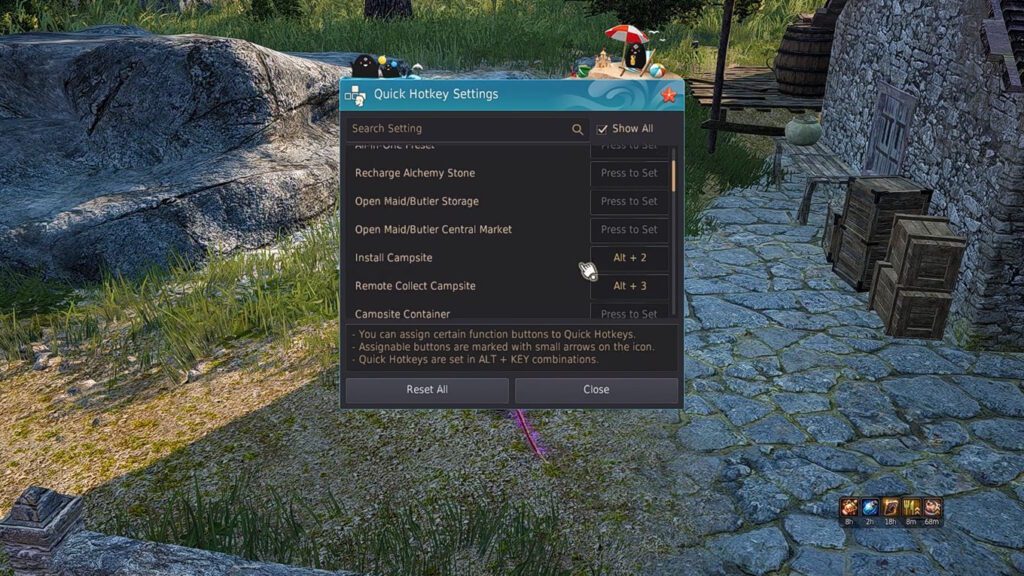
Now, there are dozens of potential options in the Quick Hotkeys menu and which ones you really want to use are up to you. They depend on your playstyle and what type of content you focus on, after all.
That said, I recommend setting these 3 actions to Quick Hotkeys for convenience:
- Agris Fever On/Off
- Install Campsite
- Remote Collect Campsite
Those 3 will help you save some time and should be used by pretty much every type of player. But do check out the other actions you can set to Quick Hotkeys, as they could fit you as well! There’s even quick pet group and Crystal preset swaps, for example.
UI Customization
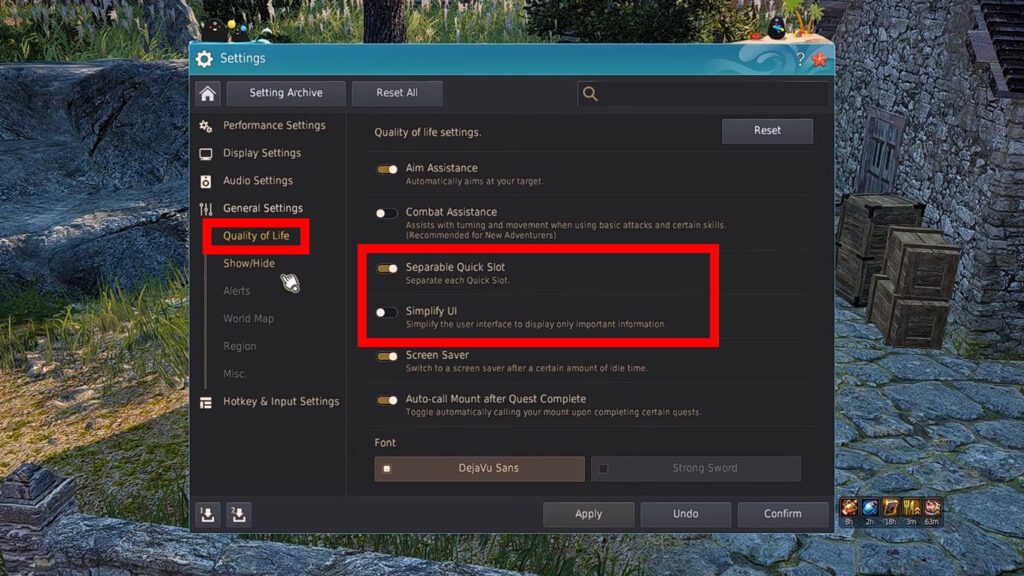
Last but not least, it’s important to customize your UI for something that is both appealing to you and useful.
To start with that, go to the Quality of Life settings and enable the Separable Quick Slot setting. While you’re at it, disable Simplify UI if you have it enabled.
This will give you more control over your Quick Slots in the UI, even allowing you to have more than you would by default.
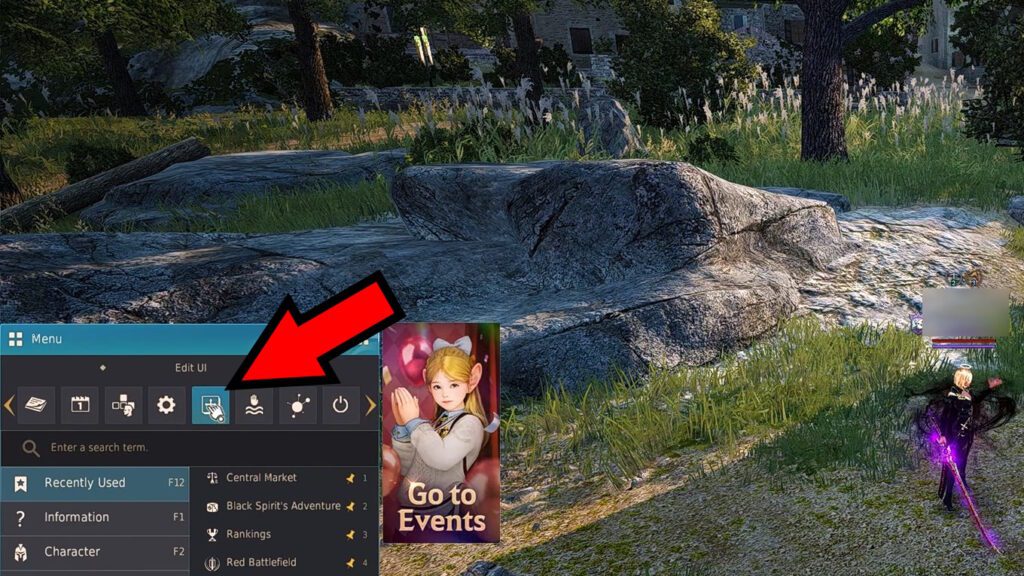
Next, open your menu again and click on the Edit UI button. This is where the magic happens, so to speak, as it allows you to freely customize most of the UI to your liking.
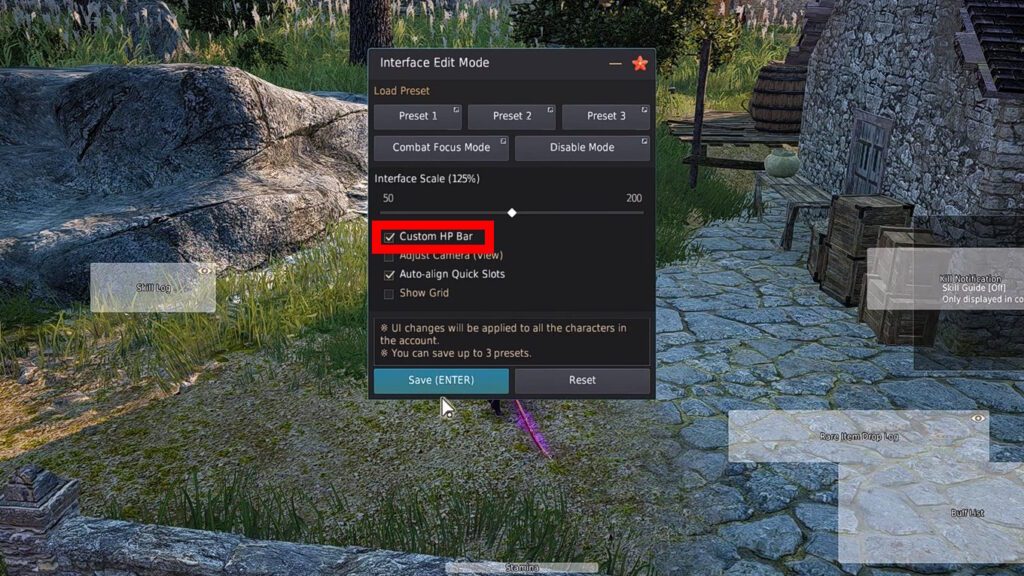
Now, a lot of the changes you can make here are entirely up to your preference. However, I do recommend enabling the Custom HP Bar option.
That option will allow you to reposition the HP and Mana bars freely. This is handy if you prefer having it at the bottom of the screen, for example, instead of stuck on the top left corner.
Again, though, the “best” UI setup here is up to your preference. Nonetheless, I thought it was important to point you in the right direction to get started making the UI fit your needs!
So, there you have it. Those are my recommended best settings to help improve your quality of life and gameplay in Black Desert Online.