 118 articles
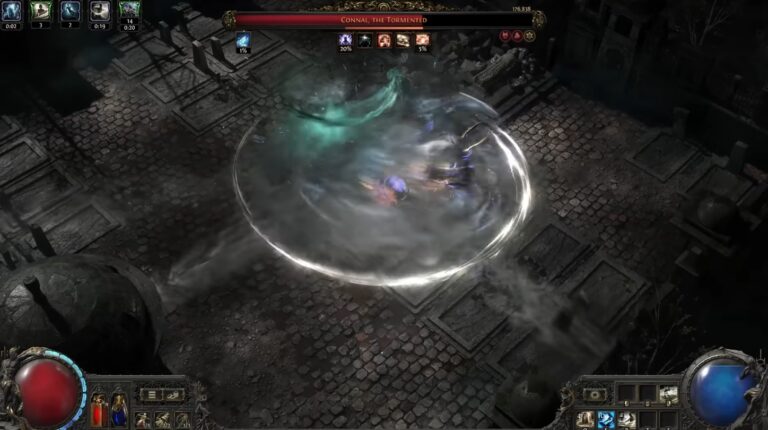
Path of Exile 2 is a CPU-bound game at its core and the Return of the Ancients patch has made that more noticeable than ever. Endgame mapping in patch 0.5 generates an enormous number of particle effects on screen simultaneously and settings that ran smoothly during the campaign can fall apart fast once you are pushing dense Breach encounters and high tier maps.
The good news is that a handful of targeted changes make a significant difference without gutting the visuals entirely. In this guide, I will walk you through every setting worth adjusting so you can get the most stable performance possible out of your setup in patch 0.5.
Best Settings For Increasing Your FPS
There are multiple settings to cover so I will go through every single one and break down exactly what to change and why. Let me start with the “Display” settings and then move into the “Details” settings. Both are found in the “Graphics” tab under “Options”.
Renderer
Go with either “DirectX 12” or “Vulkan” here. Which one performs better depends on your specific setup so it is worth testing both. DirectX 12 generally delivers more stable and smoother frame rates on high end PCs. Vulkan tends to perform better on lower end systems and AMD setups. If you are experiencing micro stutters, this is the first thing to experiment with.
 Path of Exile 2 0.5: How to Craft +2 Projectile Skill GlovesJun 14, 2026
 Path of Exile 2 Return of the Ancients: Best Endgame Build Tier ListJun 10, 2026
 PoE 2 Return of the Ancients: How to Craft S-Tier ItemsJun 10, 2026
Display
Select your dedicated GPU here. This setting matters most for laptop users who have both an integrated and a dedicated GPU. Make sure you have the dedicated one selected or the game will not be using the hardware it should be.
Mode
This comes down to personal preference but I recommend “Windowed Fullscreen“. It allows much smoother Alt-Tabbing.
Vsync
Keep Vsync “off“. It adds input lag and can cap your frame rate unnecessarily. The only time I would suggest turning it on is if you are experiencing severe screen tearing.
Dynamic Resolution
Keep this “off“. It has a noticeable negative impact on visual quality and the FPS gains it provides are not worth the trade off in most cases. Only consider enabling it as a last resort if nothing else is helping.
Window Resolution
This directly affects how sharp and clear the game looks. Keep it at your native display resolution first and work through all the other settings before touching this one. Lowering it will make the image noticeably blurrier. Treat it as the final option when everything else has not given you enough of a performance gain.
Upscale Mode
If you are on an AMD GPU, turn on “FSR“. If you are on an Nvidia GPU, make sure “DLSS” is enabled. Both of these improve FPS significantly on Quality mode without much visible cost to image quality. This is one of the easier wins in the settings menu so do not skip it.
Texture Quality
This does not directly impact FPS unless you are running low on VRAM. If you have a GPU with 4GB of VRAM or more keep this at “High“. Otherwise drop it down to “Medium” to free up some headroom.
Texture Filtering
This has minimal impact on FPS for most systems. Keeping it at “4x Anisotropic Filtering” is fine and gives you a decent balance between visual quality and performance.
Lighting
This one has a massive impact on FPS. Keep it set to “Shadows” only. The alternative option which adds Global Illumination on top tanks performance significantly and is not worth it for the visual difference it makes.
Shadow Quality | Sun Shadow Quality
If your system is struggling, keep both of these at “Low“. If you have a decent mid to high end setup, you can push these up to “High“ without running into problems.
Number of Lights
Keep this at “Low“. Higher options can introduce lag spikes during dense encounters and the visual difference is not significant enough to justify the performance cost.
Water Detail Level
This has very little impact on FPS so you can safely leave it at “High” without worrying about it.
Advanced Settings
Under here you will find a few more options worth adjusting. If you are on an Nvidia GPU take advantage of Nvidia Reflex by setting it to “On + Boosted“. It reduces input latency and is worth having enabled at all times.
For FPS Cap set it to 60 or match it to your monitor’s refresh rate. Disable Triple Buffering as it adds unnecessary input lag.
Dynamic Culling is an experimental setting so enable it and see if it makes a noticeable difference on your specific setup.
For Target Framerate, you can max it out if your system handles it well. If you are struggling, set it to 60 to keep things more stable.
Finally, make sure Engine Multithreading is turned on. This allows the game to use multiple CPU cores properly and can make a meaningful difference to performance especially during endgame content when a lot of things are happening at once.
That’s It
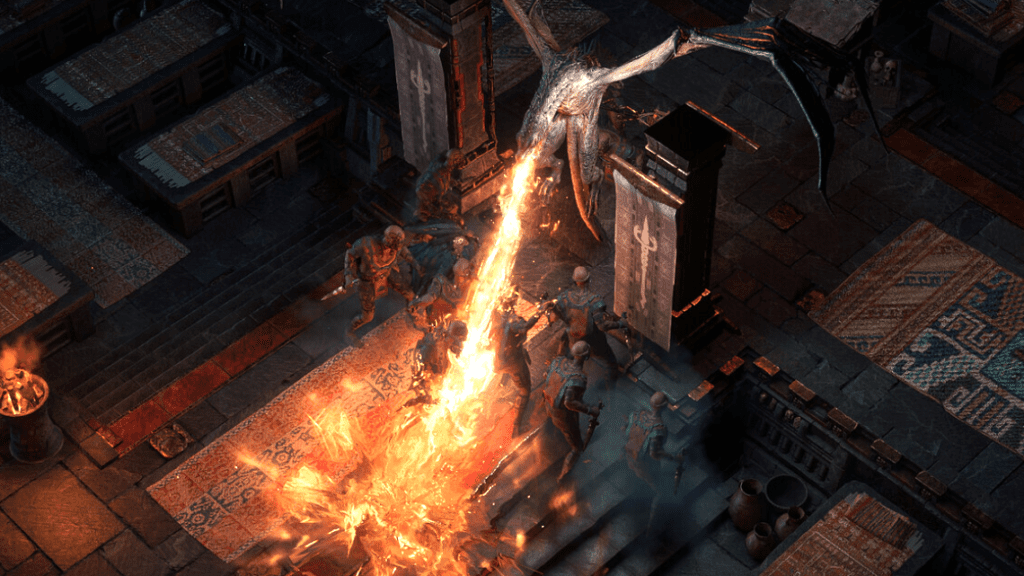
That covers every setting worth adjusting in Path of Exile 2 after the 0.5 patch. The biggest gains are going to come from the Lighting setting and making sure your Upscaling is properly enabled for your GPU. Everything else is about fine tuning from there depending on what your specific setup can handle.
While you are getting your setup dialed in, a good loot filter makes just as big a difference to how enjoyable the game feels as the performance settings do. Check out my Loot Filter and Build Import guide to get that sorted as well.