 118 articles
Patch 0.5 added two major quality-of-life tools to PoE 2 that are not being used enough. The first is the Build Planner, a brand new system that lets you import a creator’s .build file directly into the game. It overlays their passive tree plan, skill gems, and gear notes, so you always know what to do next without alt-tabbing. Prior to this patch, players relied on clunky external tools to follow builds.
The second is the Loot Filter system. While not new, Patch 0.5 overhauled the community’s go-to filters with new visual styles and smarter rules to handle the massive increase in drops. This system lets you customize how loot labels appear, changing their size, color, or hiding them entirely. Both tools are genuinely useful and neither requires technical knowledge to set up. In this guide, I will walk you through importing build files and setting up a custom loot filter.
How to Import Build Files & Custom Loot Filters
To get started with custom loot filters, head over to the Neversink’s Item Filter page on the official Path of Exile 2 website. This is the most widely used and trusted source for loot filters in the game. You will find multiple filter options available for both PoE 1 and PoE 2, so make sure you scroll down to the PoE 2 section specifically.
There are several filters to choose from ranging from soft options that show the most loot to very strict ones that hide almost everything except high value items. Once you find the one that suits how you want to play, simply click the “Follow” button on it. This will automatically add it to your game without any manual file management needed. From there, you can select it directly from the Item Filter dropdown menu inside the game.
 Path of Exile 2 0.5: How to Craft +2 Projectile Skill GlovesJun 14, 2026
 Path of Exile 2 Return of the Ancients: Best Endgame Build Tier ListJun 10, 2026
 PoE 2 Return of the Ancients: How to Craft S-Tier ItemsJun 10, 2026
The best part about using this method is that the filter updates automatically whenever Neversink pushes a new version. You never have to come back and re-download or reinstall anything. It is the most seamless way to keep your loot filter current without any extra effort on your part.

Customized Loot Filters
If you want to build and customize your own loot filter, head over to the Filterblade website. Once you are there, log in with your Path of Exile 2 account and make sure you have PoE 2 selected on the site. From there, click the “Create New Filter” button to get started.
You will be presented with a slider ranging from soft to ultra strict. This works similarly to the Neversink filters I mentioned earlier and automatically loads the appropriate settings based on where you position the slider. Once you have a base you are happy with, click “Customize” to start tweaking the specifics to your liking.
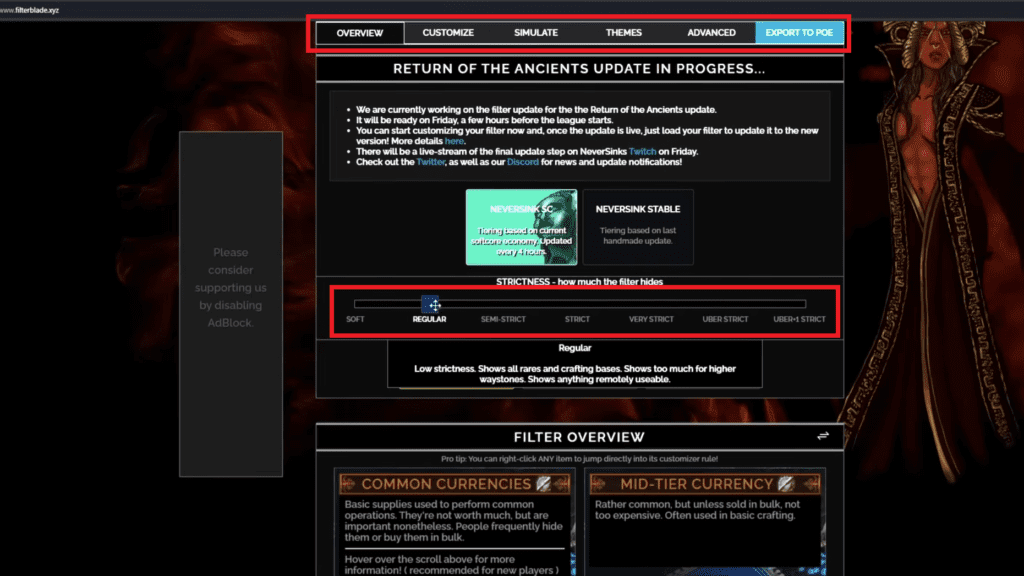
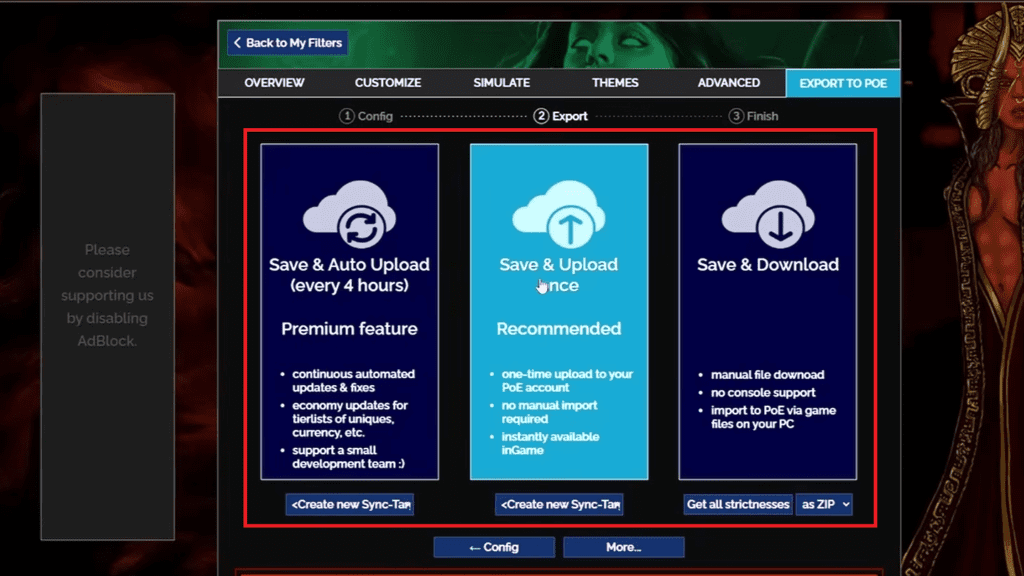
When you are done customizing, click “Export to POE” and you will be given three options. The first is a premium option that saves your filter, automatically uploads it to the game, and keeps it updated every four hours without any input from you.
The second option saves and uploads it to the game once. This is the one I would recommend for most players. It adds the filter to your game automatically and you can come back to Filterblade later to push an updated version whenever you need to.
The third option is fully manual. It saves and downloads a .filter file to your computer which you then need to select yourself from the Item Filter section inside the game. It is the most hands on of the three but works fine if you prefer to manage your files directly.
Importing .Build Files
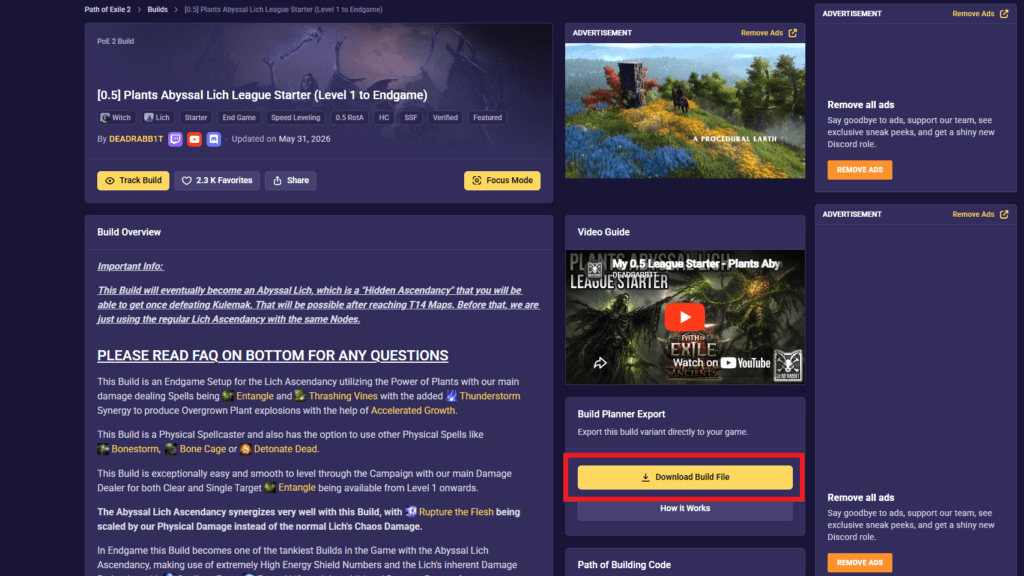
Getting custom .build files into the game is pretty straightforward. Head to your favorite build site and download the .build file you want. One site I recommend is Mobalytics as it has a large selection of Path of Exile 2 builds that are easy to browse and download.
Find a build you like and click on it. You will see a “Download Build File” option on the page. Keep in mind that if a build has multiple variants, you will need to download a separate file for each one.
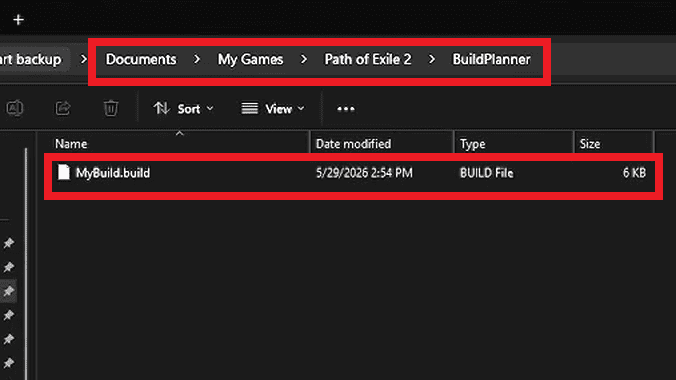
After you have downloaded the .Build file, paste it into the “BuildPlanner” folder for “Path of Exile 2“. This is located in “My Games” under “Documents“. The full file path is shown in the image below.
After that open up the game and head to the Build Planner. In the top left corner, you will find a dropdown menu. Select your imported build from there and it will load up the passive tree overlay so you can start following the plan node by node.
That’s It
Both of these features make a genuine difference to how enjoyable Path of Exile 2 is day to day. A good loot filter cuts out the noise and lets you focus on the items that actually matter. The Build Planner keeps you on track without having to alt-tab to a guide every thirty seconds. Set them both up before you start your next session and you will wonder how you played without them.