41 articles
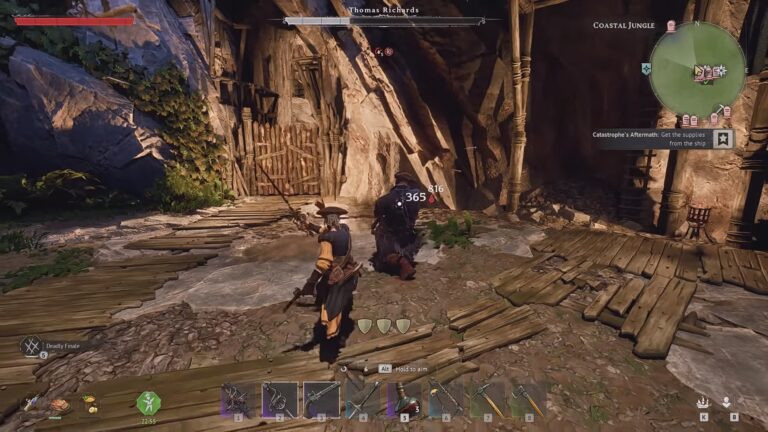
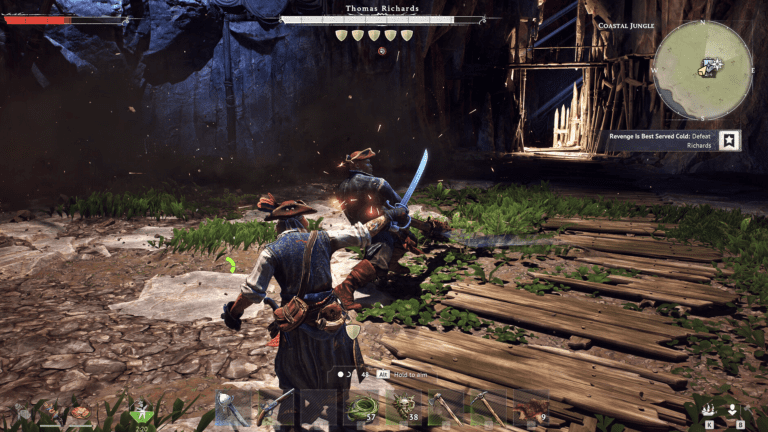
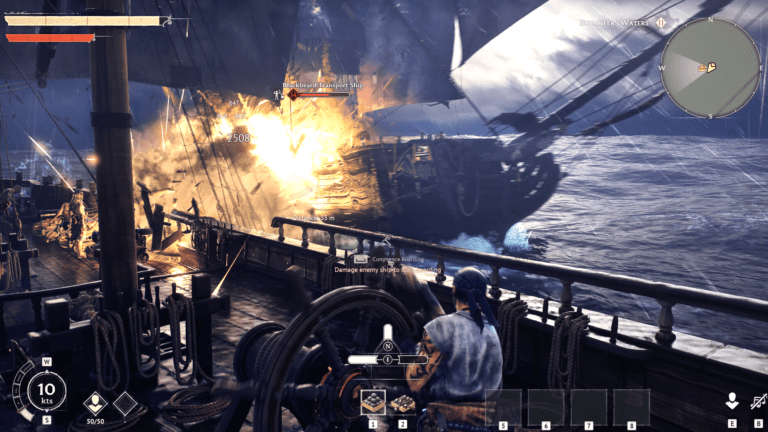
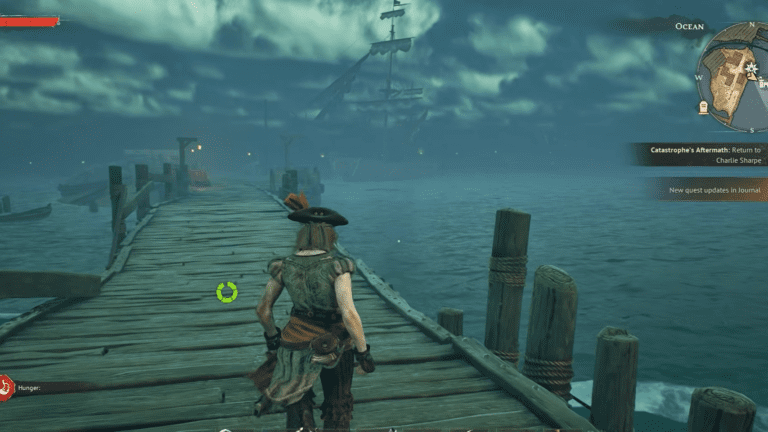
Windrose is built on Unreal Engine 5, and while it is actually fairly well optimized after recent patches, it can still be demanding during large fights, naval combat, and dense areas.
Most of these performance issues boil down to a handful of heavy settings. As such, tweaking the right options can have a bigger impact on its performance than just lowering every setting to Low. Needless to say, the game’s graphics menu is not the most extensive you will ever come across.
There are not dozens of sliders and toggles to dig through, just a handful of core settings that cover the basics. I will go over each setting individually and give you the option that strikes the best balance between solid FPS and keeping the game looking decent.
The Best Settings to Optimize in Windrose
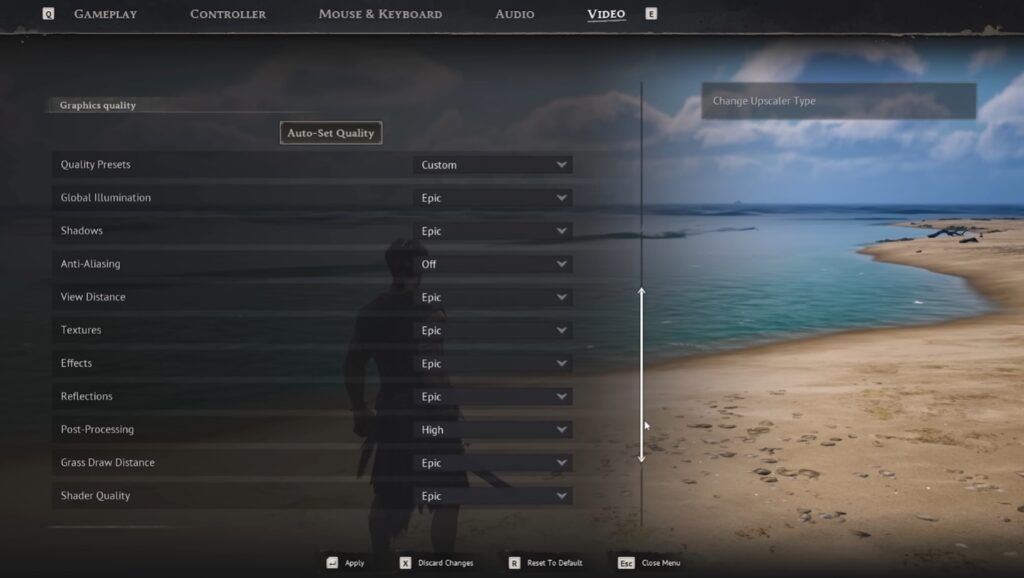
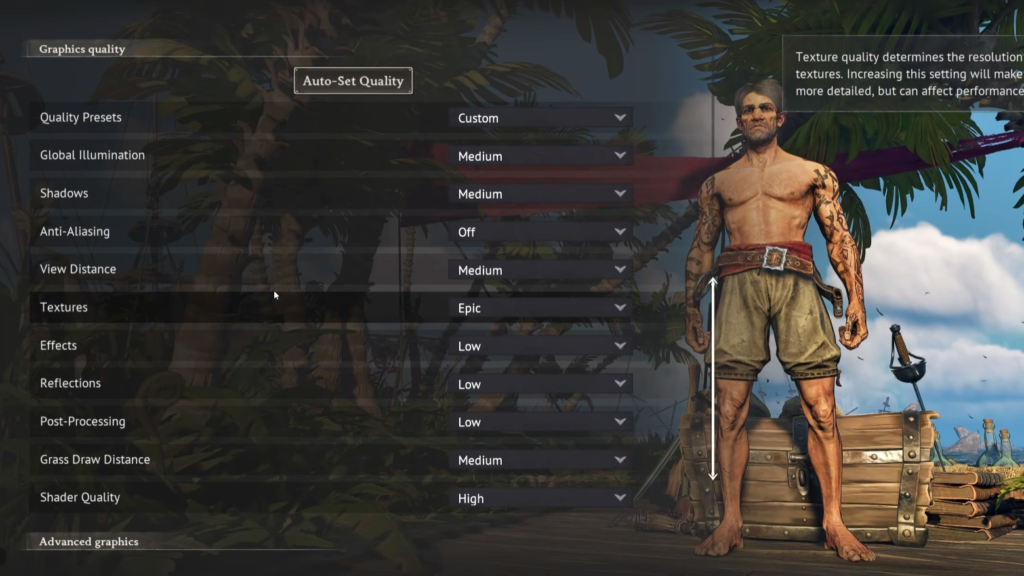
Here is a breakdown of every setting in the graphics menu and which option I recommend for the best balance of performance and visuals:
 Windrose – How to Get to The FoothillsApr 20, 2026
 Best Early Game Build in WindroseApr 20, 2026
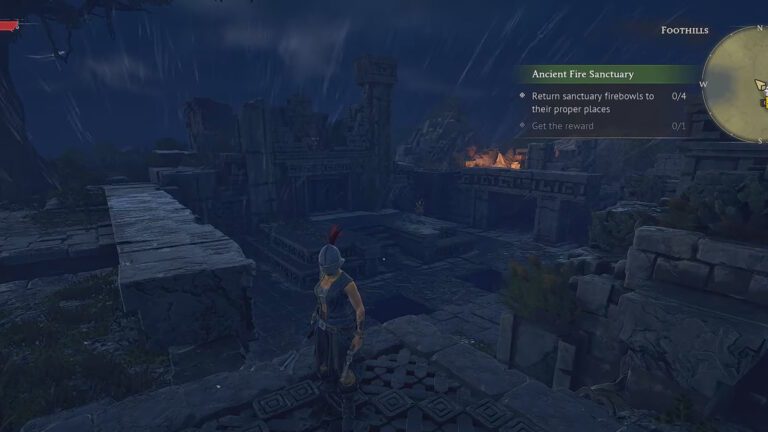
 Windrose: Ancient Fire Sanctuary Puzzle Solution & All ChestsApr 20, 2026
Frame Generation
This setting was bugged back then. Having it on would introduce stutters whenever you go to different screens or menus, which makes the whole experience feel annoying and uncomfortable.
Fortunately, it’s no longer as problematic as it was during the game’s earlier versions.
If you have an RTX 40-series GPU or newer hardware that supports Frame Generation properly, you can safely enable it for smoother gameplay. Input lag is still slightly higher, but the stuttering issues tied to menus and transitions have been reduced significantly through patches.
However, if you have a low-end system, I’d still recommend keeping it disabled because Frame Generation only works best when your base FPS is already reasonably stable.
Anti Aliasing
Keep this at “Off” since you are using DLSS or FSR. Those upscalers handle anti‑aliasing on their own, so leaving the game’s built‑in anti‑aliasing on will just waste performance and might even make the image look worse.
Upscaler | Upscaler Type
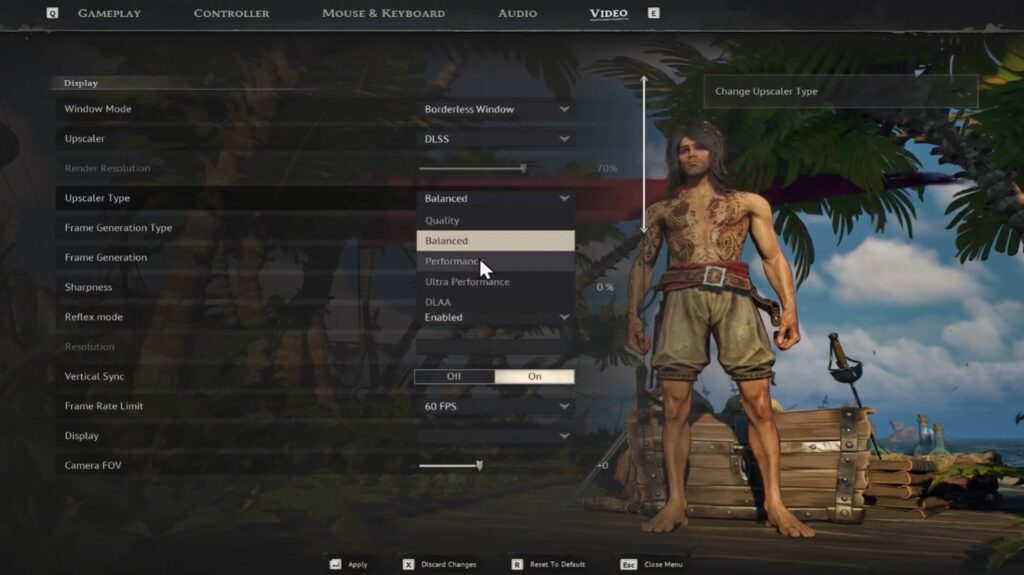
If you are running an Nvidia GPU, then you should set your Upscaler to “DLSS”. But if you have an AMD GPU, then select “FSR” instead.
For the Upscaler Type, go with “Quality” if you are running the game on a 1080p or 1440p monitor. If you have a 4K display, go with “Balanced” instead. Anything lower than these recommended settings will make the game run better, but it will also become too blurry to look good.
Global Illumination | Shadows
Keep both settings at “Medium“. If you drop them to “Low”, the game looks noticeably worse and you will see a big visual downgrade that is hard to ignore.
But at “Medium”, the game still looks decent while giving you a solid boost in FPS. That is the sweet spot where you are not sacrificing too much visual quality for performance.
View Distance
You can set this to “Medium”. The “Near” option causes a lot of pop‑in, where trees and rocks suddenly appear right in front of you. “Medium” reduces that annoying pop‑in quite a bit while still saving you more FPS than if you cranked it up to “High” or “Epic”.
Effects | Reflections
Effects and reflections do take a bit of FPS, so you are better off keeping both of them set to “Low“. Cranking them up adds some nice visuals, but the performance cost is not really worth it for the small improvement you get.
Textures
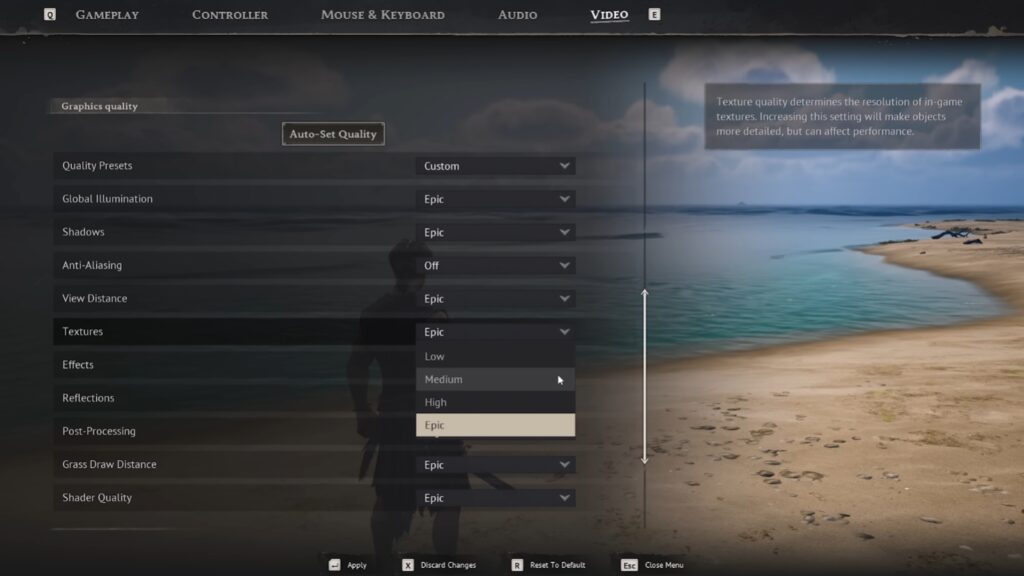
Textures do not cost much in terms of FPS, but they do require a decent amount of VRAM on your graphics card.
If you have 8GB or more of VRAM, you can safely set this to “Epic” without taking a performance hit. If you have a 6GB card, then “High” is the way to go. For a card with 4GB of VRAM, set it to “Medium” to avoid running out of video memory.
If you have an even lower VRAM, simply set it to “Low”. Going higher than your VRAM amount will cause stuttering and frame drops.
Post Processing
I prefer keeping Post Processing at “Low” because I do not like the Depth of Field and other similar effects it adds. At higher settings, those effects make the game look a bit blurry. So, this one depends on your personal preference, but I would recommend keeping it at “Low” for better clarity and a small FPS boost.
Grass Draw Distance
Keep this setting at “Medium” because if you drop it to “Low”, the grass pop‑in becomes way too noticeable. You will see patches of grass appearing right in front of you as you walk around, which breaks the immersion pretty fast. “Medium” gives you a much smoother transition without costing too much FPS.
Shader Quality
Shader Quality in Unreal Engine 5 has a huge impact on performance. For low‑end systems, I would recommend simply keeping this setting at “Low”. That will give you the biggest FPS boost and keep the game running smoothly.
For mid‑range systems, you can crank it up to “Medium” without losing too many frames. And if you have a high‑end system, you can push it to “High” for better visuals.
Even those with powerful hardware reported struggling with Shader Quality on Epic during crowded areas or heavy weather effects, so I do not currently think the visual difference is worth the FPS loss.
Wrapping Up
Recent patches have improved the game’s SSD usage and reduced excessive disk writes, which previously caused heavy stuttering for a lot of players.
As usual, make sure the game is fully updated before changing your settings too aggressively. Aside from that, you should also:
- Cap your FPS to something stable, like 60 or 90 instead of leaving it uncapped
- Install the game on an SSD, or an NVMe SSD if you have one installed
- Keep background applications closed while playing
- Enable Hardware Accelerated GPU Scheduling in Windows if supported
That covers all the important settings in Windrose. The game still has occasional performance spikes, especially during naval combat and busy multiplayer sessions, but it runs far better now than it did during the earlier builds.
Unfortunately, performance issues are typical of Unreal Engine. But with tweaks like these, you should be able to have a smoother experience overall.
Now that you have the performance side sorted, you should also check out our guide on how to have the best start in Windrose. It covers the early game mistakes to avoid and the smart moves that set you up for success.