 26 articles
Today, let’s get down to business with The Finals. Whether you’ve been here since the beta or just jumped in, we’ve got some solid insights into optimizing your controller settings. The controller settings in this game are pretty customizable. As with any of my “best controller settings” articles, most of the stuff will be down to personal preference.
Anyway, I offer no frills, just practical advice – let’s dive in.
Best Controller Settings Season 1
Gameplay Settings
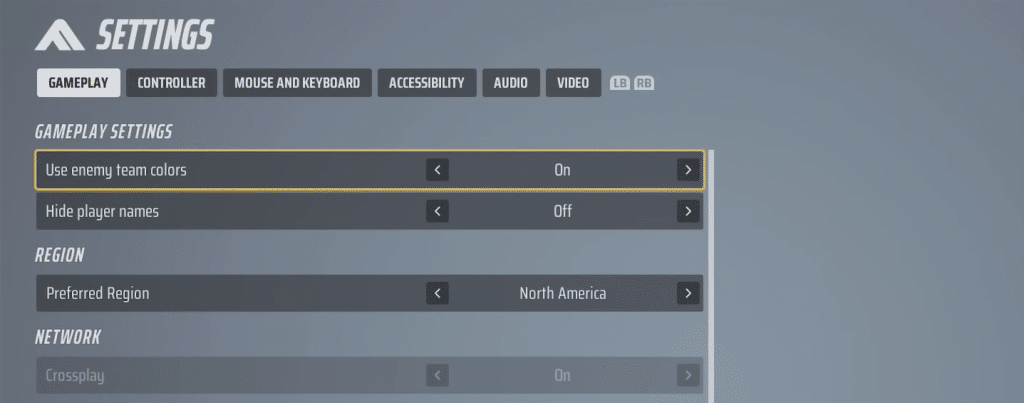
Let’s begin with the fundamentals. In the gameplay settings, a few tweaks can significantly impact your gaming experience.
1. Preferred Region
- Recommendation: Set to your preferred region (e.g., NA).
2. Use Enemy Team Colors
- Recommendation: Enable for better team differentiation.
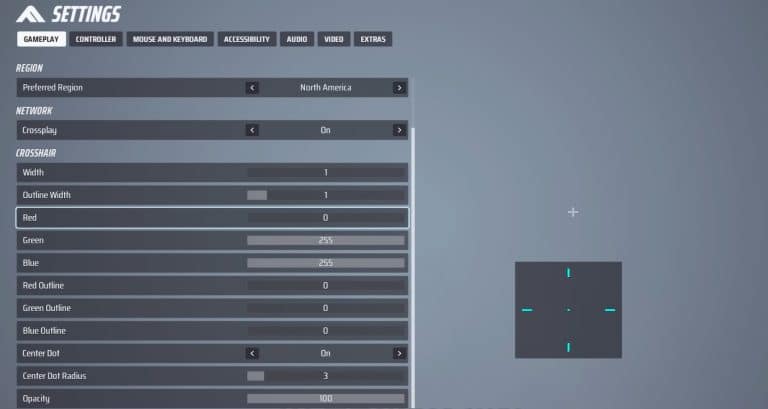
3. Crosshair
- Preference: Adjust as needed, default is a solid starting point.
Controller Settings
Now, let’s delve into the juicy details of controller settings, where precision and control are paramount.
 The Finals: Is the Battle Pass Worth Buying?Jan 17, 2024
 The Finals: Top Players Allegedly Caught CheatingJan 11, 2024
 The Finals: Toxic Gas Complete Guide | How To UseDec 30, 2023
1. Look Sensitivity
- Horizontal: 300
- Vertical: 250
- Recommendation: Slightly offset vertical sensitivity for better tracking.
2. Zoom Sensitivity Multiplier
- Recommendation: Adjust based on personal preference and playstyle.
3. Sensitivity Scaling
- Status: New (Effects unknown)
- Recommendation: Leave it on unless personal preference dictates otherwise.
4. Look Boost
- Horizontal: 200 (for quicker 180s)
- Vertical: 0 (for precise vertical tracking)
- Ramp Up Time: Default (0.5)
- Recommendation: Experiment based on your playstyle.
5. Zoom Look Boost
- Settings: Similar to Look Boost but for ADS
- Recommendation: Adjust to your comfort, default is 40.
6. Sensitivity Ramp Up Time
- Recommendation: Leave at default unless it feels off.
7. Directional Equipping
- Tip: Use D-pad for quick gadget selection.
- Personal Experience: Significant time-saver.
8. Button Remapping
- Tip: Customize for personal comfort.
- Example: Jump on left bumper, crouch on right bumper.
9. Aim Assist
- Note: More options available for fine-tuning.
- Recommendation: Tailor to your preference, considering the balance.
10. Controller Vibration
- Recommendation: Personal preference; off for minimal distraction.
Additional Tips for PC Players
For those on PC, a few extra tweaks can elevate your game:
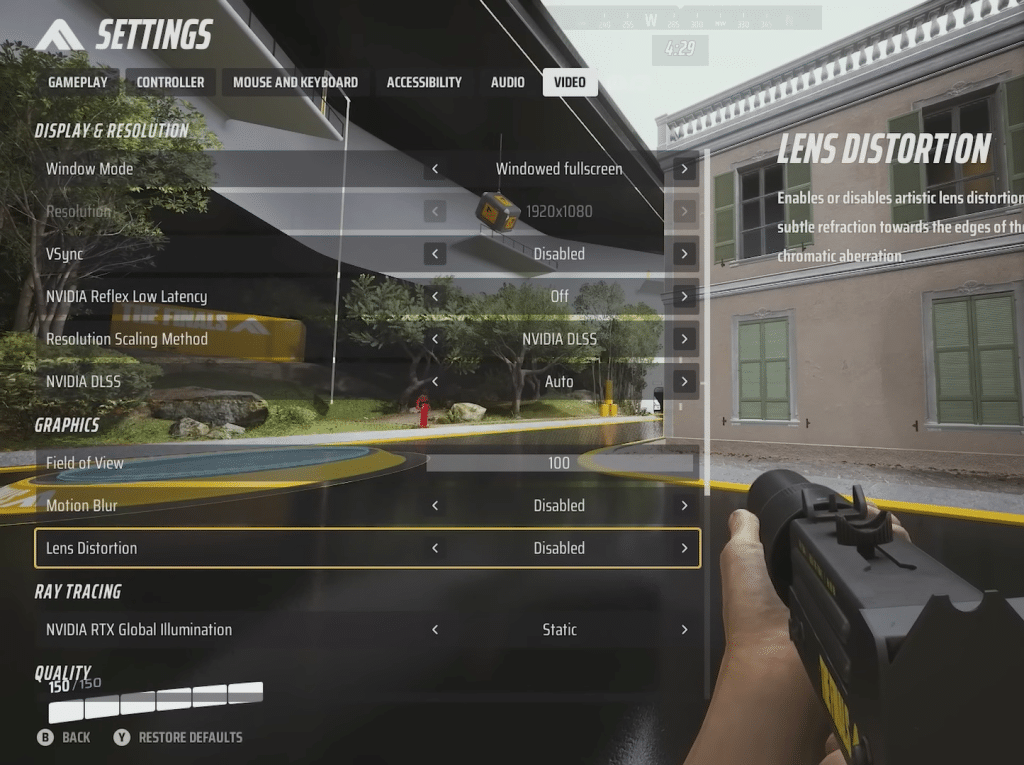
Nvidia Reflex Low Latency
- Option: On Plus Boost (for lowest latency)
- Note: Adjust based on performance; off if dropping frames.
Graphics Settings
Lastly, a brief overview of graphics settings to optimize your visual experience.
1. Field of View (FOV)
- Recommendation: Maximize for a wider view (e.g., 100).
2. Motion Blur
- Status: Disabled by default.
- Recommendation: Personal preference; consider disabling for clarity.
3. Lens Distortion
- Status: Enabled by default.
- Recommendation: Personal preference; consider disabling.
Conclusion
Armed with these optimized settings, you’re now ready to dominate The Finals with precision and finesse. Experiment, adapt, and find the perfect configuration that aligns with your play style.
Stay tuned for more The Finals content! Let me know what settings you’re running and which of mine sound unpractical to you guys and gals below, I’m interested.
ALSO READ: The Finals: Which is the Best Shotgun to Use