
 103 articles
There are a bunch of skins that you can use for your avatar in Roblox. This gives you an extra layer of customization and makes you stand out from other Roblox players.
One good example is the no skin face. As the name implies, this gives you a faceless appearance, which can be perfect for spooking other players.
However, this isn’t something that you can achieve via normal means. Instead, it involves using a glitch, and we’ll show you how to pull it off in this guide.
Getting the No Face Appearance in Roblox
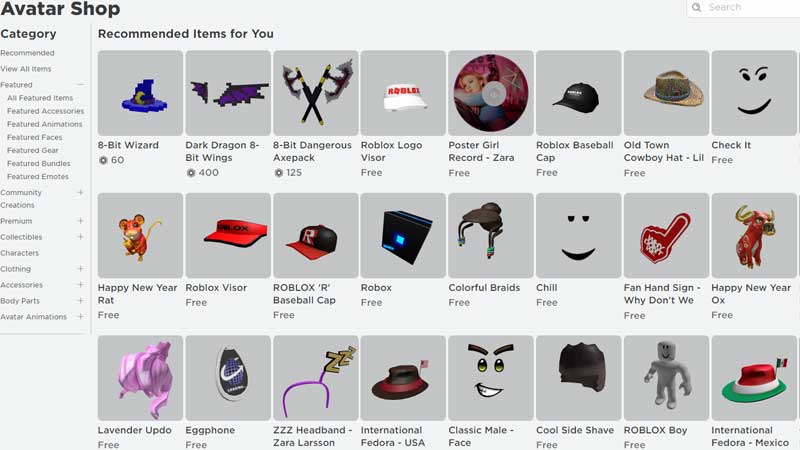
There are several methods you can use to attain the no face look in Roblox. For the most part, however, you’ll need to spend money to use a certain avatar. However, you can also use a glitch to achieve it.
 Easter Event 2026 Guide Follugila Mission in Creatures of SonariaApr 4, 2026
 Roblox Has Been Officially Banned in IraqOct 20, 2025
 How to Play Pls Donate in RobloxDec 14, 2023
First off, let’s talk about the paid version.
If you browse through Roblox’s avatar selection, you’ll find several faces that will hide your avatar’s face. However, each of them will cost Robux which you can only get by spending real money on the game.
Specifically, we’re talking about the following items:
- Void Head
- Joy Blush Light Skin Mask
- Faceless White Head
- Disappearing Face
- Skin Color Head with Horns
As long as you can afford it, this method is by far the fastest way to get a no face appearance in Roblux. You also have the option to hide your whole head by using the Headless Horseman outfit.
The caveat is that it’s only available for sale during Halloween. It costs a lot of Robux as well.
Using a Glitch to Get the No Face Appearance
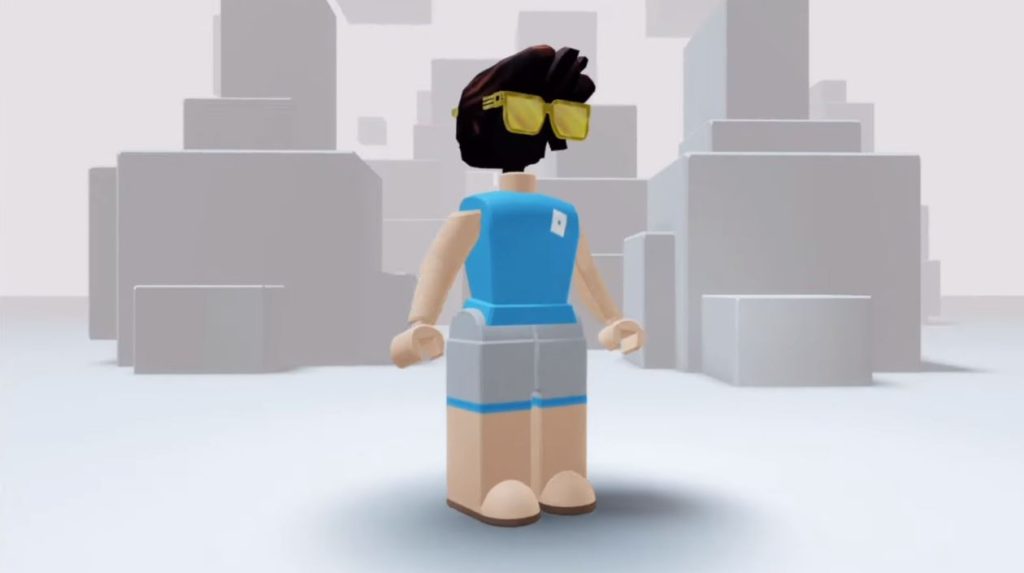
If you don’t have enough money to buy some Robux, you can just use the free method instead. As mentioned, this one involves using a glitch in the game’s avatar creation system.
There are no negative consequences to using this. However, it will hide your entire head. So if you’re only looking for a no face look, this might not be the option for you.
Also, it only works if you’re playing on a Windows PC. Here’s what you should do:
- Log in to your Roblox account and head to the avatar shop.
- Unequip any head accessory you’re wearing.
- Type “Roblox Player” in the search bar, without quotation marks. Then, right-click on the first result that shows up and click Open File Location.
- Click on Content then the Avatar folder. Look for the heads folder then drag it to your Downloads folder.
- After that, simply launch Roblox and start any game that you want. If done successfully, your character should now appear headless.
However, this is only temporary, as your headless look will disappear if you customize your avatar. You’ll need to repeat the steps above to revert it.
ALSO READ: How to Change FOV in Minecraft