16 articles
Connection errors are extremely obnoxious in Minecraft, s they can prevent you from joining servers and playing with others. Of course, this is annoying, as building and surviving with others is so fun!
In this guide, we’ll give you multiple possible solutions to these obnoxious connection errors on the PC versions of the game.
How to Fix the Failed to Login Errors in Minecraft
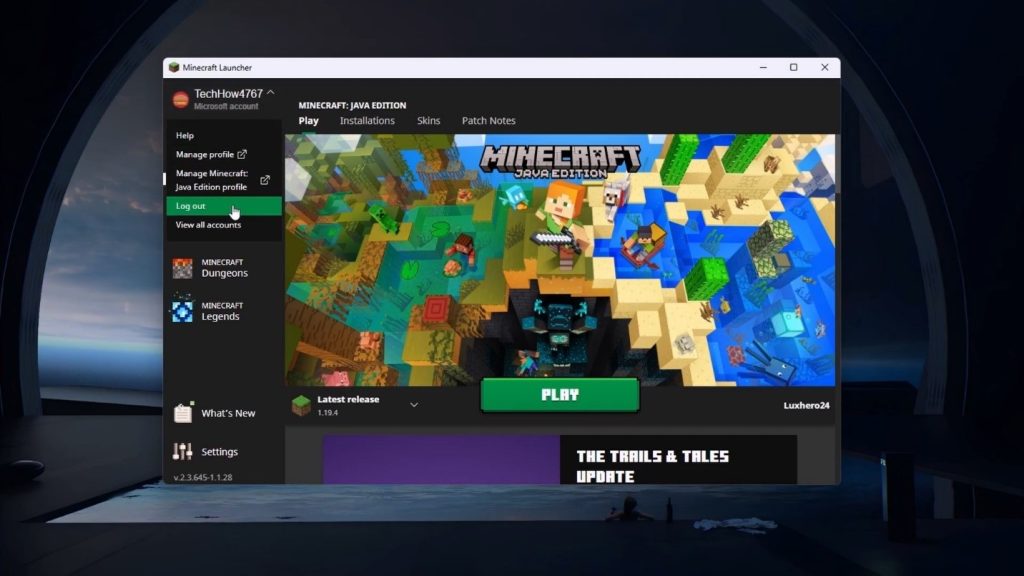
Before anything else, try to log out of your Microsoft account. On the Minecraft launcher, click on your account name and select Log Out.
After you’re logged out, try disabling your VPN if you’re using any as it might be causing connectivity issues.
 Minecraft: How to Build an Invisible DoorOct 9, 2023
 How to Show Hitboxes in MinecraftApr 7, 2023
 How to Repair Fishing Rod MinecraftApr 6, 2023
With your VPN disabled, open the Minecraft launcher again and log back into your Microsoft account. Try joining a server now to see if it fixes the problem.
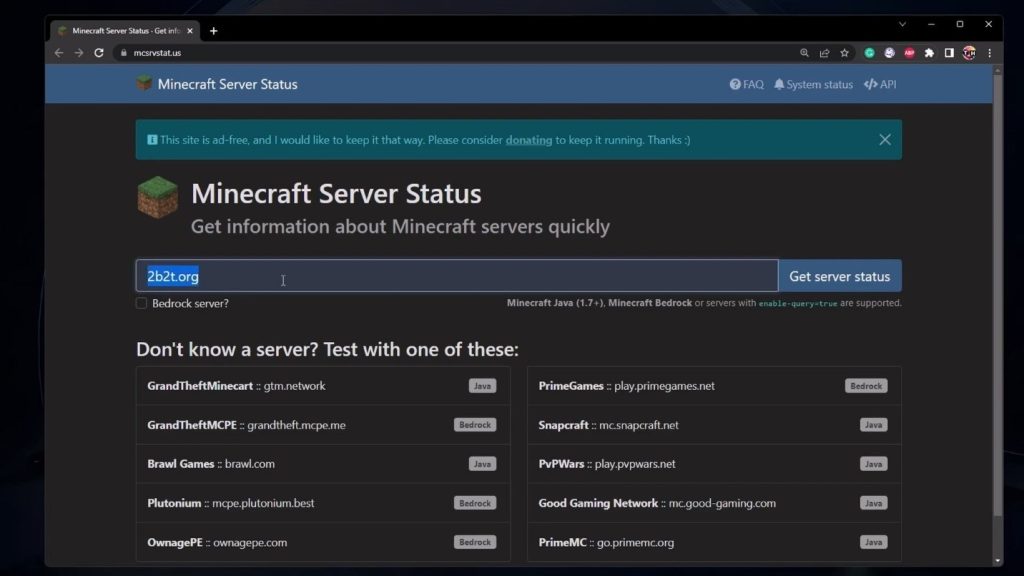
If that didn’t help, you might want to check the status of the server itself. The issue might not be on your end but on the server end. You can use the following website to check the status of any Minecraft server: https://mcsrvstat.us/
Input the address of the server into the site and click on “Get server status”. Use this to check that the server is online and that it hasn’t reached the maximum amount of players.
If the server is working properly and you still can’t connect, you might want to try resetting your Minecraft app.
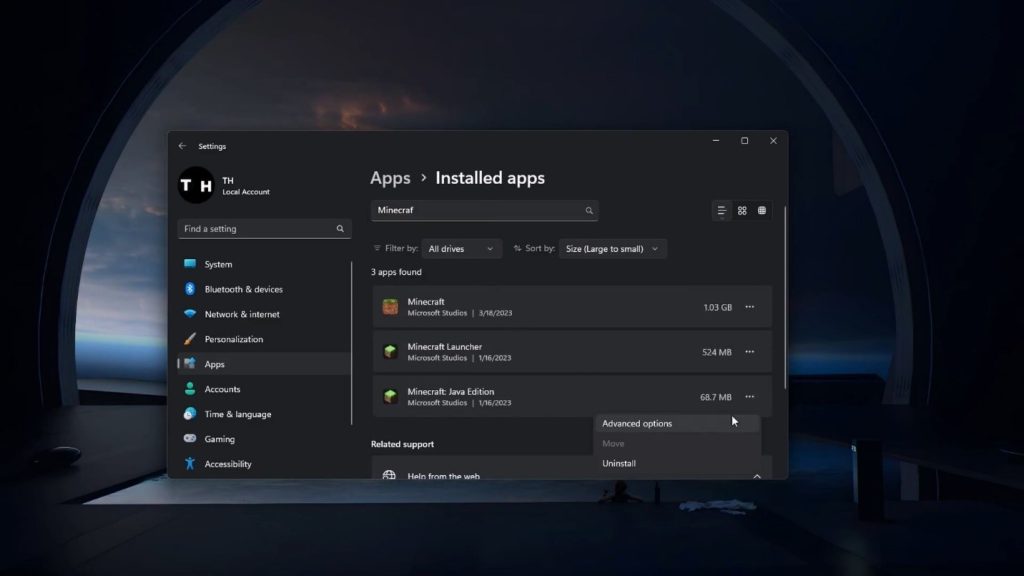
To do this, open your Windows settings and then click on the Apps section. Search for Minecraft in the Installed Apps category.
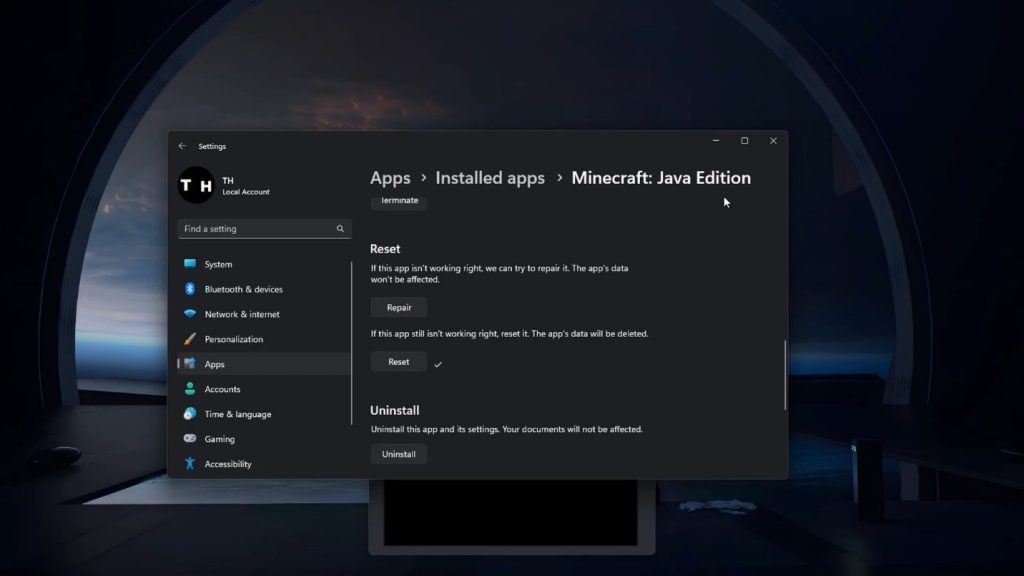
Click on the three dots to the right of the Minecraft application and open Advanced Options. After that, click on the Reset option and accept.
After resetting, open the Minecraft launcher again and try to connect to the game. You will most likely need to log into your Microsoft account again as well.
If nothing worked, you might have an issue with your internet connection’s configuration. Sadly, there are too many possible causes, and you might need the help of an expert.
If the issue persists for too long and affects other games or websites, you might want to consider getting in touch with your internet provider and requesting customer support.
ALSO READ: Diablo 4: Call of the Ancients Quest Guide