 2 articles
Deep Rock Galactic: Rogue Core finally launched into Early Access, but some users can’t enjoy it due to it crashing or just not launching!
Sadly, games and PCs are always prone to issues like these. It sucks having to spend time troubleshooting when we just wanna explore the depths of Hoxxes IV, right?
To help you with this, this guide will give you various potential troubleshooting fixes.
Try Rebooting Your PC
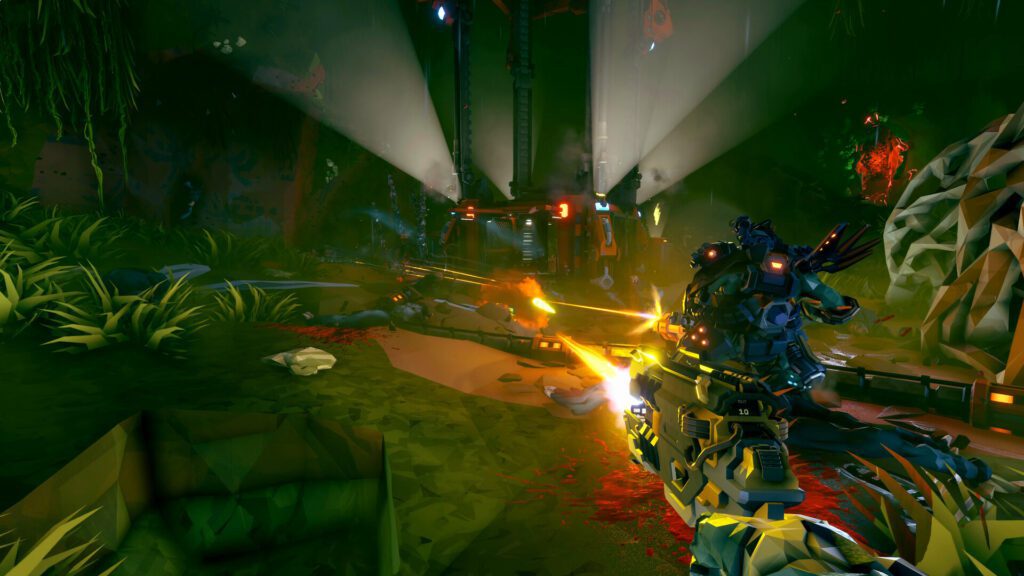
As always, this is the very first step of troubleshooting, as silly as it may be. Before you try more involved troubleshooting methods, you should reboot your PC first of all.
 Deep Rock Galactic: Rogue Core Beginner Guide: Classes, Progression, and Survival TipsMay 23, 2026
I’m sure you’ve already tried this before looking up troubleshooting guides like this, right? Nonetheless, it’s still worth reminding, because sometimes it just does the trick.
Update Graphics Drivers
Another simple troubleshooting thing you should do first of all is to update your GPU’s drivers. Outdated drivers can sometimes lead to issues, particularly with new releases.
How exactly to update your drivers will depend on your GPU’s brand and manufacturer. Nonetheless, the following links will lead you to the support pages for each manufacturer, where you can find up-to-date drivers:
Worth noting that you should reboot your PC again after updating the drivers. It’s a common part of the update process, but it’s worth noting.
Verify the Game Files
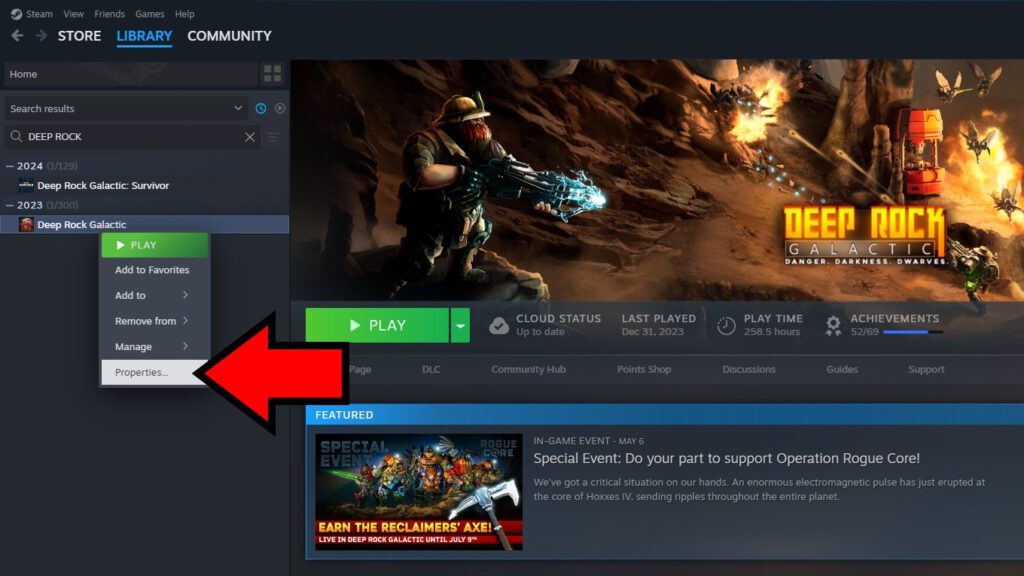
It’s always possible that one of the files for the game got corrupted or didn’t download properly. So, to fix this, you should first look for Rogue Core in your Steam library and right-click on it.
Then, select Properties. I’ve done that with the original Deep Rock Galactic above, as an example.
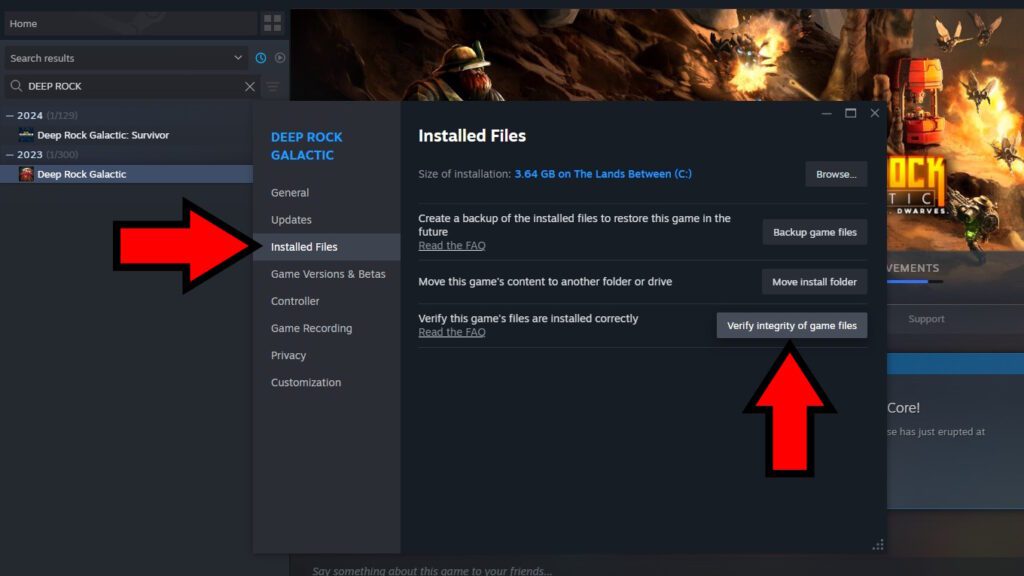
When the Properties window opens up, select the Installed Files tab on the left side. Then click on “Verify Integrity of Game Files” on the right.
As it says, this will start a verification process. Steam will check that all of the game files are alright. If something is corrupted or missing, it will redownload the problem file fresh. You just need to wait a bit for it to finish and then launch the game again.
Try Different Launch Options
The next potential fix is one that’s mainly aimed to those of you who can just not launch the game at all. For this one, find Rogue Core in Steam and right-click on it to open its Properties. As before, an example using Deep Rock Galactic above.
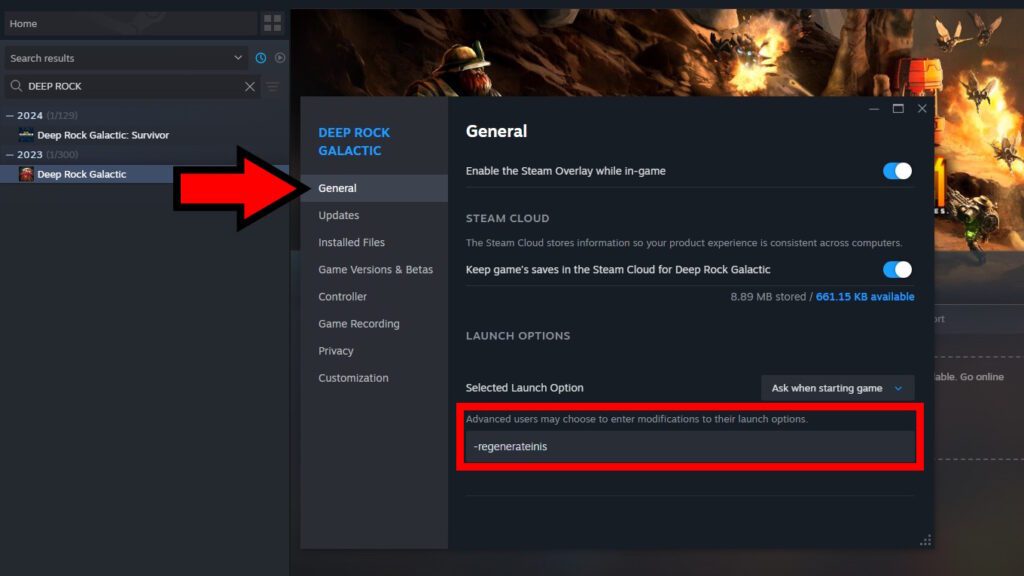
In the General tab of the properties, look for the text box near the bottom, under Launch Options. In there, paste “-regenerateinis” without the quotation marks and close the Properties window.
Try launching the game again and it will reset all of the game’s configurations to their default on launch. In doing so, it might just get rid of settings that are preventing it from launching properly!
If the previous launch option did fix the game for you, remember to remove it after successfully launching the game. Otherwise, your configurations will get reset every launch.
On the note of launch options, you can try using “-dx11” (without quotation marks) as well. This will force the game to launch in DirectX 11 mode instead of the default DirectX 12 mode. It’s particularly useful if you have an older GPU.
Disable Frame Generation and Interpolation
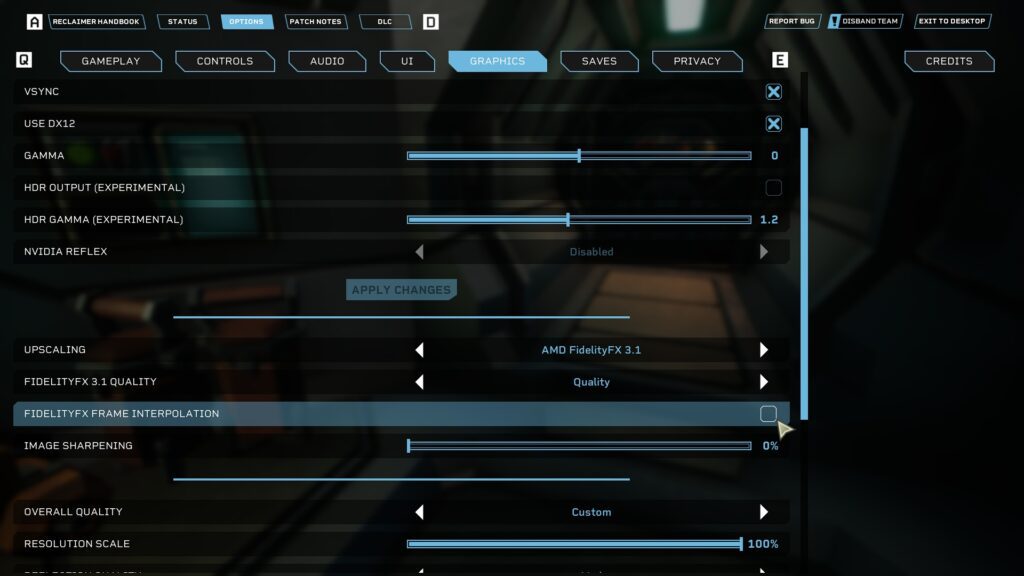
As of this writing, this is something that likely won’t affect you. After all, Frame Generation has been temporarily removed by the developers.
Nonetheless, I think it’s something worth noting in case the issue is brought back when Frame Generation is added back!
If you mainly get crashes during loading screens, particularly when getting on the elevator at the end of a section, you just need to go into settings and disable Frame Generation or Frame Interpolation. It seems to be the culprit, so disabling it should stop the crashes.
Again, though, the option is currently unavailable. But keep that in mind, in case the feature is readded and you start experiencing crashes again.
Check Your CPU
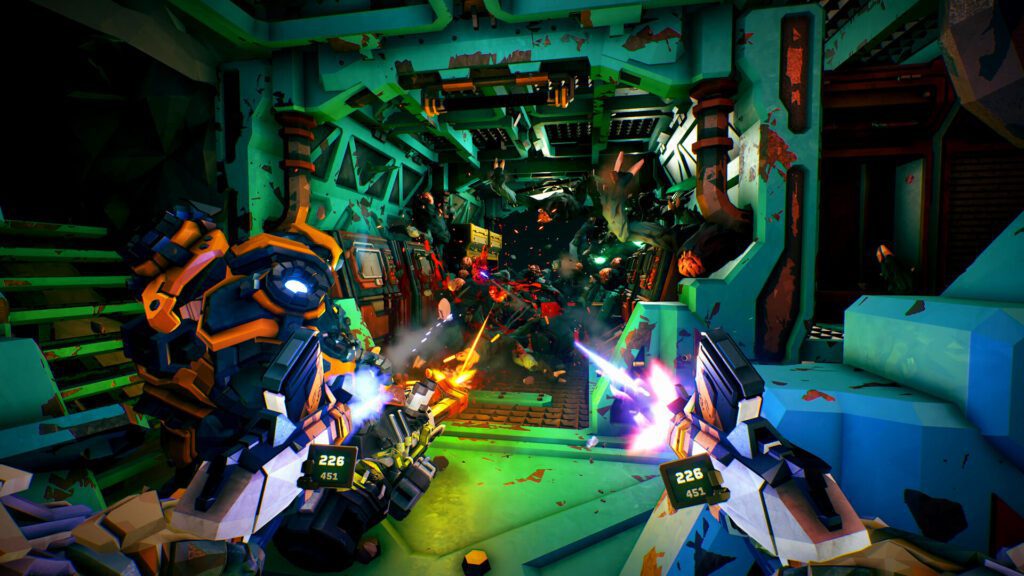
If the game fails to launch, pay attention to the error message you get. If you have a 13th or 14th generation Intel CPU, it’s possible that your CPU is malfunctioning.
In this case, you’ll get an error saying something along the lines of “Could not decompress shader with Oodle.” It will then link you to the official Oodle support page, which explains the issue in more detail and details what steps to take.
If you’re affected by this issue, make sure to thoroughly read the Oodle support page I linked. It’ll also give you details on how to get in touch with Intel to request an RMA, hopefully allowing you to replace your CPU with a functioning one.
However, again, note that this specific issue is only related to 13th and 14th generation Intel CPUs. If you have another Intel generation or don’t even have an Intel CPU at all, it shouldn’t be affecting you.
Wait for Further Updates
If no amount of troubleshooting seems to help, it’s possible you might just need to wait for Deep Rock Galactic: Rogue Core to receive updates that fix the crash or launch issues you experience.
After all, the game is currently in Early Access. Sadly, issues like crashes and the like are just expected at this point in development.
That said, the developers seem to be quick to act. As I said before, they disabled Frame Generation right away once it was reported as being the cause of crashes, for example.
So, I would also highly recommend reporting issues you have. Follow the official bug report instructions shared by the developers in the game’s Steam Discussions forum. They might even get in touch directly to help you troubleshoot issues!
Alternatively, you might just opt to ask Steam for a refund. It’s pretty much automatically granted, provided you have less than 2 hours of playtime and less than 2 weeks of ownership.
Did you manage to get the game working? Well, that’s great! If you want more help with it, check out our Rogue Core beginner’s guide. May we meet in the core of Hoxxes IV, rock and stone.