 4 articles
For The King 2 is all about cooperative gameplay, and we know that jumping into an online adventure with your fellow adventurers is the best way to tackle the challenges that lie ahead. In this guide, we’ll show you how to smoothly host, join, and rejoin your friends in the world of For The King 2. Let’s embark on this multiplayer journey together!
Multiplayer Guide
Hosting & Rehosting
1. Hosting the Adventure: To become the leader of your group, you’ll need to take charge and host the adventure. Here’s how you can do it:
- First, launch For The King 2 and head to the Multiplayer menu.
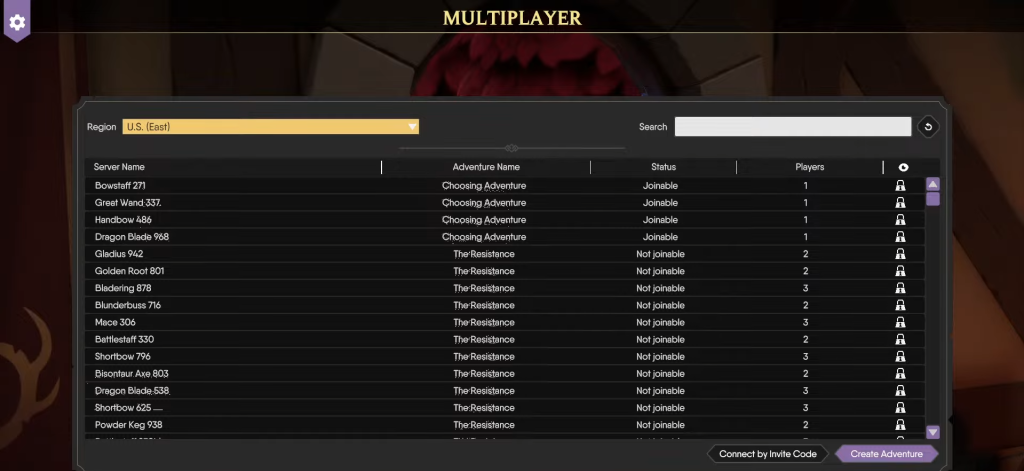
- Within the Multiplayer menu, you’ll find the server list and region selection. Choose a region that’s closest to you for the best experience. If a region is busy, consider selecting the next closest option.
- Click on “Create Adventure” located in the bottom right-hand corner. This will open the server creation menu, and an autogenerated name will be assigned to your room, making it easier for your friends to find you.
- Set the privacy settings for your room and create a password if desired, then click “Create Adventure.” While we work on improving the invite process, we recommend marking your room as “Unlisted” and having your friends search for it using the autogenerated name.
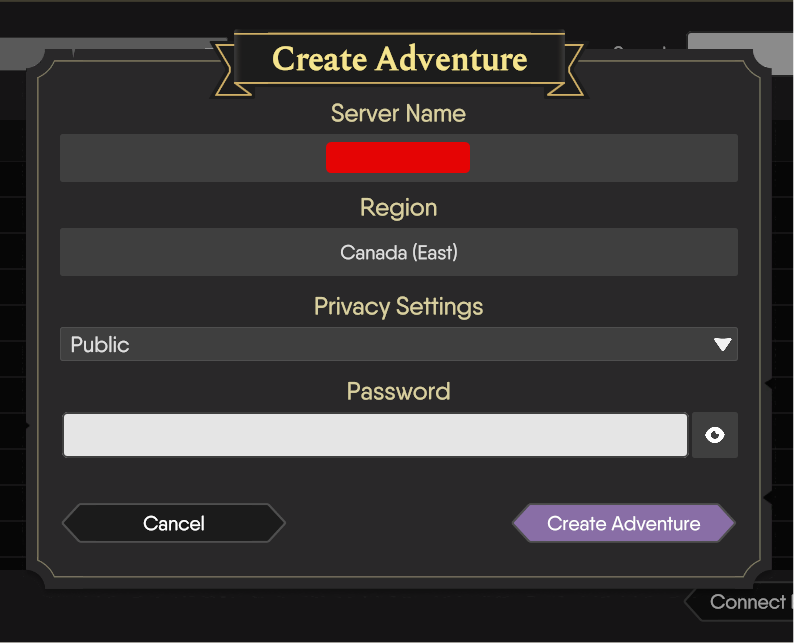
Once your adventure is created, your room will be listed on the server list, allowing your friends to join. You can choose the campaign you’d like to start or continue from a previous save, whether it’s a single-player or multiplayer save.
2. Rehosting: If you need to rehost a session, follow the same steps as hosting a new adventure. Just make sure your party members have joined before selecting the “Load Game” option. Keep in mind that players can only join from the lobby.
 For The King 2: Complete Guide To FocusNov 6, 2023
 For The King 2: Inventory Management GuideNov 6, 2023
 For The King 2: Complete Combat GuideNov 6, 2023
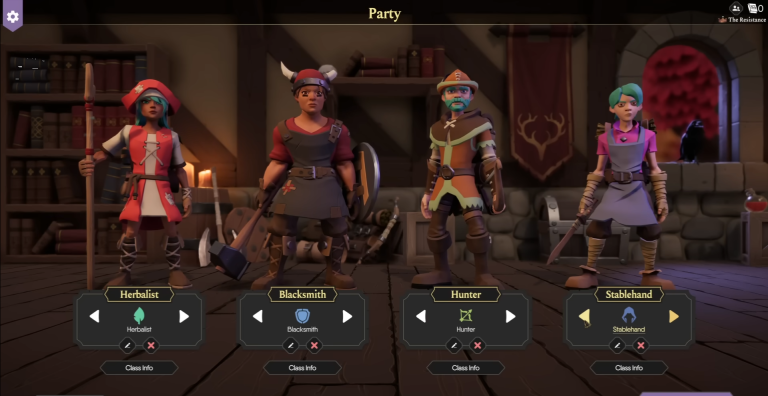
After reloading your save file, ensure that your fellow party members have their characters reassigned to them from the Party Management menu in the top right of the screen once the game has loaded and you’re on the overworld.
Joining & Rejoining
3. Joining: If your friend is hosting, you’ll want to know how to join their adventure. Here’s what you need to do:
- Start from the Multiplayer menu and navigate to the server list.
- While we’re working on improving the invite process, it’s best to find your friend’s room by searching for the title given to you by the host.
That’s it! Now you can sit back and let your host pick the campaign or load a previous save for the party to embark on.
4. Rejoining: Rejoining works the same way as joining a game. However, remember that you cannot join a game in progress. The host will need to save and quit, return to the Adventure Selector/Campaign map, and have all players rejoin before selecting the save file to reload.
Common Errors
Here are some quick fixes to common issues players encounter when connecting to online sessions:
– Online Error: Adventure Not Found: If you experience a delay in room creation, wait for a moment before joining or try pressing join until you successfully connect.
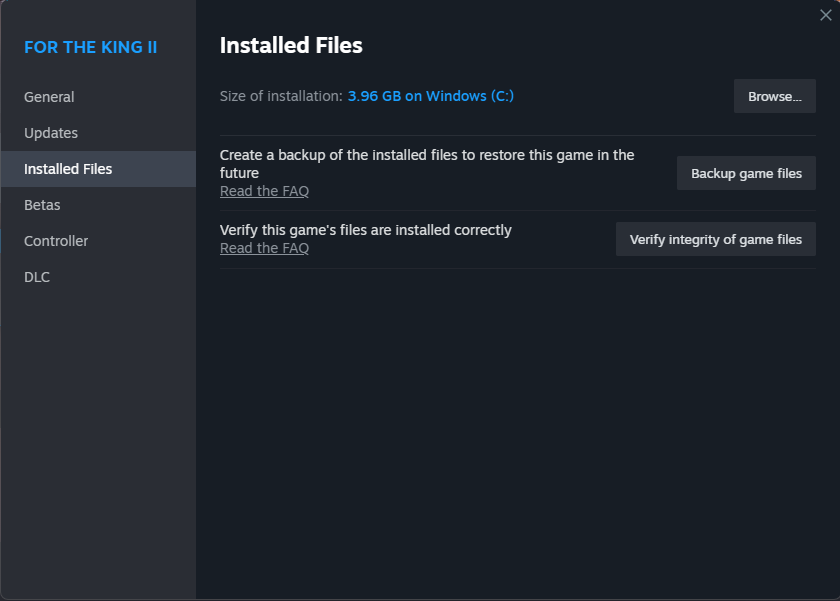
– Online Error: Game Version Mismatch: Ensure that all party members are on the same game update. Check for updates in your Steam library and verify game file integrity if necessary.
– Cannot find friend’s game: Ensure you’re connected to the correct region by checking the drop-down menu in the top left corner of the lobby menu.
– Online Error: Stuck in Party Management: To resolve this issue, quit to the menu via Escape or F1 Bug report > Quit to Menu.
– Online Error: Unable to join game in Party Management: To fix this, join from the Adventure Selection (Map Screen).
With this guide, you’ll be ready to jump into the multiplayer world of For The King 2 with ease. Let us know if we’ve missed anything!
ALSO READ: For The King 2: Complete Combat Guide