


 1 articles
The Meta Quest 3 has just released the Horizon OS Version 2.4 update a few weeks ago. And while it brought with it a bunch of enhancements and new features, it also came with some performance-related issues.
For example, you might experience stuttering, frame drops, or poor performance in general in ALVR. You are definitely not alone, as it seems a lot of players are experiencing the same issues.
What’s frustrating is that most of the issues aren’t caused by weak hardware. In fact, even users running high-end cards like RTX 4080, RTX 4090, and even RTX 5090 also experience sudden stuttering update the updates.
Fortunately, most of these issues can be fixed, or at least reduced, with the right tweaks and settings. Let’s find out how.
Why the Latest Update Caused Performance Issues on ALVR
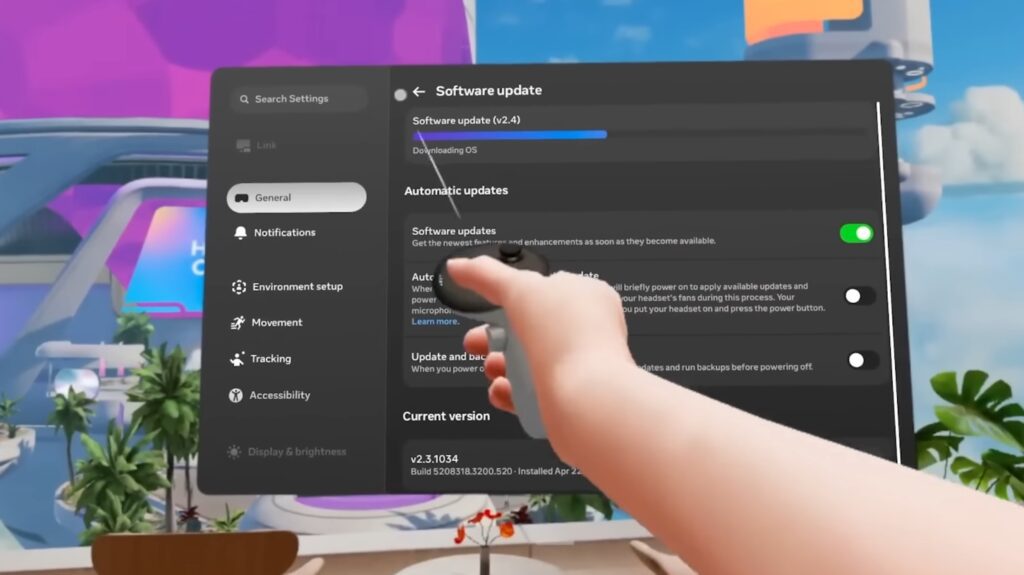
Before we get to the fixes, let’s first talk about why the latest Meta Quest 3 update caused performance issues.
For starters, the new update introduced new features such as FrameSync and System Positional TimeWarp to reduce motion sickness during frame drops, among others. While these systems are designed for smoother gameplay, the problem is that they conflict with applications like ALVR.
This explains why you’ll feel random micro stutters, latency spikes, and a bunch of other issues during fast movement. It’s also why older settings in ALVR no longer work properly after new Meta updates were released.
Here’s what you can do to fix these issues:
Update Your ALVR
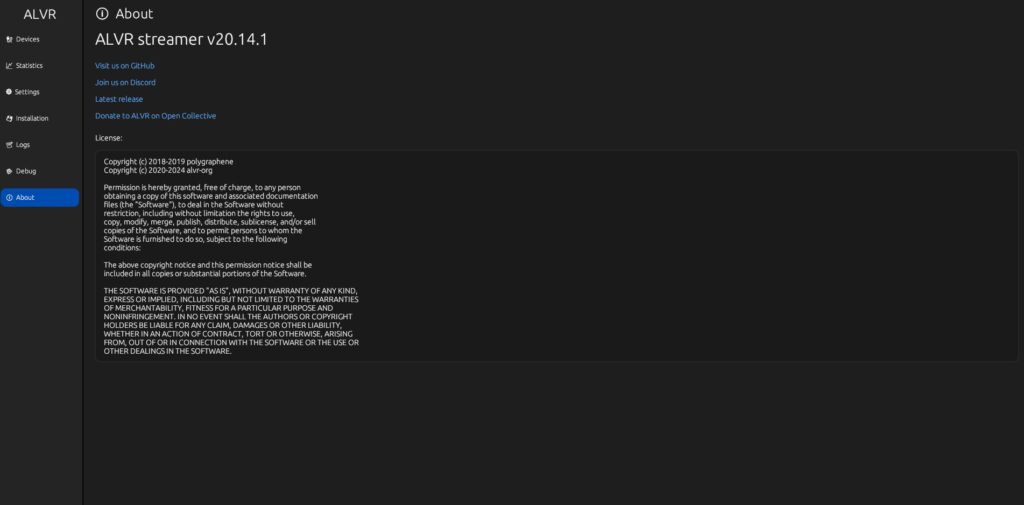
Before you make any adjustments to the settings, make sure you’re running an updated version of the ALVR.
I’ve read accounts of people who experience performance issues with their ALVR while using Meta Quest 3, only to find out they’re running an older version. If that’s the case for you, then go ahead and install the latest release.
Once your ALVR is updated, delete your old session configuration. ALVR’s official troubleshooting guide even recommends deleting the session.json file in your ALVR installation folder after major updates to prevent potential issues.
Adjust Your Codec and Bitrate
Since the latest Quest 3 updates, more emphasis is placed on your codec configuration. As long as you configured it properly, you should be able to fix most, if not all, performance issues.
If you’re using NVIDIA, HEVC is still generally the safest option. AV1 can look excellent, but some systems experience unstable latency spikes depending on the GPU driver version and wireless conditions.
The biggest mistake many users make is pushing the bitrate too high. Don’t make the same mistake. Before the latest updates, some Quest 3 owners could run 250 to 400 Mbps without issues. Now, however, aggressive bitrates only end up triggering frame drops and decoder instability.
Instead of maximizing your bitrate, focus on stability. This way, you can get better results around 120 to 180 Mbps on HEVC.
Disable Positional Timewarp

Some users also found out that the new System Positional Timewarp feature introduced in the latest update caused jitters and warping during head movement. In this case, disabling it might fix the issue.
You can find this setting inside the Quest Experimental Features menu. Simply disable it, and then restart the headset completely before testing ALVR again.
While this isn’t a universal fix, it has become one of the most common solutions several players reported to work after the recent update.
Roll Back to a Previous Driver Version
Another major source of stuttering comes from your NVIDIA driver version and some potential conflicts with software running in the background.
Some recent NVIDIA drivers introduced VR latency regressions that affect Quest streaming. If you notice performance issues occurring immediately after a driver update, I suggest rolling back to a previous version to fix it.
Also, background recording tools can interrupt VR encoding pipelines. Things like ShadowPlay, Instant Replay, desktop capture tools, RGB software, browser hardware acceleration, and monitoring overlays all compete for your GPU resources.
As much as possible, turn them off and see if it fixes the issues. Even powerful GPUs can experience sudden frametime spikes when too many background services are active.
Lower Your Refresh Rate
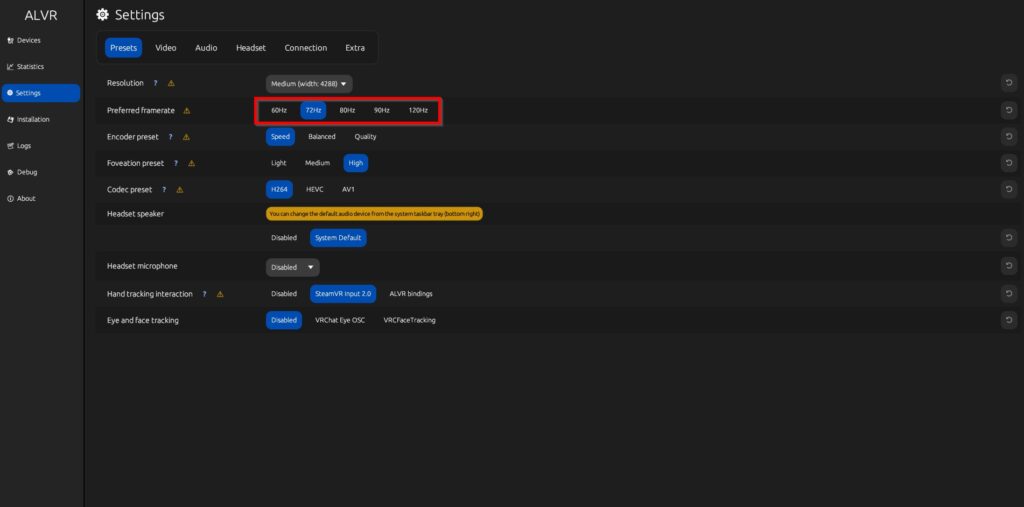
Another common reason for performance issues on the ALVR after a recent update is a high refresh rate.
Lots of users found out that their setups, which worked perfectly at 90Hz or 120Hz, suddenly became unstable after the recent updates. In this case, what worked was lowering their refresh rate back to 72Hz.
For most users, 90Hz is the sweet spot, but if you want the most stable option, I’d recommend setting your refresh rate to 72Hz. What’s important is that your refresh rate should be consistent. If your VR headset runs at 90Hz, then your ALVR should also target 90Hz.
Fix Your Internet Connection
The last fix you’d want to try is your internet connection itself.
Many people assume their GPU is causing the stuttering when the real problem is actually their WiFi all along.
To get the best experience, connect your PC connected directly to the router through Ethernet while your headset connects through a dedicated WiFi 6 or WiFi 6E band in the same room. If you’re using cheap ISP routers and mesh repeaters, you would most likely experience stuttering and frame drops every now and then.
Also, connecting to a crowded WiFi can lead to the same issues.
You’d be surprised to find out how simply changing your router or isolating your headset onto its own wireless channel can fix stuttering and frame drop issues.
Final Thoughts
As of now, these surprisingly simple fixes should help resolve stuttering and frame drop issues while playing on your Meta Quest 3 via ALVR. While Meta’s new systems are supposed to improve smoothness overall, they also introduced compatibility problems with PCVR streaming applications.
Hopefully, that will no longer be the case in future updates.