148 articles
Palworld has only just been released into Early Access, so issues are to be expected, such as the obnoxious black loading screen glitch.
This glitch happens whenever you launch the game or join a server. Palworld will get stuck in a black screen with a Loading text, but it seems to never actually finish loading.
In this guide, we look at various potential fixes for this annoying glitch!
How to Fix Black Screen Loading Issue
Ensure the Game is on an SSD

The first thing of note is to make sure that you’ve installed Palworld on an SSD, not an HDD. The game’s official specs state that an SSD is required for the game.
 Palworld Feybreak: How to Use Labor Research LaboratoryDec 30, 2024
 How to Get Your Own Bounty Officer in Palworld FeybreakDec 30, 2024
 Palworld Feybreak: New Breeding Combos (New Pals)Dec 30, 2024
Sure, the game might still work on an HDD, but it’s not officially supported. That’s why sometimes HDD users seem to get stuck on the black loading screen.
On that note, you should ensure that your entire PC meets at least the minimum requirements. After all, the game just won’t be playable if your PC can’t run it!
You can check the requirements on the official Steam store page, but we’ll save you a little time and list them here as well:
- Requires a 64-bit processor and operating system
- OS: Windows 10 or later (64-Bit)
- Processor: i5-3570K 3.4 GHz 4 Core
- Memory: 16 GB RAM
- Graphics: GeForce GTX 1050 (2GB)
- DirectX: Version 11
- Network: Broadband Internet connection
- Storage: 40 GB available space
- Additional Notes: Internet connection required for multiplayer. SSD required.
Wait For 10 Minutes
One thing that works for some players is to just… wait. Yup, the true and tested waiting game!
Just let the game stay on the black loading screen for around 10 minutes, as it might be loading in the background. It’s a good idea to just leave the game trying to load while you go do something else.
If it still fails to get past the black loading screen after 10 minutes, though, you might want to try another fix.
Verify Game Files
A common fix, and one that we would be remiss to ignore in this list, is the good ol’ Steam game files verification. After all, the loading screen glitch might be caused by corrupted files!
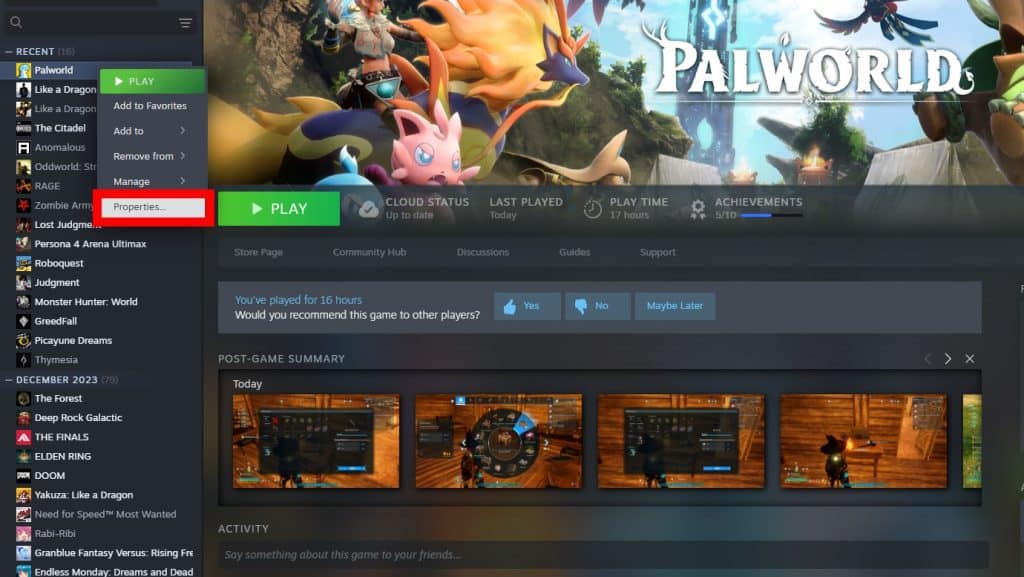
So, to verify Palworld’s files, look for the game in your Steam library and right-click on it, then select Properties.
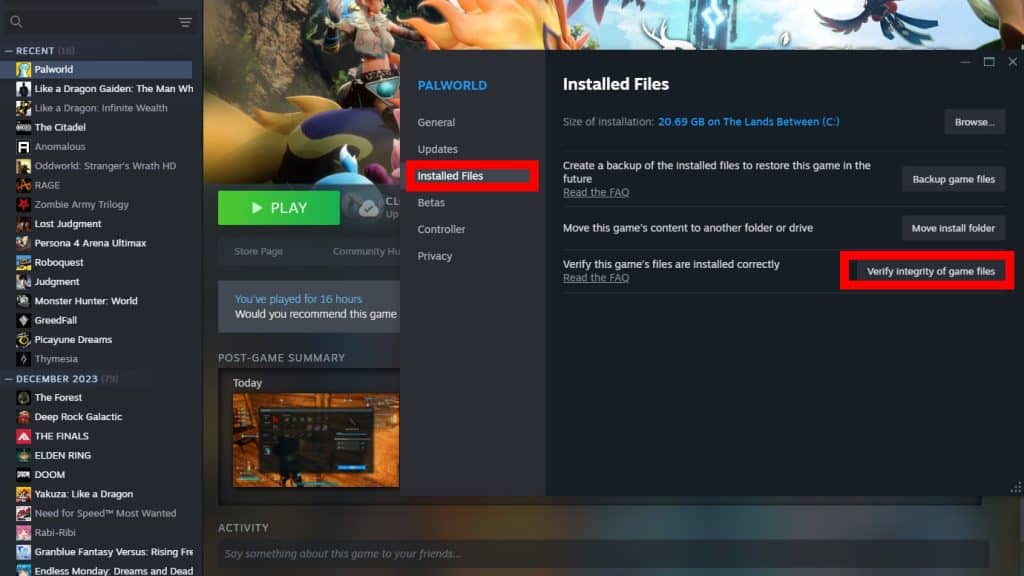
Next, select the “Installed Files” tab from the left side and click on “Verify integrity of game files.”
Now you just have to sit back and relax while Steam double-checks that all of Palworld’s files are fine. It will re-download anything that is corrupted with fresh files, fixing any issues they were causing.
When the process finishes, just try launching Palworld again and it will hopefully work as intended!
Try Compatibility Settings
Another potential fix is to set certain compatibility settings on Palworld’s launcher, which might work around whatever hangups are causing the black loading screen.
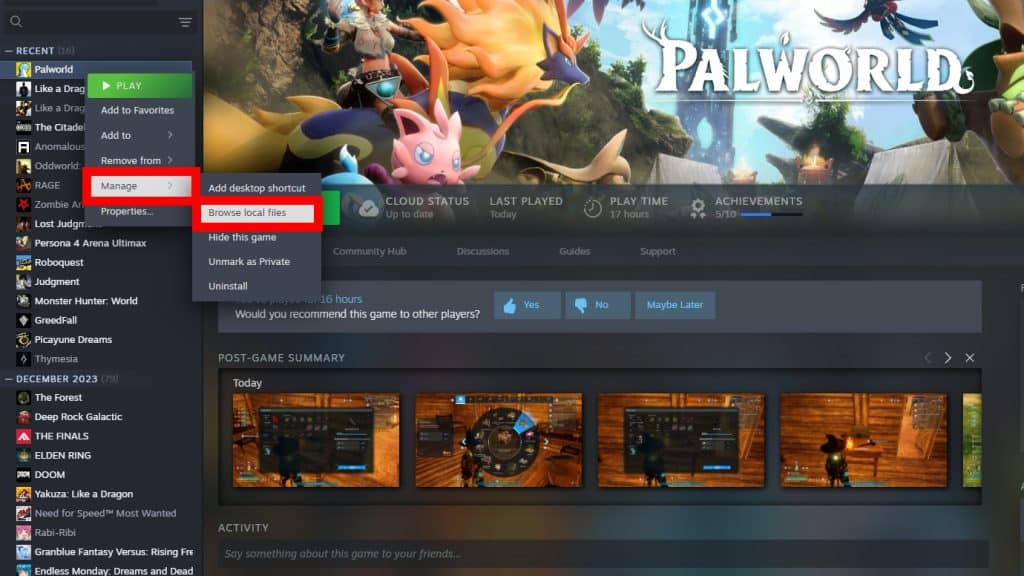
To start, find Palworld on your Steam library and right-click on it, just like on the previous fix. Except this time you will want to select “Manage” and then “Browse Local Files”.
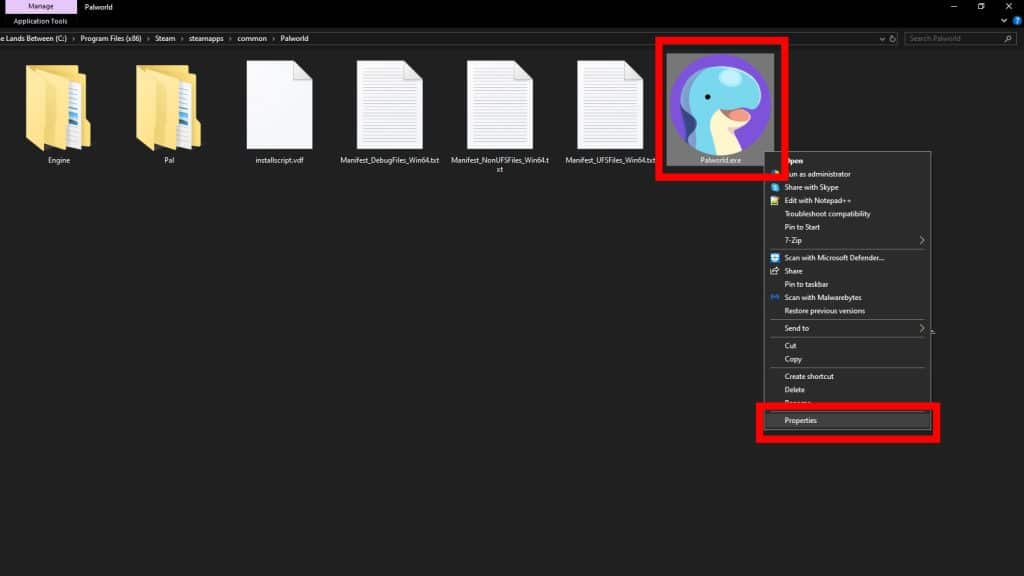
This will open up the game’s installation folder, where you should right-click on “Palworld.exe”. Select Properties from the drop-down menu.
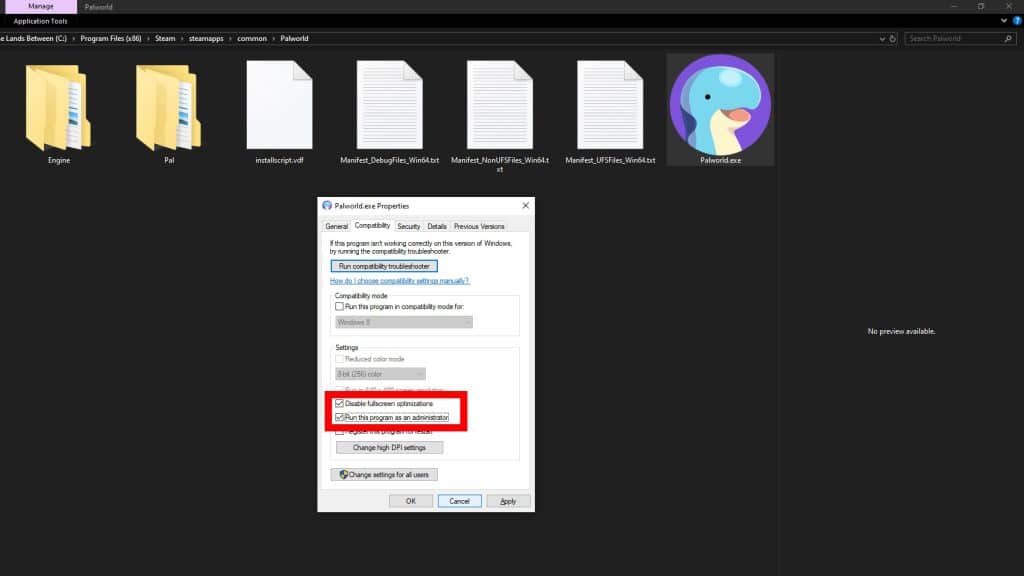
Next, click on the “Compatibility” tab and tick on the “Disable fullscreen optimizations” and “Run the program as an administrator” boxes.
Apply the settings and try launching Palworld again, and it will hopefully work properly now!
Wait for Updates
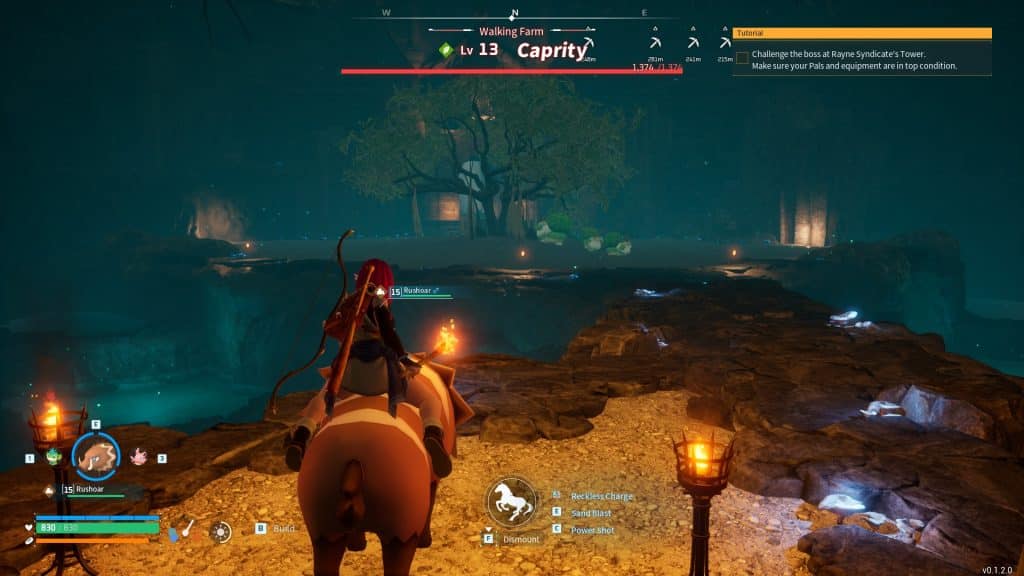
If none of our potential fixes worked for you, you will sadly have to wait it out. The developers at Pocketpair seem to be aware of the issues, so they’re most likely going to provide a fix soon!
After all, Palworld has only just been released in Early Access. Issues like the black loading screen are expected, as annoying as they might be.
That said, we do hope that a patch fixing this issue comes out soon so you can get back to capturing various Pals, mining loads of ore, and just enjoying the charming world of Palworld!