
 5 articles
Modern Warfare 3 allows you to change the color of your enemy, which is particularly great for colorblind gamers.
There are multiple presets for common colorblindness types, but you also get to set the enemy color to anything you want!
In this short guide, we’ll take you through every step of changing the enemy color to your liking in Modern Warfare 3.
Change Color of Enemies in Modern Warfare 3
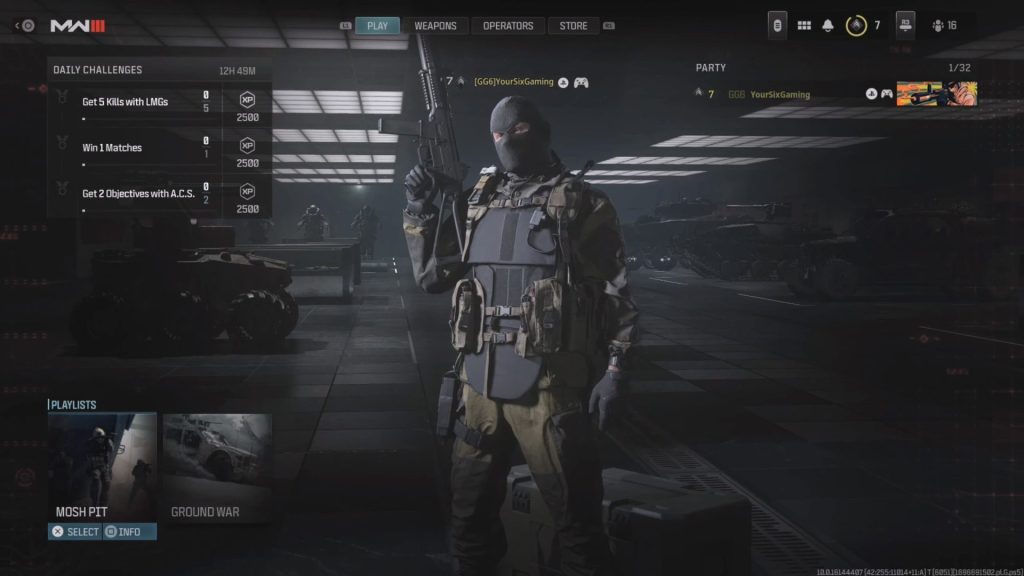
As with most important settings in Modern Warfare 3, changing the enemy color begins at the game’s main menu.
 COD Modern Warfare 3: How to Text Chat on PS5 and XboxNov 24, 2023
 COD Modern Warfare 3: How to Unblock PeopleOct 12, 2023
 How to Change Display Name Modern Warfare 3Oct 12, 2023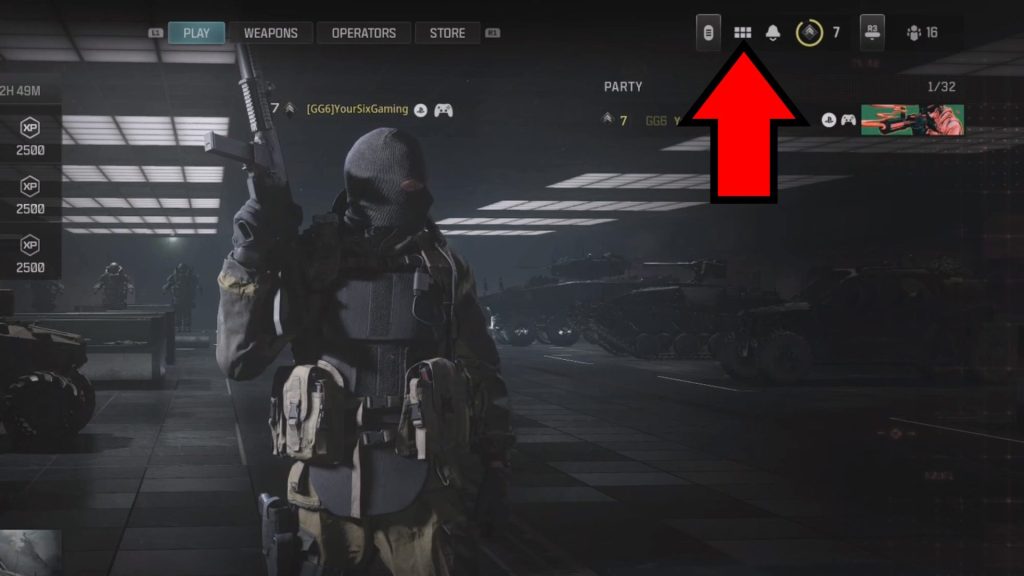
In the main menu, press the Options button if you’re using a controller. Playing with a keyboard and mouse? Just click the multi-rectangle icon on the top right instead.
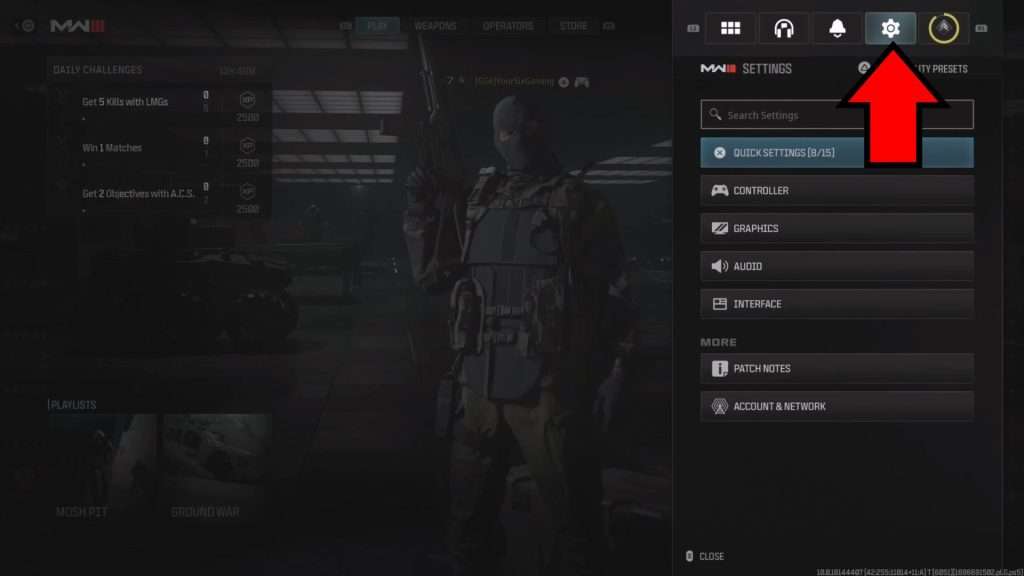
With the options menu open, you have to shift over to the Settings tab. It’s the rightmost one and it’s marked with a gear-shaped icon, so it’s easy to spot.
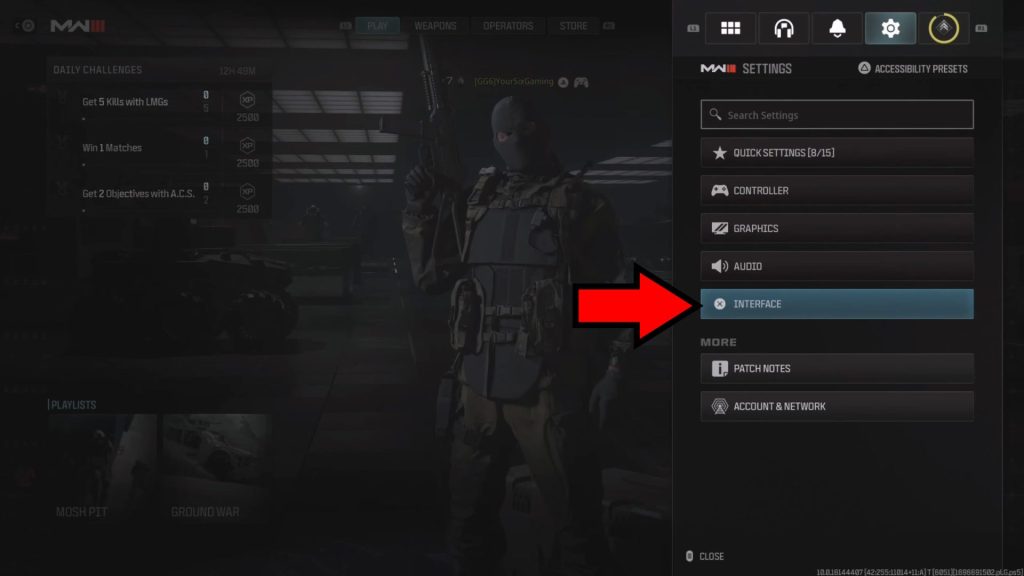
Select the “Interface” settings here, as shown above.
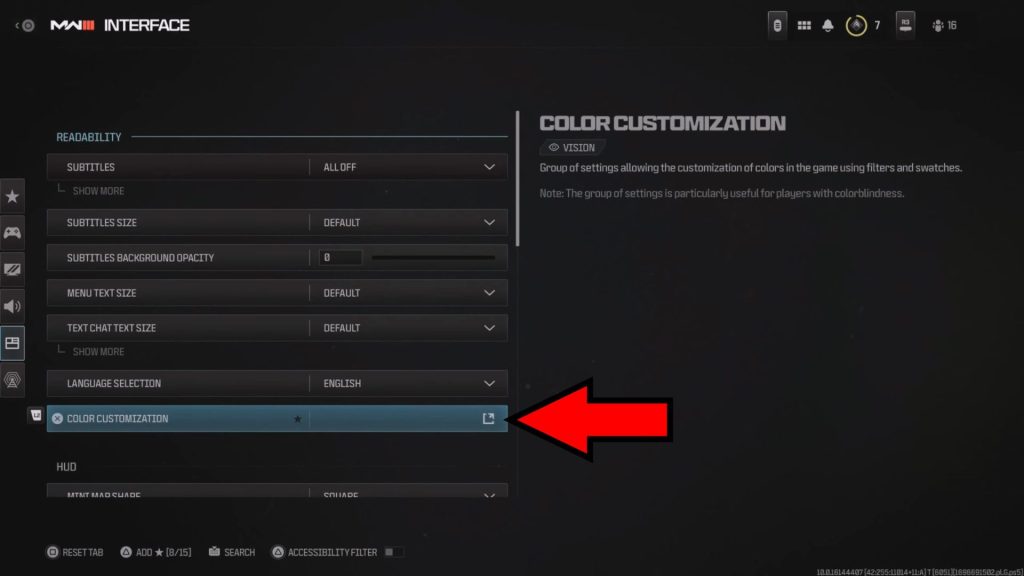
In the Interface menu, look for the “Color Customization” option. It’s a little quaint, right? Just follow the arrow in the image and you’ll get there.
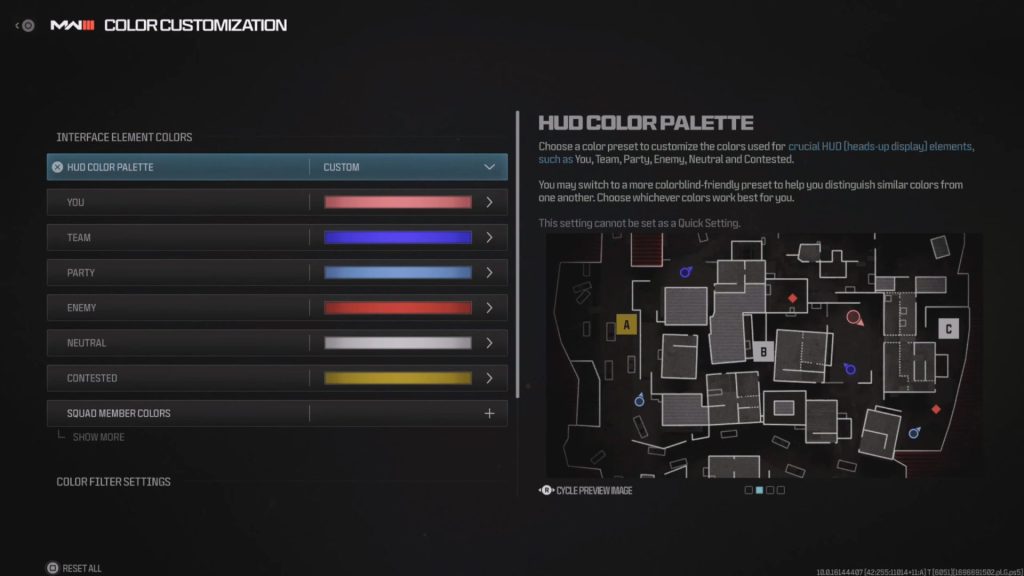
At long last, you’re now in the Interface Element Colors section of the settings. Here you can freely change not just the enemy’s color, but also others such as your own team’s.
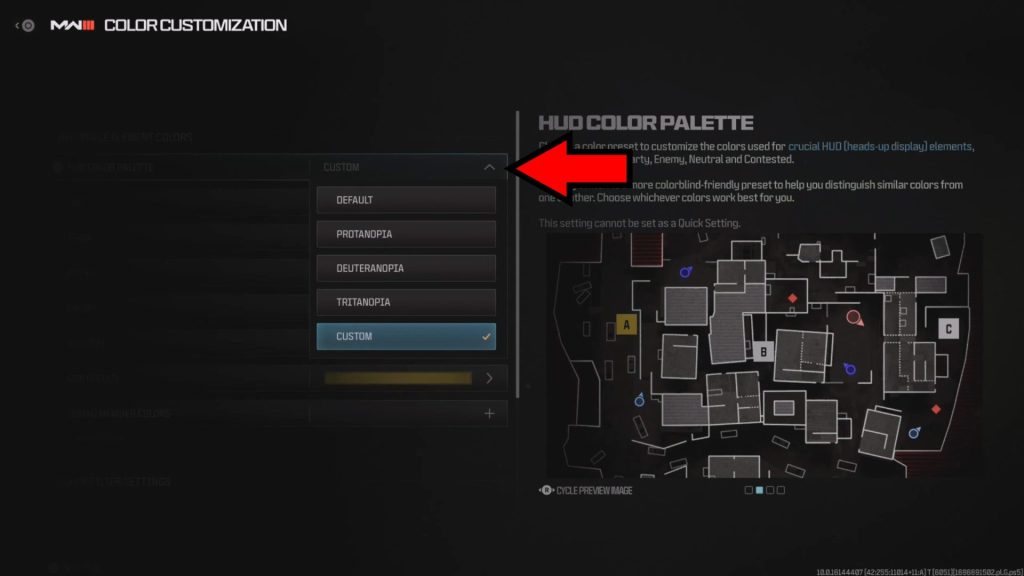
The “HUD Color Palette” option at the very top can be set to custom, which allows you to do whatever you want. Get creative with the colors!
Additionally, it comes with various presets that are targeted towards common colorblindness types. If you’re colorblind, you can probably just use one of these presets instead of having to deal with customization.
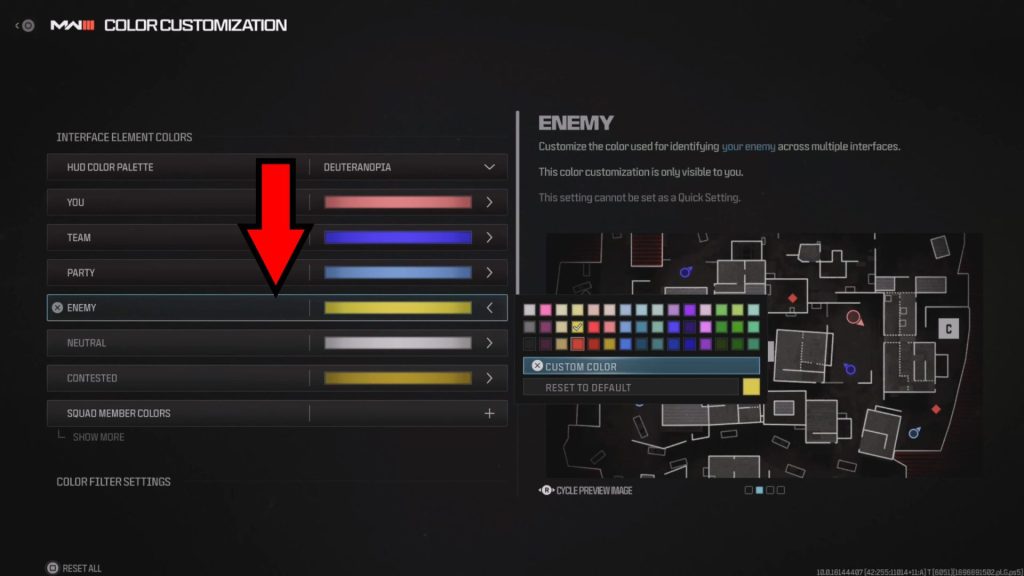
Either way, you can change the enemy color itself by selecting the aptly named “Enemy” button.
This brings up a list of preset colors, as well as the option to use a fully custom color or reset to the default.
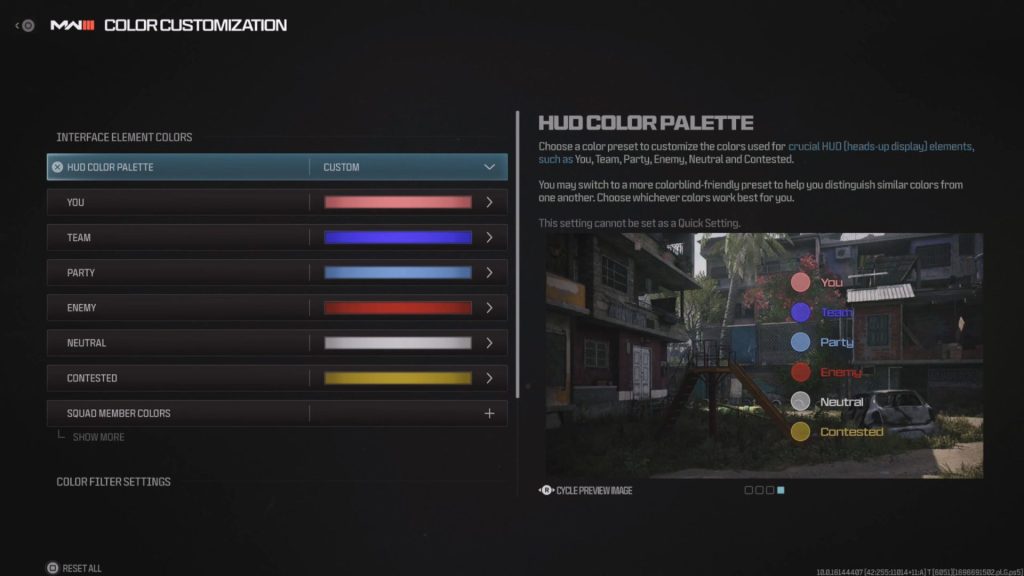
Nonetheless, you now know how to change the enemy color in Modern Warfare 3 however you want, so make sure to select a color that pops out easily! Something bright that is easy to recognize during a match is best.
ALSO READ: COD Modern Warfare 3: How to Unblock People