
 5 articles
COD Modern Warfare 3 on consoles allows you to communicate with other players anytime by using voice chat with a headset. While that’s nice, what if you don’t have one? It’s time to text chat!
Text chat is available on PS5 and Xbox consoles, though it’s a tad trickier to open and use than on PC. It’s nice to have the option available, though.
In this guide, we’ll tell you how you can open and use the text chat interface on the PS5 and Xbox versions of Modern Warfare 3.
How to Text Chat on PS5 and Xbox Consoles in COD Modern Warfare 3
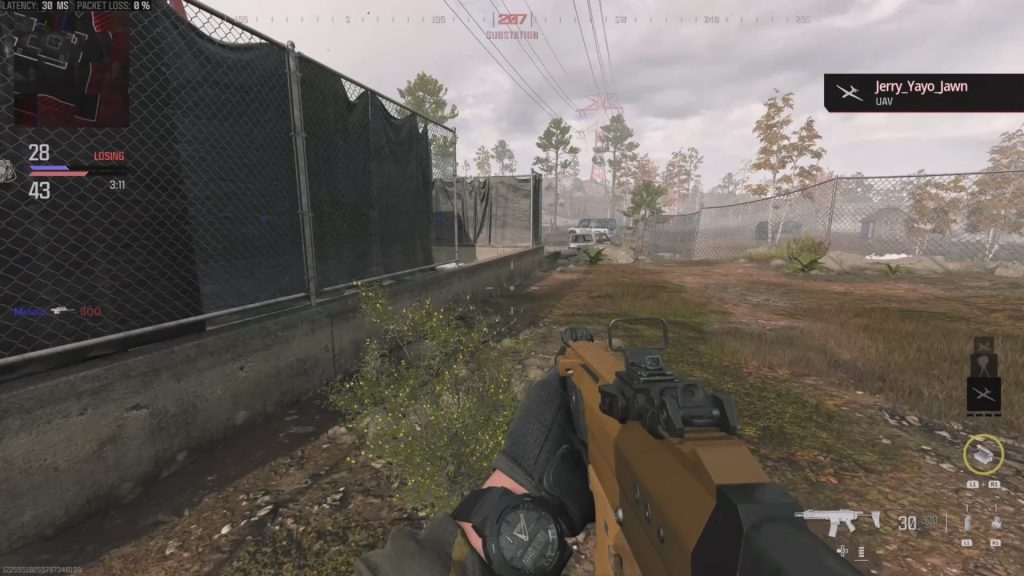
There are two ways to access the in-game text chat on PS5 and Xbox consoles in Modern Warfare 3, with one being way faster than the other.
 Modern Warfare 3: How to Change Enemy ColorOct 12, 2023
 COD Modern Warfare 3: How to Unblock PeopleOct 12, 2023
 How to Change Display Name Modern Warfare 3Oct 12, 2023
Both methods work mid-match and in the pre-match lobby, by the way!
Let’s get the fast method out of the way first, alright?
For the quickest access, hold down the View button on Xbox or the Touchpad on PS5.
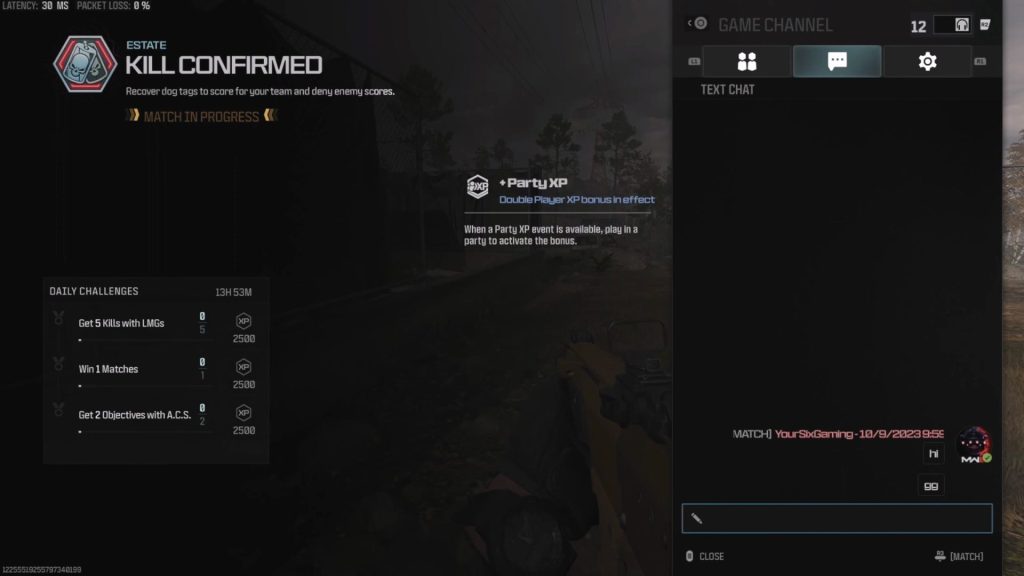
This will bring up the text chat window right away, so you now just need to press A (Xbox) or X (Playstation) to bring up the digital keyboard.
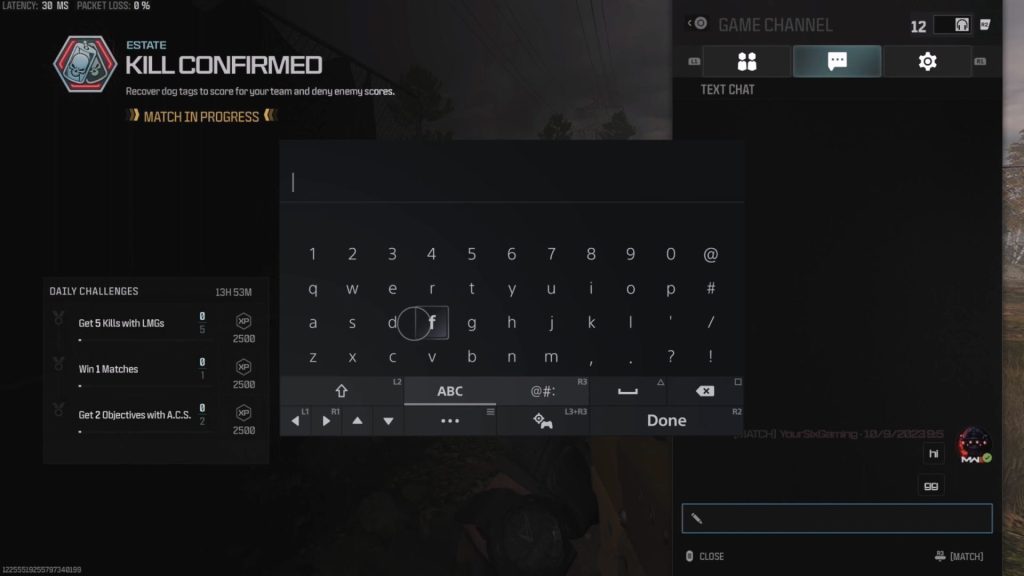
Type your message and press RT (Xbox) or R2 (Playstation) to send it and you’re all done!
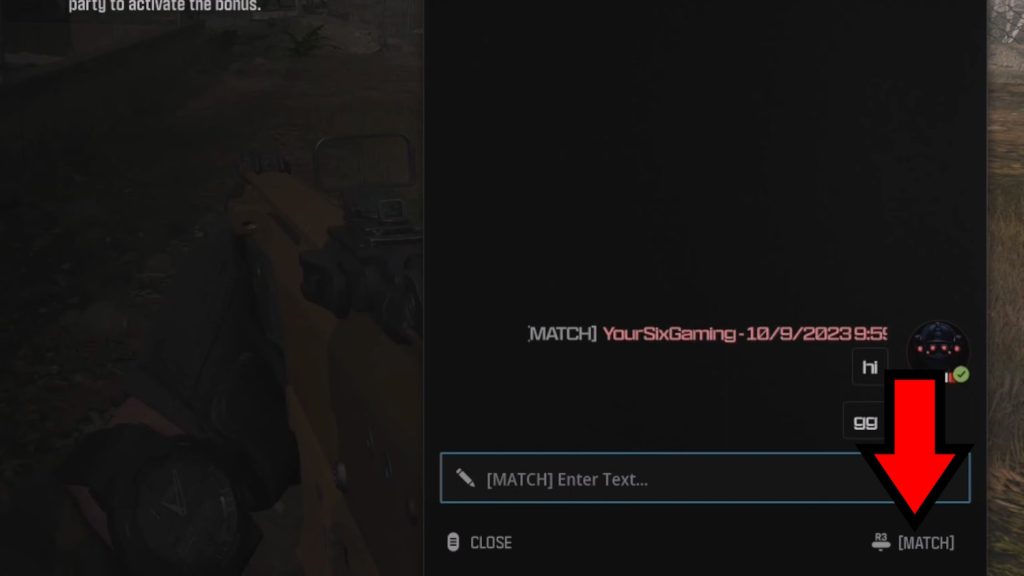
You can also press the right thumbstick in this window to switch between Match or Party chats, with your current active chat showing in the bottom right of the screen.
Just in case, though, let’s now go over the longest method. We don’t recommend it for mid-match text chat, but it’s still good to know about it!
The long-winded method: press the Menu button (Xbox) or Options button (Playstation) to bring up the… Options Menu. Funny how that one works, huh?
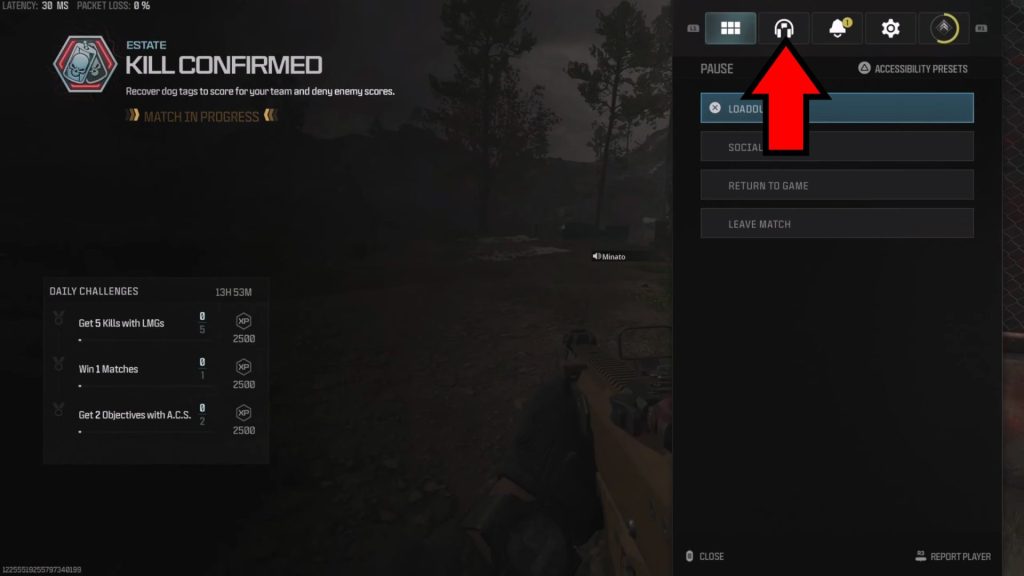
In the options, go to the Channels tab, which is the one with a headset icon.
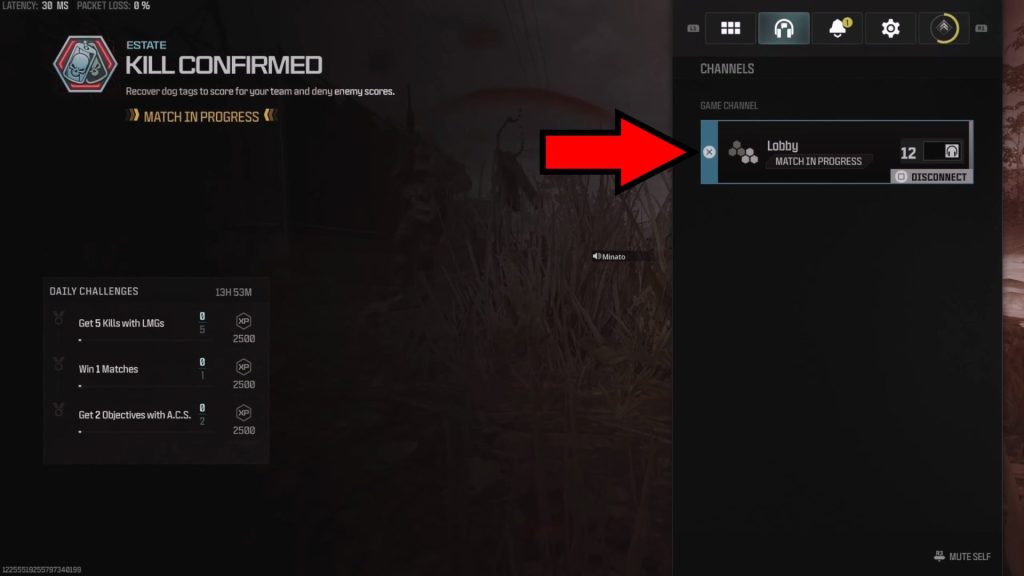
Now just select the lobby you’re in and you can now text chat freely! This is the same interface as the quick method, but you took the scenic route to get there.
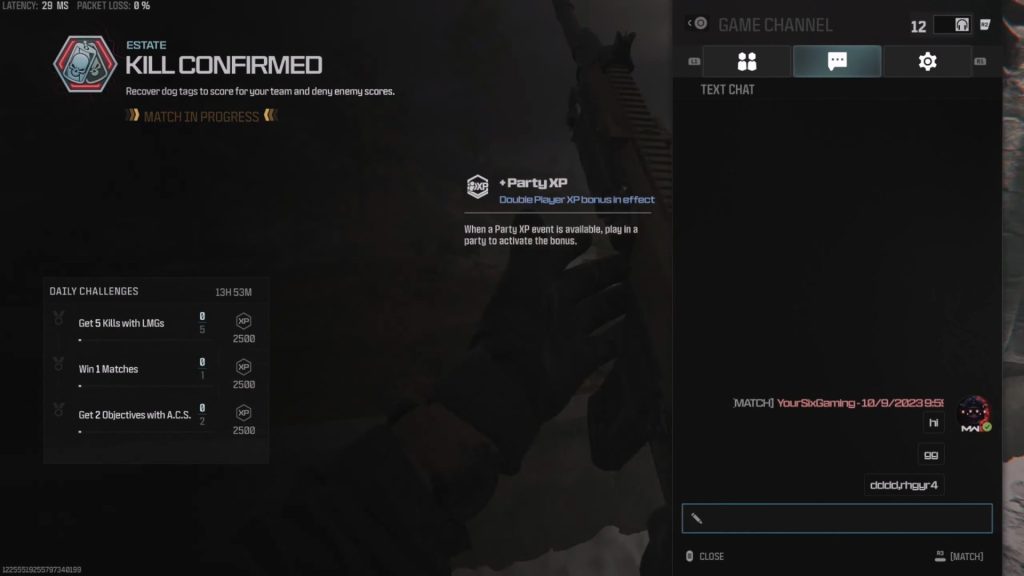
Anyway, now you know how to text chat anytime you want in the PS5 and Xbox consoles versions of Modern Warfare 3! Practice your digital keyboard skills to stay in touch with your teammates.
ALSO READ: Modern Warfare 3: How to Change Enemy Color