 4 articles
Gyro aiming is a very divisive feature among gamers. Some love it, but others hate it. If you fit on the second camp, you will want to disable it for your Steam games.
In this short guide, we’ll tell you how to modify or even disable gyro functions for any game in your Steam library.
How to Disable Gyro Aiming on Steam Games
Source: YourSixGaming
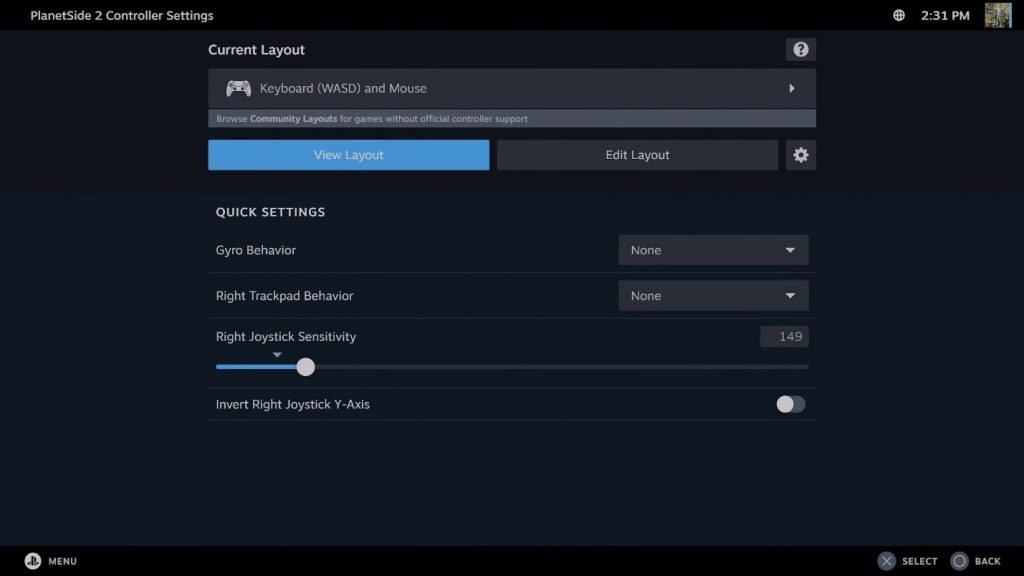
You can disable gyro aiming by using Steam’s built-in controller Controller Layout settings, though you will need to do this for each game.
 Steam’s Downtime May Have Been Due to a DDoS Attack that Targeted Other Major Gaming CompaniesOct 8, 2025
 Verified Game on Steam Reportedly Stole a Total of $150,000 from Hundreds of Steam AccountsSep 22, 2025
 How to Withdraw Money from SteamJun 9, 2022
On Steam’s regular mode, open the controller layout settings by right-clicking on the game you wish to turn it off for. Select the “Controller layout” option on the Manage section.
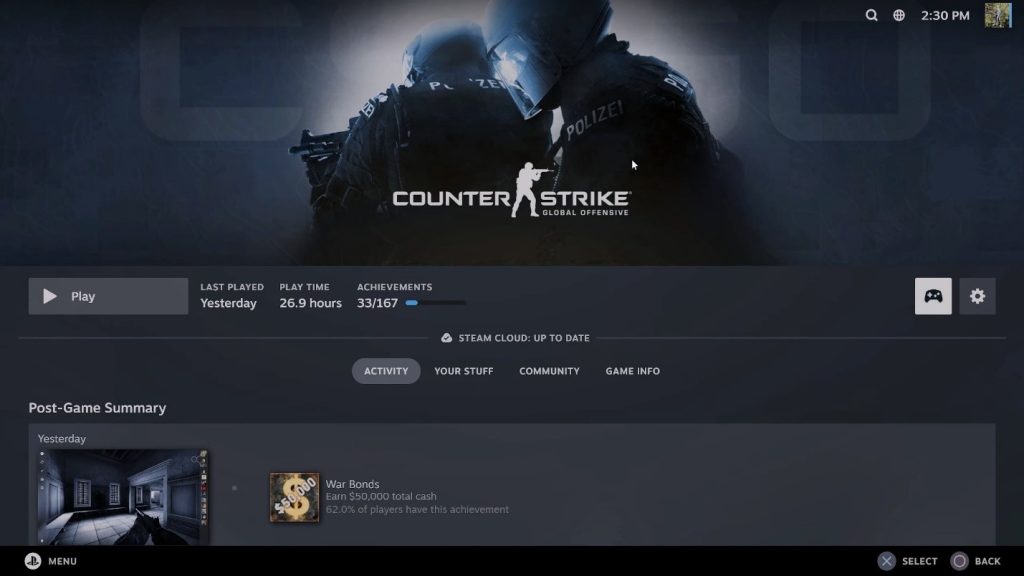
You can also enter these settings in Big Picture Mode. Just navigate to the game you wish to configure and press the controller button on the right side of the screen.
Additionally, the controller settings can be accessed in-game as well. Just open the Steam overlay and click on the “Controller settings” option.
The controller settings are the same no matter how you open them. Just use whichever method suits you better.
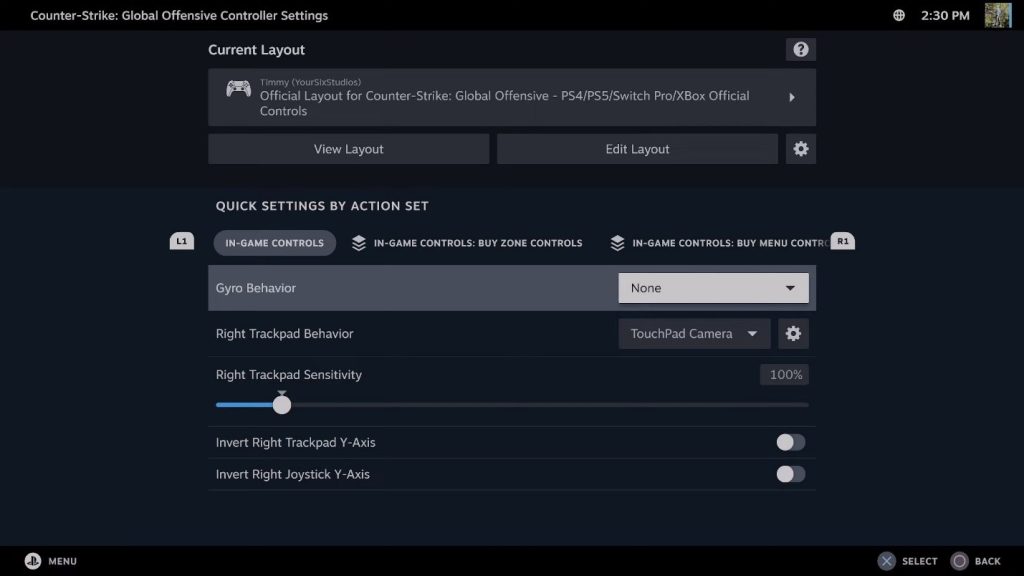
Inside the Controller Layout settings, move down to the in-game controls settings. They should be in the middle of the screen, under the “Quick Settings by Action Set” header.
You’ll find the “Gyro Behavior” option in here. Just select this option and make sure to set it to None.
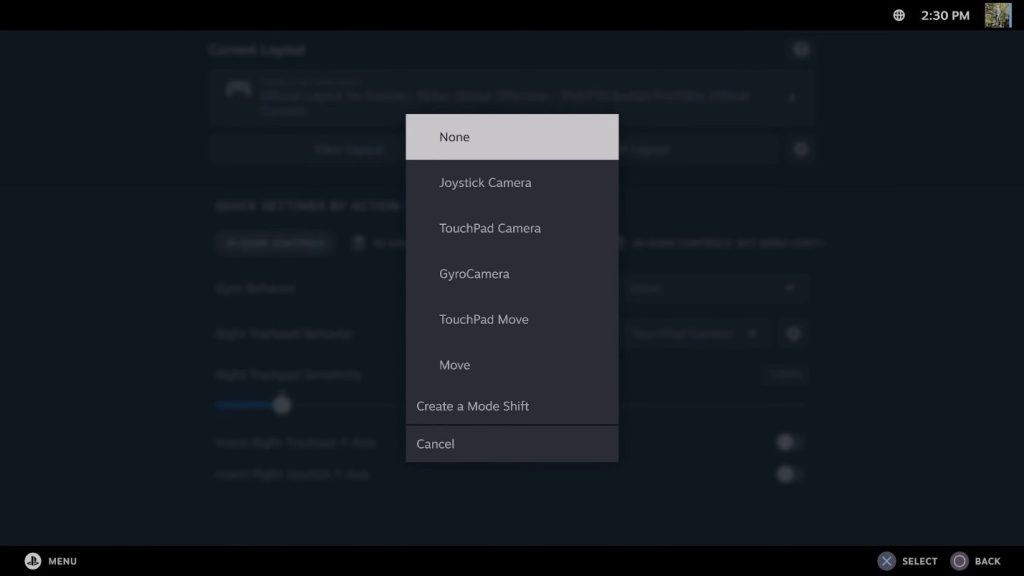
This will completely disable all gyro aiming functions for the game you’re configuring, so you should stop moving accidentally when you move your controller!
Sadly, you will have to do this same thing for every game where you wish to disable gyro aiming. At least it’s quite easy to do once you know what to do.
ALSO READ: How to Download Dark and Darker 2nd Update