 4 articles
EA Sports FC 24’s Ultimate Team allows you to change player positions differently than the FIFA games used to. Thankfully, it kinda allows for more freedom, so it’s a welcome change.
However, this also means that the system works differently overall. We understand if you’re a bit confused about it!
Fret not, we’re here to help clear your doubts. Just read on and we’ll tell you everything you need to know about changing player positions in FC 24’s Ultimate Team.
How to Change Player Position in FC 24 Ultimate Team
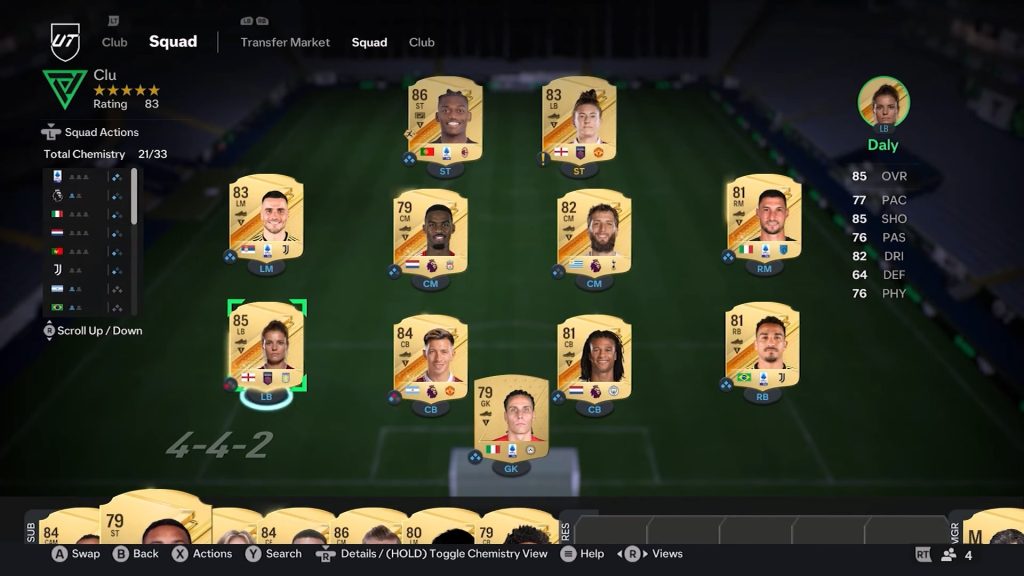
Unlike previous games in EA Sports’s football franchise, changing the position of players in FC 24’s Ultimate Team works differently. Oddly, it both gives you more and less freedom!
 EA Sports FC 24: Practice Arena GuideOct 3, 2023
 EA Sports FC 24: How to Get BetterOct 3, 2023
 How to Check Record in FC 24 Ultimate TeamOct 3, 2023
You don’t need to use consumables to swap players around freely, but players also have a more limited amount of positions they can play in.
Playable positions for each team member can range from 1 to 4, but one position will always be preferred.
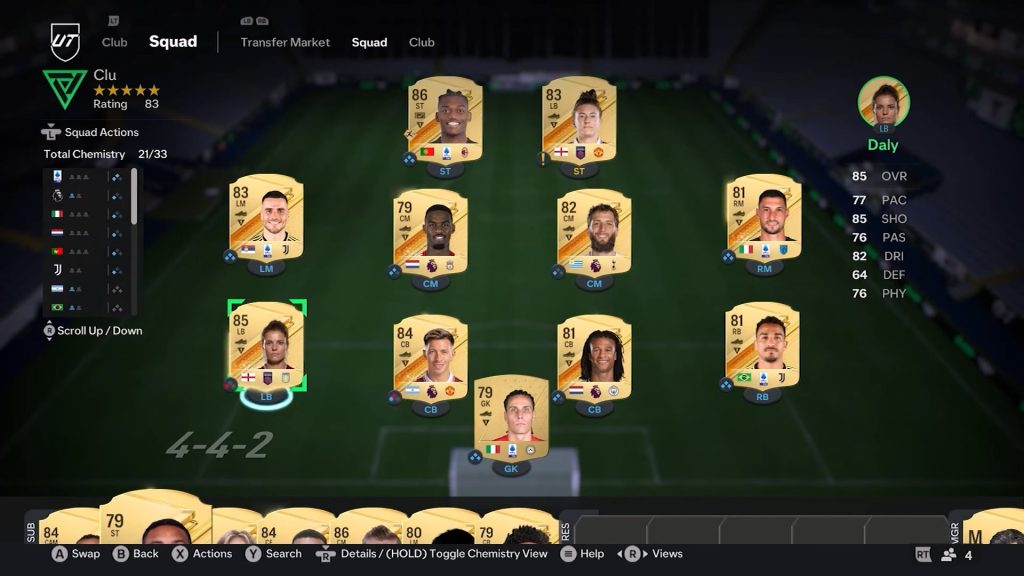
You can check which position a player prefers by looking at their details inside the Squad menu, inside the Club.
The controls vary per platform but you can always check them at the bottom of the screen! In this case, we want to highlight a player and check their Details.
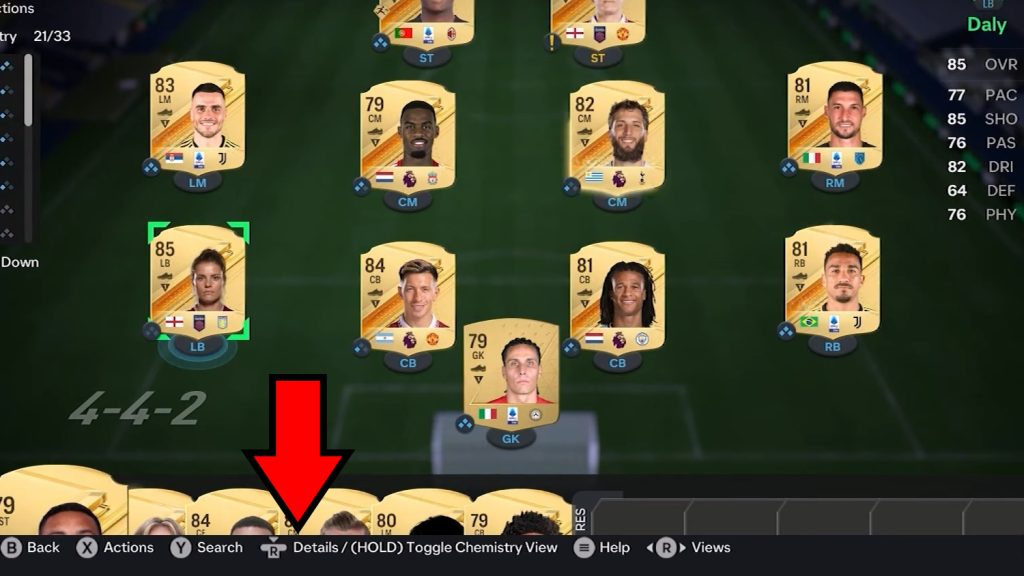
This is done by pressing the Right Stick when playing with a controller, as you can see in the example image.
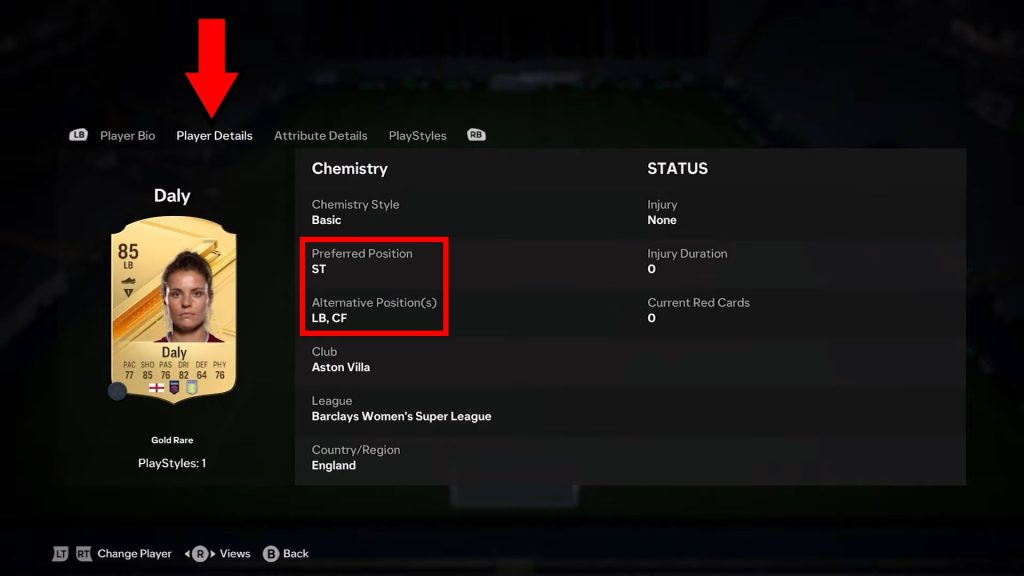
In the player view, swap to the Player Details tab and look for “Preferred Position” and “Alternative Position(s)”. These are all of the positions that the player can play!
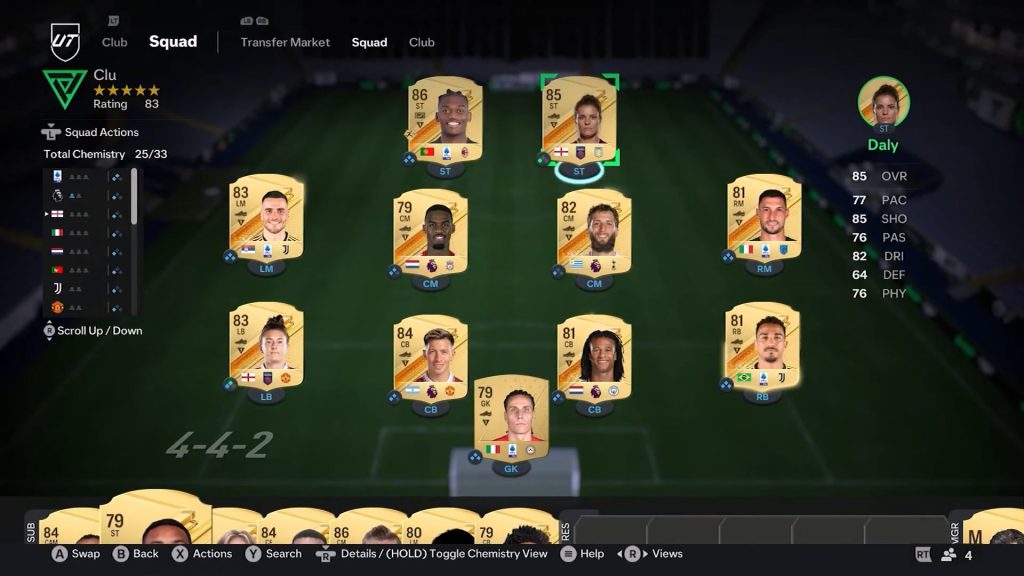
Now, go back to the Squad view and select the player you want to swap around.
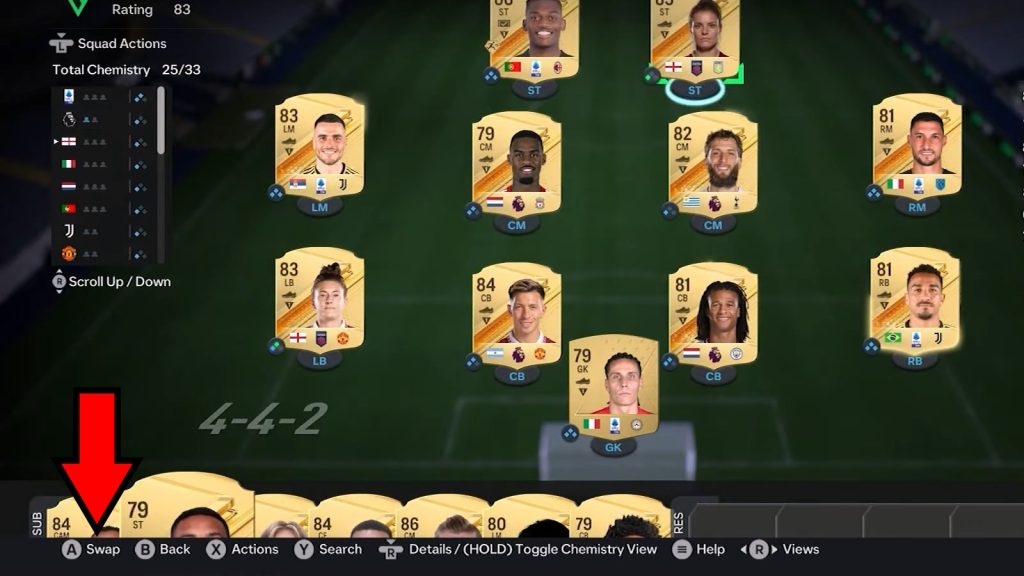
PC players can just drag and drop players with the mouse, easy peasy. Console gamers have to press the Swap button (A on Xbox and Switch, X on PlayStation) when highlighting the player they want.
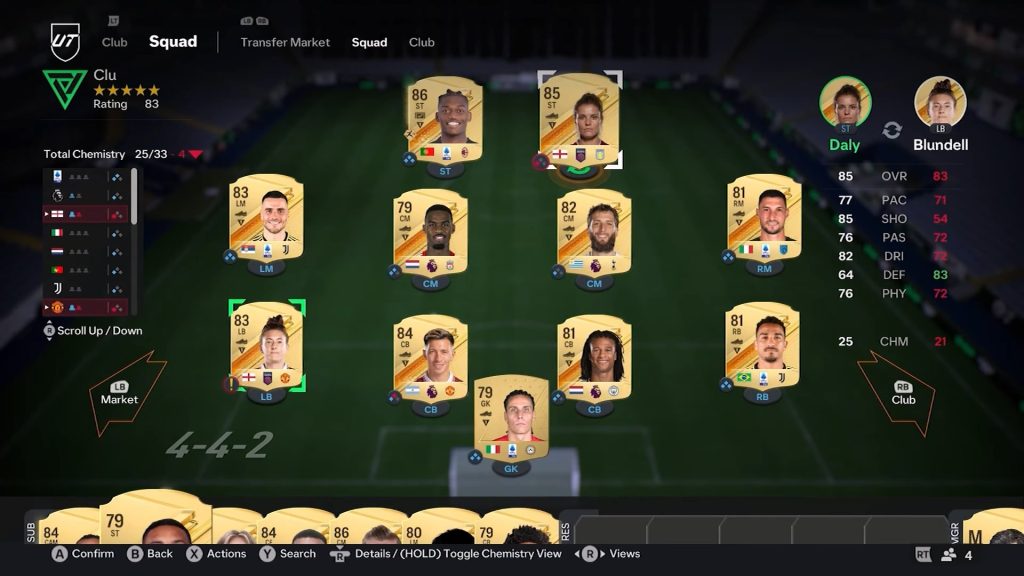
Remember, you can check the buttons for your system at the bottom of the screen, just in case.
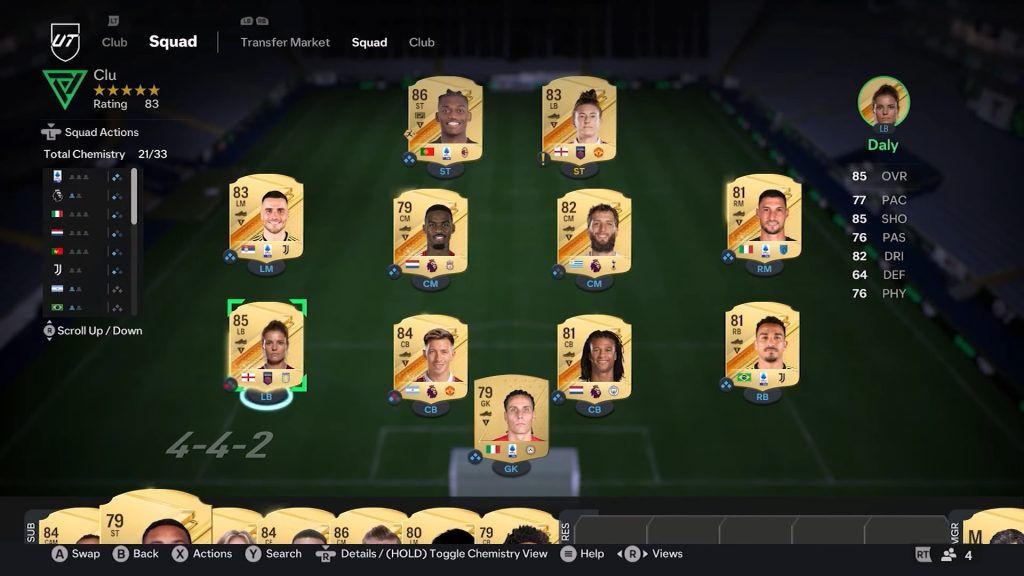
Put the player down in whichever new position you want and that’s it, but remember that their playable positions are limited!