 4 articles
The Practice Arena mode is one of the most important practice tools in EA Sports FC 24.
Unlike other practice modes in this game, it gives you the freedom to set up custom situations and scenarios for practice.
But how can you use such a handy tool? Well, that’s what we’ll tell you in this guide! Just read on and we’ll dive into it.
Practice Arena Guide for EA Sports FC 24
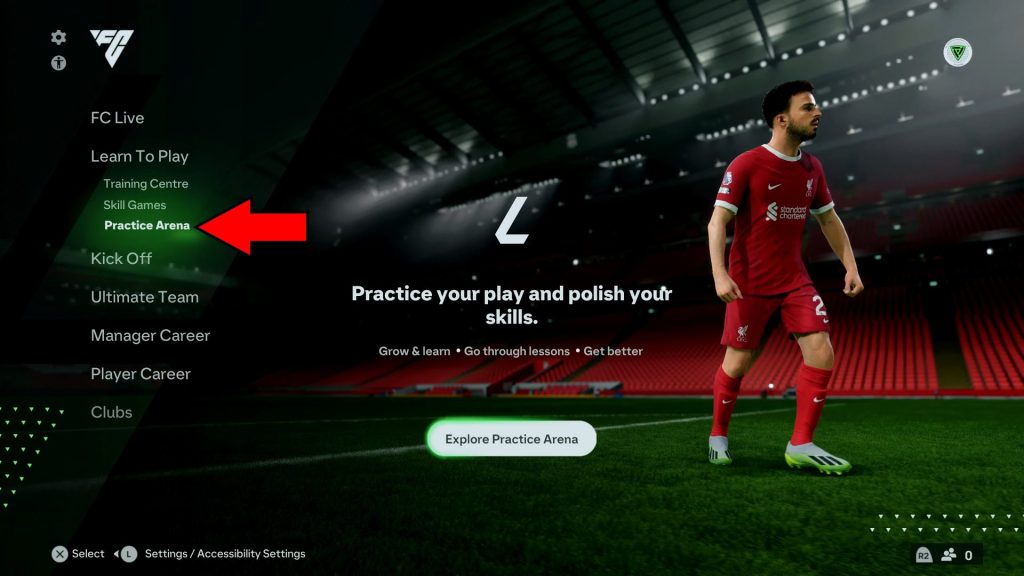
The Practice Arena is EA Sports FC 24’s free training mode, where you can set up any scenario you want and practice without any limitations.
 How to Change Player Position in FC 24 Ultimate TeamOct 5, 2023
 EA Sports FC 24: How to Get BetterOct 3, 2023
 How to Check Record in FC 24 Ultimate TeamOct 3, 2023
To access it, just scroll to the “Learn to Play” section of the main menu and select the Practice Arena. The arena will instantly load in, so it’s time to get practicing!
You can move your cursor using the arrow keys or mouse on PC, or by using the Left Stick on consoles. Highlight a player with the cursor and select them by pressing the prompt shown on-screen.
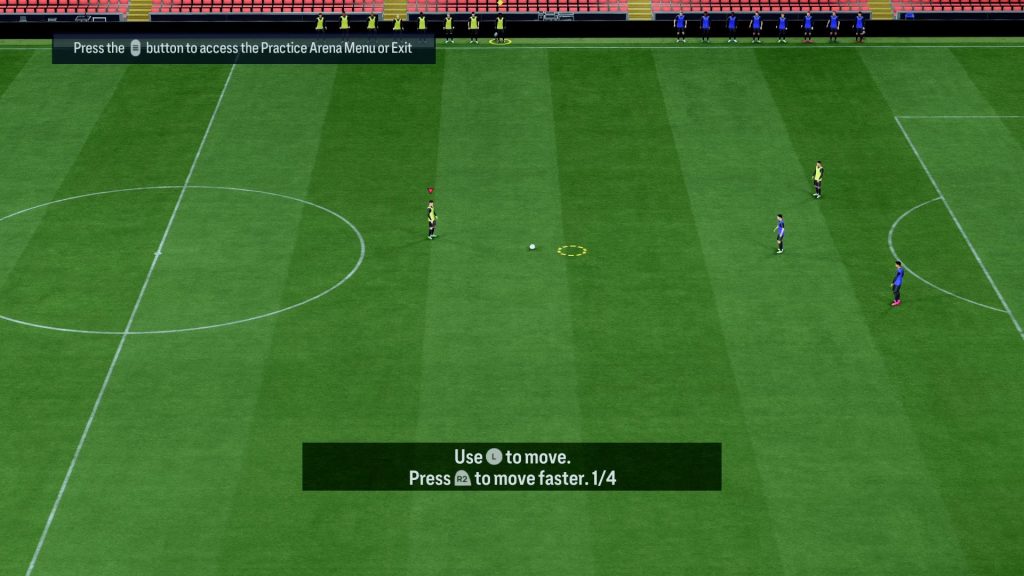
This will allow you to modify that player. For example, you can now add them or remove them from the field as you see fit, amongst other things.
There are a lot of controls in this mode, and they’re extremely situational so it would take us forever to cover every possibility! Especially when accounting for every platform.
Thankfully, controls can be seen within the game itself, so it’s straightforward.
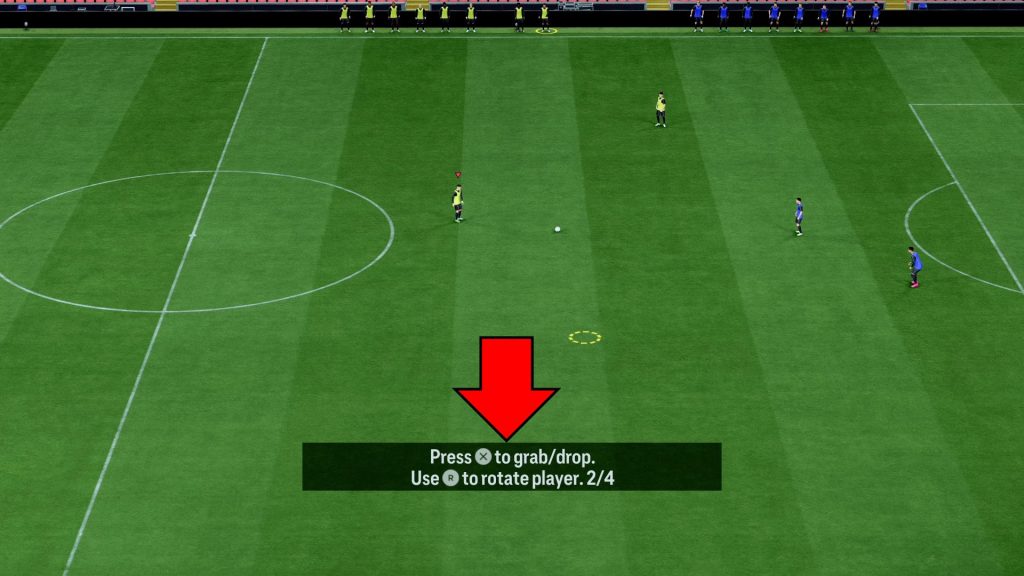
Did you notice the text box in the middle-bottom of the screen? It will change frequently to let you know which controls can perform certain contextual actions.
Besides these basics, there’s also an extra options menu in this mode that allows you to further fine-tune your practice session.
Accessing the Practice Arena Options Menu
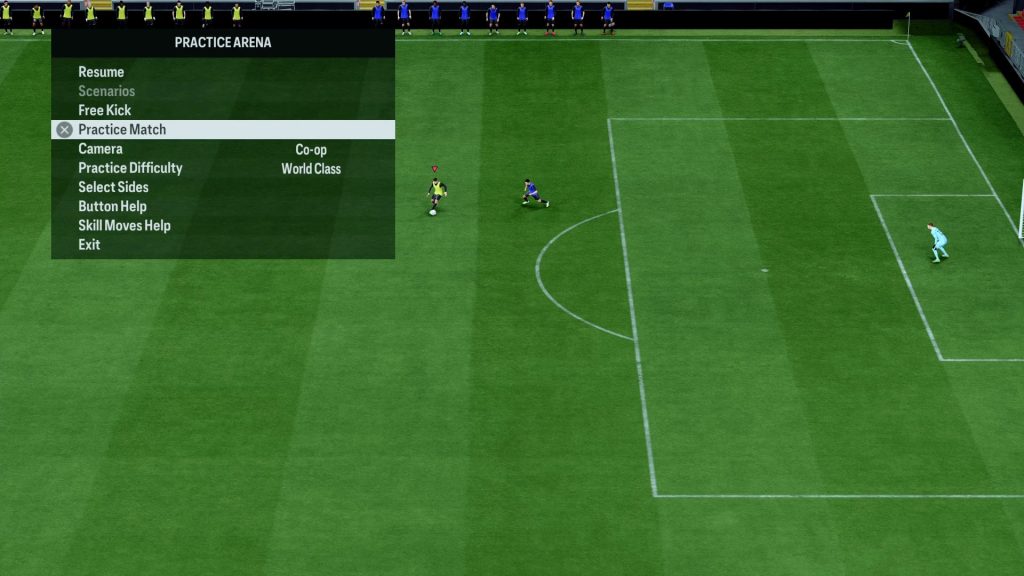
To access the options menu, pause the game by pressing the Options/Start button on consoles or the ESC key on PC. This will bring up a small menu that hosts many of the Practice Arena’s unique options.
For example, it allows you to change the camera style, the AI opponent’s skill level, or even let you select scenarios to practice. There’s quite a lot to choose from, here!
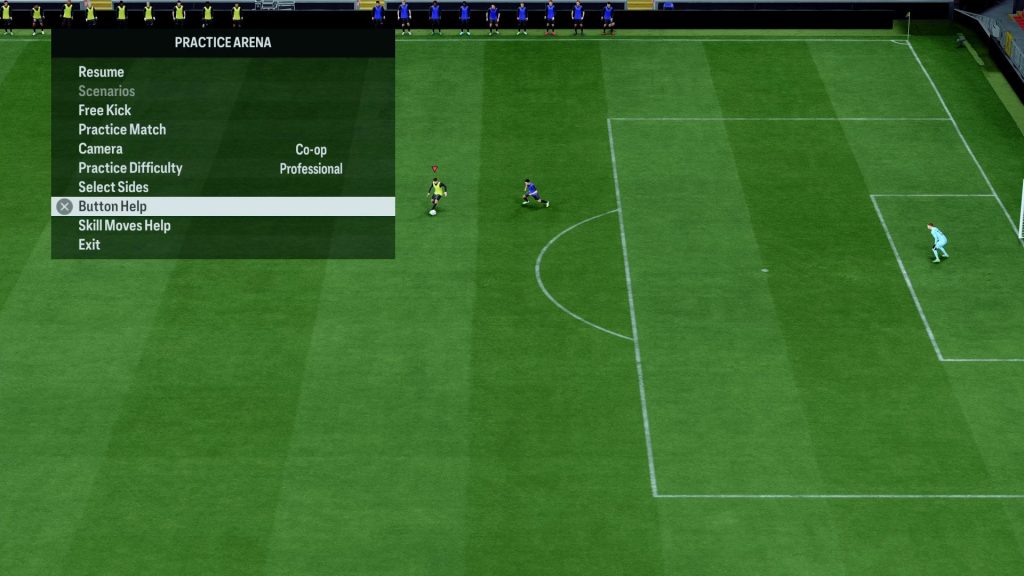
There are also Button Help and Skill Move Help sections in these options. It’s a good idea to check them out if you feel that you’ve forgotten how to control your character!
Now that you know the basics of how to use the Practice Arena mode, it’s up to you to make the most of it! Get used to it and you’ll find that it’s an incredibly helpful tool for getting better at the game.
ALSO READ: EA Sports FC 24: How to Get Better