 13 articles
Ready or Not has just been released for consoles, and now that a ton of new players are flooding in, some players are wondering how they can invite friends, especially those who are on a completely different platform. Luckily for folks like that, you can actually play with people from other platforms with its handy crossplay functionality. Here is how you can invite friends to play with you!
How to Add and Invite Friends in Ready or Not Guide | PC and PS5 Crossplay
If you are just playing with people from the same platform, you can simply invite them if you have linked your Epic Games account to your game. If you are looking to add and invite people across different platforms, this is also a requirement, so go ahead and do that now!
NOTE: If you have friends using Steam and you wish to play with them, bear in mind that they do need to link an Epic Games account as well. As unintuitive as that sounds, it is required if you want to take advantage of crossplay.
Once your Epic Games account has been linked, make sure to turn on the Crossplay feature. If it is disabled, then you will only be able to play with people who are on the same platform as you.
 Ready Or Not – All Gods Burn (Bank), Soft Objective LocationsMar 17, 2026
 How To Unlock SECRET Ending & Handcuff Cosmetic in Ready or NotMar 16, 2026
 How To Open Bank Vault in Ready Or Not | Secret Achievement Trophy GuideMar 16, 2026
Next, open the Epic Online Services (EOS) overlay. If you have no idea how to do this, go to your main menu and check the lower right corner of your screen. The input to “Open EOS Overlay” should be displayed down there.
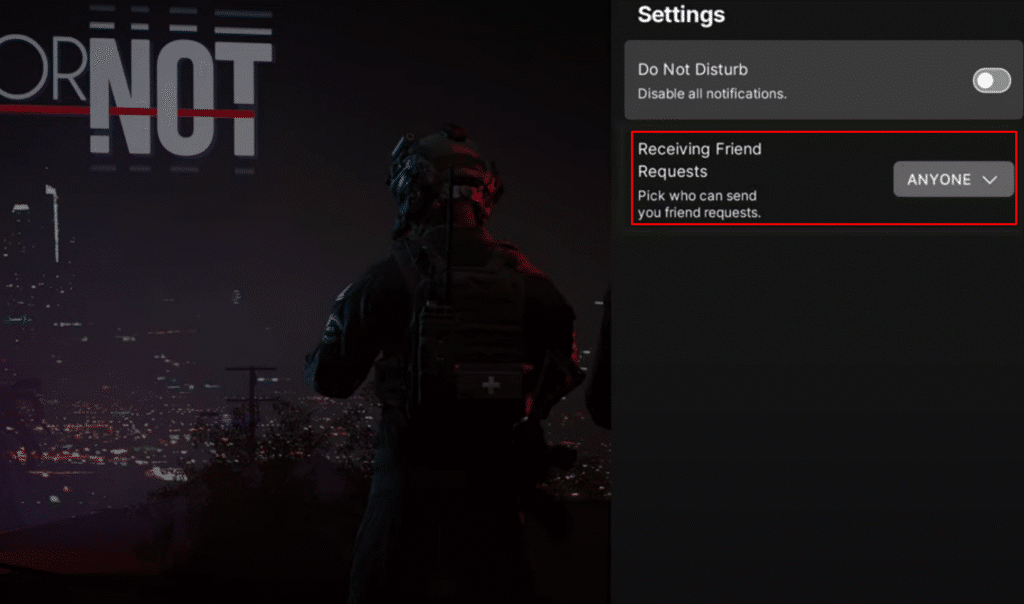
Upon opening the EOS Overlay, use the right bumper or R1 button to scroll over to the settings tab. There, you can adjust your “Receiving Friend Requests” setting. If you are fine with random people adding you as you play the game, set it to “Anyone”.
Now, at the middle tab, which you can go back to by pressing the left bumper / L1 button or continuing to scroll to the right a few times, you will find yourself in the Add Friends interface.
Here, you can add people by looking up their Epic Games account name. If you are trying to add one of your friends, simply put their username here and select them from the results list below. Then, just press Add Epic Friend to add them to your Epic Games friends list.
Once they have accepted your request, all you need to do now is open the Multiplayer tab in the main menu. Host or find a game to join and then pause once you load in. There, you will find the Lobby Manager option.
Open the Lobby Manager and press the Invite Player button. Finally, just select the friend you wish to invite and send them a request! If you do not want other people joining in, make sure to host a Friends Only lobby to ensure that only players you know can hop in.
That is pretty much all you need to know about this feature. It is extremely simple, but the confusing part is usually the fact that you need to link your Epic Games account first. While you are here, make sure to check out our guide on how to use voice chat in the console version of Ready or Not, because what good is playing with your squad if you can’t even communicate with them?