


 149 articles
Starting over in Palworld no longer means leaving all of your favorite Pals behind. Thanks to the new Global Palbox, you can transfer your best companions to a brand-new save and jump back into the action without having to catch and breed everything all over again.
In this guide, I will explain exactly how the Global Palbox works, how to transfer Pals to a new save, and everything you need to know before using the feature, including its limitations and a few important things to keep in mind.
How to Use the Global Palbox
Before you can start transferring Pals between saves, you’ll first need to build a Global Palbox in both the world you’re transferring from and the world you’re transferring to.
To build one, open the build menu, head over to the “Pal” tab, and select the “Global Palbox“. It only requires 3 Paldium Fragments,5 Wood, and 15 Stone, so you can build it very early in a new playthrough.
 Palworld Feybreak: How to Use Labor Research LaboratoryDec 30, 2024
 How to Get Your Own Bounty Officer in Palworld FeybreakDec 30, 2024
 Palworld Feybreak: New Breeding Combos (New Pals)Dec 30, 2024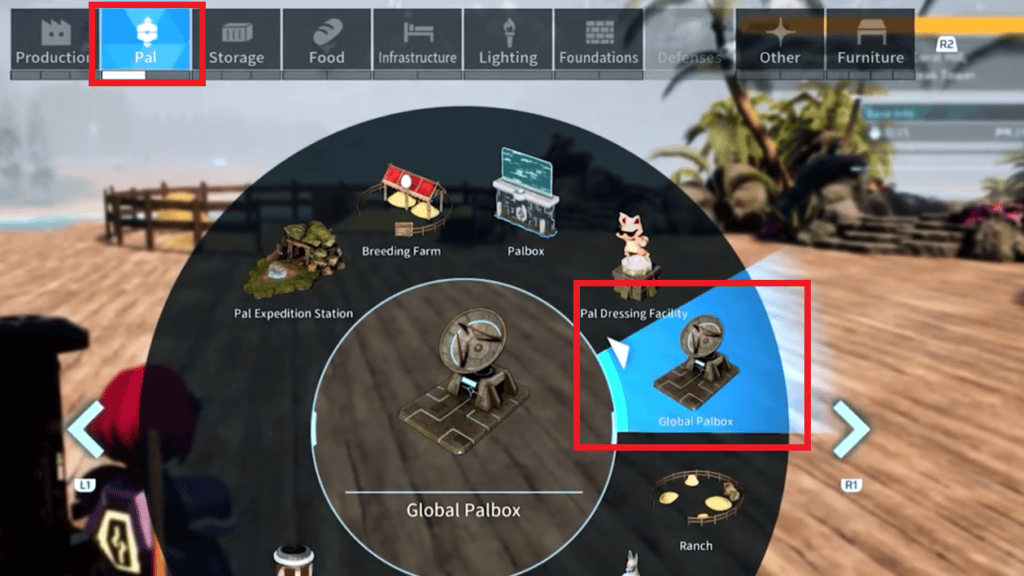
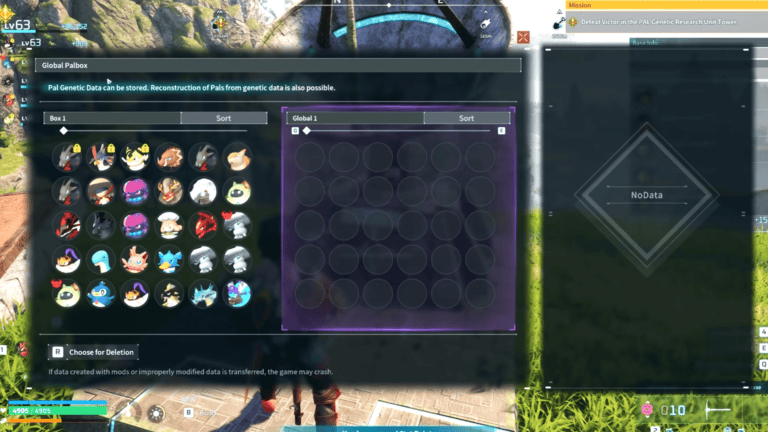
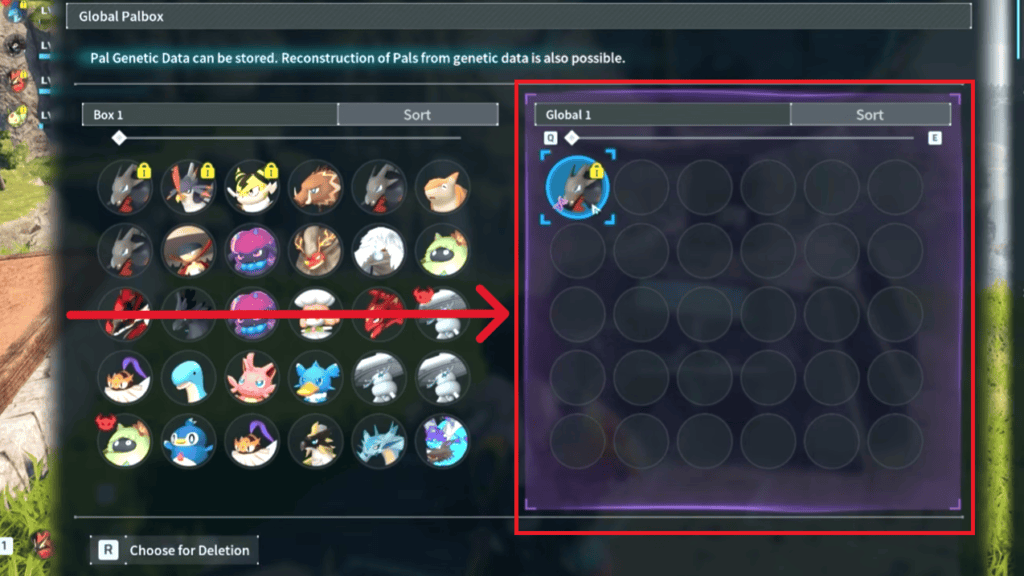
Once you’ve placed it down, interact with it to open the menu. From here, you can move any Pals from your regular Palbox into the Global Palbox.
One important thing to understand is that this does not actually transfer your Pal out of the original world. Instead, the game records that Pal’s genetic data, essentially creating a snapshot of it at that exact moment. Your original Pal stays exactly where it is, and you can continue using it as normal.
Since it’s only a snapshot, it does not update automatically. If your original Pal gains levels, learns new skills, gets condensed, or changes in any other way, those changes won’t be reflected in the Global Palbox. If you want the latest version available across your saves, you’ll need to overwrite the existing snapshot by saving the Pal again.
The Global Palbox itself is also quite generous with storage. It contains 32 boxes, with 30 slots in each box, giving you room to store snapshots of hundreds of Pals. You can even browse everything you’ve stored without loading a world by selecting Global Palbox from the game’s main menu.
Once you’re ready to use those Pals in another save, simply build another Global Palbox in your new world and withdraw the snapshots you want. The process is instant, but there are a couple of things worth keeping in mind.
Important Things Worth Knowing About the Global Palbox
First, high-level Pals are scaled to match your character’s current level when you withdraw them into a new world. This helps keep progression balanced instead of letting you steamroll the early game with endgame companions.
Second, transferring a Pal does not unlock its associated Pal Gear or Partner Skill items. For example, if you import a flying mount or another Pal that requires a saddle, you’ll still need to reach the required player level and unlock the appropriate technology before you can craft and use that equipment.
Other than that, it does not allow duplicate snapshots of the same Pal, so you don’t have to worry about accidentally filling it with multiple copies of an identical Pal. If you want to update a Pal that’s already stored, you can simply overwrite its existing snapshot with the latest version.
The Global Palbox also includes all of the same sorting and filtering options as your regular Palboxes. Whether you’re looking for a specific Pal, sorting by element, work suitability, or any of the other available filters, finding the snapshot you want is just as easy as managing your normal collection.
Deleting Pals From the Global Palbox
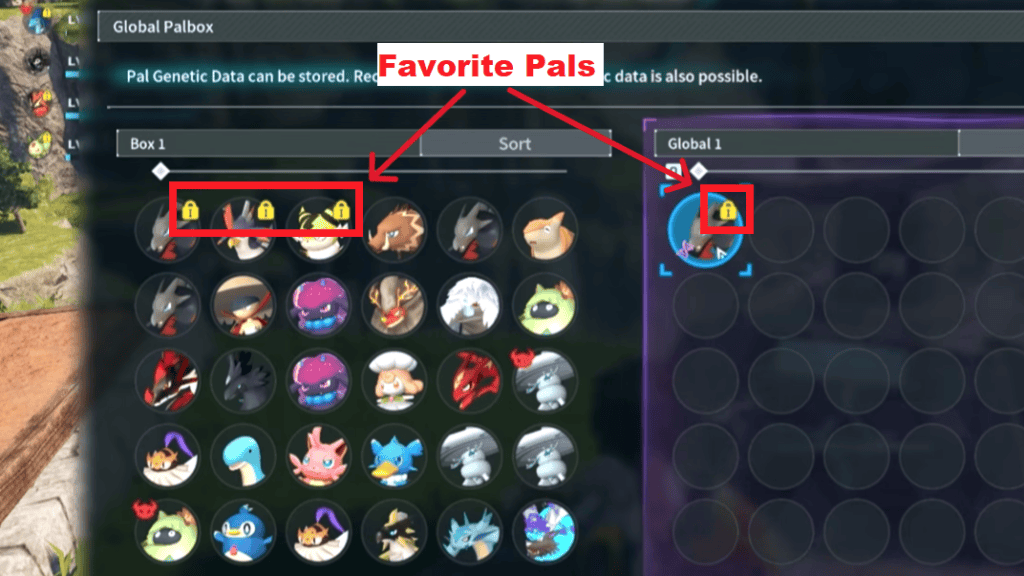
If you ever want to remove a snapshot from the Global Palbox, you can do that from the same menu. However, you may notice that some Pals have a lock icon and can’t be deleted. This usually means the original Pal has been marked as a Favorite.
To fix this, go back to your regular Palbox in the world where the original Pal is located and remove it from your Favorites. Once you’ve done that, return to the Global Palbox and you’ll be able to delete the saved snapshot without any issues.
That’s It
That covers everything you need to know about transferring Pals with the Global Palbox in Palworld 1.0. It’s a simple but incredibly useful feature that lets you start a new adventure without completely leaving your favorite companions behind.
Whether you’re beginning a fresh playthrough, experimenting with a new base location, or trying out different world settings, the Global Palbox makes it much easier to carry over the Pals you’ve spent so much time raising while still enjoying the experience of a new world.


Found another tip?
Share your extra strategy, correction, or question below. Helpful comments can make this guide better for everyone.