 5 articles
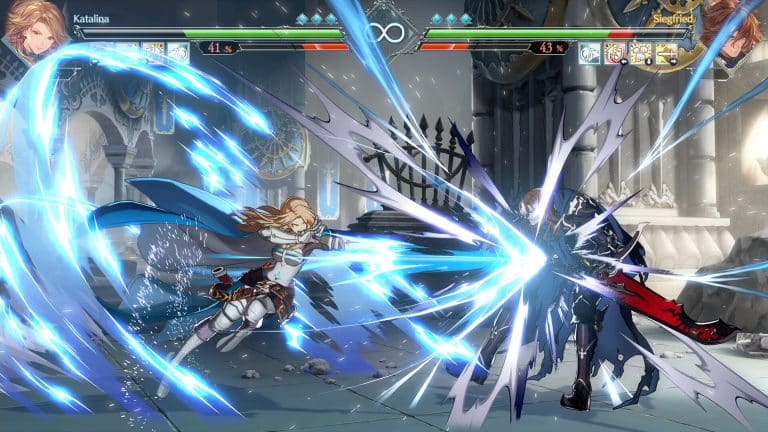
Have you ever wondered why Granblue Fantasy Versus: Rising looks far better on console systems like PlayStation and Xbox than it does on the PC version? Well, you’re not alone.
In fact, lots of players notice that even with all settings turned up, the game still looks blurry or muddy compared to console or other fighting games.
This is due to how the PC port handles resolution scaling and dynamic resolution internally, likely carried over from how Arc System Works optimizes for consoles like PS4/PS5.
Thankfully, we’re here to change that! Here’s how you can improve the visuals of your game with a few simple tricks!
 Granblue Fantasy Versus – Rising: Best Settings and Optimization GuideDec 19, 2023
 How to Pick Your Main Character: Granblue Fantasy Versus: RisingDec 19, 2023
 Granblue Fantasy Versus Rising: Best Tips & TricksDec 17, 2023
How to Improve Visuals in Granblue Fantasy Versus: Rising
Granblue Fantasy Versus: Rising does include standard graphics options, but here are some options that are worth knowing:
Display Mode/Fullscreen Options
Sometimes, the game won’t fully display all of the resolution options when you’re playing it on Fullscreen.
To fix this, simply switch to Borderless Fullscreen and restart the game. This can unlock more resolution choices in the options menu.
Resolution Scaling (In-Game)
You’ll find an in-game slider that controls render resolution scaling. Many players find it defaults below 100%, which means the game isn’t rendering at your actual resolution even if you set a high one.
Pushing this slider to 100% sharpens the details.
These two are the only official controls in the built-in settings that affect how crisp the image looks.
Advanced Tweaks for Better Visuals
This part involves tweaking certain configurations and settings on PC. To start, head over to this location in your computer:
C:\Users\(Your Username)\Appdata\Local\GBVSR\Saved_Beta\Config\WindowsNoEditor\Engine.ini
Open the “.ini” file and type in the following:
[ConsoleVariables]
r.ScreenPercentage=200
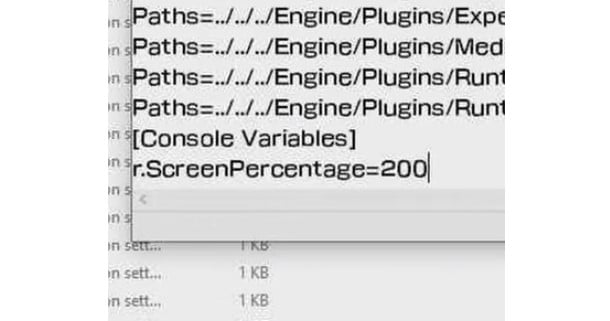
Note: Write everything as you see on the screen!
This basically forces the game to render at 200% internal resolution before scaling down, thus sharpening the image noticeably.
Do take note that 200 is just an example. You can try lower values like 150 if you notice that your system is struggling. Higher values make things sharper but may hit your GPU harder.
Another advanced tweak is to override your PC’s scaling behavior. If your desktop or Windows scaling isn’t set to 100%, the game’s pixels can get softened.
You can fix this by:
- Heading over to your game files
- Right-clicking GBVSR.exe
- Going to Properties > Compatibility > Change high DPI settings
- Checking Override high DPI scaling behavior
- Making sure Scaling performed by: Application is selected
Once you’re done, simply head back to the game and enjoy your new resolution!
ALSO READ: Dungeons of Sundaria: Best Class to Play