 2 articles
If you want to get some extra gaming performance out of your PC, there are some things you can do to optimize it.
While generally PCs are meant to be good out of the box, there are still things you should do if you want to ensure everything runs smoothly! After all, it’s part of the charm of PCs.
In this quick guide, we’ll tell you about the main things you should do first to optimize your PC for gaming.
Update Drivers
Our first recommendation here is a quick and easy one: update your GPU drivers. GPU drivers often include updates that add support for newer games.
 How to Screenshot On Windows (All Methods)Dec 30, 2025
That means, extra optimizations that make games run better! Plus, you want to ensure that you have the latest drivers as they contain the latest fixes and whatnot.
Here are the support sites for the GPU manufacturers, where you can find the latest drivers from them:
This is particularly important for playing newly-released games. So, don’t ignore updating drivers.
Enable Game Mode
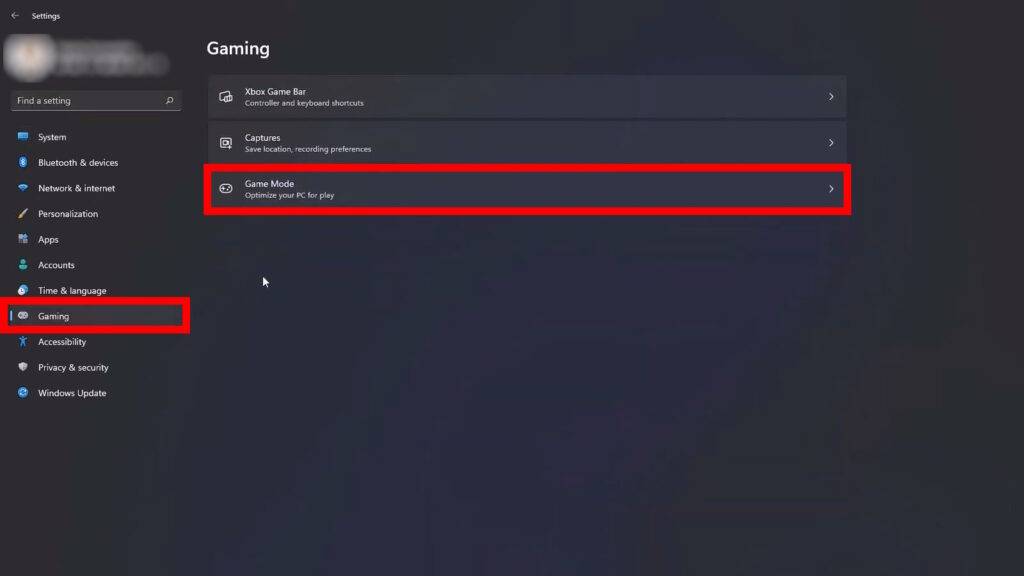
Another simple optimization is to just enable Windows’ game mode. You can find it in the “Game Mode” choice under “Gaming” while in Windows’ Settings. Alternatively, just type “Game Mode” into the search bar.
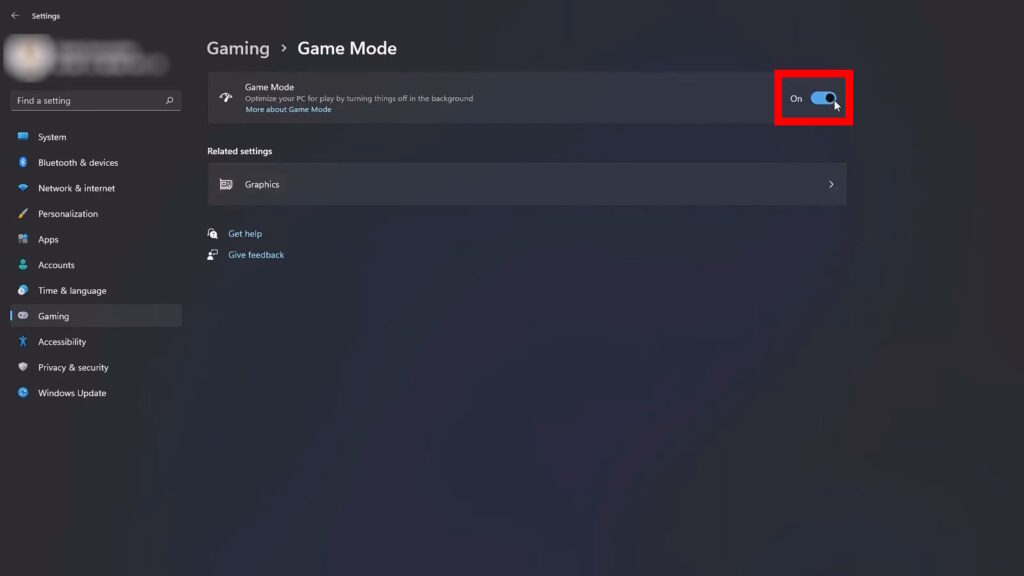
This one’s pretty simple, as all you need to do is just turn it on. Windows will then make sure to prioritize your games over background apps, which should improve performance.
Disable Unwanted Startup Apps
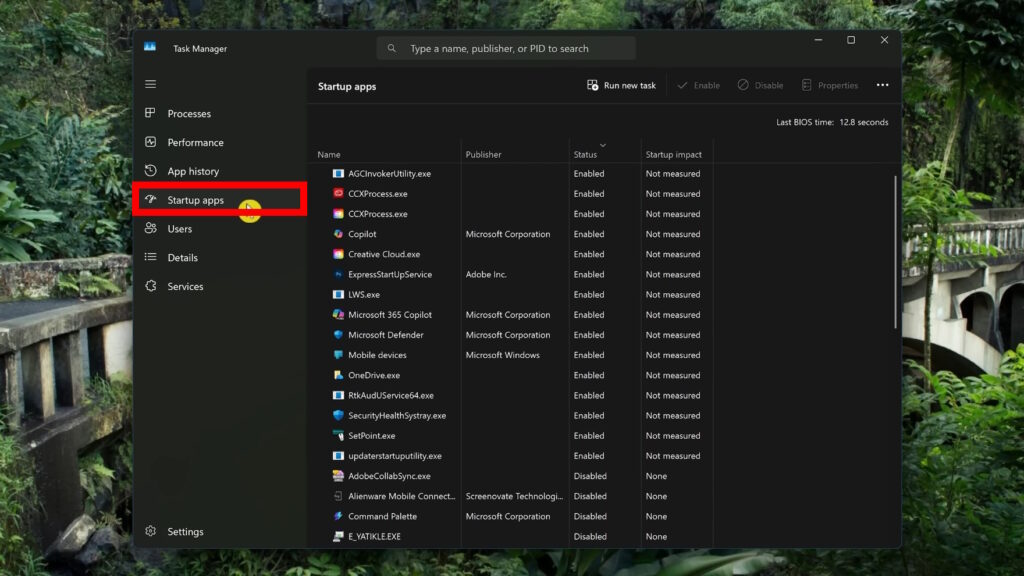
For this one, first open the Task Manager. You can do so by right-clicking on the taskbar and selecting Task Manager or pressing CTRL + SHIFT + ESC together.
In the Task Manager, select the “Startup Apps” tab. This will show you all the programs that start up as soon as you boot up your computer.
If there’s something you don’t need or use often in the list, just right-click on it and select to disable it. This will prevent it from running automatically, saving up your PC’s resources for more important things… such as gaming!
After you apply the changes you want for this one, we recommend rebooting your PC.
Optimize Game Settings
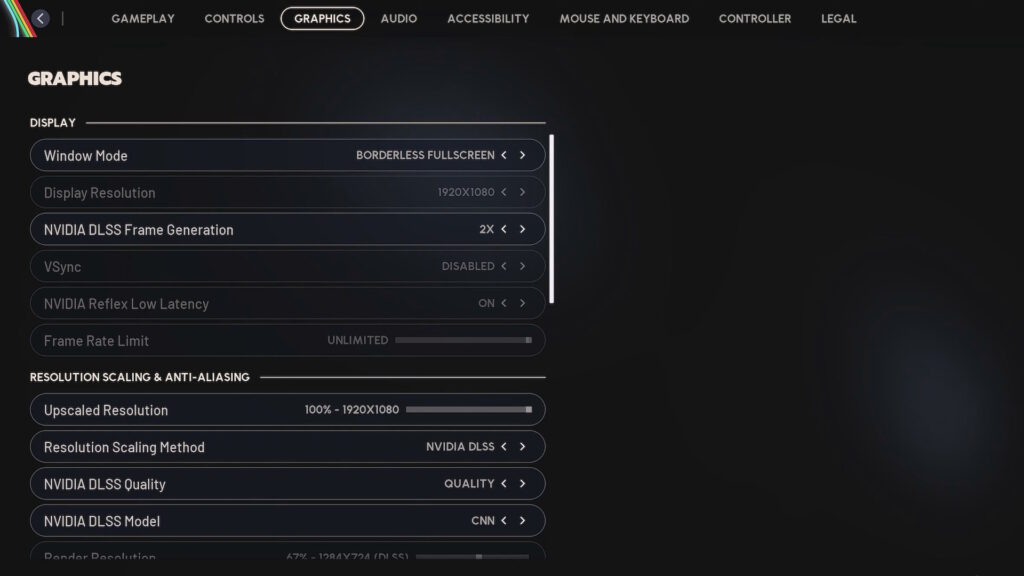
This is something that’s going to depend on a game-by-game basis. But, you want to make sure to go into the graphics settings for each new game you get.
Out of the box, a lot of games don’t really have the most optimal settings. For example, some games default to the highest settings. Some settings barely have a noticeable impact on visuals, but do lower your performance.
That said, this is something you’ll need to research for each game. In many cases, though, you can just find guides by searching up the game’s name and “optimized settings.” We have some of our own, such as our optimized settings for ARC Raiders!
Generally speaking, though, it’s just highly recommended to tweak settings for each game to your liking. Aim for a balance that gives you the visuals and performance you want.
Try Overclocking
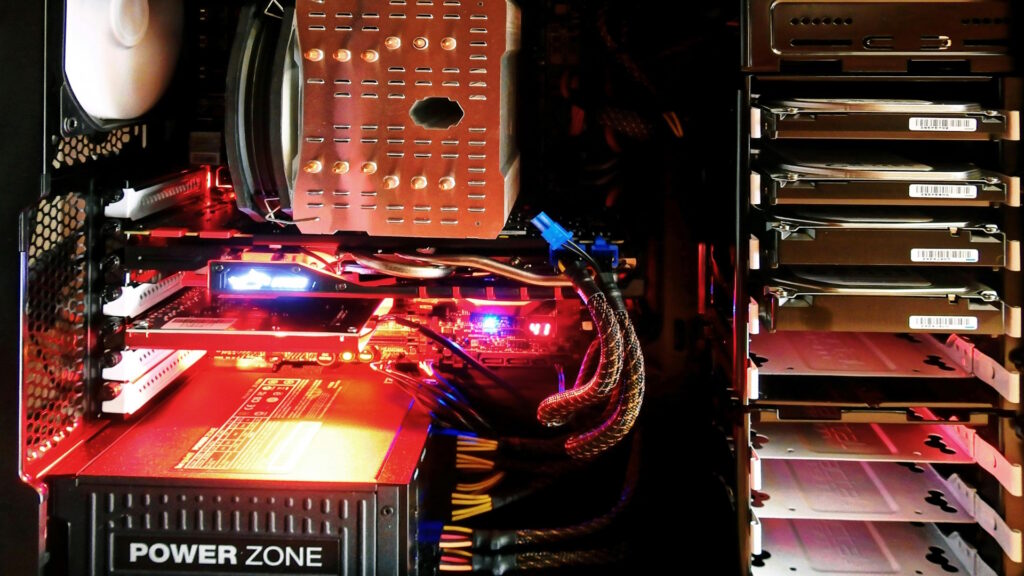
This is one that is a bit beyond the scope of this guide, but can really help enthusiasts get an extra push out of their rig.
Overclocking is when you modify your CPU and GPU to perform above their default specs. This is generally fairly safe as long as you do it in small increments, but it does require a lot of testing to find a stable setting that works for you.
It’s also the kind of thing that is very varied. Different computers have different threshold levels for how much they tolerate overclocking. Even if they have all of the same parts, there’s usually enough variance that means what works for others won’t necessarily work for you!
So, this is something that requires a lot of patience and trial-and-error. But it can be pretty rewarding as you get some noticeable performance boosts.
If you wish to get started with this, we highly recommend looking up dedicated overclocking resources online. For example, the r/overclocking Wiki works as a beginner’s guide.
Again, though, this is a pretty advanced thing. So, do proper research and know that you’re trying this at your own risk.
Don’t Trust Scripts and Hacks Blindly
Last but not least, we want to simply advise you to be careful with online tools and scripts you find. There are many scripts out there that will claim to “boost your FPs with one click” and things like that.
However, in a lot of cases, these same scripts do nothing or change things that can result in system instability. While we can’t in good conscience say that none of them are useful, we simply want you to be careful with what you run on your system.
Generally speaking, it’s better to stick to settings you can change normally and only using well-known tools. If nothing else, at least make sure to properly research tools before using them.
So, these are our quick tips to help optimize your PC for gaming! We hope this helped at least give you a starting point for your rig.