

 9 articles
Playing with a keyboard and mouse on PS5 is easier than most players think. The console supports both wired and wireless devices, and pairing takes only a few seconds once you know where to look. This guide breaks down every method so you can get your setup running without any trouble.
Wired Mouse Setup
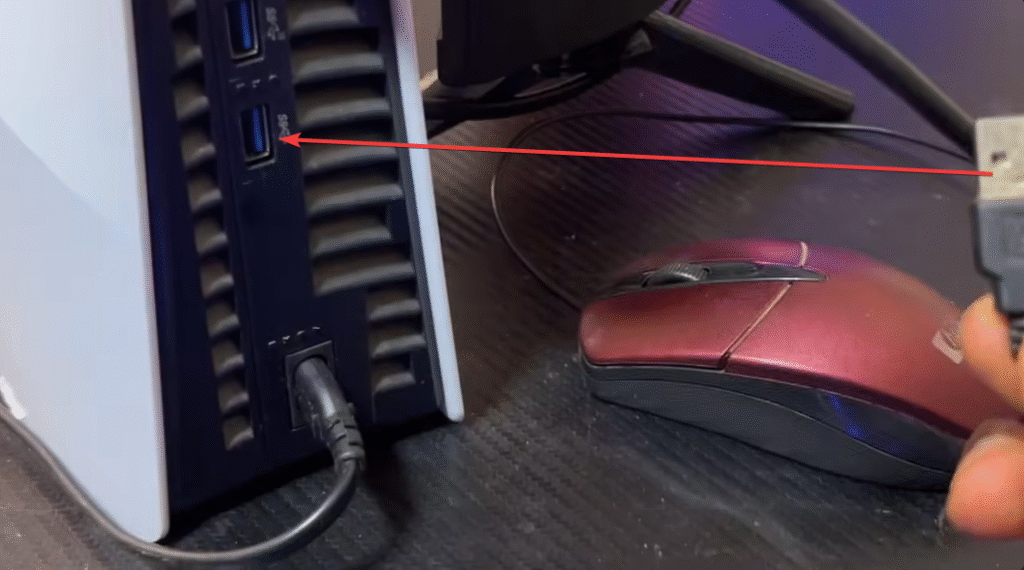
A wired mouse is the simplest option. Plug the USB-A end into one of the USB ports on the back of the PS5. The console should recognize it immediately, and you will see the small indicator at the top of the screen once it is active.
If you want to adjust the mouse settings, press the PlayStation button, open Accessories, select USB Mouse, then choose Mouse Settings. You can tweak sensitivity or button behavior to match your style.

Wireless Dongle Mouse Setup
If your mouse comes with a USB-A dongle, plug the dongle into the same back port. The PS5 treats it the same as a wired device.
 How to Connect PS5 Controller to PCDec 30, 2025
 How to Fix Stick Drift on PS5 ControllerDec 16, 2025
 Can You Connect AirPods to PS5?Dec 3, 2025
Once it connects, go to the accessories tab on the bottom of your interface, click on your USB Mouse, and it will bring up your Mouse Settings to fine-tune controls. Again, this is the same setup as it being “wired.”
Bluetooth Mouse Setup
For a Bluetooth mouse, start by putting it in pairing mode.
Then on your PS5:
- Open Settings
- Go to Accessories
- Choose General
- Select Bluetooth Accessories
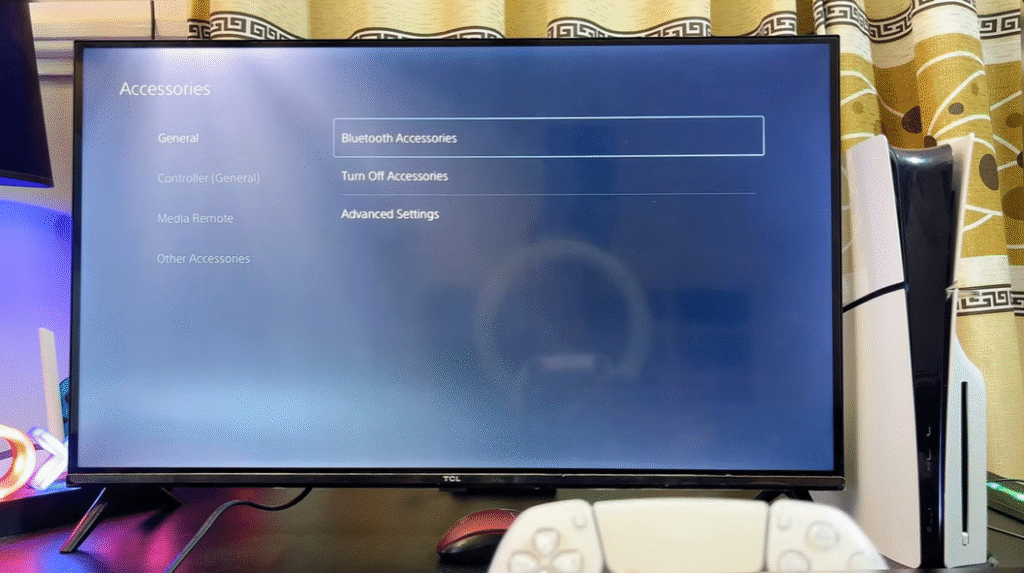
Your mouse will appear under “Accessories Found.” Select it, wait for the connection, and the pairing completes on its own.
Bluetooth Keyboard Setup
A Bluetooth keyboard connects the same way. Make sure the keyboard is in pairing mode. On the PS5, perform the same steps you would for a wireless mouse. You will:
- Open Settings
- Go to Accessories
- Choose General
- Select Bluetooth Accessories
Your keyboard name will appear on the list.
Select it, and the PS5 will prompt you with a code. Type the code in, then press Enter. A small notification at the top of the screen confirms it is paired.
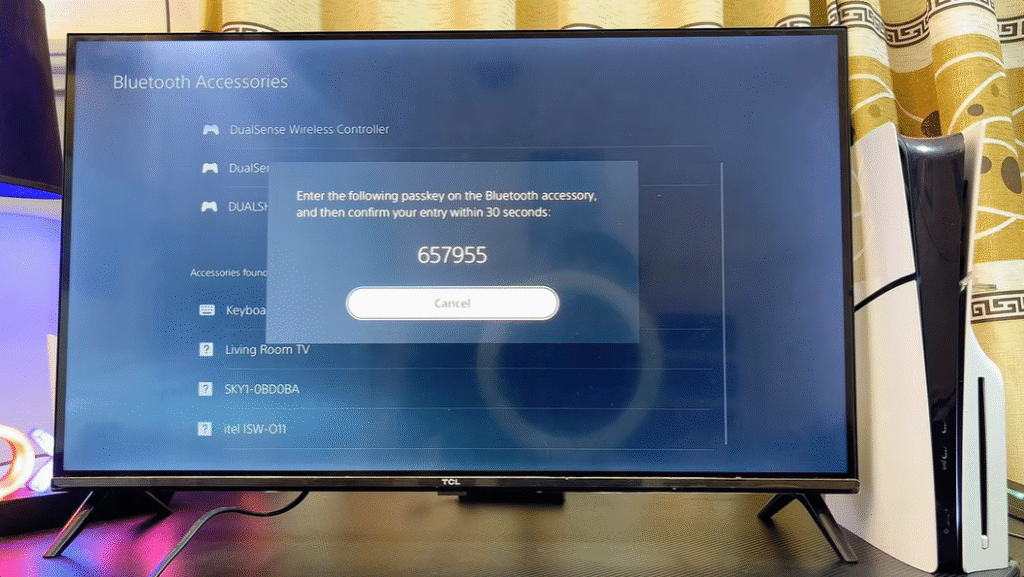
You can change settings later through the Accessories tab and clicking on the keyboard paired. This will bring up your keyboard settings.
Wired Keyboard Setup
A wired keyboard requires no steps beyond plugging it in. Connect the USB cable to the back of the PS5, and the system activates it instantaneously. You can use the arrow keys to move through menus or open settings the moment it connects. Again, a similar process to the wired mouse setup.
Keep in Mind
The PS5 accepts both keyboards and mice, but game support is a different story. Each studio decides if its game will allow these inputs. Some titles offer full remapping while others only support basic typing. And some games? A complete no-go and frowned upon.
Always check in-game settings to see what you can adjust on your keyboard and mouse. Control options vary, and the best setup depends on the game you are playing.