

 9 articles
If you’ve ever tried to connect AirPods directly to a PlayStation 5, you probably noticed that the option isn’t supported. Meaning, you can’t pair your AirPods as easily as you would pair them with your phone. But there are still two reliable ways to use AirPods with your PS5, and both methods are quick. Follow this guide to learn more about each option available to you.
1st Option
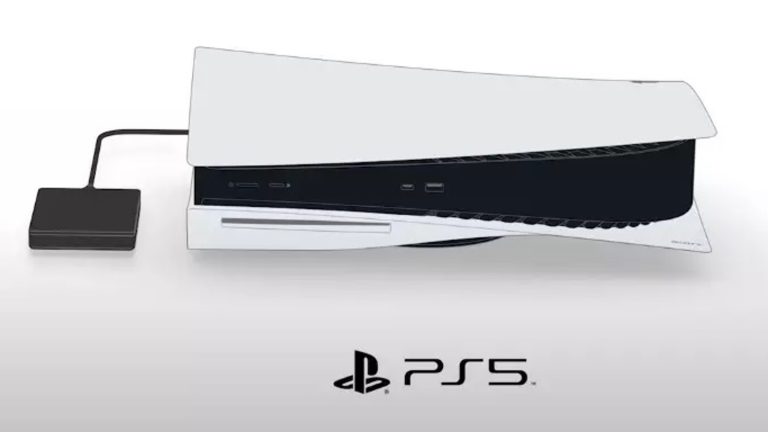
The most direct method is to use a Bluetooth adapter that plugs directly into your console. Before buying one, make sure it supports Bluetooth 5.0, as older adapters are more often than not incompatible with AirPods. This is purchased separately from your PS5. But, still cheaper if you don’t want to drop a lot of money on a headset.

Plug the Bluetooth adapter into a USB port on your PS5. Make sure the AirPods are in pairing mode. After a few seconds, the lights will stop flashing on the AirPods, which means the connection is complete.
Your AirPods should start playing PS5 audio almost instantaneously. If they do not, check the adapter’s instructions. Each brand of adapter may have slightly different instructions.
 How to Connect PS5 Controller to PCDec 30, 2025
 How to Fix Stick Drift on PS5 ControllerDec 16, 2025
 How to Use a Keyboard and Mouse on PS5Nov 19, 2025
2nd Option
If you have a Bluetooth-enabled smart TV, you can also route your PS5 audio through your TV directly to your AirPods. Keep in mind it doesn’t only need to be able to connect to Bluetooth devices, but also be able to connect to Bluetooth audio devices, as this can be an important distinction.
Open your TV’s settings and go to the Devices or Accessories menu, then put your AirPods into pairing mode. From there, choose the option on your TV to scan for new devices and wait for your AirPods to appear. Select them and give the TV a few seconds to finish pairing.
If you do not hear audio right away, check your TV’s sound settings and switch the output to your AirPods if needed. The TV may have trouble automatically switching the audio to the AirPods, even if it recognizes the device. Once that is done, turn on your PS5, and your game audio should come through your AirPods automatically.

Whether you go the Bluetooth adapter route or use your smart TV’s Bluetooth system, getting AirPods working on PS5 is easier than most players expect. It’s all about knowing your options. Both methods get the job done, so there isn’t a wrong answer. Pick the option that fits your setup best, and you’ll be able to game without an expensive headset.