 3 articles
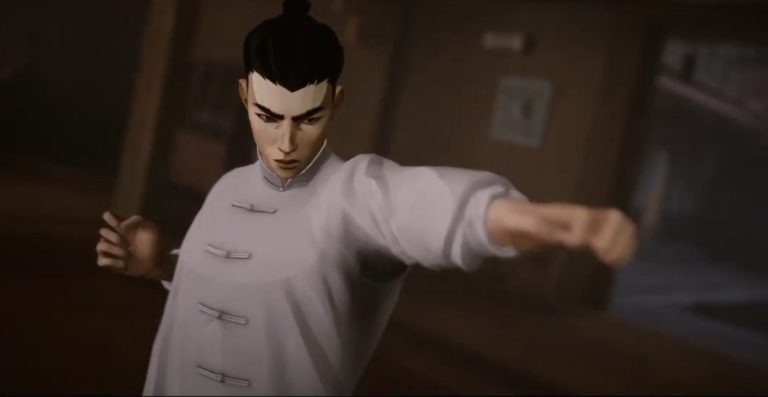
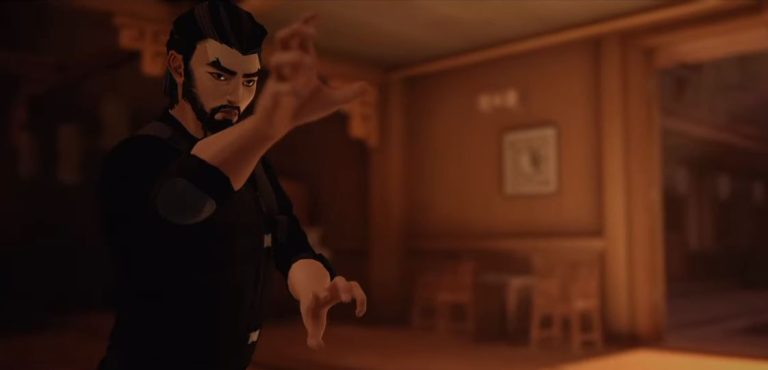
As a lover of action RPGs, it really is a shame that, most of the time, there is no way for you to rewatch and recapture your killer moves as you take down enemies in the game.
Fortunately, Sifu totally understands this player sentiment, which is why they added the replay editor feature.
This can be a bit confusing at first, so here’s a guide on how you can use it.
Using the Replay Editor in Sifu
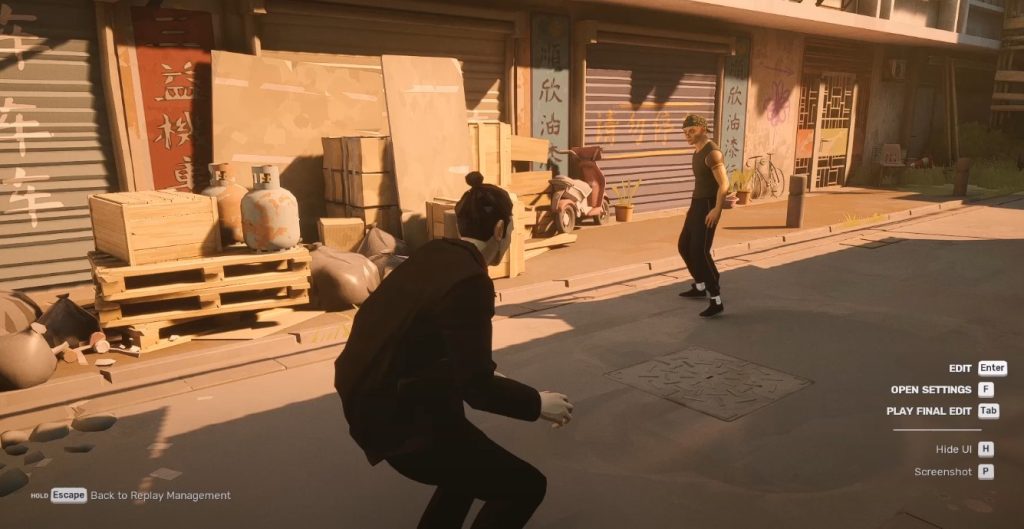
Given that the game has its own replay editor, it is actually way more convenient for you to record the scenes.
 How to Unlock Wing Chun Light and Stunt Double Outfit – SifuMar 29, 2023
 Sifu: How to Get Enforcer Armor OutfitMar 29, 2023
Instead of opening a third-party application that will keep on running in the background to record clips, you can just go over to the replay editor itself and do your own thing.
Here’s how to do it.
Load Preset
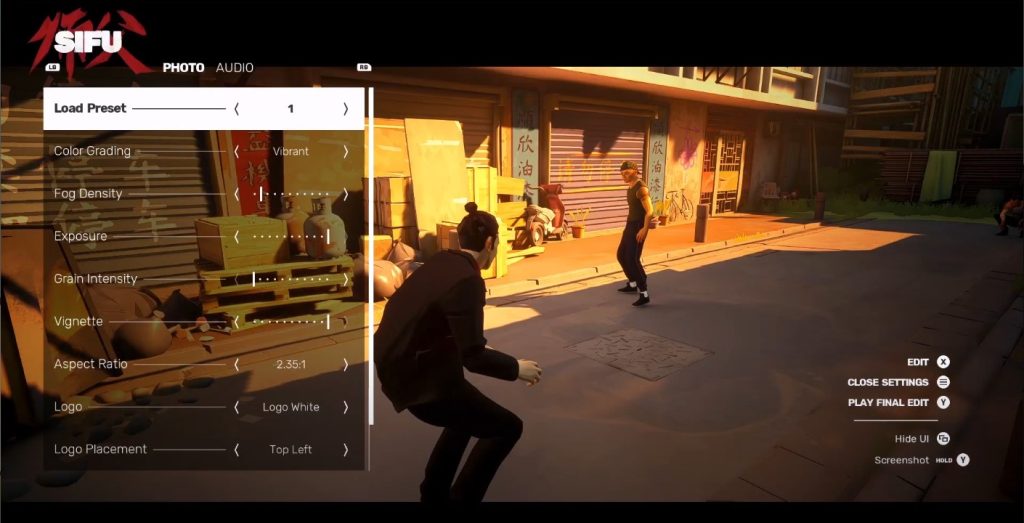
Using an Xbox Gamepad, the first thing you want to do is to load your preset. Do this by pressing the Start button and choosing the preset you would want to use.
Once you have picked the one that gives off the perfect vibe, press the Start button again.
Start Editing
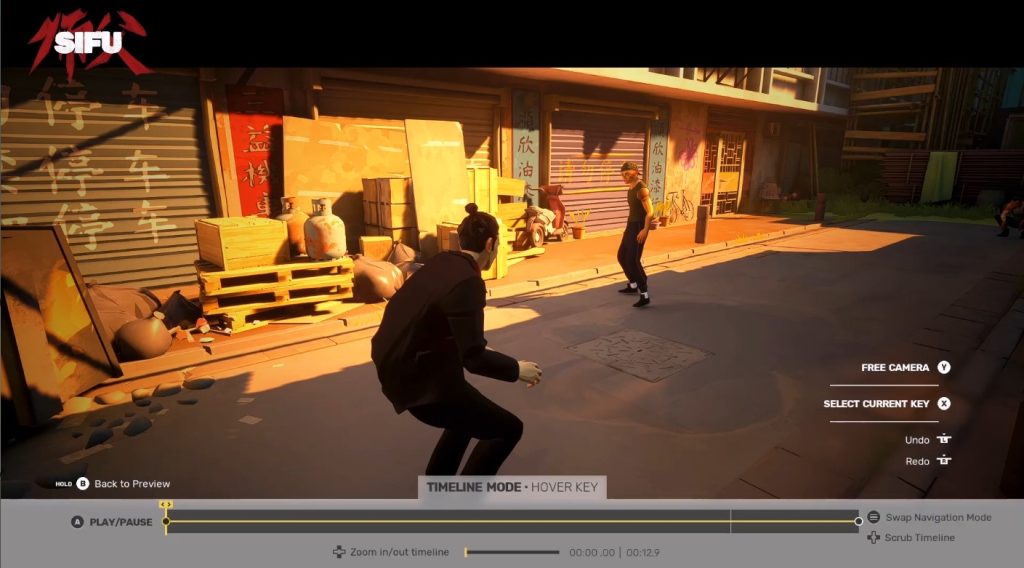
To start editing, press the X button to show the timeline of your video. This is where you can tweak the clips by doing some cuts and time adjustments.
Pressing the A button will play the video to give you a preview.
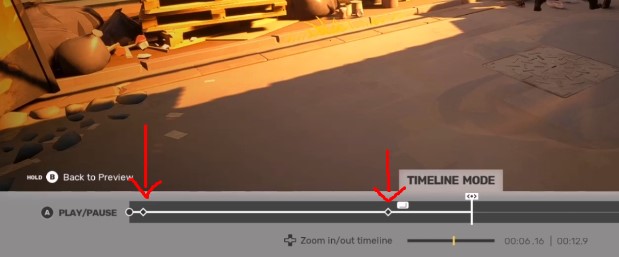
Once the video is playing, press the X button again to place keyframes. These keyframes help you to easily identify the start and the end of the clip that you want to capture.
Use Slow Motion
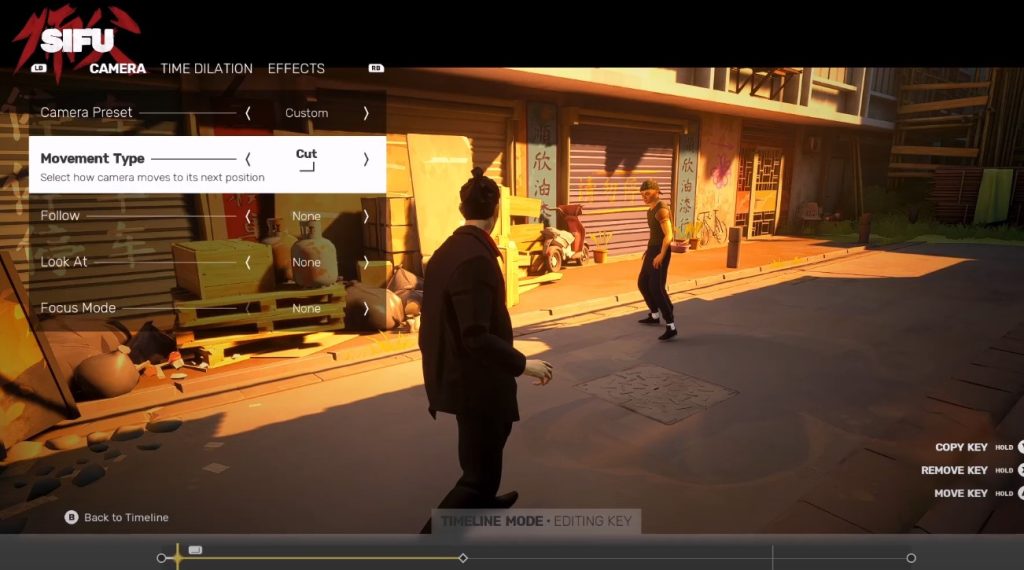
I mean, who doesn’t want a slow-mo of their most fatal blow to their enemies, right?
You can do this by choosing a keyframe first. Press the X button and then the RB button to move to the Time Dilation feature and enable it.
Below it, you can adjust the dilation speed. For slow motion, 0.25 is a good dilation speed.
Camera Angle Transitions
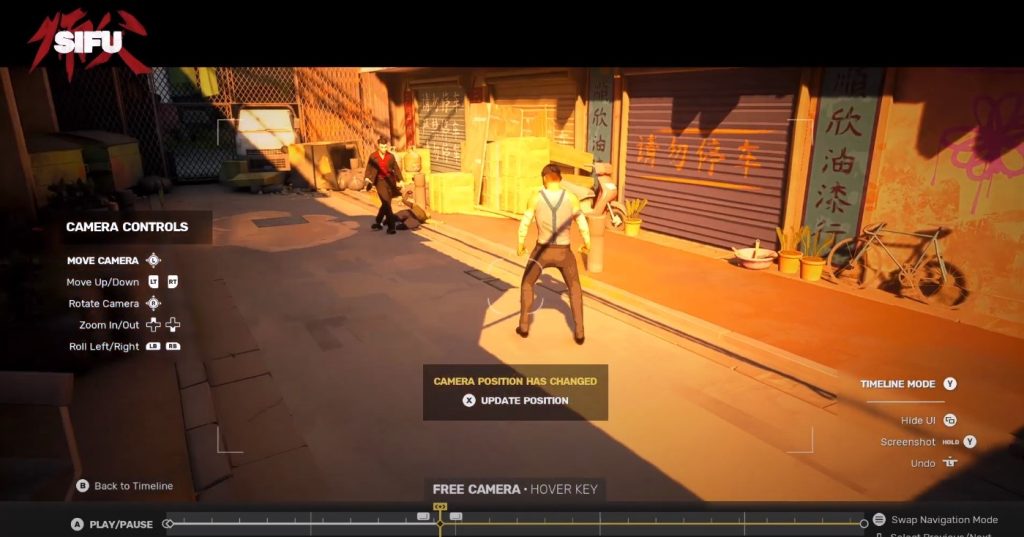
To change the camera angle, start by choosing the next keyframe. Then, press the Hover Key to change it into a free camera.
While at it, move your camera angle to your desired angle. Once all is set, press the X button to update it.
After that, go back to your first keyframe, press the X button, and choose linear as Movement Type. That way, the camera will move in a linear direction as it pans to the next camera angle.
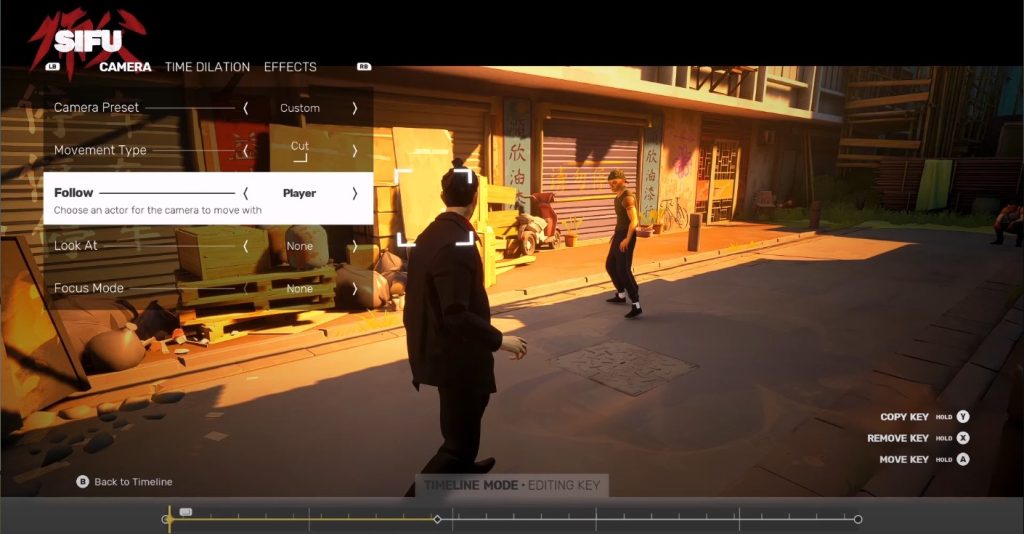
However, if you want the camera to closely follow your character with some dynamic movement, press X and go to Follow then change it to Player.
Below that, change the Look At from None to A.I.O.
On the other hand, you can set Follow to A.I.O then Look At to Player. Just make sure not to set both settings with the same subject or the video will result in a choppy footage.
ALSO READ: How to Unlock Wing Chun Light and Stunt Double Outfit – Sifu