
 60 articles
If you wish to customize your experience in Schedule 1 beyond what the game normally allows, you’ll need to learn to install and use mods.
While there aren’t a lot of mods yet due to the game being so new, there are still a lot of helpful ones for customizing the game. This includes ones that allow things like instant Mixing Stations, God Mode, more clients, a minimap, access to the debug console… there’s quite a lot of useful stuff!
In this guide, we’ll tell you how to install and use mods in Schedule 1.
How to Install & Use All New Mods | Schedule 1
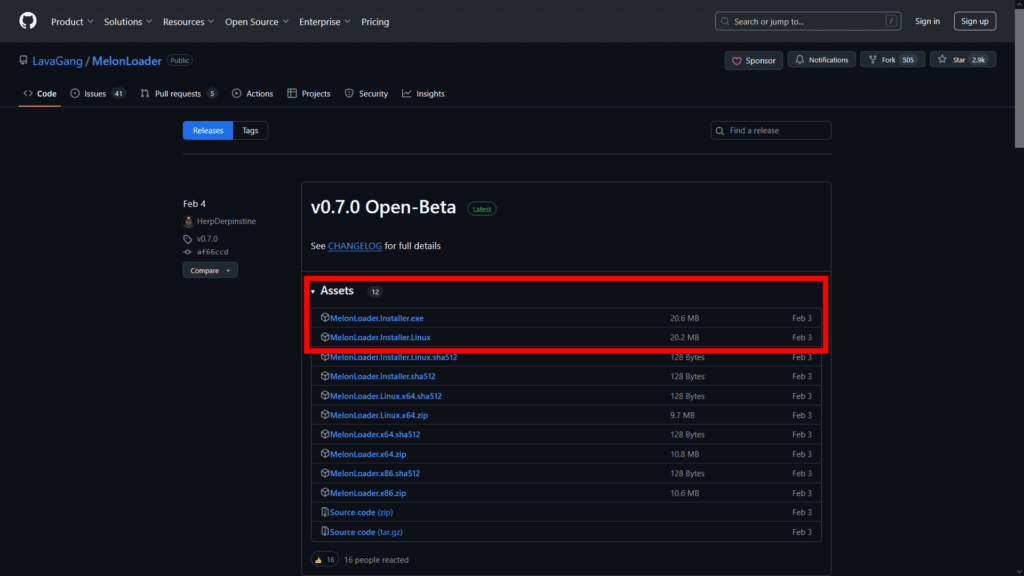
To install mods, you need to go to the official MelonLoader GitHub page and download the latest version of the installer. Currently, that’s v0.7.0 Open-Beta, as shown above. Installers for all supported platforms should be at the top of the list.
 Fully Automated Coca Docks Warehouse Build – Schedule 1Mar 20, 2026
 How to Get Watch & Chains in Schedule 1 | Jewelry Shop LocationMay 13, 2026
 West Bridge Location in Schedule 1 – Under the West BridgeApr 8, 2025
- If you’re on Windows, download “MelonLoader.Installer.exe”.
- For Linux users, download “MelonLoader.Installer.Linux”.
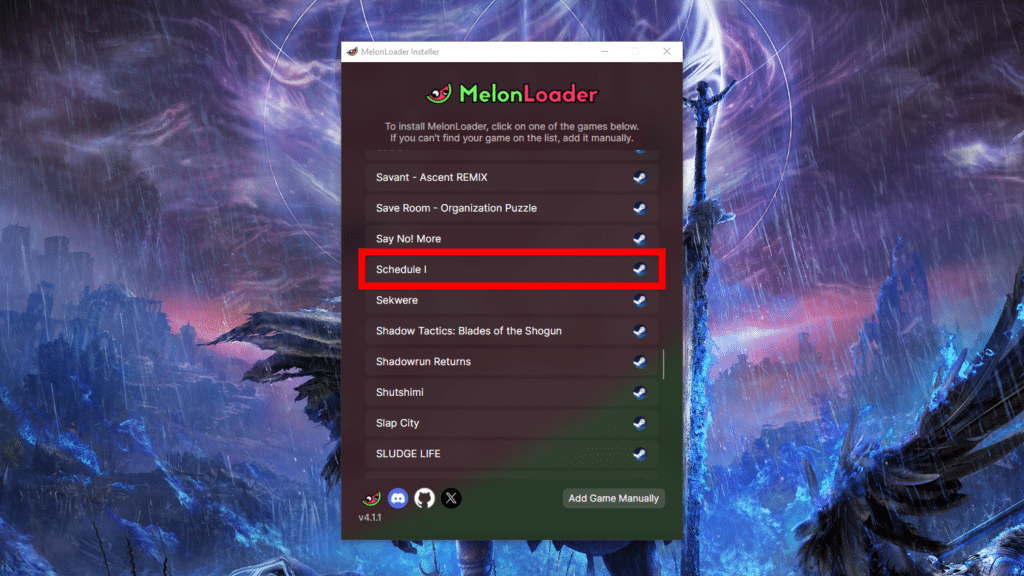
Once you downloaded the installer, launch it. It’ll give you a list of games on your PC to which it can be installed. You just need to find Schedule 1 in the list and click on it.
If for some reason Schedule 1 doesn’t show up on the list, click on “Add Manually” in the bottom right of the program. Then point the installer to where you have Schedule 1 installed. It will add it to the list of games.
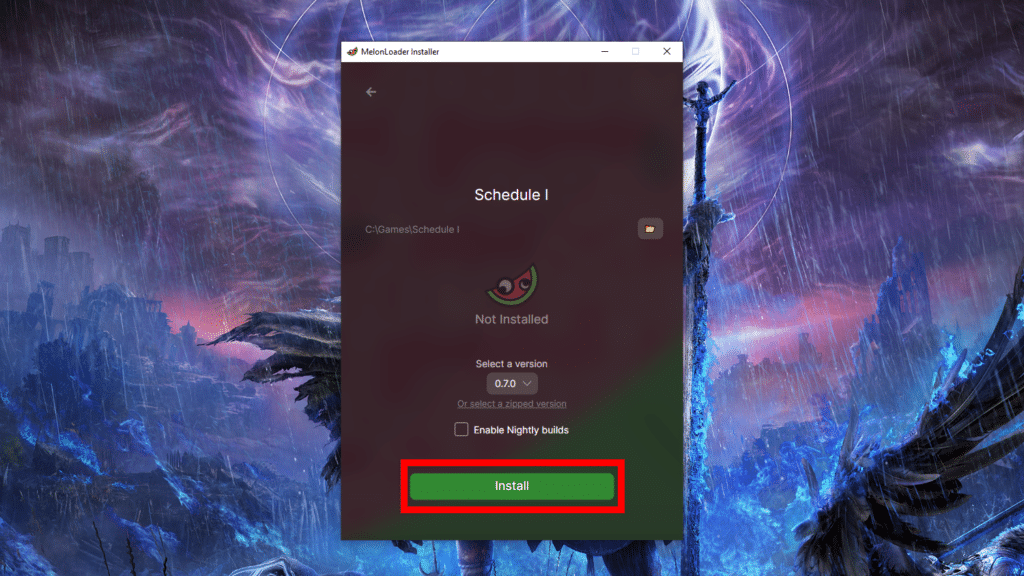
Then, just click on “Install” and wait for the program to finish. It will download and apply the latest version of MelonLoader.
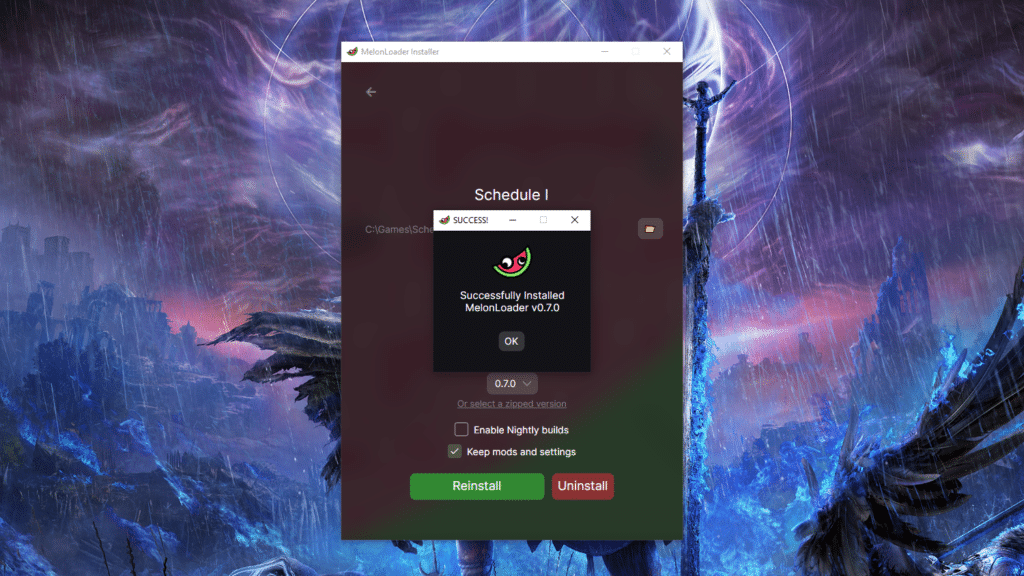
Note that you can repeat this process later on to reinstall and update MelonLoader. Of course, you can also do this to uninstall it, should you wish to stop using mods.
Installing Mods Via MelonLoader
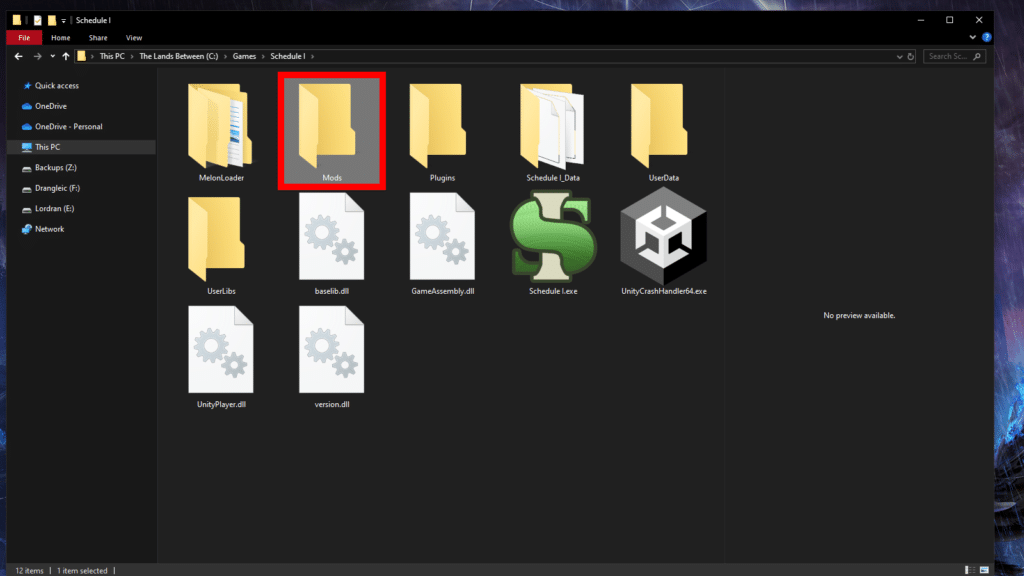
Once the process is finished, go to the folder where you have Schedule 1 installed. An easy way to reach it is to find Schedule 1 in your Steam Library and right-click on it. Then select “Manage > Browse Local Files.”
In the Schedule 1 folder, find and open the Mods folder that MelonLoader created. Now, you just need to get some mods! We recommend using the Nexus Mods page for Schedule 1. Do note that they’ll require you to register to that site to be able to download mods.
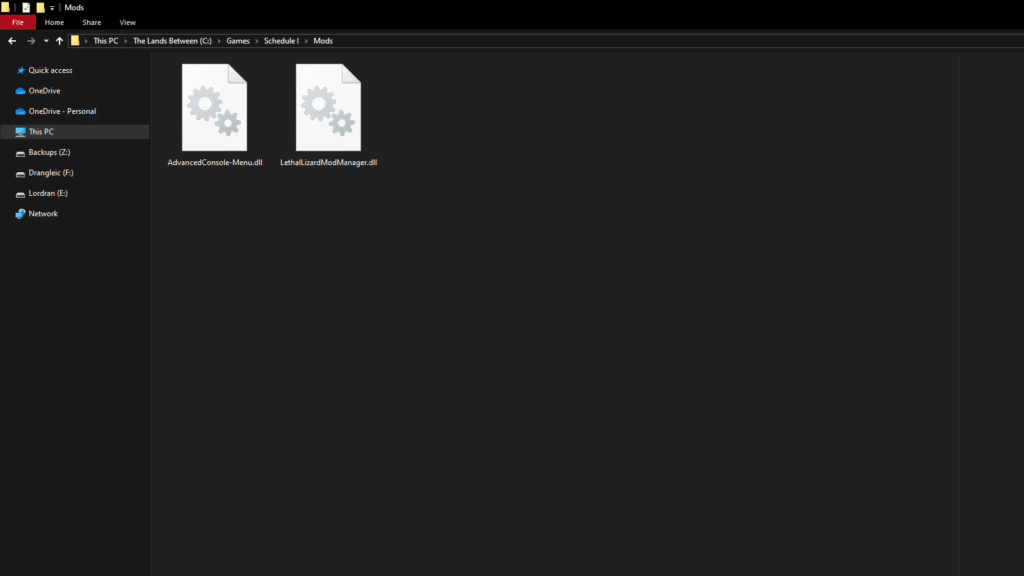
Once you’ve found a mod you like and downloaded it, extract it to the Mods folder. It should look something like the example above, which includes the “Advanced Console and Menu” and “Mod Manager” mods.
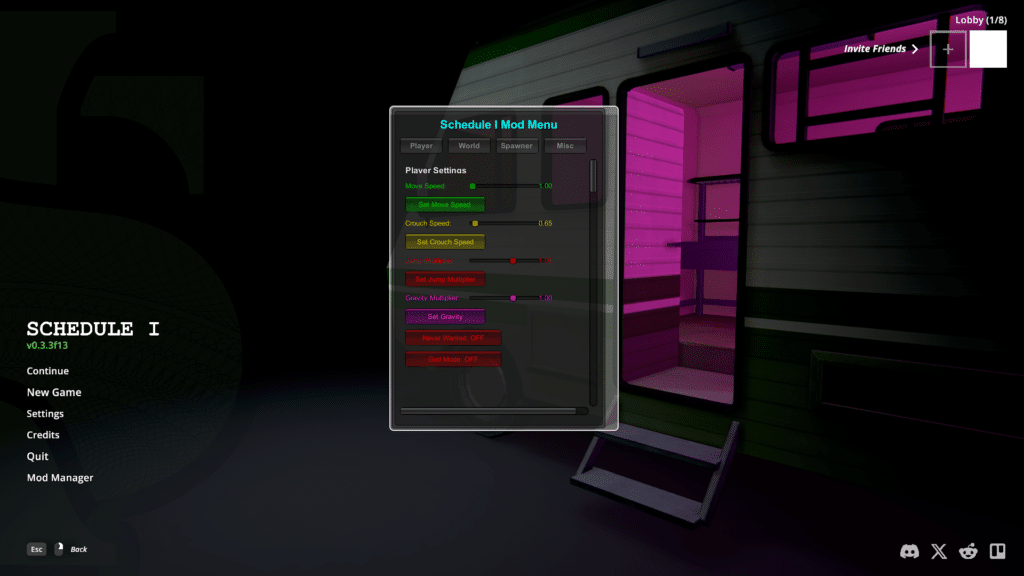
With the files in your Mods folder, you’re all done. Launch the game and try using one of the mods. It should all work fine, as shown above using the aforementioned “Advanced Console and Menu” mod by jxckooo2k25.
If you have any issues with one of the mods, make sure to read the mod’s description on its Nexus Mods page. Some mods might require other mods or programs to work. Additionally, it’s very likely that mods may stop working entirely after each update to the game. You might need to wait for modders to update them to be compatible with newer versions.
Nonetheless, that’s all you need to know to be able to install and use new mods in Schedule 1! The mod scene is somewhat basic currently since the game’s still pretty new. Nonetheless, there’s a lot of nice mods to help you customize the game to your liking.
Modding aside, do you want to know the best way to mix coke in this game? Check out our best Coke recipe guide!