

 162 articles
ARC Raiders is a new third-person extraction shooter that officially launches on October 30, 2025. But while we played the beta test this weekend, we were able to get a good look at the best controller settings that will elevate your play and ensure you extract with all your loot.
There are quite a few settings in this game to tinker with. If you are looking for the best optimization settings, check out our guide here. Follow along as I give you a quick cheat sheet for the best controller settings, as well as break down each: what it does and why I chose that specific option.
Settings Quick Guide
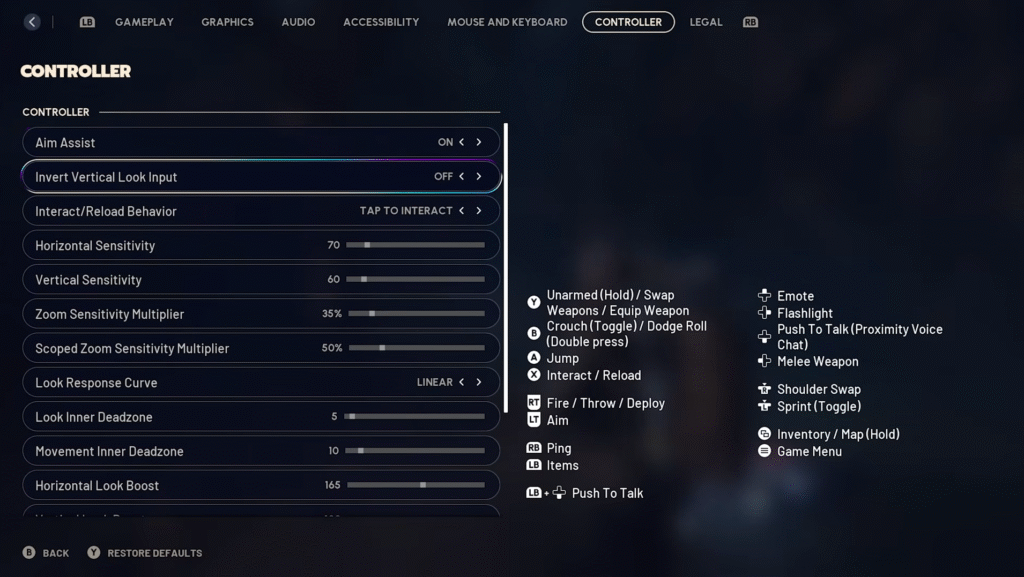
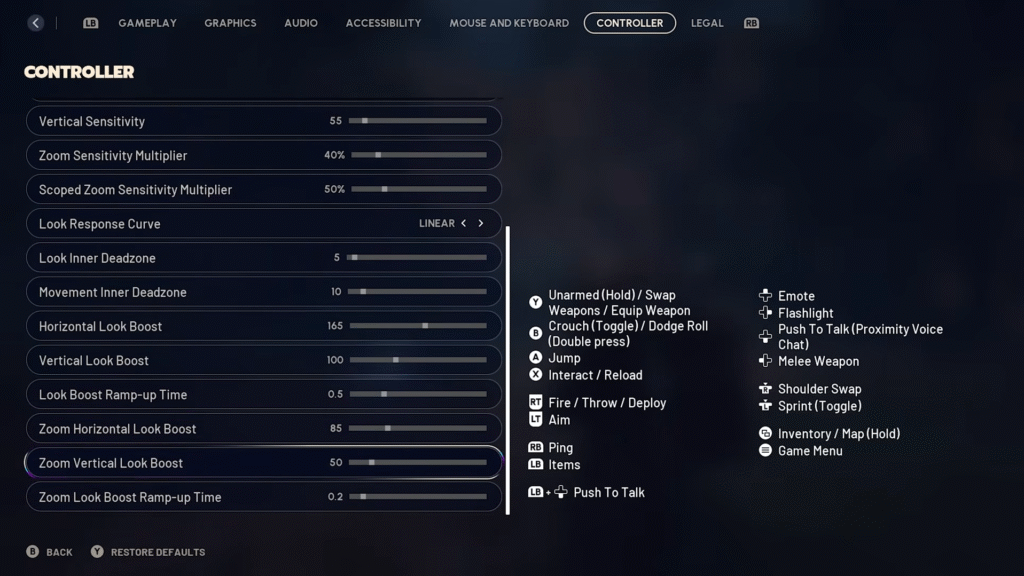
In ARC Raiders, to get to your controller settings, open up the system interface and then go into the settings. Scroll over until you get to the Controller tab. It is here that you can change your controller settings.
| Setting | Option to Choose |
| Aim Assist | On |
| Invert Vertical Look Input | On or Off |
| Interact/Reload Behavior | Tap to Interact |
| Horizontal Sensitivity | 80 |
| Vertical Sensitivity | 55 |
| Zoom Sensitivity Multiplier | 40% |
| Scoped Zoom Sensitivity Multiplier | 50% |
| Look Response Curve | Linear |
| Look Inner Deadzone | 5 |
| Movement Inner Deadzone | 5 |
| Horizontal Look Boost | 165 |
| Vertical Look Boost | 100 |
| Look Boost Ramp-up Time | 0.5 |
| Zoom Horizontal Look Boost | 85 |
| Zoom Vertical Look Boost | 50 |
| Zoom Look Boost Ramp-up Time | 0.2 |
Explaining these Settings
Basics
- Aim Assist – ON: This is an absolute must on the controller. It is not as strong as other shooter games, but it is extremely important to have it enabled.
- Invert Vertical Look Input – On or Off: This is a personal preference. If you want to push up on your analog stick and make your character look up, you want to keep this setting off. But if you want to push up on the analog stick and look down, then you will turn this setting on.
- Interact/Reload Behavior – Tap to Interact: This setting determines how your interact/reload button works. Tap to Interact makes this button tap to interact and hold to reload. This makes looting a lot quicker and allows you to not get caught accidentally reloading. If you choose Tap to Reload, you will tap to reload and hold to interact.
- Look Response Curve – Linear: Linear means there is a direct response to the input you put in on your analog stick. So, the harder/farther you push on your analog stick left or right, you are going to see the direct one-to-one response in the game.
- For example, if I push my stick to the right only 50%, your view and aim will only be at its 50% max speed. If you push it all the way to the right (100%), you will see the maximum speed you can aim at.
Sensitivities
Most sensitivities are personal preference, but I have found these to be the most efficient and comfortable on ARC Raiders. These settings allow for enough room to make slight adjustments, while still making it feel sticky with your aim assist. I encourage you to play around with yours, but try mine as a baseline and work from there.
 Hotel Panorama Puzzle Solution in ARC RaidersApr 30, 2026
 ARC Raiders: How to Find & Use Dockmaster’s DetectorApr 30, 2026
 ARC Raiders: Where to Find Turbine CompressorApr 30, 2026
- Horizontal Sensitivity – 80: This setting controls how fast your view moves from left to right.
- Vertical Sensitivity – 55: Will determine how fast your view moves up and down.
- Zoom Sensitivity Multiplier – 40%: Adjusts your sensitivity while aiming down your sights.
- For reference, a setting of 100% would be identical to your hip-fire sensitivity. Below 100% means that your aiming is more stable and controlled when you ADS. Above 100% means any adjustments you make while ADS’ed are going to be quite large and quick.
- Scoped Zoom Sensitivity Multiplier – 50%: A setting that is similar to the previous, however, applies specifically to weapons with scopes. The reference above is still true for this setting. I have it 10% more only because I like to have a bit of extra movement when using scoped weapons, while still maintaining control and precision.
Stick Drift Settings
Typically, you want your deadzone numbers to be as low as possible to ensure you get quick movements, but stick drift can be a roadblock for this. Stick drift usually occurs on controllers that have been well-loved. It is quite frustrating to try and play the game when your character starts running or looking side to side without input from you.
So increasing your deadzone (from 0) increases the amount of force you have to put on your stick before you see the movement registered on screen. The higher the number, the more effort you have to use on your analog stick for the movement to be registered.
- Look Inner Deadzone – 5: This is essentially your right analog stick and controls how much physical force you must use before your camera/view will start moving. I put mine on 5 to account for any accidental touches I have on my sticks and to account for any small stick drift I have.
- Movement Inner Deadzone – 5: This would be your left analog stick and controls how much physical force you have to use on it before your character starts moving. Again, I put mine on 5 to account for any small errors on my part.
Look Boost
Look Boost is the speed at which you can turn and look while maintaining precision.
- Horizontal Look Boost – 165: This is your left or right turning speed when your input stick is fully pushed. I have this set to about double my horizontal sensitivity. It provides you with some extra speed when you need to turn around quickly.
- Vertical Look Boost – 100: I have this setting about double my vertical sensitivity. This is the speed boost I can get when I push my stick all the way up or down. I don’t want this too high as I want to maintain precision when needing to look quickly, but I don’t want my character to end up looking straight at the sky.
- Look Boost Ramp-up Time – 0.5: I have this at a half-second. This gives enough time that if you don’t want to activate the boost, it won’t, but it’s quick enough that if you want the boost, it will register.
Zoom Look Boost
- Zoom Horizontal Look Boost – 85: This is if you need to turn quickly while ADSing. This won’t be used super often, but it is useful in those situations where you are getting shot in the back and need to turn swiftly.
- Zoom Vertical Look Boost – 50: Allows you to look up and down more quickly while your sights are aimed down. I have this at half of my vertical look boost, because again, I do not want to be staring straight up into the sky or down at the ground.
- Zoom Look Boost Ramp-up Time – 0.2: Performs similarly to the Look Boost Ramp-up Time. I have this on 0.2 seconds because it gives you time to react quickly when your sights are aimed down to snap onto targets.
That is all you need for the best controller settings on ARC Raiders! Overall, your controller settings are what you feel most comfortable with, so don’t be afraid to change things as needed. Once you find your perfect settings, you will be able to have a sharper aim, move smoothly, and enjoy the chaos that is ARC Raiders.