 34 articles
Depending on which platform you’re using, using the best settings for Overwatch 2 will help improve your gaming experience. Apart from that, it also optimizes the game for you, allowing you to avoid experiencing performance issues and the like.
That said, if you want to enjoy a smooth gaming experience in Overwatch 2, then you need to know which settings to use. This article takes care of that for you.
Best Settings to Use in Overwatch 2
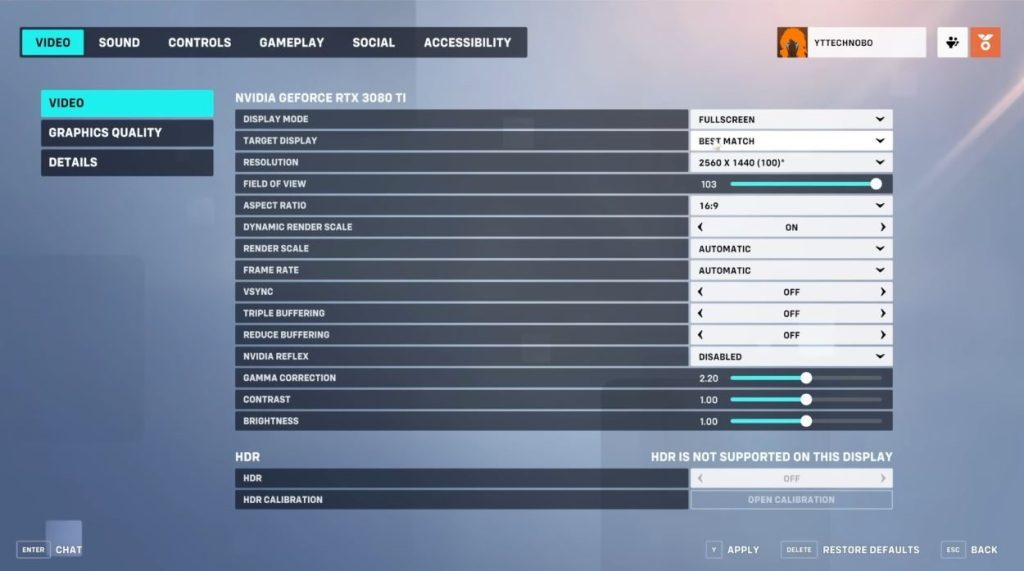
First off, we’re going for the Video settings which affect the game’s graphics and overall performance. For this one, you want to head over to your settings and go to the Video tab. Here, you want to go for the following settings:
- Display Mode: Fullscreen
- Target Display: Best Match
- Resolution: Use your monitor’s native resolution
- Field of View: 103
- V-Sync: Off
- Triple Buffering: Off
- Reduce Buffering: On
- NVIDIA Reflex: On
Using these settings will allow you to enjoy a smooth performance without affecting the overall looks of the game that much. The reason why you want to go Fullscreen instead of Windowed Fullscreen is because it will put less strain on your computer. However, it does make alt-tabbing a bit inconvenient.
 How to Climb in OverwatchMay 21, 2026
 Overwatch 2: How to Change Hero SkinMar 22, 2023
 Overwatch 2: How to Unlock and Equip Name CardJan 26, 2026
As for the Field of View, you’ll want to go for the maximum setting as it provides you with more vision on both sides of the screen. This can be pretty advantageous, especially when you’re playing competitive matches. Also, the maximum FOV in Overwatch 2 won’t cause a fisheye effect which is common in other games.
The rest of the settings above will provide you with minor performance boosts which can add toward the game’s overall performance.
Graphics Settings
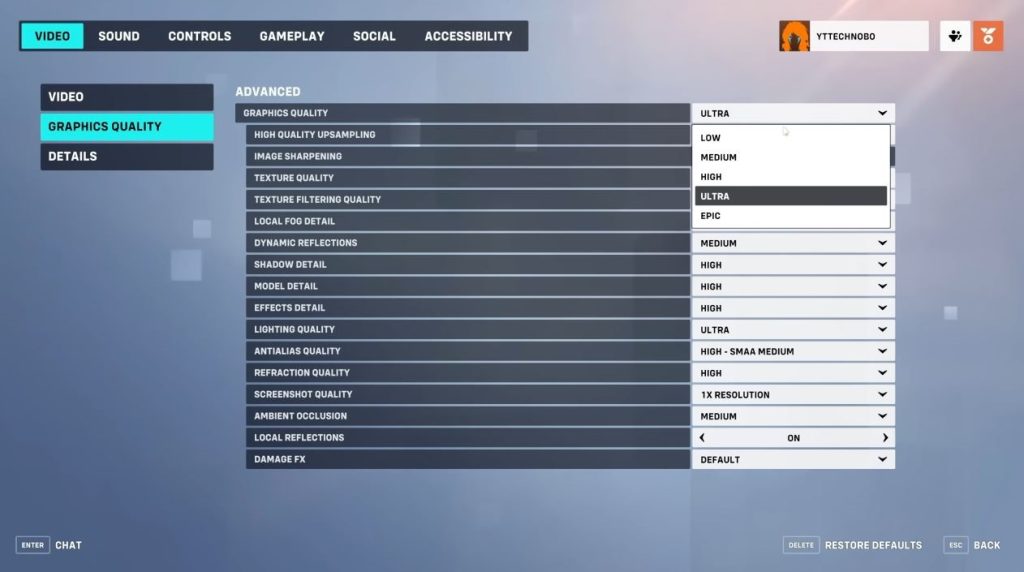
After applying the changes to your Video settings, it’s now time to move on to the Graphics settings. In this part, we’ll be optimizing the game to give you as many frames as possible. This can help prevent stuttering which can be really annoying when you’re playing a shooter game.
For this one, you’ll want the following settings:
- Graphics Quality: Low
- Image Sharpening: 50
- Dynamic Reflections: Off
- Shadow Detail: Off
- Screenshot Quality: 1x Resolution
- Ambient Occlusion: Off
- Local Reflections: Off
- Texture Filtering Quality: Low – 1x
Then, simply set the remaining settings to Low. With these settings, you can get rid of potential stuttering and other FPS-related issues while playing the game.
Settings for Console
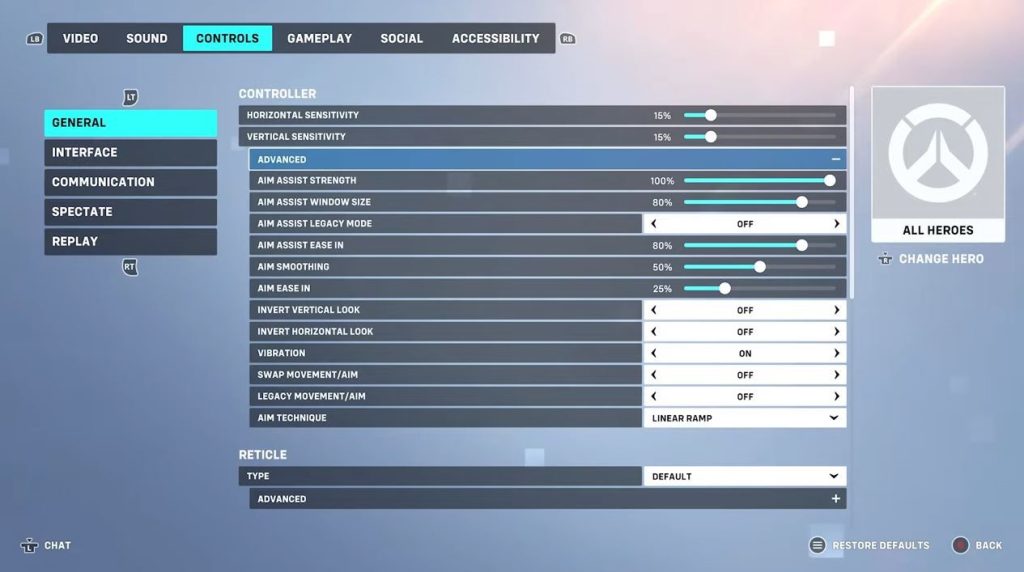
Needless to say, there are specific settings that are intended for players on consoles. So if you’re playing Overwatch 2 on either PlayStation, Xbox, or Switch consoles, then simply follow the following settings:
- Horizontal Sensitivity: 45
- Vertical Sensitivity: 45
- Aim Assist Strength: 95
- Aim Assist Window Size: 70
- Aim Assist Legacy Mode: Off
- Aim Assist Ease In: 20
- Aim Smoothing: 0
- Aim Ease In: 20
- Vibration: Off
All of these settings will massively improve your gaming experience on consoles. This is especially true for Aim Assist which is an excellent feature that can help players aim better when using their controllers. You’d want to experiment on the value of Aim Assist Strength.
The 95 value is just a guideline, but it’s one that has been shown to provide excellent assistance while aiming in the game.