
 55 articles
Possibly one of the best quality of life features that got introduced in No Man’s Sky is the ability to switch between first person and third person POV. If you’ve been around during the early days of the game, you might recall that the game was first-person only.
However, things have changed since the NEXT Update which was released back in July 2018. The update made it possible to freely switch your camera.
If you don’t know how, this guide should help you out.
How to Change Between First Person and Third Person Camera in No Man’s Sky
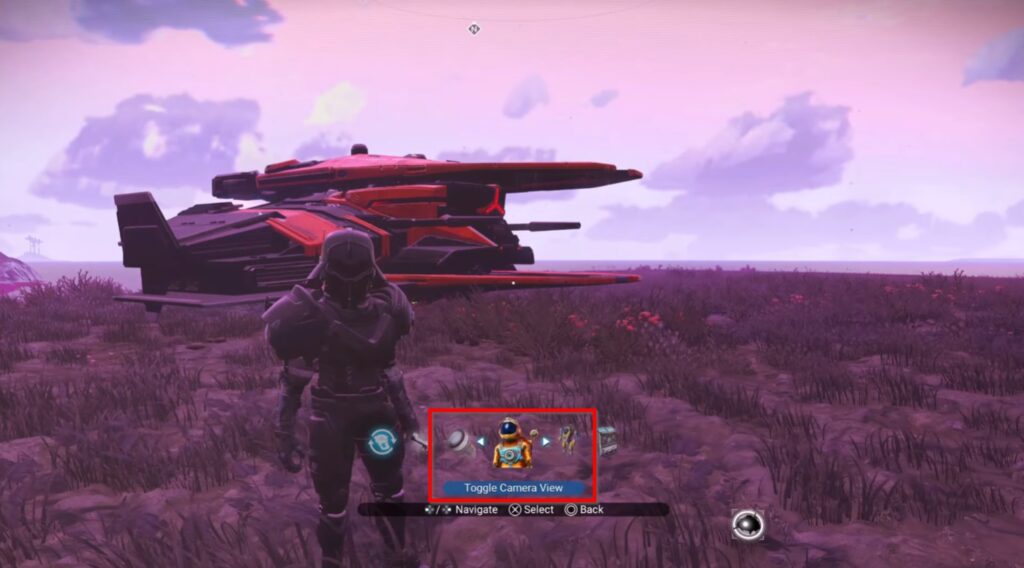
You can find the camera toggle inside the Quick Menu instead of the typical Settings menu. Do take note that it’s pretty much the same on every platform.
 No Man’s Sky: Expedition 21 Remnant GuideMay 12, 2026
 No Man’s Sky: Expedition 20 Breach Redux GuideJan 6, 2026
 No Man’s Sky: Expedition 19 Redux Corvette GuideDec 20, 2025
On PC, press X to open the Quick Menu, then navigate to the Utilities section, which you can spot by its gear icon.
After that, simply scroll through the options until you find the Toggle Camera View option. Select it to instantly switch between first and third person POV.
On both PlayStation and Xbox, press Down on the D-pad, open the Utilities menu, and choose the Toggle Camera View option.
Lastly, on the Nintendo Switch, simply follow the same steps as those of PlayStation and Xbox.
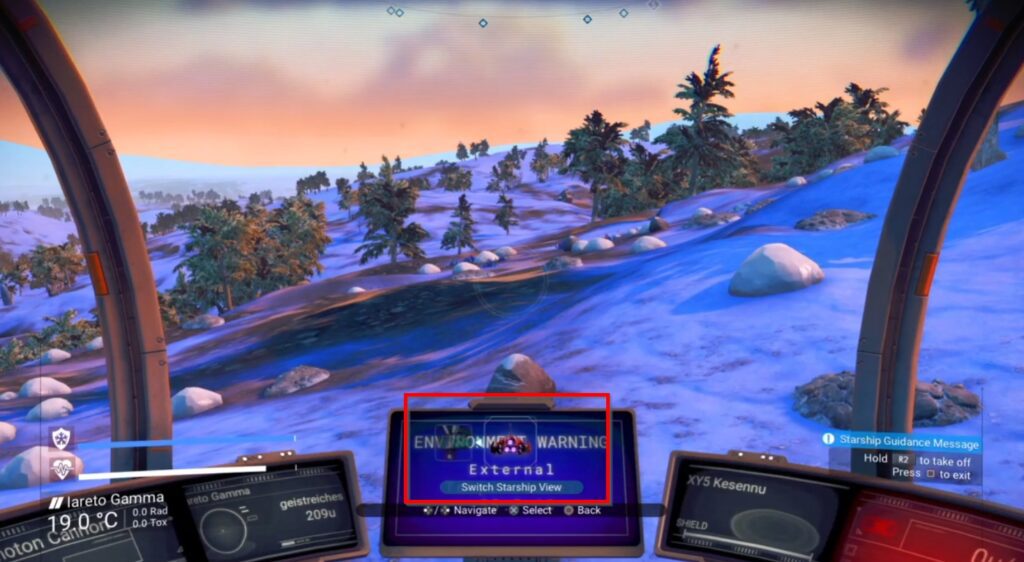
That said, depending on whether you are on foot or inside your ship, the option could be either Toggle Camera View or Switch Starship View.
Common Camera Issues and How to Fix Them
In some cases, players occasionally encounter camera-related glitches after major patches.
One recent issue involved floating “bubble” effects appearing in first-person view due to a backpack cosmetic interaction. Most players believe it’s linked to the Starborn or Skyborn jetpack cosmetics.
Switching backpacks or changing perspectives temporarily fixed the issue for many players.
If your camera options disappear entirely, simply restart the game, verify your game files, make sure you are not in Photo Mode, then reopen the Utilities tab.
Final Thoughts
Switching between first and third person in No Man’s Sky is easy as long as you know where to find the setting.
That said, both cameras have their own advantages.
Third person generally offers better awareness if you’re flying and exploring, while first person delivers stronger immersion and cockpit visibility during combat.
The good news is that No Man’s Sky fully supports both playstyles, and you can change perspectives anytime without penalties.