 5 articles
Baldur’s Gate 3, following in the footsteps of Larian’s previous games, allows you to play co-op online or in split screen mode.
This allows you and your friends to enjoy the game’s campaign together, with each player controlling a different character in the party.
So, gather your pals and read up, we’re going to tell you how to play Baldur’s Gate 3 multiplayer, both in offline and online modes!
How to Play Co-op/Split Screen
Local Split Screen Multiplayer
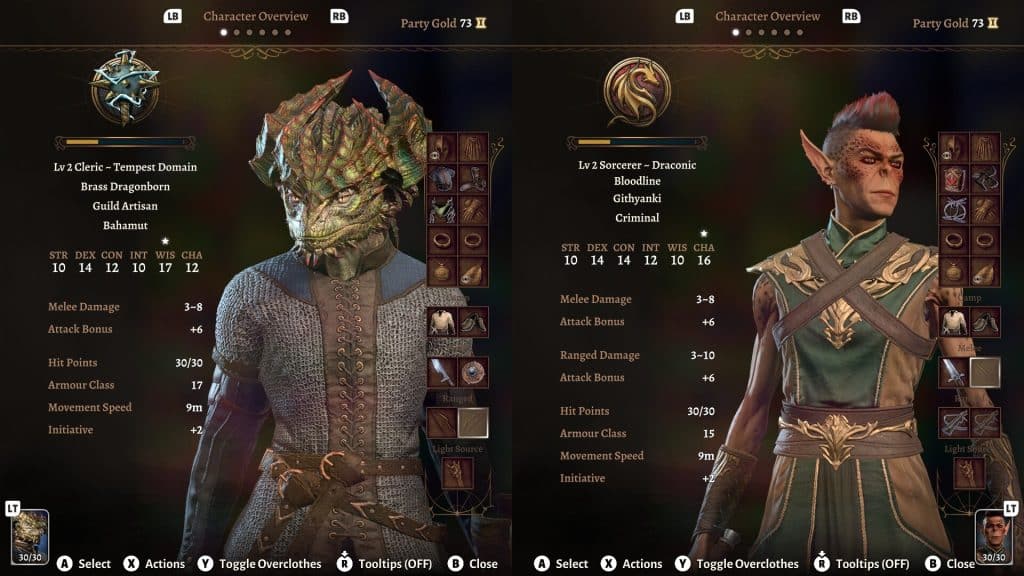
Playing local split-screen co-op is extremely painless in Baldur’s Gate 3. The only thing to keep in mind is that it only works with controllers, so you need two controllers!
 Baldur’s Gate 3: How to steal Umbral Gem from YurgirFeb 29, 2024
 Baldur’s Gate 3: What to Do if Toobin is DeadOct 4, 2023
 Baldur’s Gate 3: New Patch 8 Update Major Changes Overview | New Bard Class, New Spells, Gnome Race, and MoreJul 9, 2022
Start your campaign with your main controller, then set things up until you’re at the Character Creation screen.
Once there, you can press the A button (Xbox) or X button (PlayStation) on the second controller.
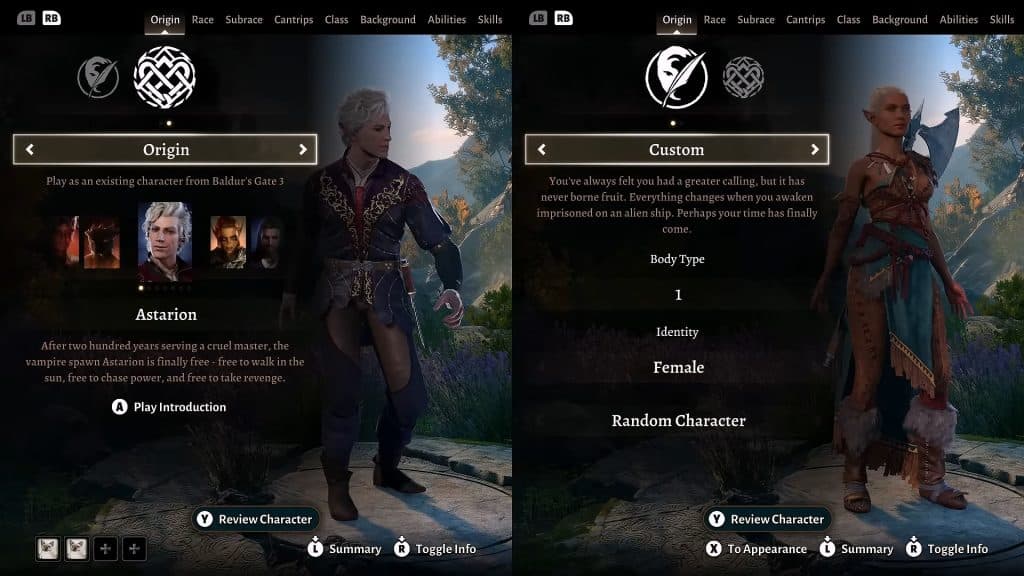
The second player will get to create their own character from scratch, though they can also choose to play as any of the Origin characters.
Also, you can have the second player join your campaign midway anytime they want. However, in this case, they will only be able to play as a custom character.
So, if the second player wants to play as an Origin character such as Astarion, they need to join the campaign from the very start!
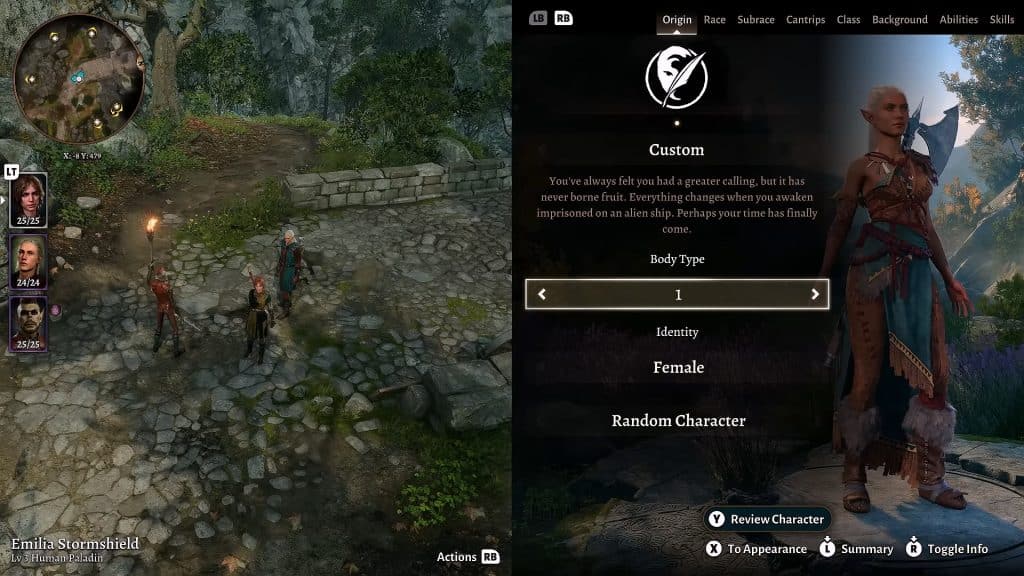
On top of regular local co-op, you can also play what is commonly called “Combo” multiplayer. This allows you to play with another person locally, while also having two online players.
To play this mode, just start a normal local co-op session and then choose to invite other players from the pause menu.
Alternatively, plug in two controllers and then select Multiplayer from the main menu. Join the session you want, activate both controllers, and you’re all set!
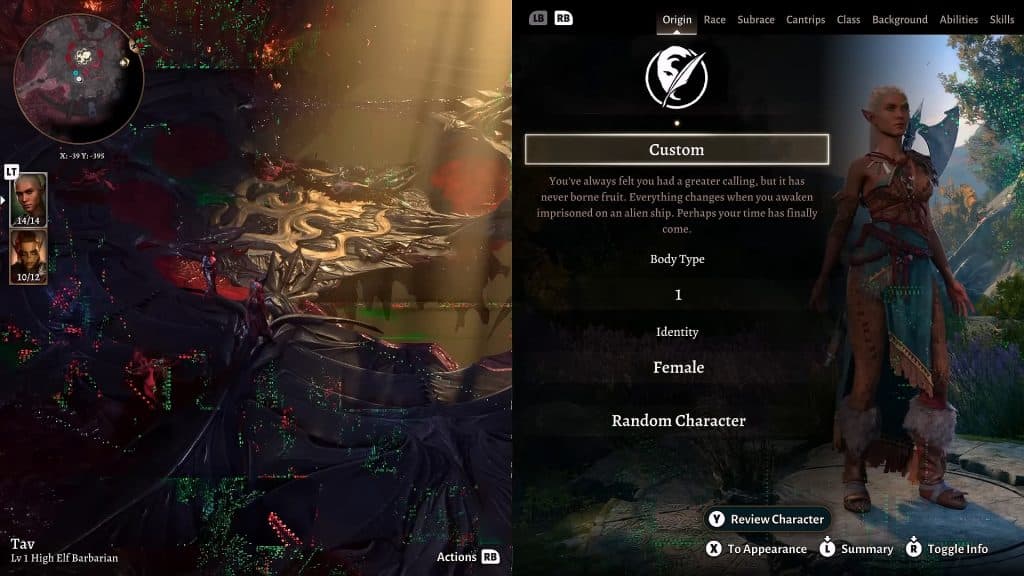
The only downside to local co-op is that it seems to have issues on PC when using the Vulkan graphics API.
If you experience visual artifacts or crashes, we recommend that you go into the game’s settings and switch to DirectX 11 instead. It seems to be more stable for co-op.
Online Multiplayer
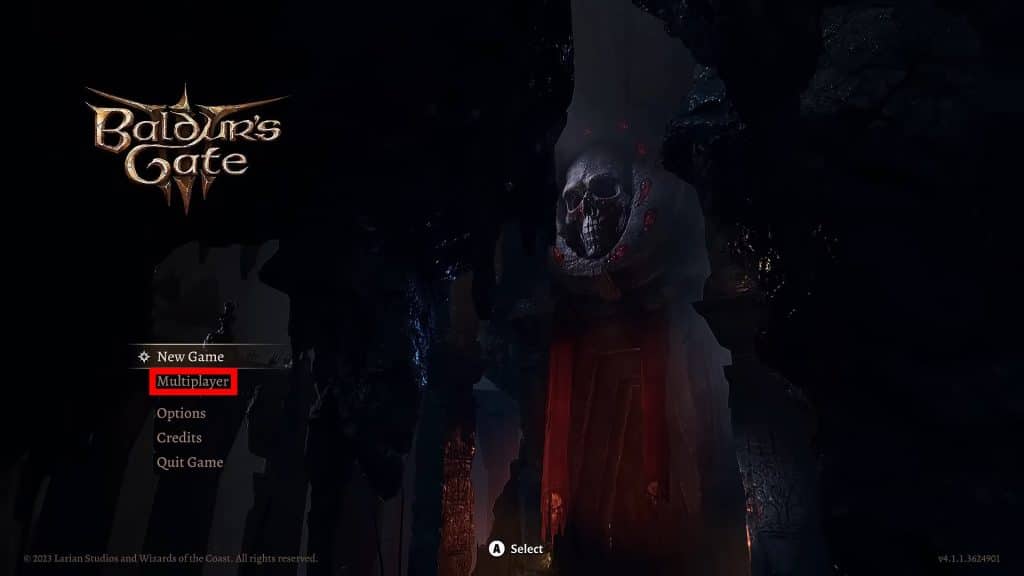
Playing online is just as easy as playing locally, just select Multiplayer from the main menu.
This will bring up the list of every single available online session and also lets you apply various filters. For example, tick the “Friends” checkbox so that you only see sessions hosted by your friends!
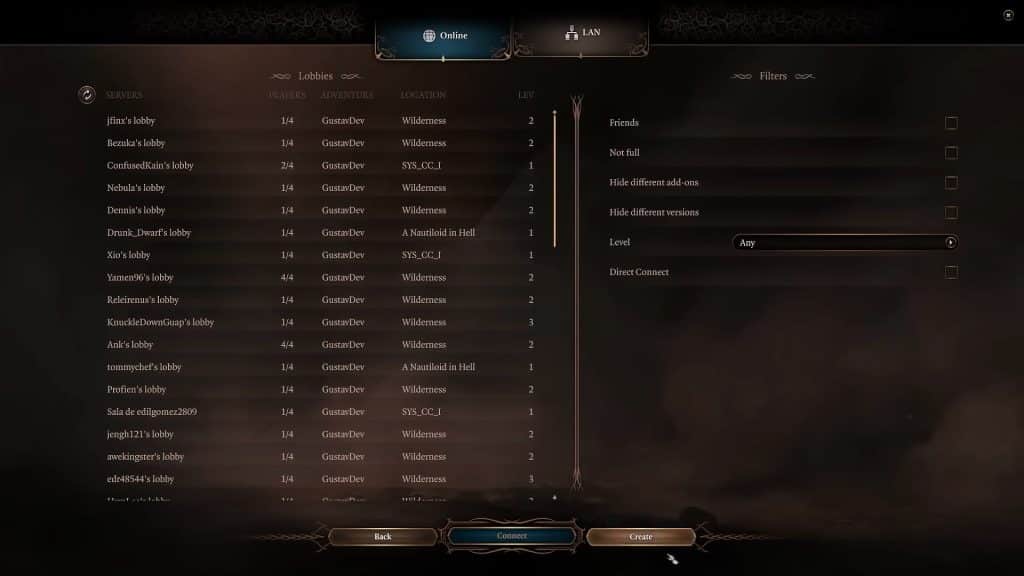
You can choose to join any session you wish here, though we would advise against joining random players’ sessions unless they explicitly allow it.
The main reason for this is that joining midway through a campaign will force you to create a custom character. This custom character will then be stuck as a permanent companion at the host’s party.
Though, on the upside, these custom characters will get enough experience to match the host’s level, so they won’t be useless either.
If you want to host your own session instead, click on “Create” at the bottom of the screen.
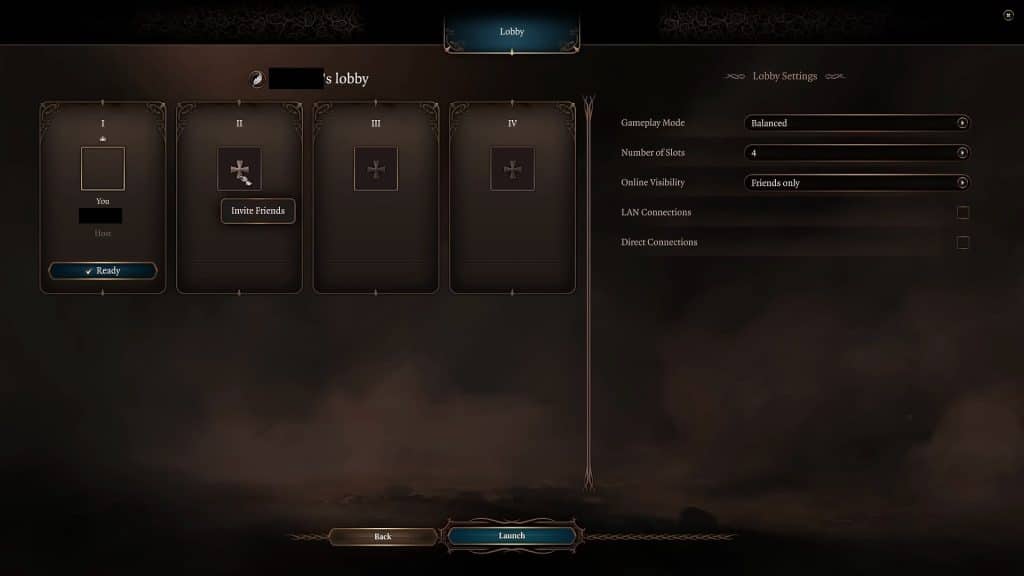
This will open up the lobby menu, where you can invite up to 3 other players to join your party. Just click on the party slot and invite the friends you want to play with!
Also, you can set the “Online Visibility” to Friends Only if you don’t want random players to join you.
When everyone has joined, you can start the campaign. Everybody gets to either create their own custom character or choose one of the preset Origin characters to play as.
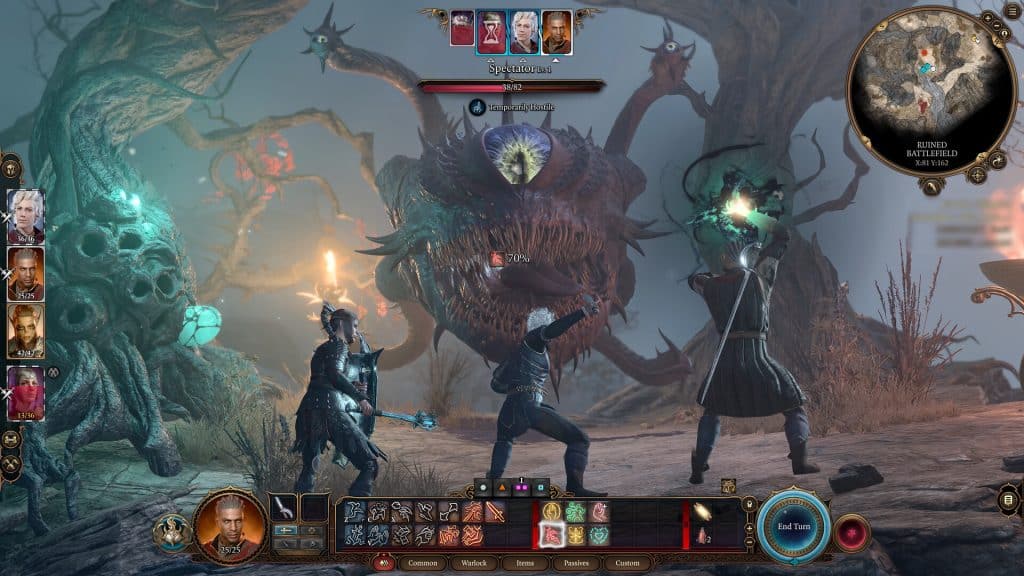
It’s important to know that all progress made while playing Online co-op is saved on the host’s system. The host will also be able to re-assign characters to join players when resuming campaigns.
Lastly, console players will also need to subscribe to their respective platform’s premium online service to play Online.