 41 articles
Not everybody loves motion blur in games, especially competitive ones like Call of Duty: Black Ops 6, but this game thankfully lets you turn it off.
Both the PC and console versions of the game let you disable the various types of motion blur. On top of that, there are other settings you can change to further reduce the blur, such as disabling depth of field or using a sharpening filter.
In this guide, we’ll tell you everything you need to turn off the blur and sharpen the visuals in Black Ops 6.
How to Turn OFF Blur | Call of Duty: Black Ops 6
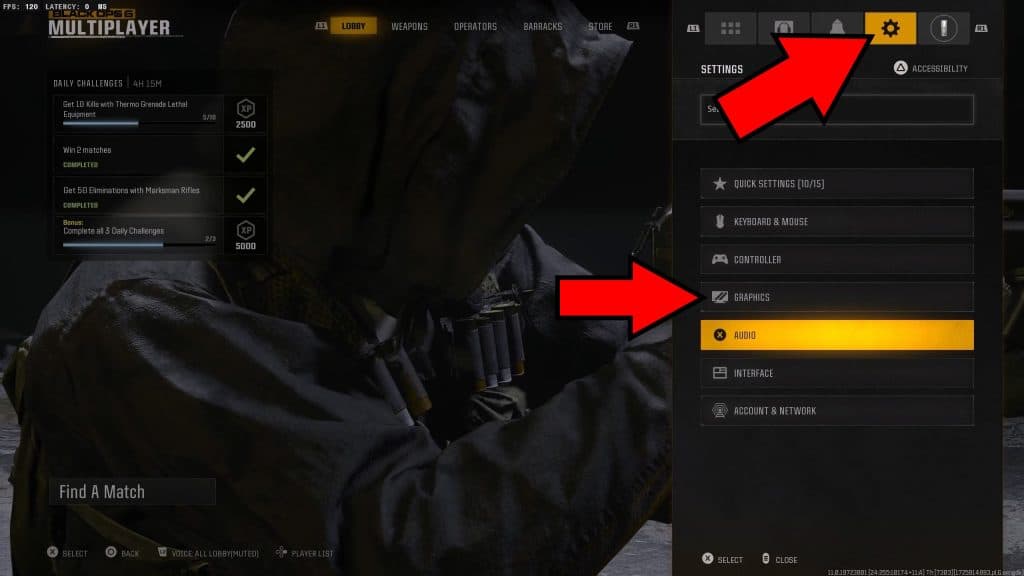
As usual, the first thing to do is to open up the settings. To do so, click on the gear-shaped icon in the Main Menu. If you’re midmatch, you can click it in the Pause Menu. Either way, it’s always in the top right corner of your screen. Then, select Graphics settings.
 Zombies Reckoning: ALL Folder Locations & Computer Code Puzzle Solution | Black Ops 6Aug 9, 2025
 Zombies Reckoning: ALL Klaus Robot Arm & Leg Locations | Black Ops 6Aug 9, 2025
 Zombies RECKONING – Easter Egg Song ALL Headphone Locations | Black Ops 6Aug 9, 2025
Now, the exact steps to follow vary slightly between the console and PC versions of the game.
PC Settings
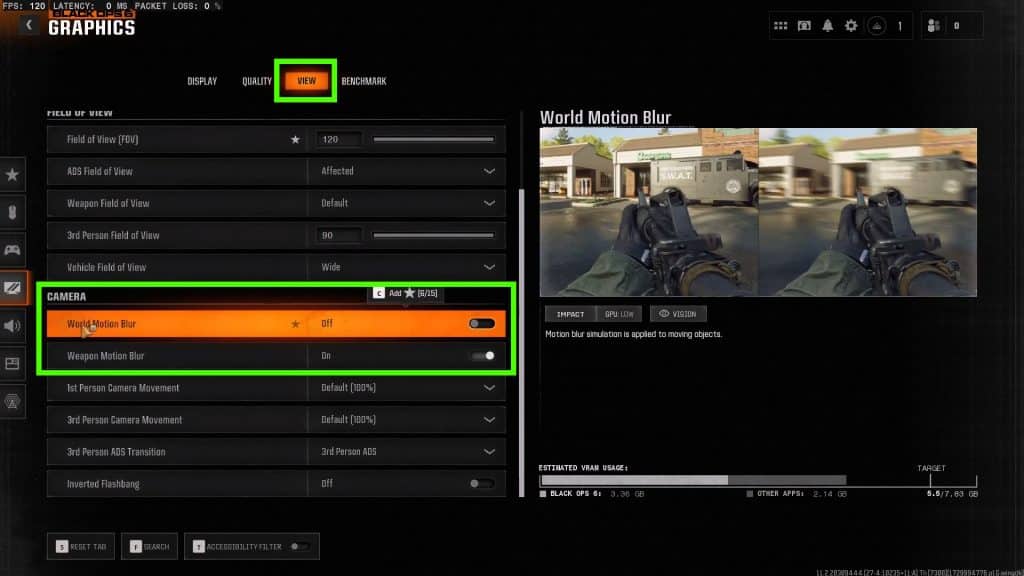
For the PC version, switch over to the “View” tab. In there, look for the Camera category near the bottom and disable both the “World Motion Blur” and “Weapon Motion Blur” settings. These are the two main culprits of a blurry image, but not the only ones.
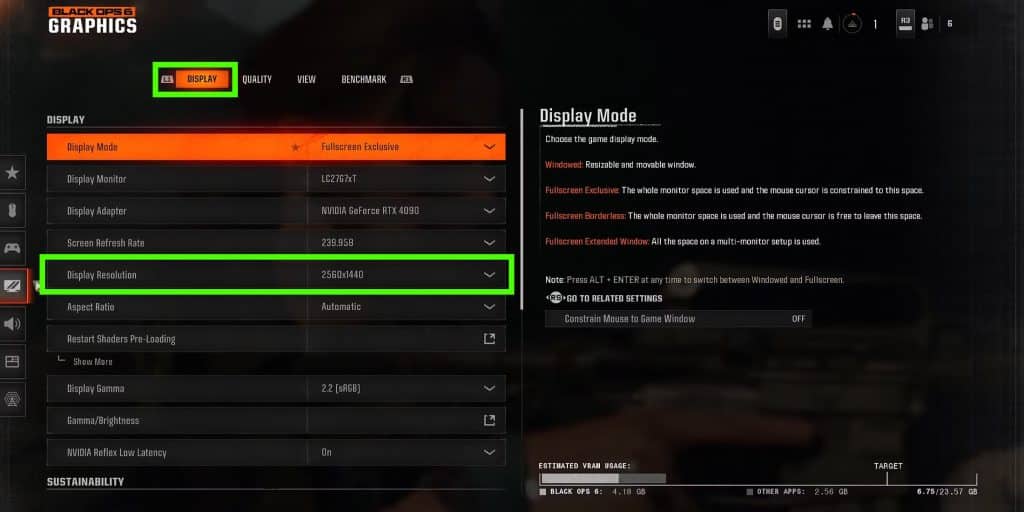
Additionally, it’s a good idea to check a few of the resolution-related settings. Go to the “Display” tab and make sure that the game is set to match your monitor’s resolution. Ideally, it should be 1920 x 1080 at the minimum. Anything below that is likely to look rather blurry.
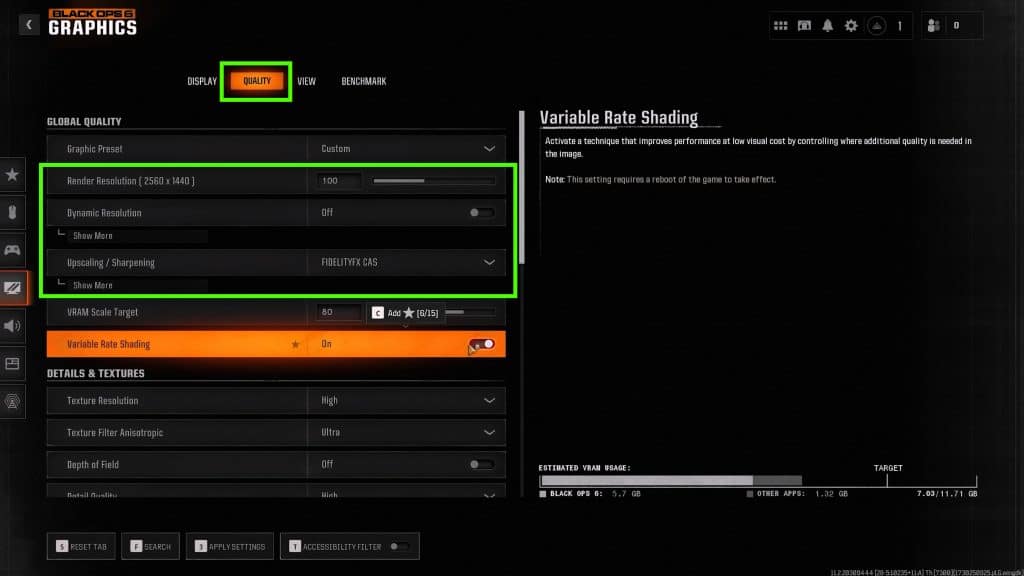
Then, check the “Quality” tab for the following settings as well:
- Render Resolution – This is a percentage of the actual resolution the game renders at. If you set it to 100% it’ll match the resolution you set previously. Lowering it will increase performance but reduce performance. Conversely, increasing it will lower performance but increase image quality.
- Dynamic Resolution – We recommend keeping this disabled for better image quality. Enabling it will increase your performance, however.
- Upscaling / Sharpening – For image clarity, FidelityFX CAS is a solid choice since it increases sharpness. If you have an NVIDIA GPU, we recommend NVIDIA DLAA for the best image quality. Other options like AMD FSR 3 and NVIDIA DLSS should increase your performance, but the image quality is blurrier. Of course, this all depends on your setup.
- Depth of Field – Turn it off to prevent blurring of things in the distance.
Ultimately, what works best for you will depend on your monitor, your PC’s specs, and your preferences. Nonetheless, these settings should work as a solid starting point for you.
Console Settings
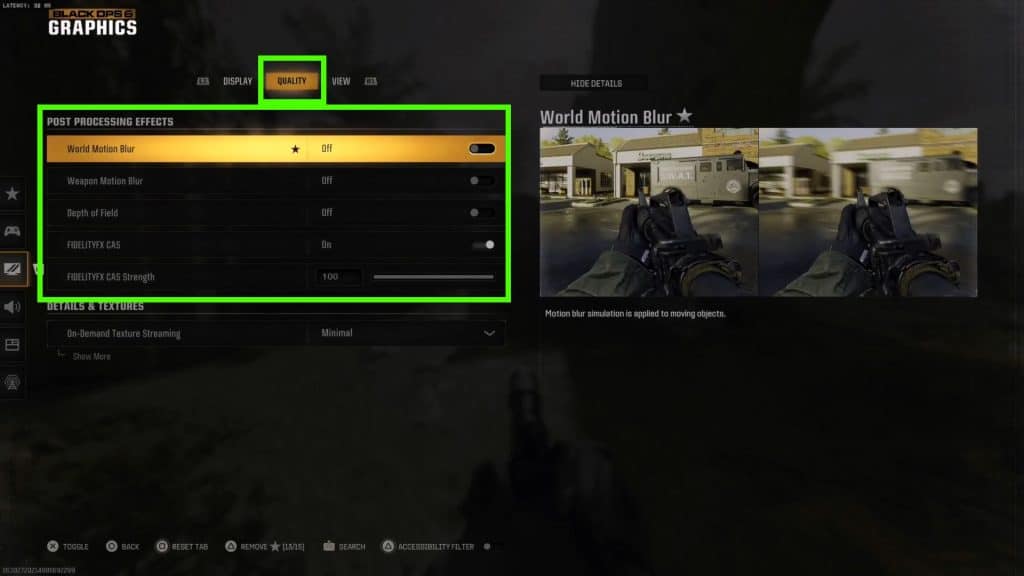
In the console version, go to the “Quality” tab under Graphics settings. Here, you should just disable “World Motion Blur”, “Weapon Motion Blur” and “Depth of Field”. This should get rid of most of the blurriness in the game, particularly the one caused by movement.
Additionally, you can also enable FidelityFX CAS in that same settings page. To keep it simple, FidelityFX CAS adds a sharpening filter to the image that can make the image seem clearer. You can modify how strong the sharpening filter by using the FidelityFX Strength slider. Modify until you get it to be good enough for you!
So, there you have it, that’s all of the things you can do to turn off blur and increase image clarity in Black Ops 6. Don’t just focus on visual clarity, though! Audio clarity is just as important, so make sure that you’re using the best audio settings to hear footsteps in the game.