 41 articles
Call of Duty: Black Ops 6 features the beloved Zombies game mode that has been a mainstay of the franchise for a long time now. Despite how enjoyable it is right now, the developers, for some inexplicable reason, decided to add a 15 minute overall limit to pausing in Zombies. In this guide, we will be showing you how to reset it so that you can kind of pause the game forever.
How to Reset the Pause Timer
Long story short, you are now allowed to save your progress whenever you need to leave while in the middle of a Zombies match. This makes it so that you can come back at a later time with all of your progress (up to the specified point) and weapons intact.
Unfortunately, in addition to this quality of life change, they also made it so that you can only pause for a total of 15 minutes throughout an entire match. When the timer runs out, your game will no longer stop when you pull up the menu.
As annoying as this is, resetting the timer is actually pretty simple. All you need to do is save and quit, and then immediately hop back in to resume the run. When you load back into the match, you should find that your timer has gone back up to 15 minutes.
 Zombies Reckoning: ALL Folder Locations & Computer Code Puzzle Solution | Black Ops 6Aug 9, 2025
 Zombies Reckoning: ALL Klaus Robot Arm & Leg Locations | Black Ops 6Aug 9, 2025
 Zombies RECKONING – Easter Egg Song ALL Headphone Locations | Black Ops 6Aug 9, 2025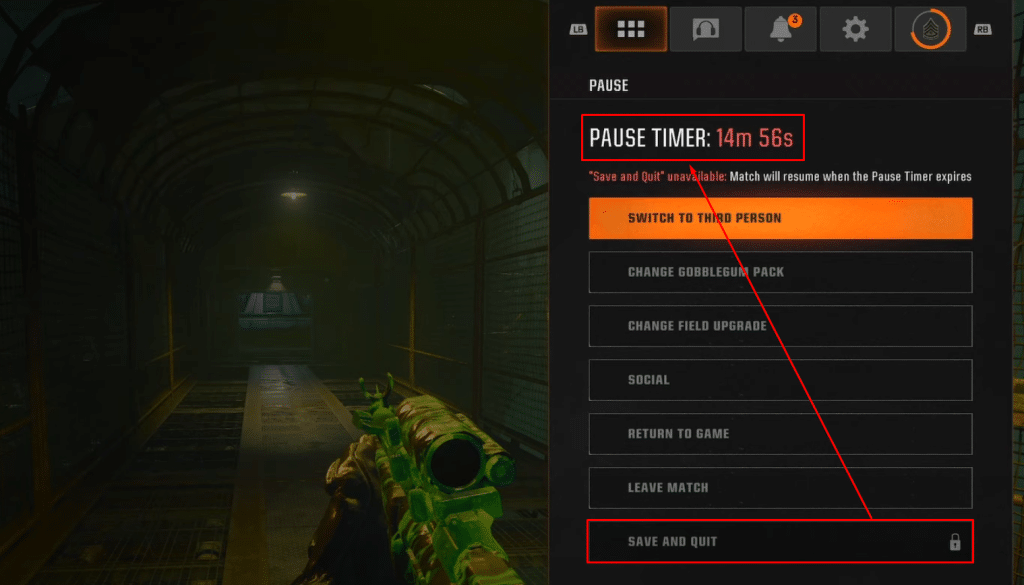
It is important to note that you should probably wait until you finish a round before you do this, as progress is not saved in the middle of one. It’s as simple as that, really.
That wraps up this relatively quick and easy guide, and we can only hope that the devs remove this unwanted feature altogether. For now, this band aid solution should be enough. While you are here, check out our guide on how to use loot keys in Liberty Falls for some more Zombies-related tips!