 41 articles
It’s important to either increase or decrease your microphone volume to the right level if you want to use voice chat in Call of Duty: Black Ops 6.
Everybody knows how frustrating it can be to be trying to communicate in the middle of a match but your volume is so low that others can’t hear you. Conversely, being so loud that others can’t understand what you’re saying doesn’t work either. You gotta find the sweet spot where it’s just right!
In this short guide, we’ll tell you how to increase and decrease the volume of your own microphone whenever you want.
How to Increase / Decrease Microphone Volume | Call of Duty: Black Ops 6
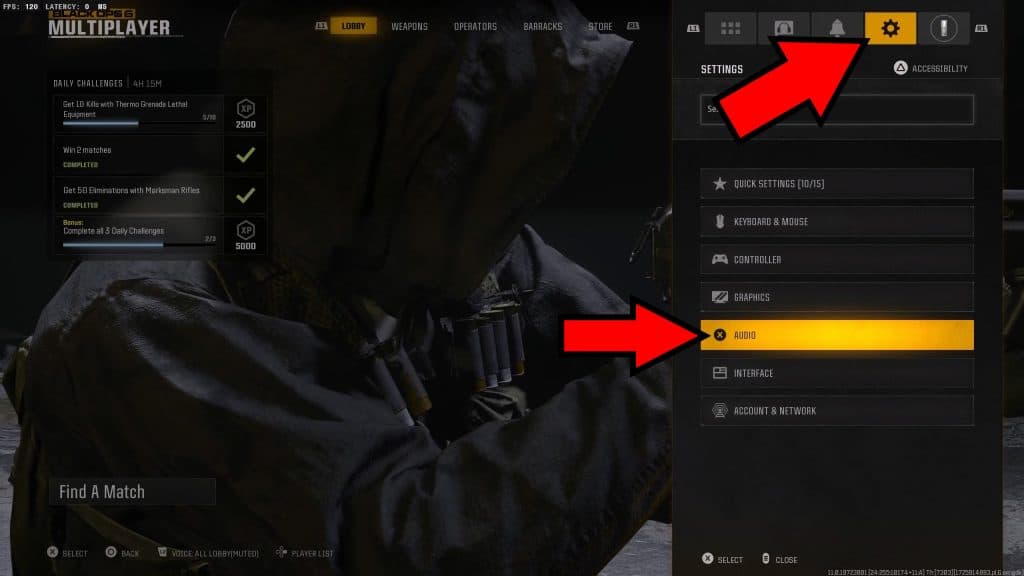
The first thing to do here is to click on the gear-shaped icon in the Main Menu. You can also find it in the Pause Menu if you’re midmatch. Then, pick Audio Settings from the list of options.
 Zombies Reckoning: ALL Folder Locations & Computer Code Puzzle Solution | Black Ops 6Aug 9, 2025
 Zombies Reckoning: ALL Klaus Robot Arm & Leg Locations | Black Ops 6Aug 9, 2025
 Zombies RECKONING – Easter Egg Song ALL Headphone Locations | Black Ops 6Aug 9, 2025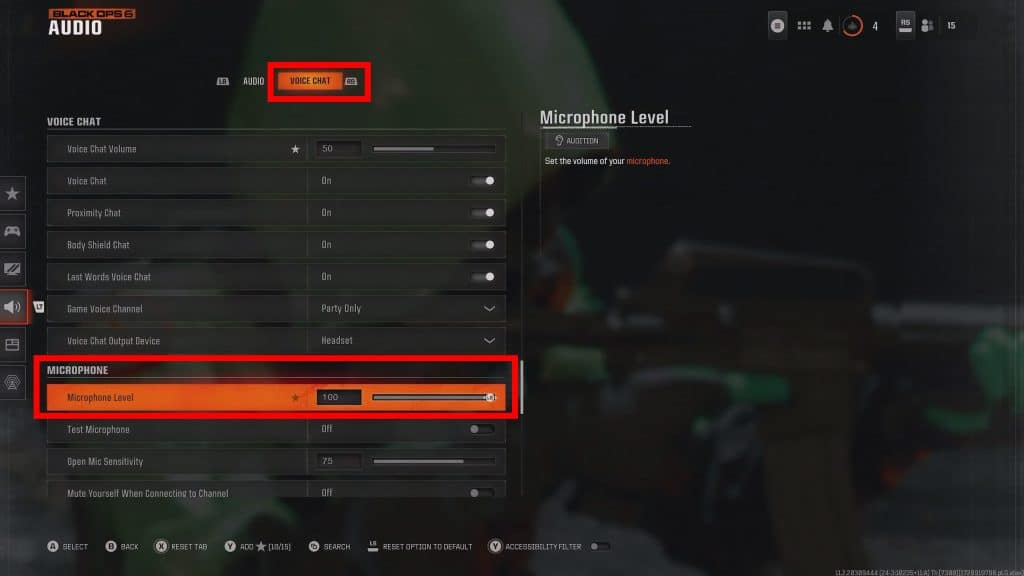
While in the Audio Settings screen, switch over to the Voice Chat tab on the right. You can just click on it or press RB (Xbox) or R1 (Playstation) if you’re playing on a controller.
In the Voice Chat tab, look for the “Microphone Level” setting under the Microphone category. Increase it up to 100 to raise your volume, or lower it up to 0 to decrease your volume.
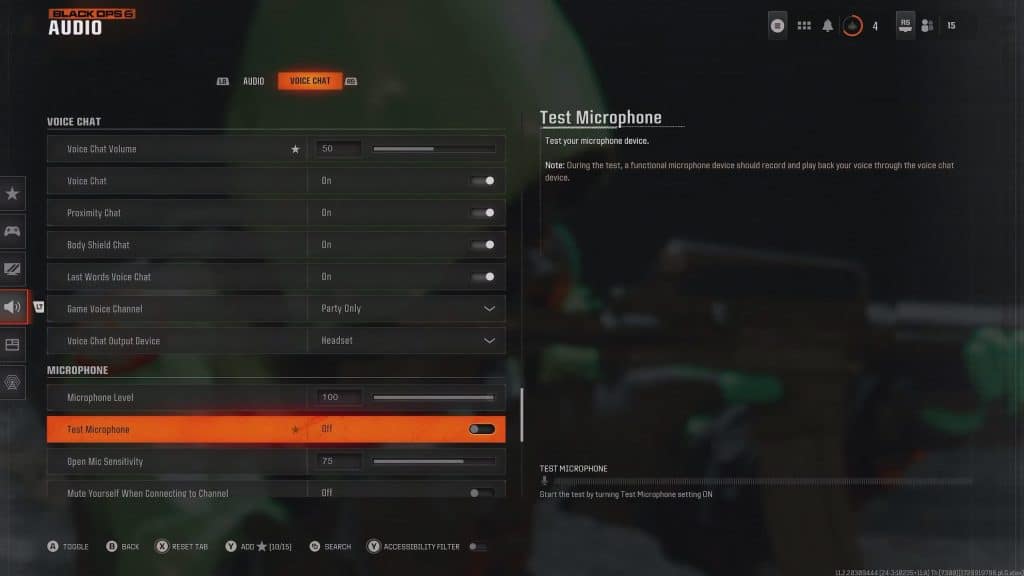
To help you find the volume sweet spot, you can enable the “Test Microphone” setting to have the gameplay back your mic audio. Be sure to adjust it so you’re loud and clear, but not so high that you’ll deafen other players!
The only other volume-related setting for your own microphone is the ability to “Mute Yourself When Connecting to Channel”. You’ll be muted by default when joining a channel, but you can manually unmute yourself when you wish.
Nonetheless, that’s all you need to know to be able to increase and decrease your microphone volume in Black Ops 6. While you’re here messing with the audio settings, though, we recommend using the best settings to hear footsteps. Making sure that footsteps are audible is key for figuring out where enemies are!