162 articles
ARC Raiders might be a pretty optimized and polished game, but that doesn’t mean it never has issues with crashing or other random errors that you might need to fix.
Games on PC can sometimes be a bit unreliable. There are so many factors that can end up causing issues, after all, when you consider all of the different hardware and software setups people can have.
Nonetheless, we’ll do our best to help you troubleshoot these issues so you can get into the Rust Belt!
How to Fix Crashing and Errors | ARC Raiders
Update GPU Drivers

One of the first things you should do when troubleshooting a game is to update your GPU drivers. Just in case that outdated drivers are the issue! If nothing else, you can at least do this to rule out that possibility.
 Hotel Panorama Puzzle Solution in ARC RaidersApr 30, 2026
 ARC Raiders: How to Find & Use Dockmaster’s DetectorApr 30, 2026
 ARC Raiders: Where to Find Turbine CompressorApr 30, 2026
To update your drivers, we recommend downloading them from the official website for your GPU’s manufacturer:
Make sure to download and install the latest version available for your GPU.
Verify Game Files
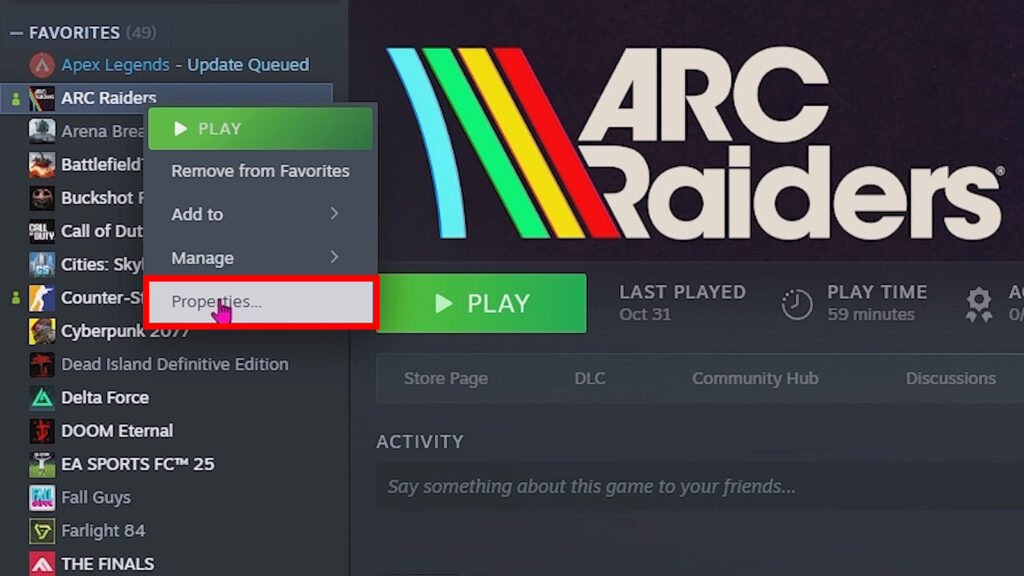
Another potential cause for crashes and errors is corrupted game files. Thankfully, you can fix that quite easily! To start, just find ARC Raiders in your Steam library and right-click on it. Then, select Properties.
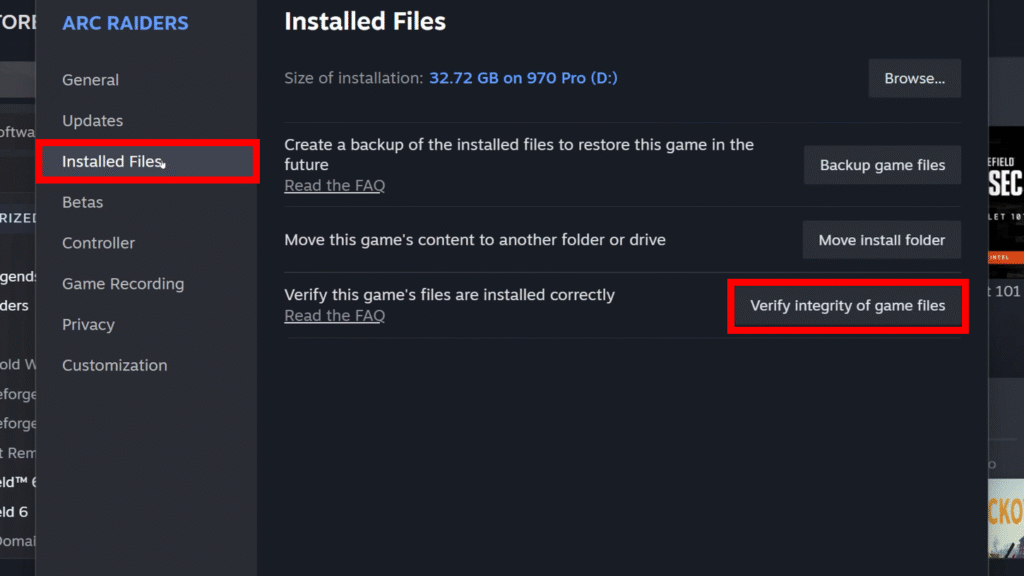
After that, select Installed Files on the left and then click on “Verify integrity of game files.” Steam will double-check that all the files are proper and will redownload any if necessary.
As an alternative to this method, you can try just uninstalling and reinstalling the game. It would take a bit longer, but it’s an option if verifying the files didn’t help.
Try Launch Options
If none of the above have worked, you can also try different launch commands. To do this, you’ll need to once again right-click on ARC Raiders in your Steam library and select Properties.
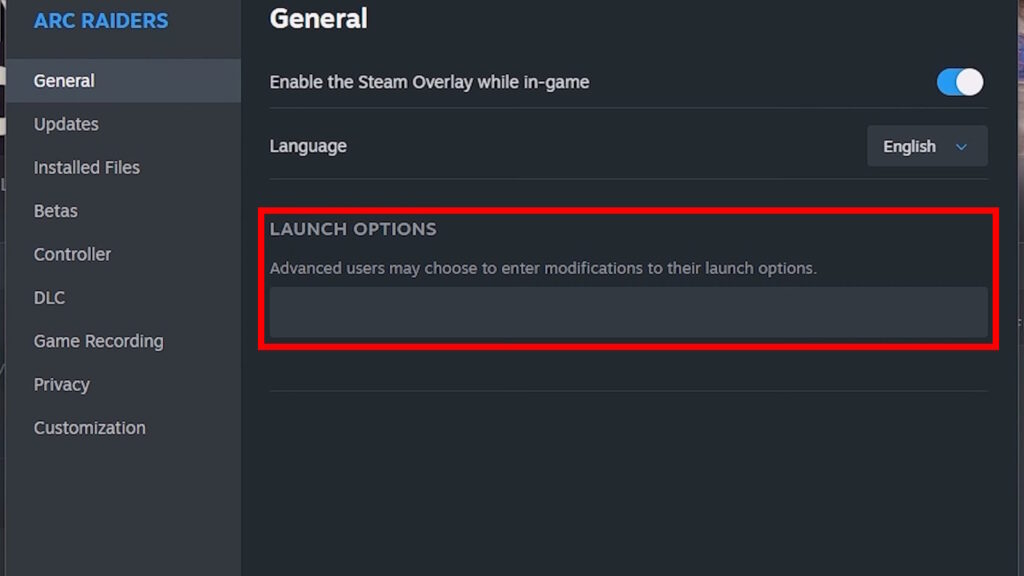
In the General tab, you’ll see the Launch Options text box. There are a few options that you can use here and might help you:
- -dx11 – Forces the game to use DirectX 11. This can result in worse performance for some PCs, but can also be more stable.
- -dx12 – Forces the game to use DirectX 12, which is the default.
- -windowed – Forces the game to launch in a window, which can help if there are corrupt display settings.
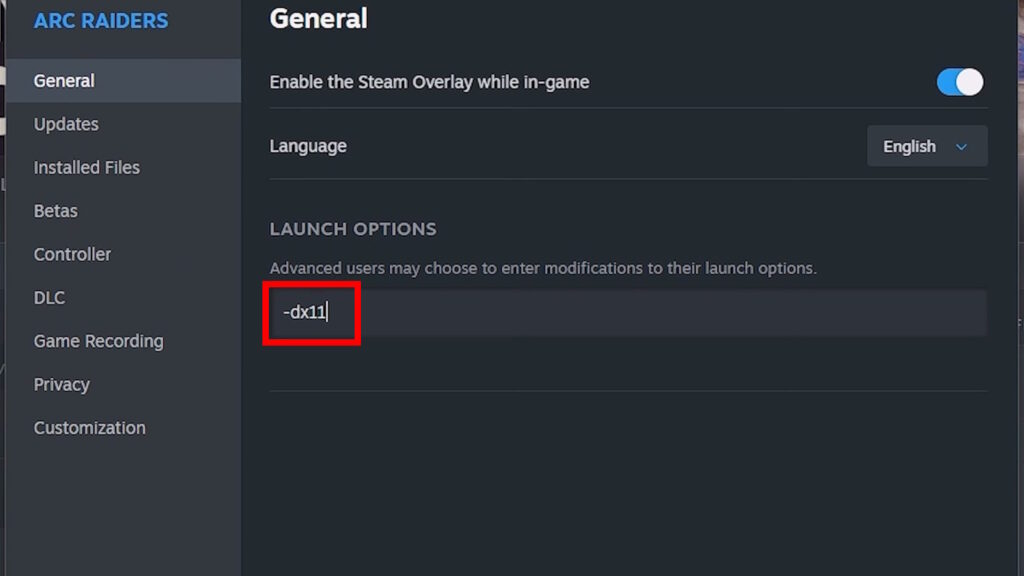
Remember, you have to include the “-“ symbol at the start of the command. It should look like the example above.
Disable Discord Features
This is going to sound like an odd one, but it’s one that has been confirmed to work for some users. There are a couple of Discord features that can seemingly cause issues while playing ARC Raiders. So, turning them off can help fix things!
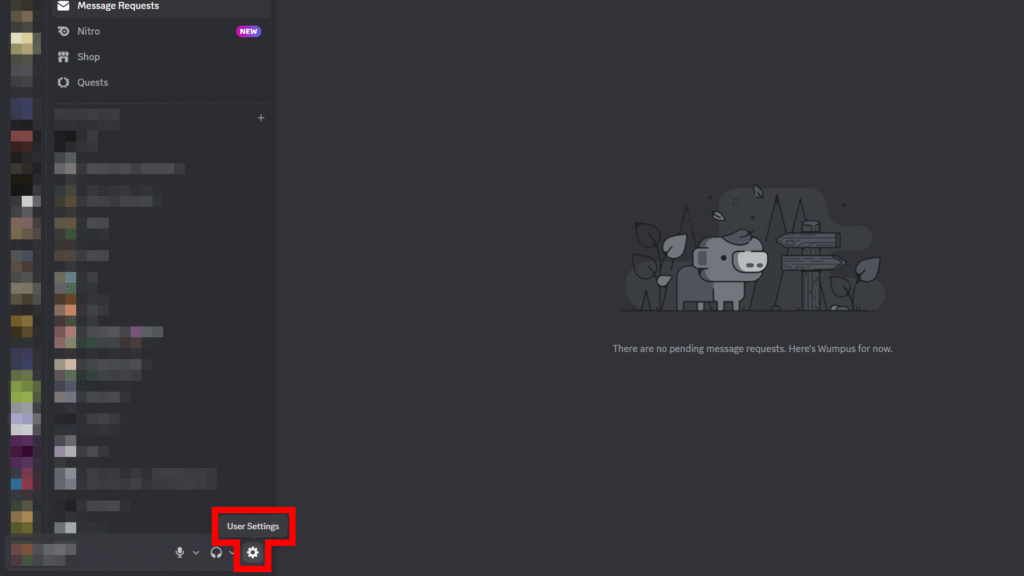
To start, you want to click on the User Settings cog on the bottom left part of the screen. It’s next to your Discord username.
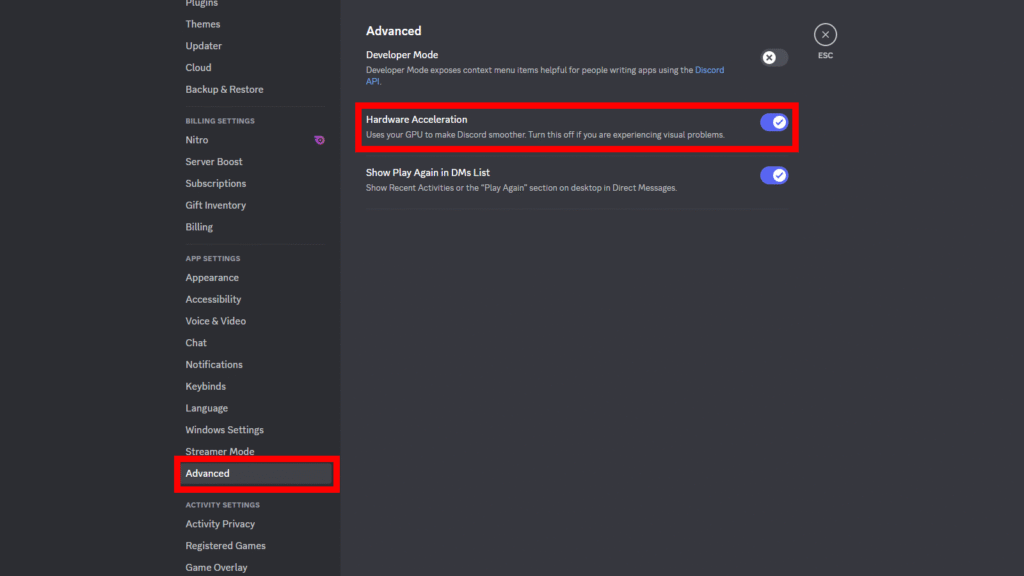
Then, scroll on the side until you find Advanced settings at the bottom of App Settings. Click on that, and then make sure to disable Hardware Acceleration.
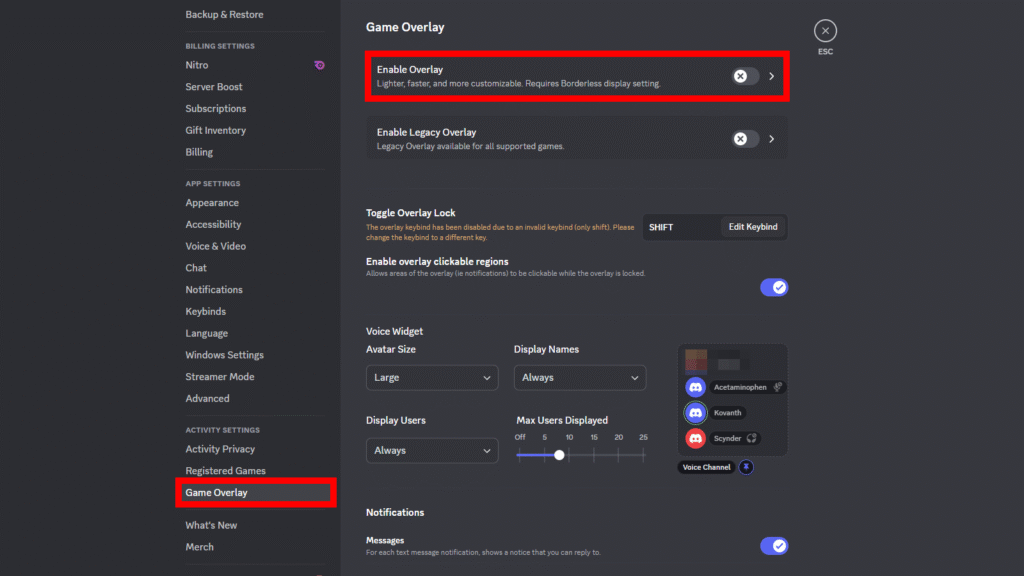
Aside from that, also go into the Game Overlay settings in the Activity Settings category. Just like before, make sure that Enable Overlay is set to off.
Note Down Error Codes
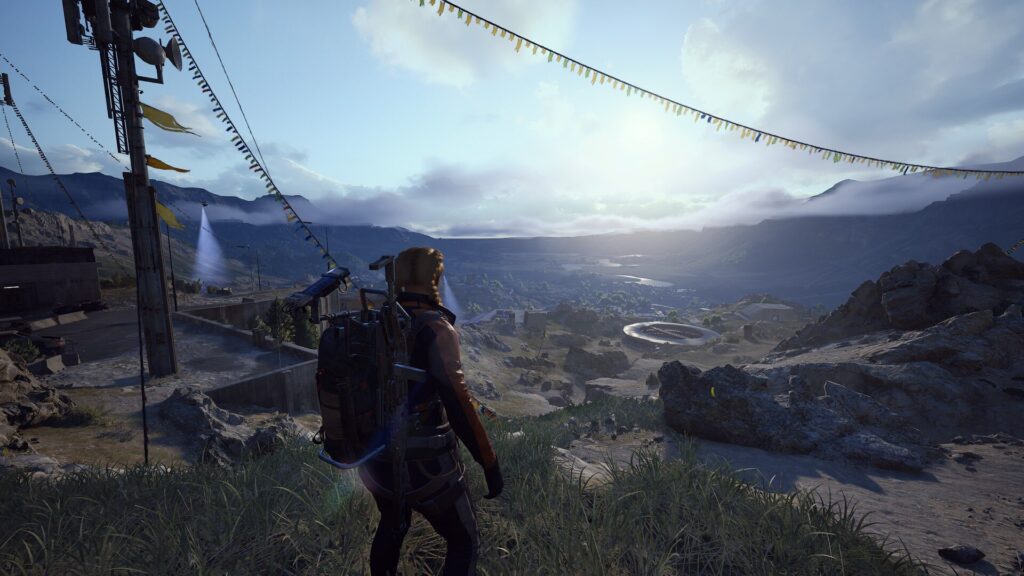
If nothing else has worked, then the last suggestion we have for you is to simply try to note down any errors you get. The game might give you a specific error code or something when it crashes, which you can hopefully look up to get a more specific answer to your problem.
After all, there are a myriad reasons why the game could be having issues! Technology is fickle and there are a lot of different potential causes for game errors on PCs in particular.
It might not even be your PC either, but an actual issue with ARC Raiders itself. In that case, there’s not much you could do but wait for updates to release and address the issues you’re having.
Nonetheless, we hope this quick troubleshooting guide helped you fix any errors and crashing issues you’ve had with ARC Raiders!