 17 articles
If you’re planning to play Apex Legends during Season 29, you’d do well to use the best settings possible to maximize your visibility and FPS.
The game does have a lot of fancy visual effects usually turned on by default, after all. These can make the game look good, but that comes at the cost of both visibility and FPS. If you want to be as competitive as possible, getting rid of them can help.
In this guide, I’ll give you recommended settings with a pure focus on clarity and performance.
Gameplay Settings
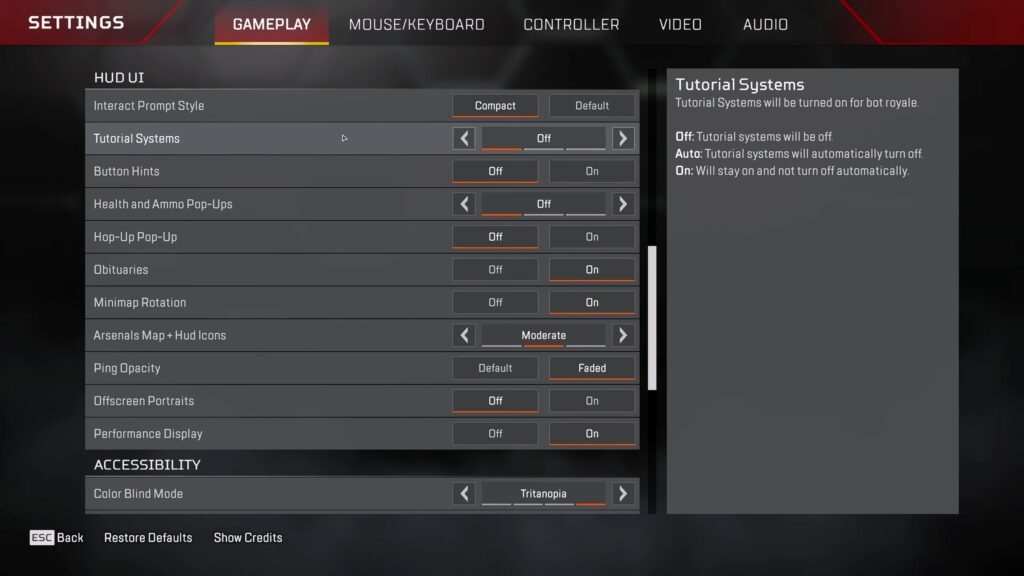
Let’s start with the Gameplay settings, which are the first ones you’ll see upon opening the settings. In here, these are my recommendations for minimizing visual clutter while retaining as much helpful information as possible:
 Apex Legends: How to Play and Master Axle (Skills, Passives, Tips)May 9, 2026
 Apex Legends: How to Change Server/RegionJan 7, 2024
 How to Fix Apex Legends Error Code 30005Dec 20, 2023
- Combat
- Incoming Damage Feedback – 3D
- Crosshair Damage Feedback – Off
- Damage Numbers – Stacking
- Enemy Healthbar – Enabled
- Enemy Highlight – Enabled
- Movement
- Mantle Boost UI – Off if you’re used to timings, Minimal if you’re a newer player.
- Hud UI
- Interact Prompt Style – Compact
- Tutorial Systems – Off
- Button Hints – Off
- Health and Ammo Pop-Ups – Off
- Hop-Up Pop-Up – Off
- Obituaries – On
- Minimap Rotation – On is easier for most players to keep track of, but try Off if you prefer a static minimap.
- Arsenals Map + Hud Icons – Moderate
- Ping Opacity – Faded
- Offscreen Portraits – Off
Again, these are all recommended settings with a focus on minimizing clutter and maximizing information. Do feel free to adjust settings more to your liking if there’s something that doesn’t work for you.
Video Settings
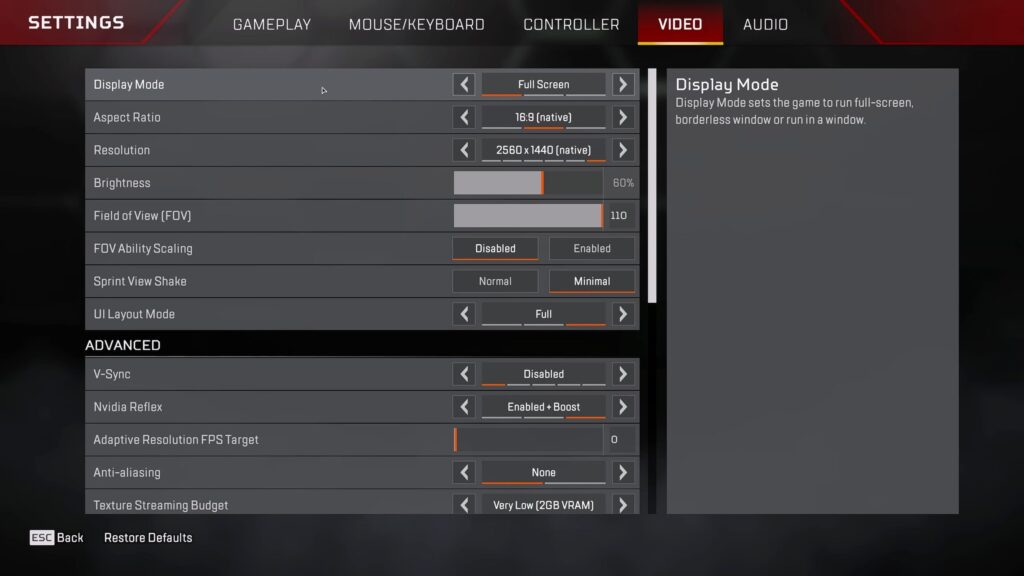
Next up, the Video settings! This is where the majority of the performance improvements will come from, obviously. But there are also a few settings here that help greatly with improving clarity.
With that said, these are my recommendations here:
- Display
- Aspect Ratio – For most, the default native ratio is 16:9. However, some players like using 4:3/5:4 and 16:10 instead. On 16:9 displays, those ratios stretch the image and can affect clarity, such as making enemies appear wider. I suggest playing with this to find what’s best for you.
- Field of View (FOV) – 110
- FOV Ability Scaling – Disabled
- Sprint View Shake – Minimal
- UI Layout Mode – Full
- Advanced
- V-Sync – Disabled
- Nvidia Reflex (Nvidia GPU Only) – Enabled + Boost
- Adaptive Resolution FPS Target – 0
- Anti-aliasing – None
- Texture Streaming Budget – Very Low
- Texture Filtering – Anisotropic 4X
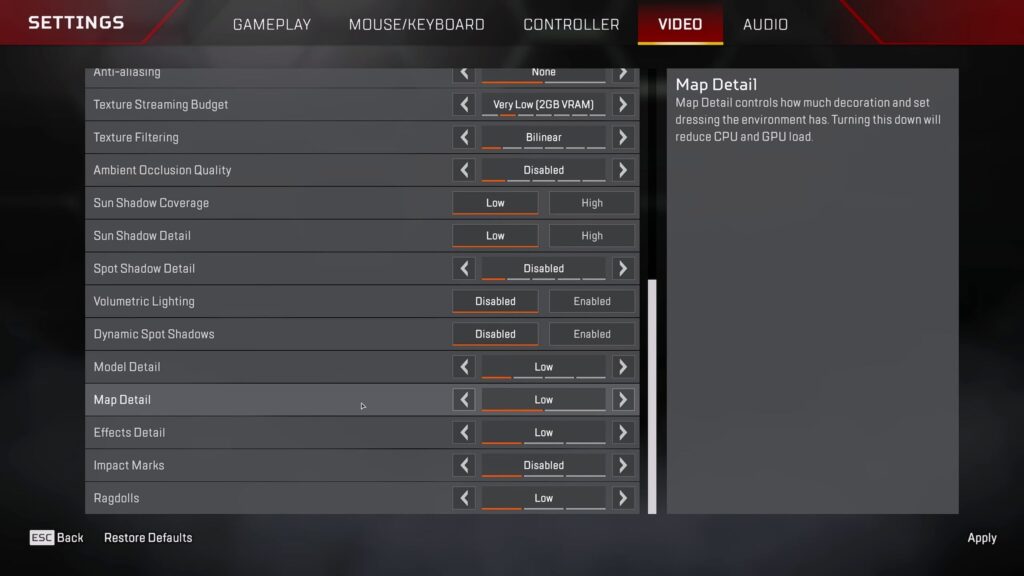
For all of the settings below Texture Filtering, I recommend just setting everything to the lowest possible. That’ll be either Disabled or Low, depending on the setting. It should look like the screenshot above.
While this will definitely not make the game look the prettiest, it will definitely give you a noticeable FPS and visibility boost.
Launch Options
Last but not least, you can also squeeze an extra bit of performance and clarity by using Launch Options. This can be done on either Steam or the EA App, and it works fairly similarly on both.
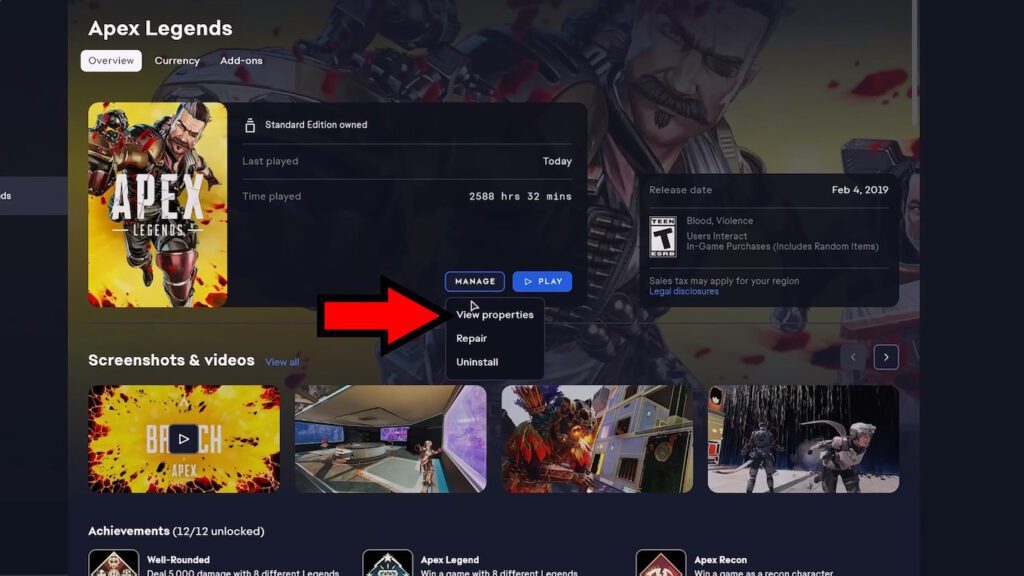
On the EA App, find Apex Legends and select it. Then click on Manage and then View Properties.
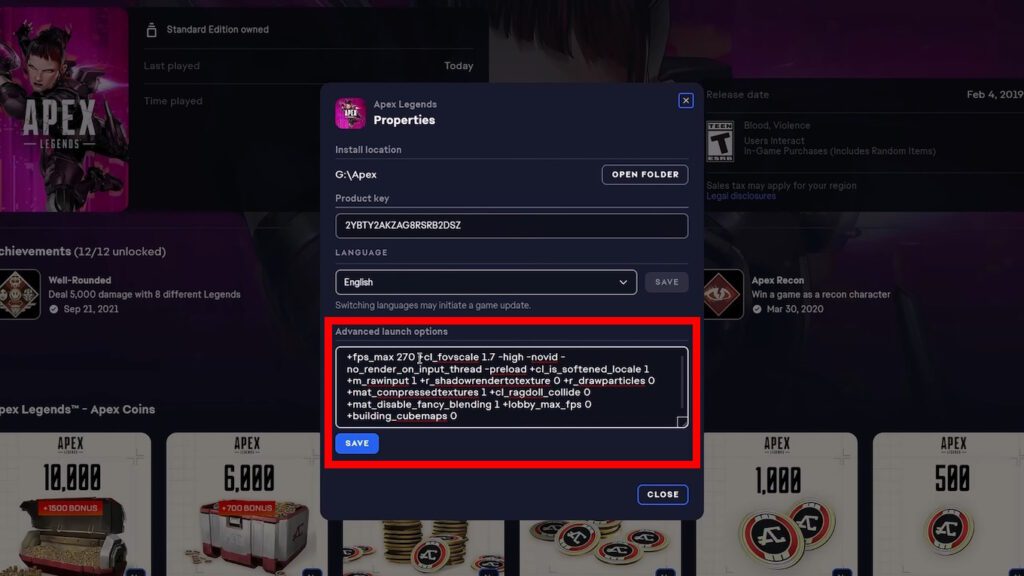
Then, you just need to paste the launch options into the “Advanced Launch Options” text box. Click Save and lose the Properties when you’re done and then launch the game!
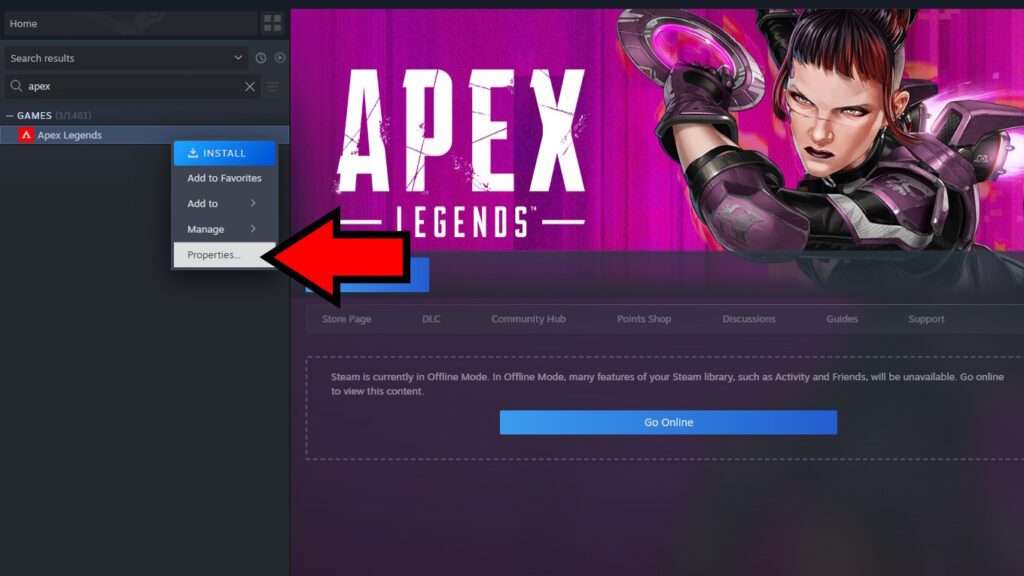
As for Steam, you’ll similarly need to find Apex Legends in your Steam Library. Right-click on it and select Properties.
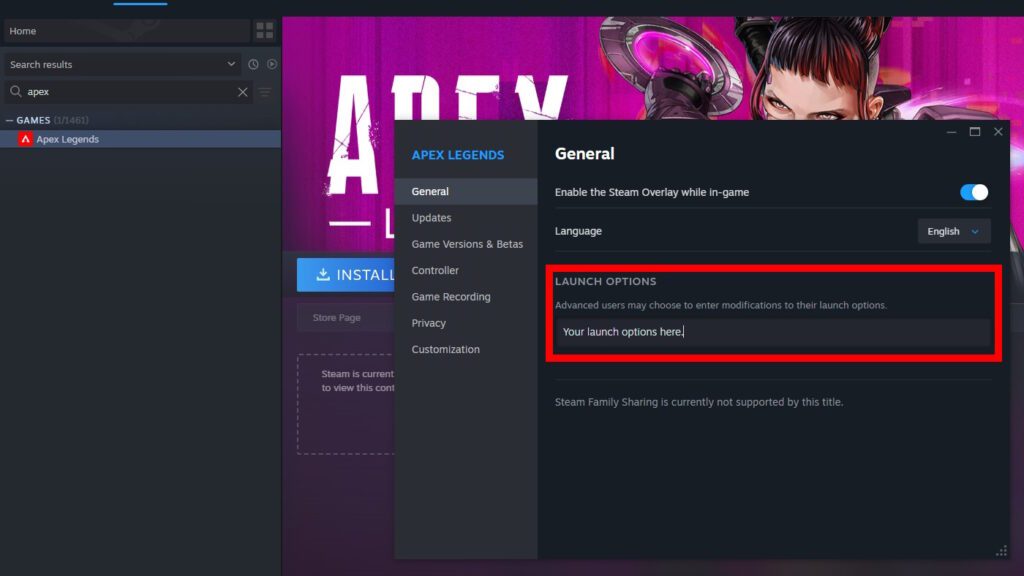
Then, paste the launch options into the Launch Options text box at the bottom of the General tab. It’s the one shown above.
As for the launch options themselves, these are the ones I recommend:
+fps_max 270 -high -novid -no_render_on_input_thread -preload +cl_is_softened_locale 1 +m_rawinput 1 +r_shadowrendertotexture 0 +r_drawparticles 0 +mat_compressedtextures 1 +cl_ragdoll_collide 0 +mat_disable_fancy_blending 1 +lobby_max_fps 0 +building_cubemaps 1That said, do pay close attention to the very first option here, which is “+fps_max 270”. This option sets an FPS cap to 270, but you’ll need to adjust it based on the performance you get on your PC.
Here are the recommended FPS cap launch options for each FPS range:
- 65-85 FPS – +fps_max 60
- 140-160 FPS – +fps_max 135
- 205-230 FPS – +fps_max 200
- 275-300 FPS – +fps_max 270
Essentially, use the lowest average FPS you get and reduce it by at least 5 to get your FPS cap. This is to help prevent being magnetized during certain movement maneuvers, primarily Slidehopping.
So, there you have it. That’s all of my recommended settings for the best FPS and visibility possible for Season 29 in Apex Legends! I hope this helps you have a smoother time with the game.
Are you planning to play Axle, the newest character in this game? Check out our guide on how to master Axle!