
 13 articles
Monster Hunter: World originally came out on PC all the way back in 2018 but it had quite a rough release, to say the least. Issues with bugs and poor performance were extremely common with the game.
Even now in 2024, a lot of common issues persist for certain players on PC, such as fatal crashes, black screens, and the like.
In this guide, we’ll give you potential fixes to these issues so you can get back to hunting monsters!
Potential Fixes for Monster Hunter: World on PC
Update Graphics Drivers
Considering the game’s age, you might assume that updating drivers isn’t all that important. But, it’s always possible that your current drivers have a bug that’s causing issues for the game.
 Monster Hunter World Iceborne: How to Level up to Master Rank FastJan 11, 2024
 Monster Hunter World: What’s New in the Iceborne Expansion?Jan 10, 2024
 Monster Hunter World: Best Weapons (For Beginners) Tier ListJan 8, 2024
Even a game as old as MH:W can’t escape this golden rule of troubleshooting!
Besides, updating also doubles as an integrity check: it fixes any corrupted drivers.
Anyway, you can always download the latest drivers for your GPU from its manufacturer’s website. The links below lead to the official websites of all GPU manufacturers:
Verify Game Integrity
This step is mostly important if you’ve tried using mods in Monster Hunter: World before, as mods can break things. In particular, old mods are prone to causing issues after the game gets updated!
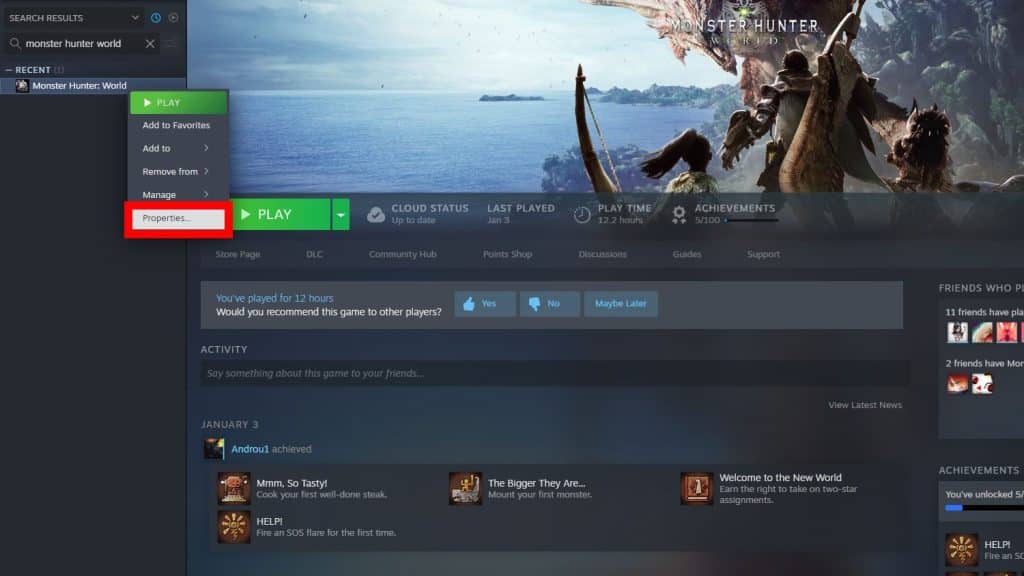
First, find Monster Hunter: World in your Steam library and right-click on it, then choose “Properties” from the drop-down menu.
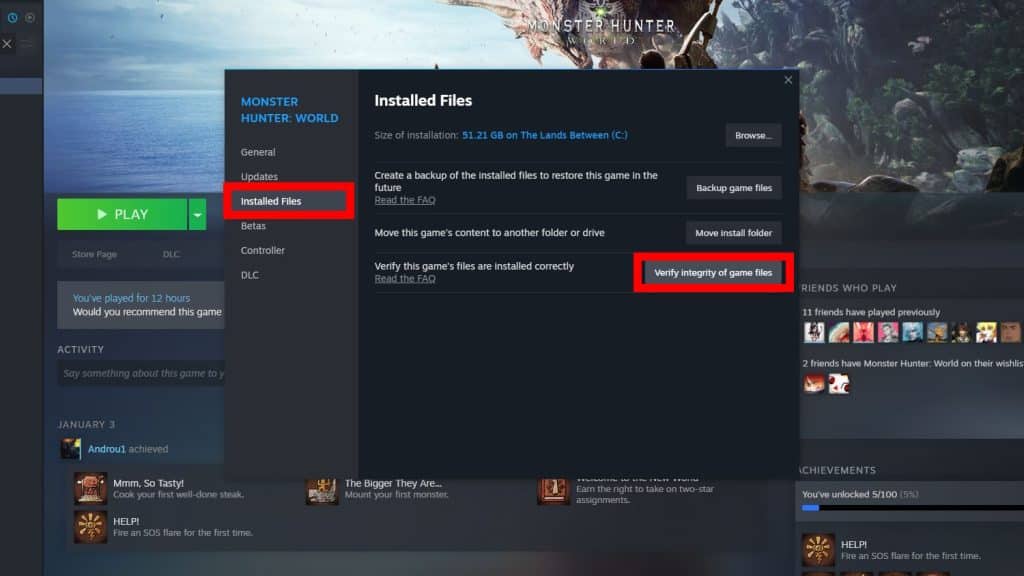
In the “Installed Files” tab of the Properties, look for the “Verify integrity of games files” button and click on it. Steam will now attempt to verify and repair the integrity of MH:W’s installed files.
If that doesn’t work, you should try reinstalling the game from scratch. This is particularly useful to make sure you remove any mods you’ve installed.
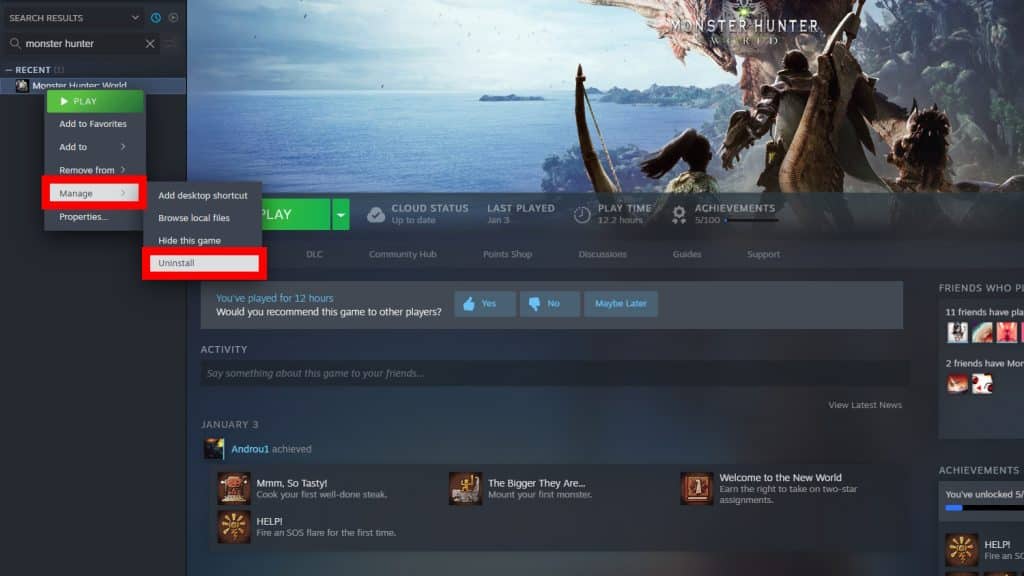
Just as before, find the game in your Steam library and right-click on it. This time, select “Manage” and then “Uninstall” to delete all of the game’s files. Your save files won’t be affected, don’t worry!
Now, just choose to reinstall the game and wait for it to download.
If you have an SSD, we highly recommend installing MH:W to it instead of an HDD at this point!
Once the game is downloaded, launch it and everything should (hopefully) be working fine.
Add Game to the Windows Firewall Exceptions
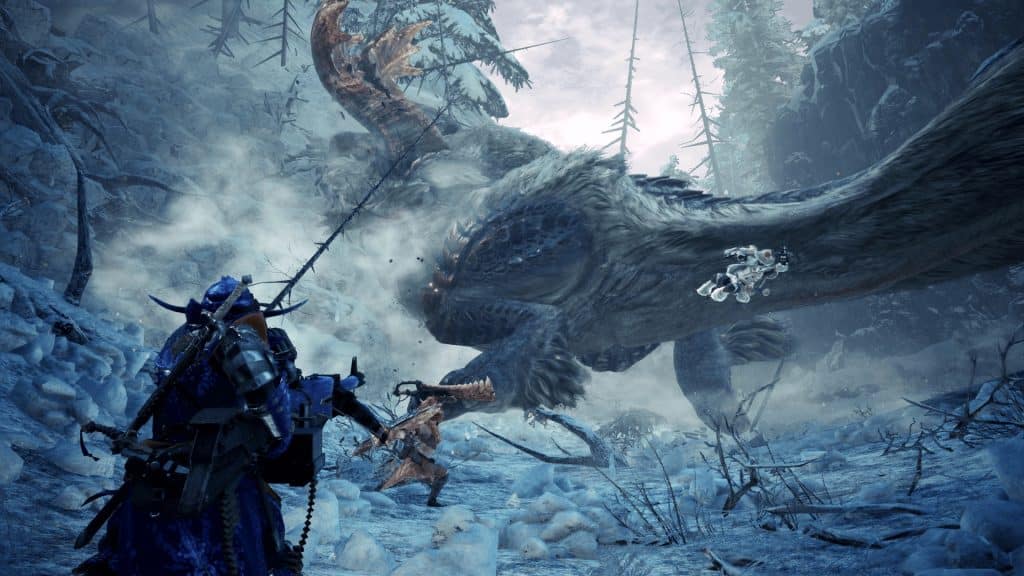
One of the most common causes of Monster Hunter: World getting stuck on a loading screen is that the game is being blocked by Windows’ overeager firewall.
After all, MH:W is a game that heavily uses online features, and blocking its access to the internet can make it act up.
To solve this, we will be making sure that Windows’ firewall is allowing the game to connect to the internet.
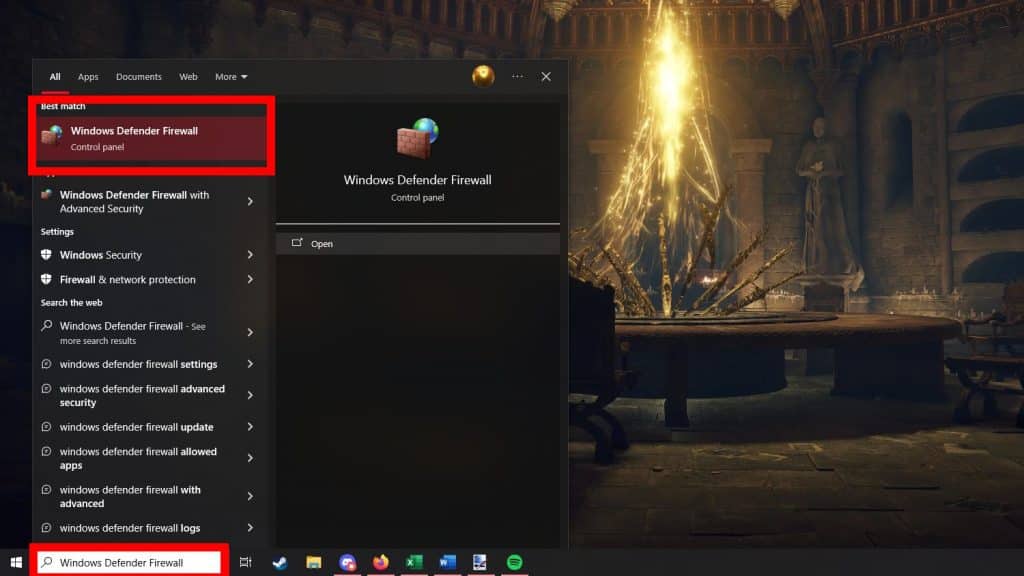
First, search for “Windows Defender Firewall” in Windows’ search bar and click on it.
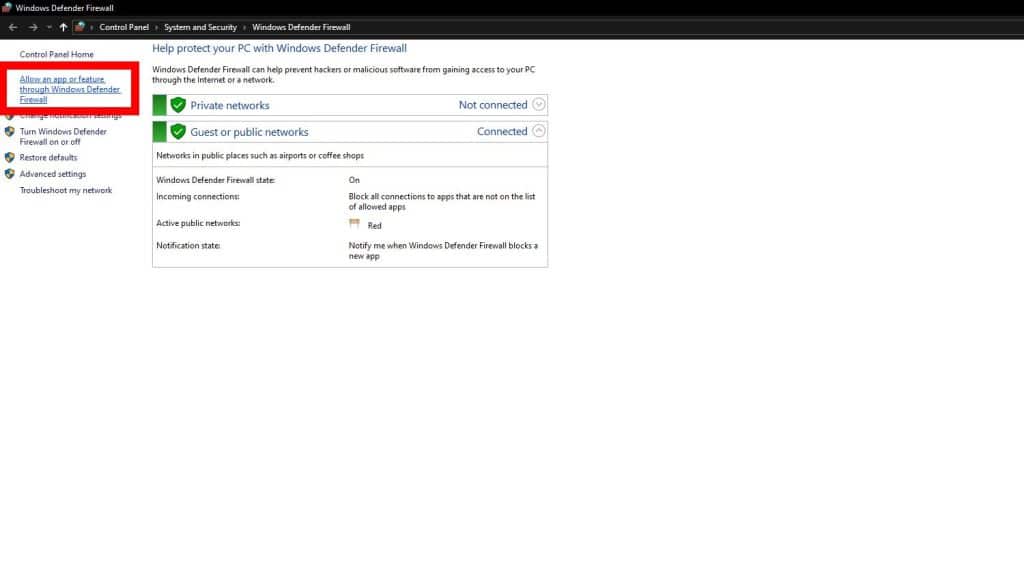
On the left side of the Firewall settings, click on “Allow an app or feature…”.
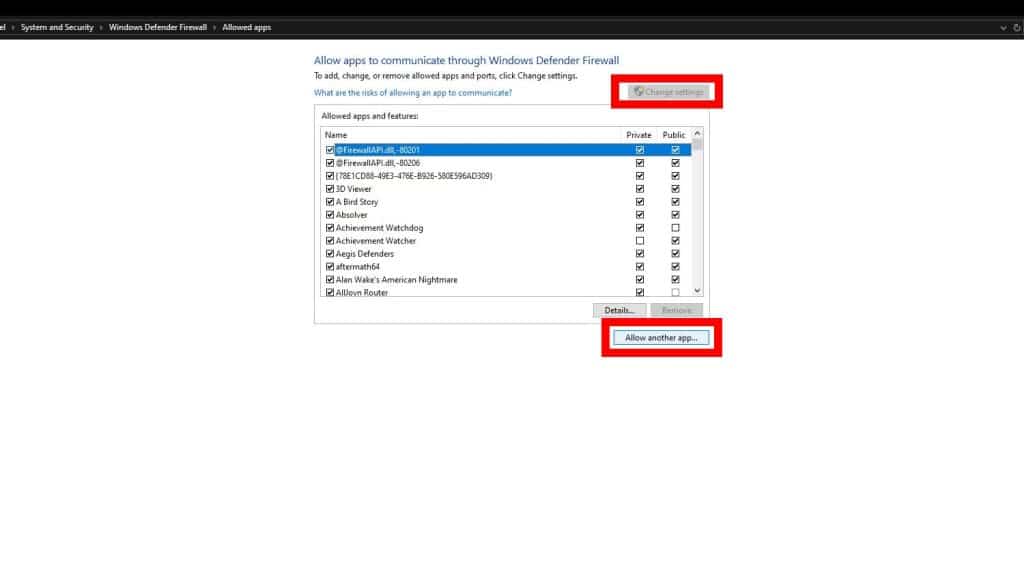
Click on “Change Settings” and accept to provide Administrator privileges, then click on “Allow another app…”
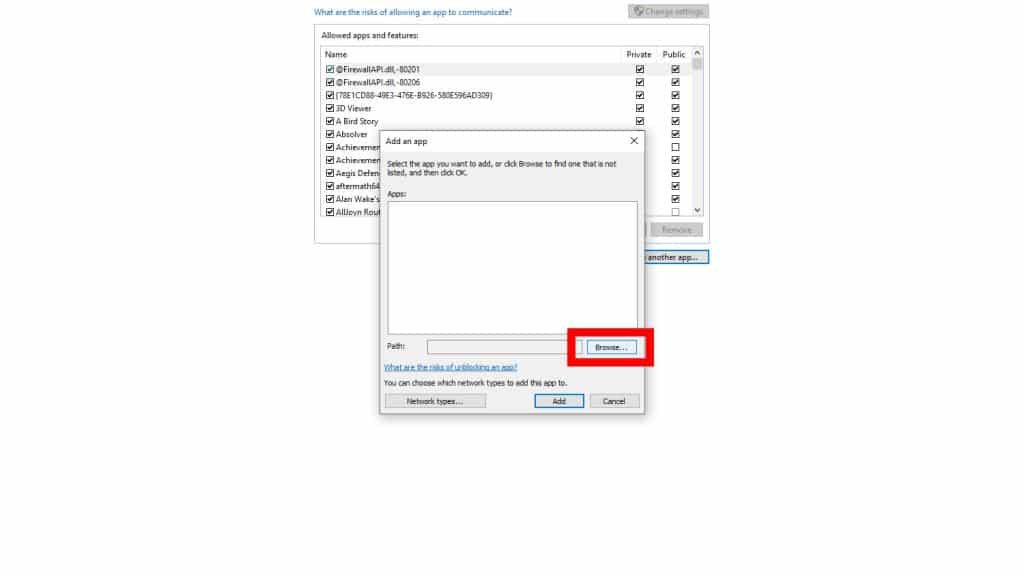
In the small window that appears, click on “Browse” next to the “Path” text field.
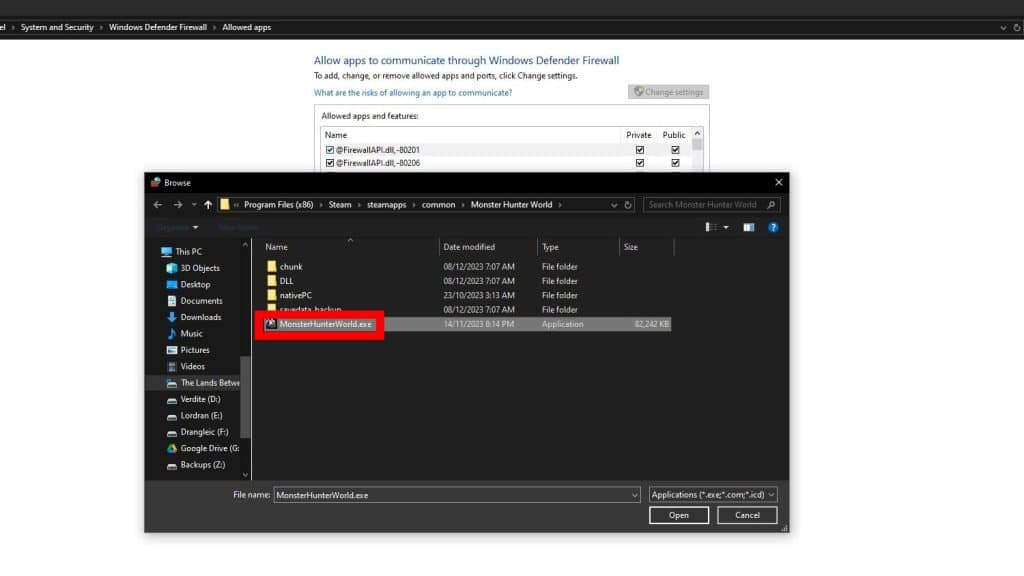
You’ll now need to find the game’s installation folder and select “MonsterHunterWorld.exe”.
If you’re not sure where you installed Monster Hunter: World, you can use Steam to find the game’s installation folder.
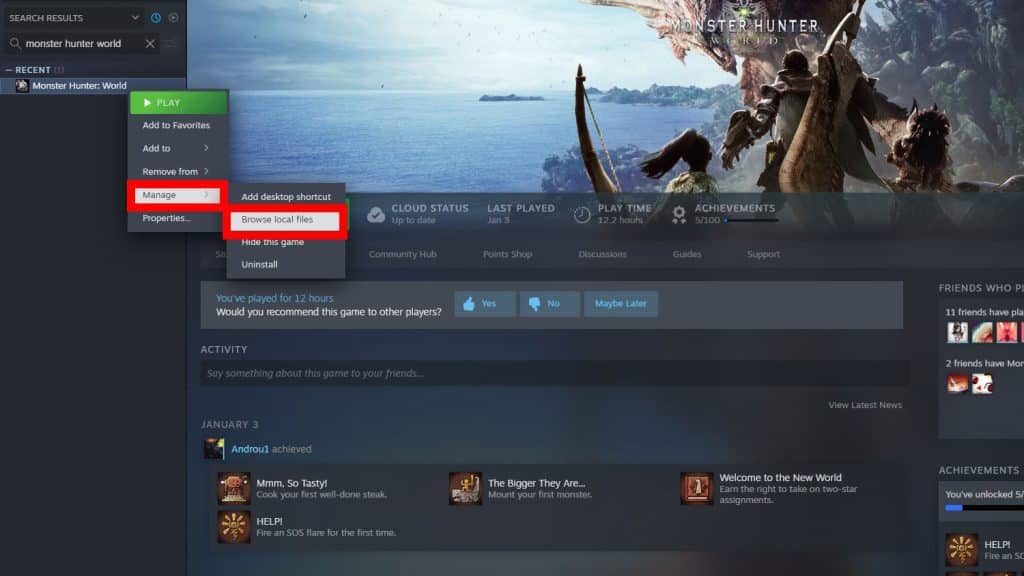
To do so, find MH:W in your Steam library, then right-click on it and select “Manage > Browse local files.”
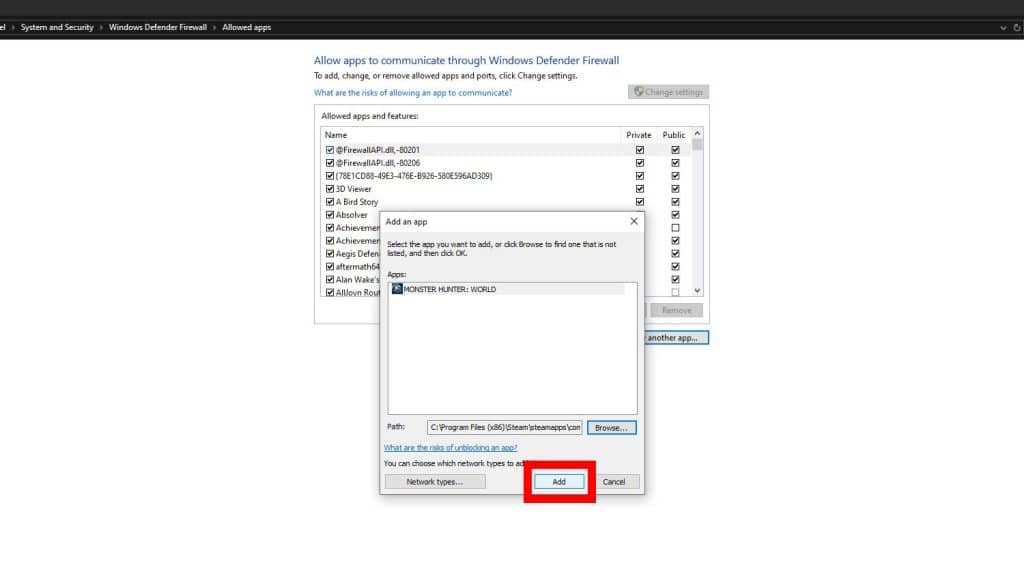
Once you’ve located and selected MH:W’s executable file, just click on “Add” and the Firewall exception will be made! Try launching the game now to see if it works.
Repair Windows
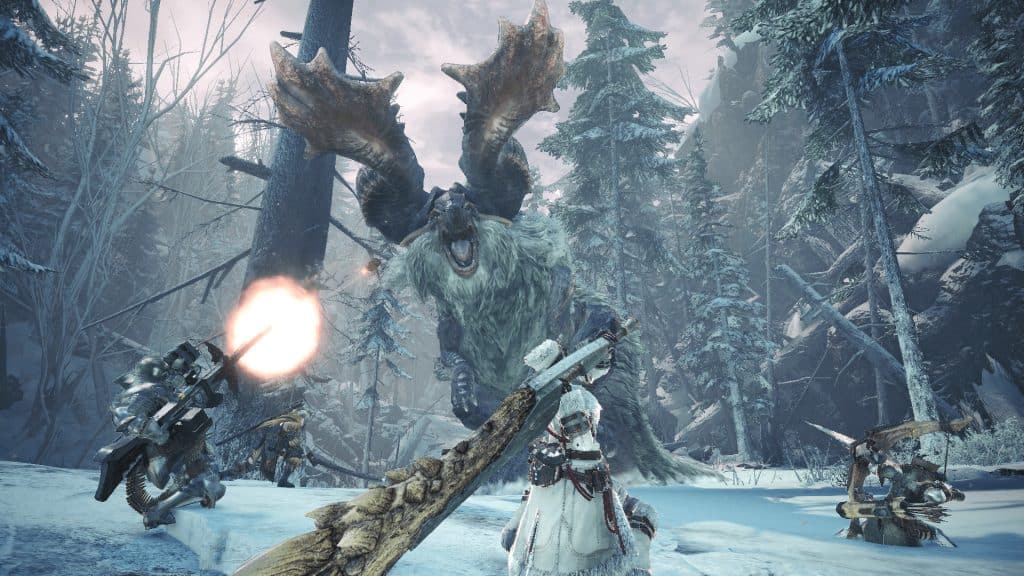
For some users, the various issues with Monster Hunter: World end up being due to corrupted Windows system files.
If nothing else so far on this article has worked for you, this might sadly be your case!
Some players have had to reinstall the Windows operating system from scratch to fix issues with Monster Hunter: World in extreme cases. Instead of doing that, though, we’ll just try to repair Windows first!
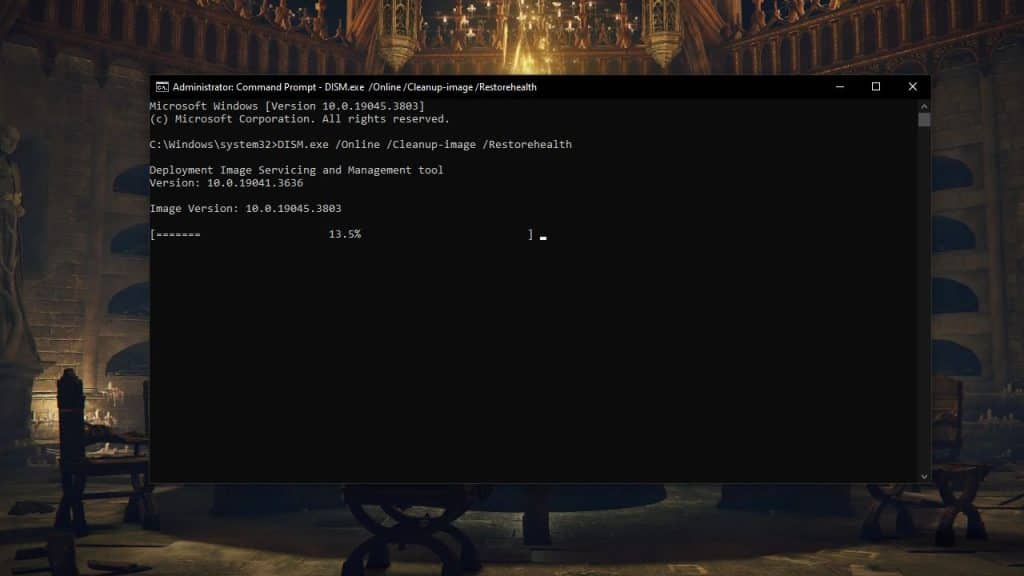
We’ll be using a pair of repair commands in the aptly-named Command Prompt.
Both of these commands will check the integrity of Windows system files and attempt to repair anything that’s corrupted.
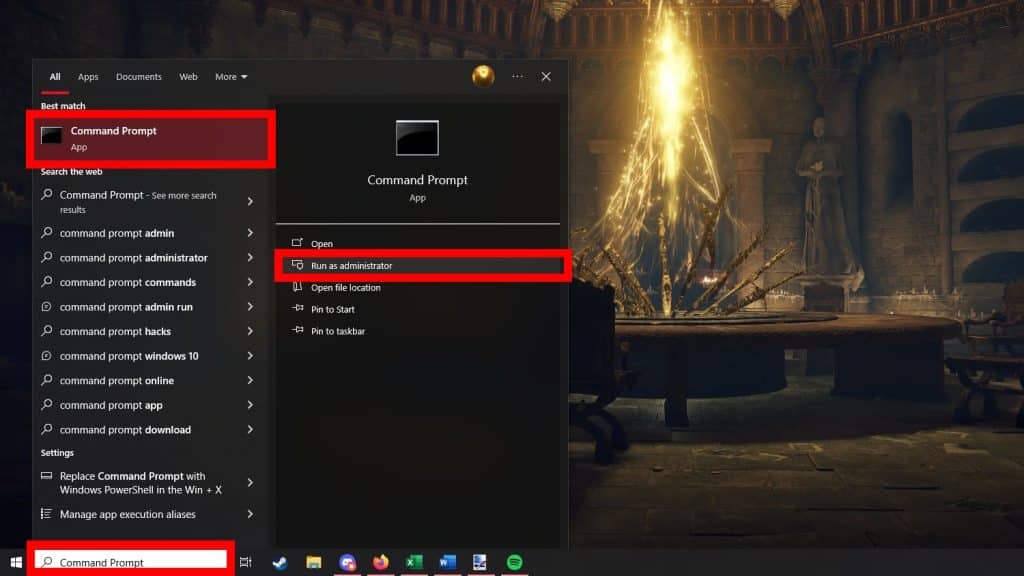
To start, search for “Command Prompt” in the Windows search bar and choose “Run as administrator” to open it. This is mandatory, as the commands we’re about to use won’t work without Administrator priviledges.
Anyway, input the following command into the Command Prompt: DISM.exe /Online /Cleanup-image /Restorehealth
Wait for it to finish (it can take a while!) and then type this second command: sfc /scannow
When you’re done running both of these commands, try launching Monster Hunter: World again. Hopefully, everything works as it should now!
ALSO READ: Monster Hunter World: Complete Guide to Farming Decorations