 9 articles
Escape from Tarkov is a tactical FPS multiplayer game set in the fictional region of Norvinsk, Russia. As two paramilitary organizations fight for supremacy, your task is to choose a side and eliminate your enemies in so-called raids.
Today, we’ll cover the best settings for EFT – Arena and give you the best optimization guide you can use for the best gaming experience. Without wasting any more time, let’s get to it!
Settings
To begin setting up your game for the best experience possible, you first need to head over to the Settings menu as indicated on the screenshot below.
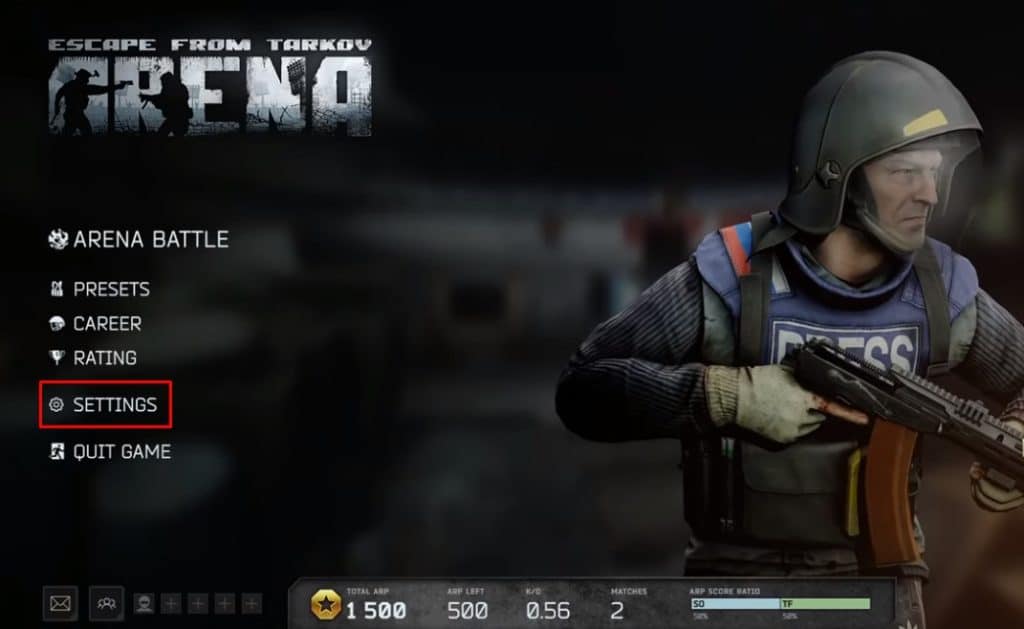
Once you’re there, you will see a multitude of options. Please note that most of these are down to personal preferences. For this article, we’ll use the ones that suit us the best at the time of writing this article.
 Escape From Tarkov Hitbox Guide/Armor ExplainedJan 17, 2024
 Escape From Tarkov Arena: Best CQB Tree Preset and End Game KitsDec 29, 2023
 Escape From Tarkov: Arena – Beginner’s Guide & Top TipsDec 22, 2023
What we like to do is set the Quick Slots on Autohide, Stamina is set to Always Shown. Same with the Health condition. Now coming over to your health color scheme, we like to use the Polychrome option. Lastly, you want the “highlight available operations” set to “everything” for max. efficiency. See the screenshot below for more details.
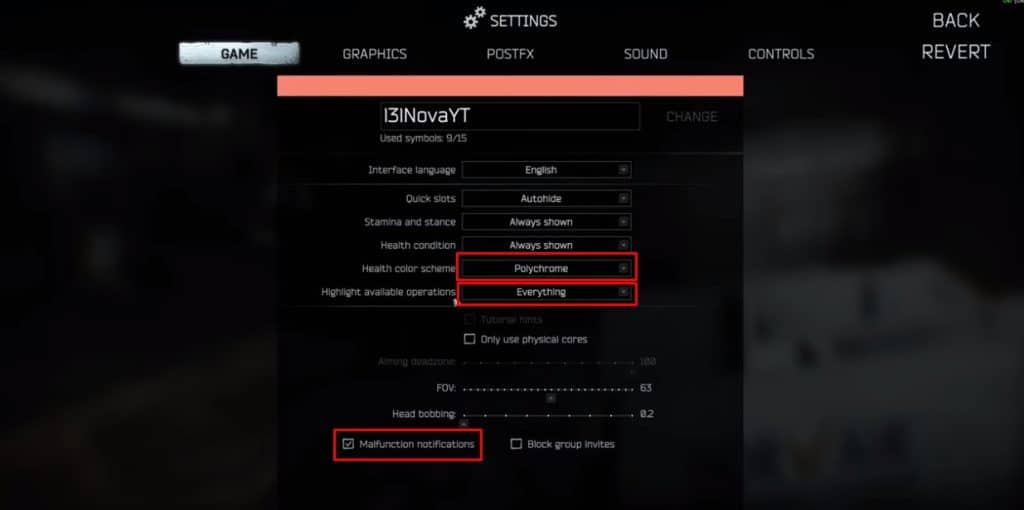
Additionally, you can untick the box where it says “only use physical cores”, set your FOV to exactly 63 (zoom), and finally, turn head bobbing to the lowest possible value. 0.2 in this case. These options are not mandatory, however, they will slightly improve your gameplay and will make for a more enjoyable experience.
Graphics
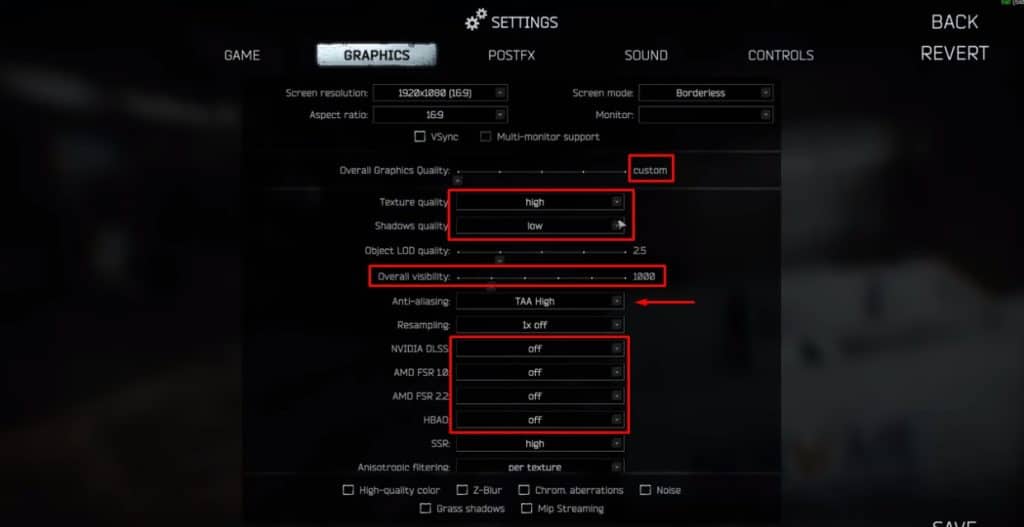
Coming over to the Graphics menu, there are multiple options that you need to select and set manually. We’ll cover each one step by step.
- Step 1 – note that this one is entirely up to personal preferences. The borderless option seems like a better choice than Fullscreen as FPS quality seems much smoother and dynamic. As such, we’ll leave the final decision to you.
- Step 2 – make sure to have your “Overall Graphics Quality” option set to Custom.
- Step 3 – depending on your rig, you want to adjust the texture and shadow quality accordingly. If your PC or laptop is not that powerful, we recommend turning it down to Medium or Low for the best experience.
- Step 4 – Object LOD quality set to 2.5 for proper rendering.
- Step 5 – Anti-aliasing set to TAA High.
- Step 6 – Resampling set to 1x off.
- Step 7 – the next 4 options you have to set to “off”. These are Nvidia DLSS, AMD FSR 1.0, AMD FSR 2.2, and HBAO.
- Step 8 – SSR set to high.
- Step 9 – anisotropic filter set to “per texture”.
- Step 10 – Nvidia RLL set to “off”.
- Step 11 – set both Lobby and Game FPS Limit to the max (60 and 144).
PostFX
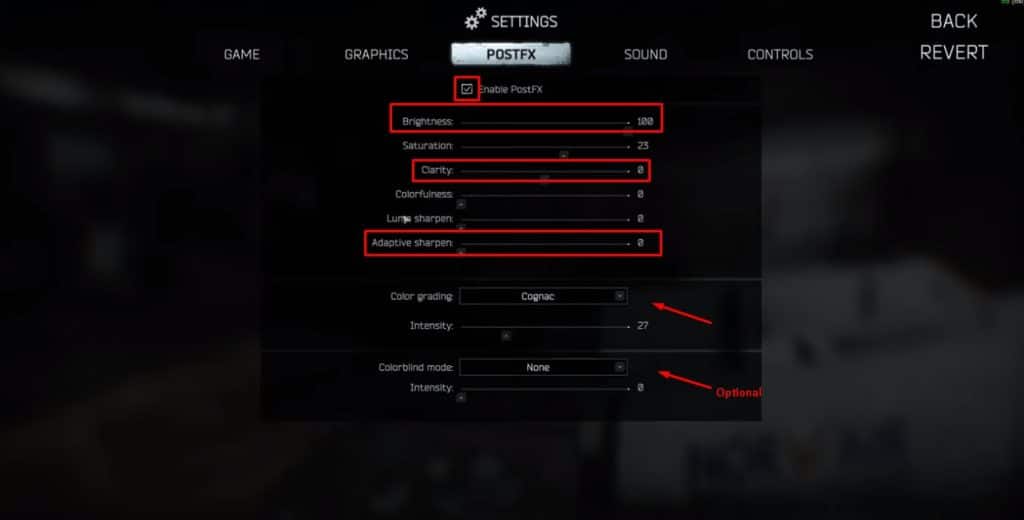
The PostFX settings are relatively simple. First things first. Enable the PostFX as indicated in the screenshot below.
We found that the best gaming experience is achieved when you set the brightness to 100 and saturation to 23, while the next 4 options are all set to 0. These include Clarity, Colorfulness, Luma sharpen, and Adaptive sharpen.
Finally, set the color grading to “Cognac” and adjust its intensity to 27.
Sound & Controls
Lastly, the Sound and Controls Settings menu is entirely optional. Here you simply have to select the options that suit your personal preference the best and as such make gaming more enjoyable for you.
We hope you enjoyed this guide and happy gaming from us at GamesFuze!
ALSO READ: Death Must Die: Best Gear Combo Guide